Users Module
Purpose
Manage individual user profiles with personal and professional information. Users are the foundation of the access control system - all permissions ultimately apply to users through their group memberships and role assignments.
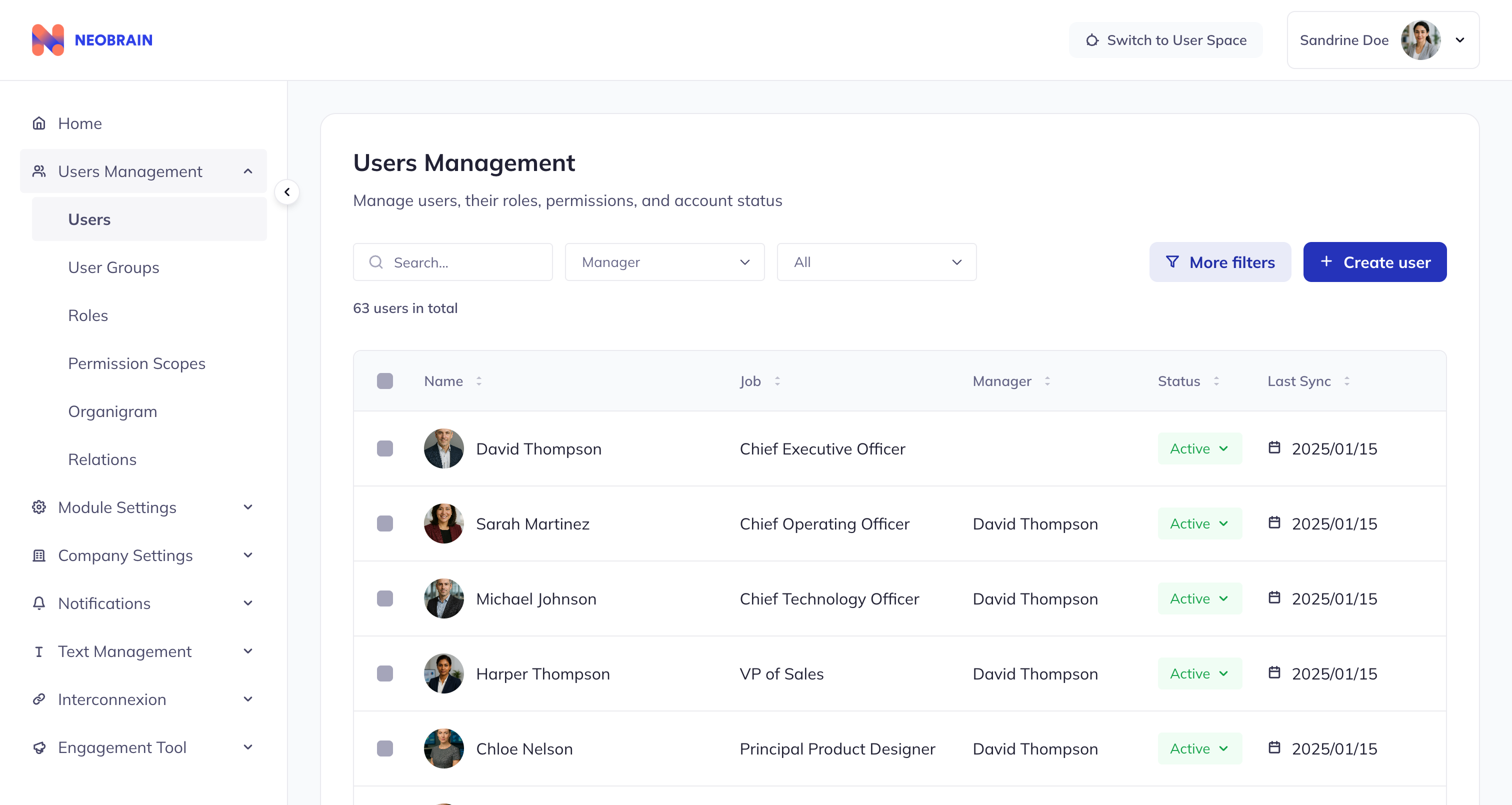 Users list view with search, filters, and sortable columns
User Profile Structure
Core Information
| Field | Type | Required | Description | Example |
|---|---|---|---|---|
id | string | Yes | Unique identifier | "user-001" |
firstName | string | Yes | First name | "Sophie" |
lastName | string | Yes | Last name | "Martin" |
email | string | Yes | Email address | "sophie.martin@company.com" |
jobTitle | string | Yes | Position/title | "Senior Developer" |
manager | string | Yes | Manager's name | "Jean Dupont" |
status | enum | Yes | Account status | "active" / "inactive" |
lastSync | string | Yes | Last data sync date | "2024-01-15" |
Optional Information
| Field | Type | Description | Example |
|---|---|---|---|
avatar | string | Profile picture URL | "https://..." |
companyEntryDate | string | Hire date | "2022-03-01" |
country | string | Location country | "France" |
city | string | Location city | "Paris" |
address | string | Full address | "123 Rue Example" |
birthdate | string | Date of birth | "1990-05-15" |
department | string | Department (derived from job title) | "Engineering" |
User Status Types
| Status | Description | Visual | Available Actions |
|---|---|---|---|
| Active | User has full platform access | Green badge | All operations |
| Inactive | User is disabled/suspended | Gray badge | View only, reactivation |
When to Set Status to Inactive
- Employee leaves the company
- Extended leave of absence (parental leave, sabbatical)
- Account suspended for security reasons
- Temporary contractor period ended
- Pending offboarding process
User Detail View
Profile Card (Left Panel)
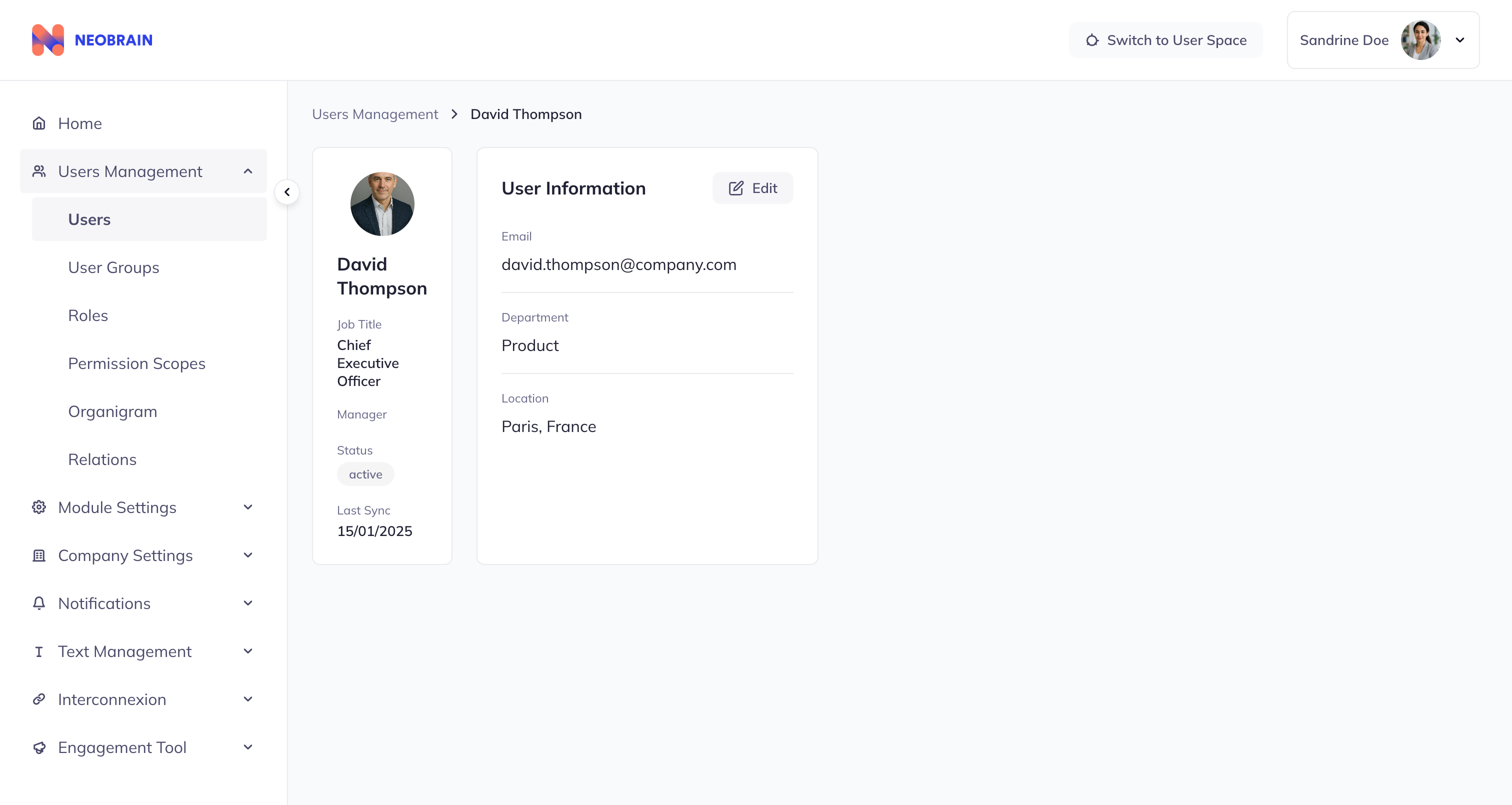 User detail view showing profile card and information sections
The profile card displays:
- Avatar or initials if no picture
- Full name (First + Last)
- Job title
- Manager name
- Status badge (Active/Inactive)
- Last sync date
Information Section (Right Panel)
Detailed information organized by category:
Personal Information:
- Email address
- Birthdate (if provided)
Professional Information:
- Job title
- Department (derived from job title)
- Company entry date
Location Information:
- Country
- City
- Address (if provided)
Hierarchy:
- Manager name and link
Manager Hierarchy
The manager field is critical for the N-1 permission system. It determines:
- Who can see this user with default N-1 scope
- Manager's direct reports list
- Team composition for reviews and objectives
Example Hierarchy
CEO: David Thompson (no manager)
├── VP Engineering: Michael Johnson (manager: David Thompson)
│   ├── Engineering Manager: Sarah Martinez (manager: Michael Johnson)
│   │   ├── Developer: Sophie Martin (manager: Sarah Martinez)
│   │   └── Developer: Thomas Bernard (manager: Sarah Martinez)
│   └── Tech Lead: James Brown (manager: Michael Johnson)
└── VP HR: Emily Wilson (manager: David Thompson)
    └── HR Manager: Marie Dupont (manager: Emily Wilson)
Impact of Manager Assignment
| Scenario | Impact on System |
|---|---|
| Manager correctly assigned | User visible in manager's N-1 view |
| Manager missing | User invisible in any N-1 view |
| Manager incorrect | User visible to wrong manager |
| Manager changed | User moves between N-1 views |
User Workflows
Workflow 1: View User Profile
- Navigate to Users module
- Search or browse for the user
- Click on user row to open detail view
- View all profile information
- Use breadcrumb navigation to return to list
Workflow 2: New Employee Onboarding
Step 1: Create User Profile
├── Enter first and last name
├── Set email address (follow naming convention)
├── Assign job title
├── Set correct manager
├── Set status: Active
└── Add location information

Step 2: Add to User Groups
├── Add to department group (e.g., "Engineering Team")
├── Add to location group (e.g., "Paris Office")
└── Add to function group (e.g., "Developers")

Step 3: Verify Access
├── Check user appears in manager's N-1 view
├── Verify inherited roles from groups
└── Confirm access to required features
Workflow 3: Employee Transfer (Department/Location Change)
Step 1: Update Profile
├── Update job title (if changed)
├── Update manager (new reporting line)
├── Update location (if moved)
└── Keep status: Active

Step 2: Group Membership Changes
├── If using manual groups: Remove from old, add to new
├── If using dynamic groups: Membership updates automatically
└── Verify role changes are appropriate

Step 3: Verify New Access
├── Check visibility in new manager's N-1 view
├── Verify correct group memberships
└── Confirm appropriate permissions
Workflow 4: Employee Departure
Step 1: Update Status
└── Set status: Inactive

Step 2: Clean Up Access (Important!)
├── Remove from all user groups
├── Remove any direct role assignments
└── Document departure date

Step 3: Keep for Records
├── Profile remains in system for audit purposes
├── Historical data preserved (reviews, objectives)
└── Can be reactivated if employee returns
Workflow 5: Manager Promotion
Step 1: Update Profile
├── Update job title (e.g., "Developer" → "Engineering Manager")
└── Verify manager field (who they report to)

Step 2: Group Membership
├── Dynamic groups: May auto-add to management groups
├── Manual groups: Add to "All People Managers" group
└── Verify inherited manager roles

Step 3: Direct Reports
├── Reassign employees to report to new manager
├── Verify new manager sees direct reports in N-1 view
└── Update team objectives and reviews as needed
Best Practices
DO: Keep Information Updated
Good Example:
User: Sophie Martin
├── Email: sophie.martin@company.com ✓
├── Job Title: Senior Software Engineer ✓
├── Manager: Sarah Martinez (Engineering Manager) ✓
├── Status: Active ✓
├── Location: Paris, France ✓
└── Last Sync: January 15, 2024 ✓
DO: Use Consistent Email Naming
Good Pattern:
├── sophie.martin@company.com
├── thomas.bernard@company.com
├── marie.dupont@company.com
└── Consistent format: firstname.lastname@domain

Bad Pattern:
├── SophieM@company.com
├── t.bernard@COMPANY.COM
├── marie123@company.com
└── Inconsistent formats create confusion
DO: Set Correct Manager Immediately
New Hire: Thomas Bernard
├── Manager: Sarah Martinez (correct) ✓
└── Result: Visible in Sarah's N-1 view immediately

New Hire: Thomas Bernard
├── Manager: (empty) ✗
└── Result: Not visible in any manager's N-1 view
DON'T: Leave Inactive Users with Roles
Problem:
User: Former Employee
├── Status: Inactive
├── Role: Administrator ← Security risk!
└── Groups: Finance Team ← Confuses member counts

Solution:
User: Former Employee
├── Status: Inactive
├── Roles: (none) ← All removed
└── Groups: (none) ← All removed
DON'T: Use Generic Information
Bad:
├── Email: user1@company.com
├── Job Title: Employee
└── Manager: (empty)

Good:
├── Email: firstname.lastname@company.com
├── Job Title: Software Engineer II
└── Manager: Engineering Team Lead
Integration with Other Modules
| Module | Relationship | Description |
|---|---|---|
| User Groups | Users are members | Users belong to groups manually or via dynamic rules |
| Roles | Users inherit roles | Users gain roles through group membership |
| Permission Scopes | Users are in populations | Users can be included in scope visibility populations |
| Reviews | Users are participants | Users are targets or evaluators in review campaigns |
Organizational Structure Example
The system supports complex organizational structures:
GlobalTech Corporation (60+ employees)

Executive Team:
├── CEO: David Thompson
├── CTO: Michael Johnson
├── COO: Sarah Martinez
└── VP Sales: Harper Thompson

Engineering Division:
├── VP Engineering: Michael Johnson
│   ├── Backend Team (4)
│   ├── Frontend Team (4)
│   ├── DevOps Team (4)
│   └── QA Team (5)

Operations Division:
├── HR Team (4)
├── Product Management (2)
├── Design Team (3)
└── Customer Success (1)

Regional Distribution:
├── San Francisco HQ (27)
├── Other US Locations (10)
├── EMEA Region (8)
└── APAC Region (3)
Navigation
- Previous: Core Concepts
- Next: User Groups Module
- Back to: Documentation Index