User Groups Module
Purpose
Organize users into logical collections for bulk role assignment and simplified management. User Groups are essential for scaling access control beyond individual user management and enable powerful automation through dynamic membership rules.
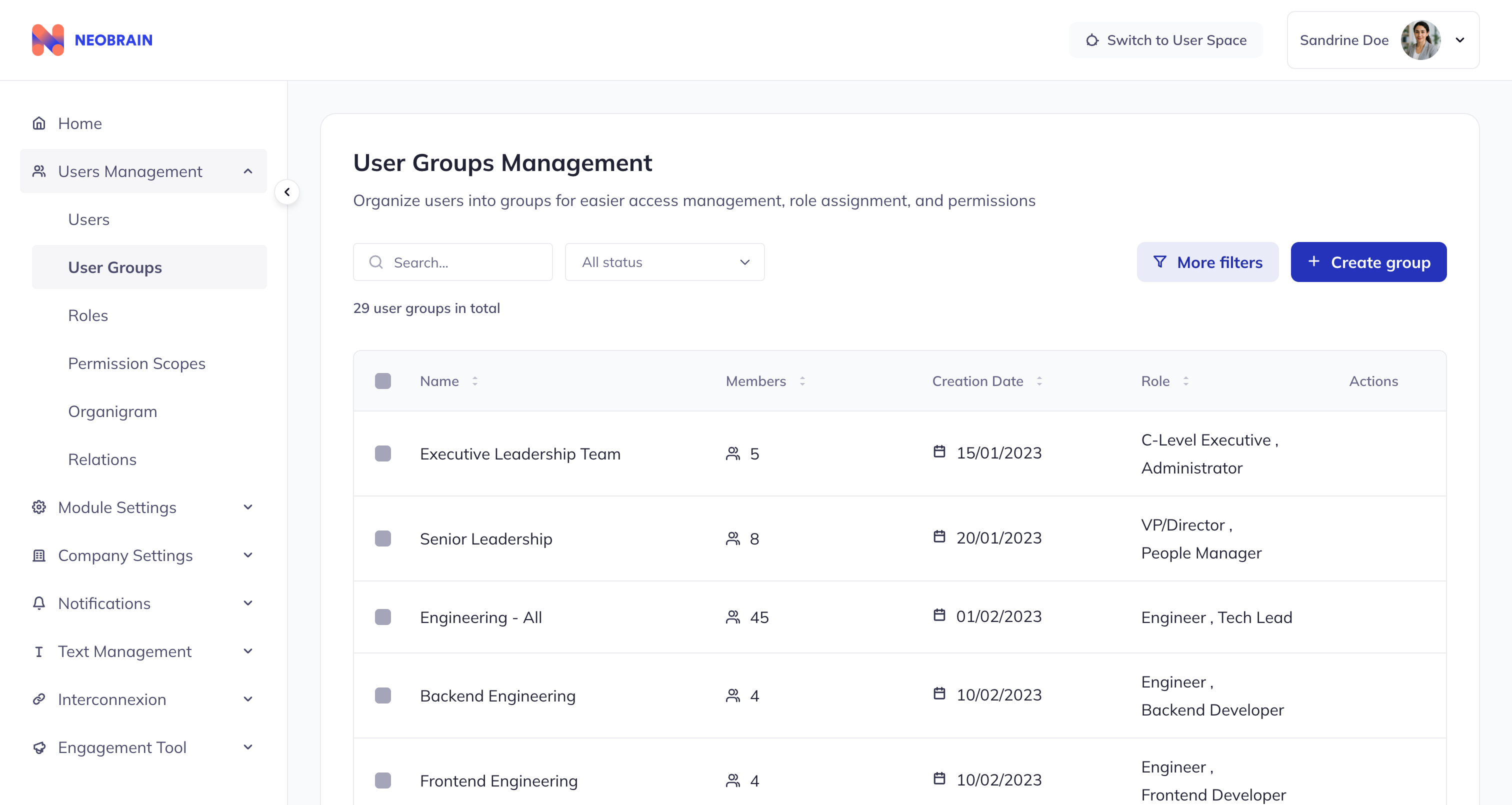 User Groups list view with member counts and role assignments
User Group Data Structure
| Field | Type | Required | Description | Example |
|---|---|---|---|---|
id | number | Yes | Unique identifier | 1 |
name | LocalizedString | Yes | Localized name | { en: "Dev Team", fr: "Équipe Dev" } |
members | number | Auto | Member count | 15 |
users | GroupUser[] | Auto | List of member users | [{id, username, avatar, memberType}] |
creationDate | string | Auto | Creation timestamp | "2024-01-15T10:00:00Z" |
roles | Role[] | No | Associated roles | [{id, titles}] |
dynamicRules | DynamicRule[] | No | Dynamic membership rules | [...] |
Key Features
1. Group List View
Toolbar Features:
- Search input (filter by group name or role names)
- Status dropdown filter
- "More filters" button
- "Create group" button (+)
Table Features:
- Sortable columns: Name, Members, Creation Date, Roles
- Checkbox selection for bulk actions
- Pagination (8 items per page)
- Hover delete button on each row
Bulk Action Bar:
- Appears when groups selected
- Available actions: Export, Delete
2. Group Detail View
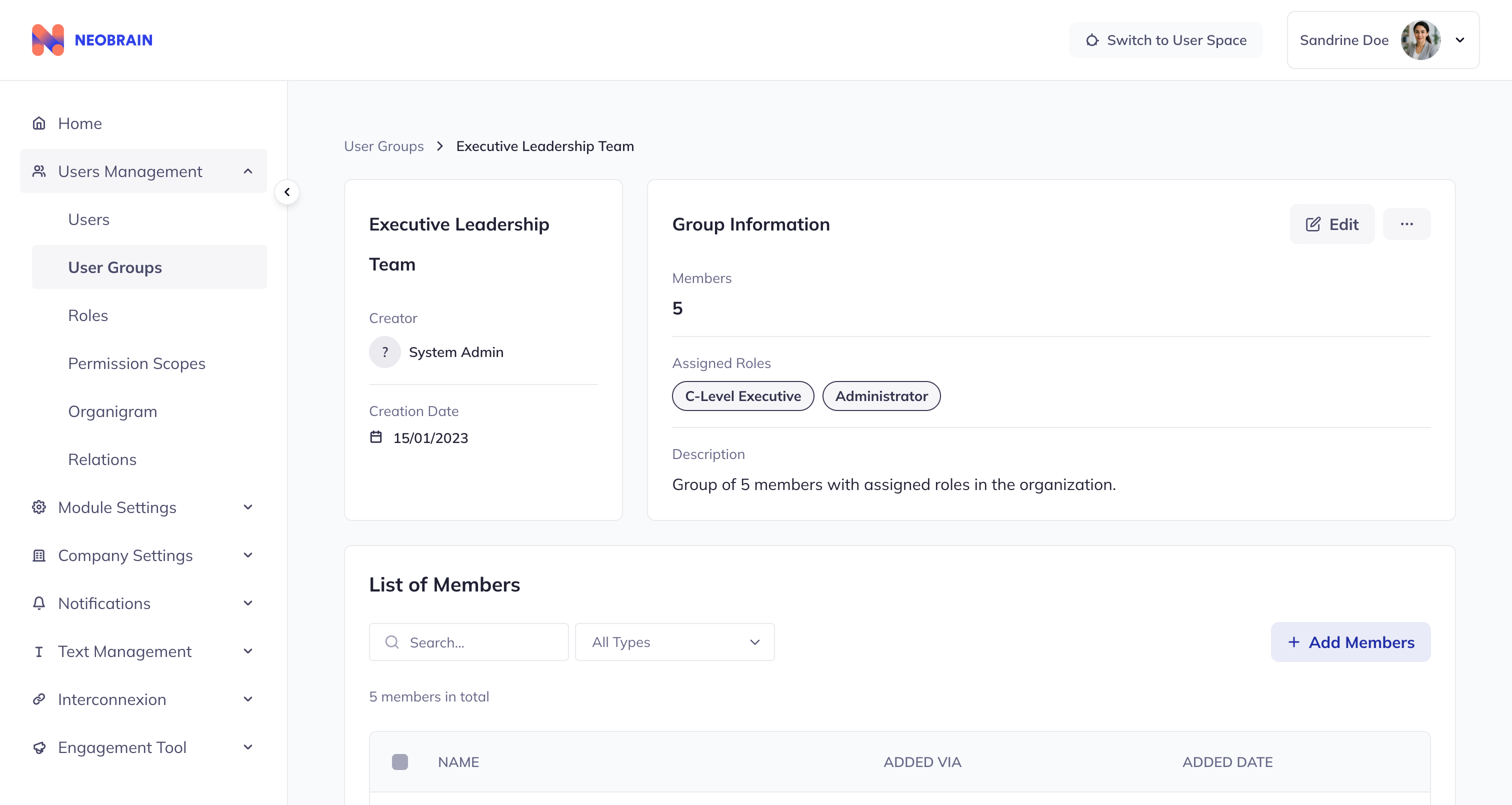 Group detail view showing overview, information, and population sections
Overview Card (Left):
- Group name
- Creator information
- Creation date
Information Card (Right):
- Member count with icon
- Description
- Edit mode toggle
Population Section:
- Member list with avatars
- Search members input
- Filter by Creation Type dropdown
- Add/remove members buttons
- Pagination for large populations
3. Group Creation Modal
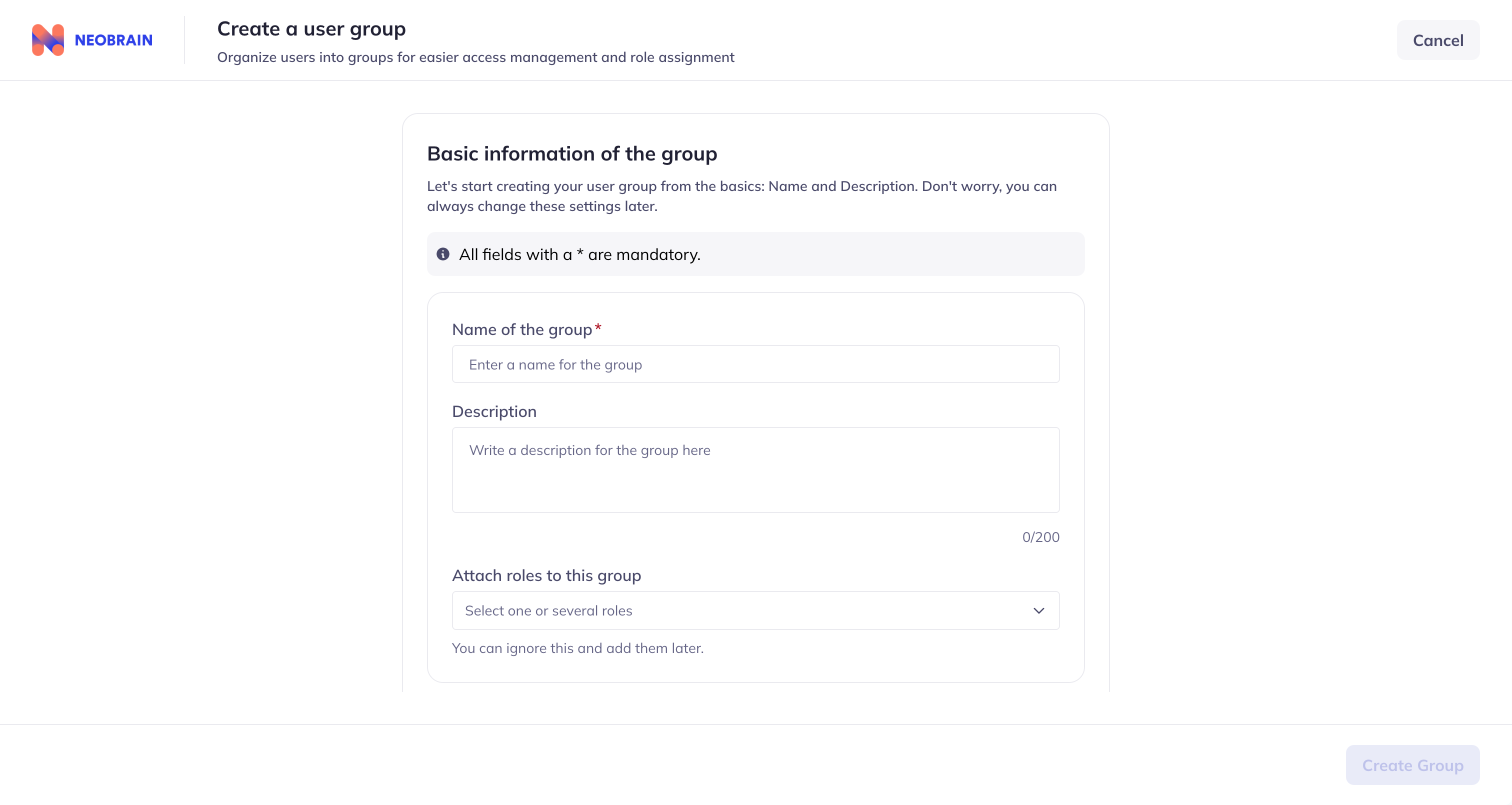 Create group modal with localized name fields and role assignment
Required Fields:
- Name (English required)
Optional Fields:
- Name (other languages: FR, DE, ES, IT, PT, NL, PL)
- Description
- Role selection
Actions:
- Cancel (with confirmation if unsaved changes)
- Create Group
Three Membership Types
Users can be added to groups through three different methods, each with distinct characteristics:
| Type | Icon | Description | Auto-Update | Use Case |
|---|---|---|---|---|
| Manual | Hand icon | Admin individually selects users | No | Specific team members, project teams |
| Dynamic | Sync arrows | Rule-based on user profile attributes | Yes | Department/location-based groups |
| Group | Users icon | Members inherited from another group | Yes | Nested grouping, composition |
Manual Selection
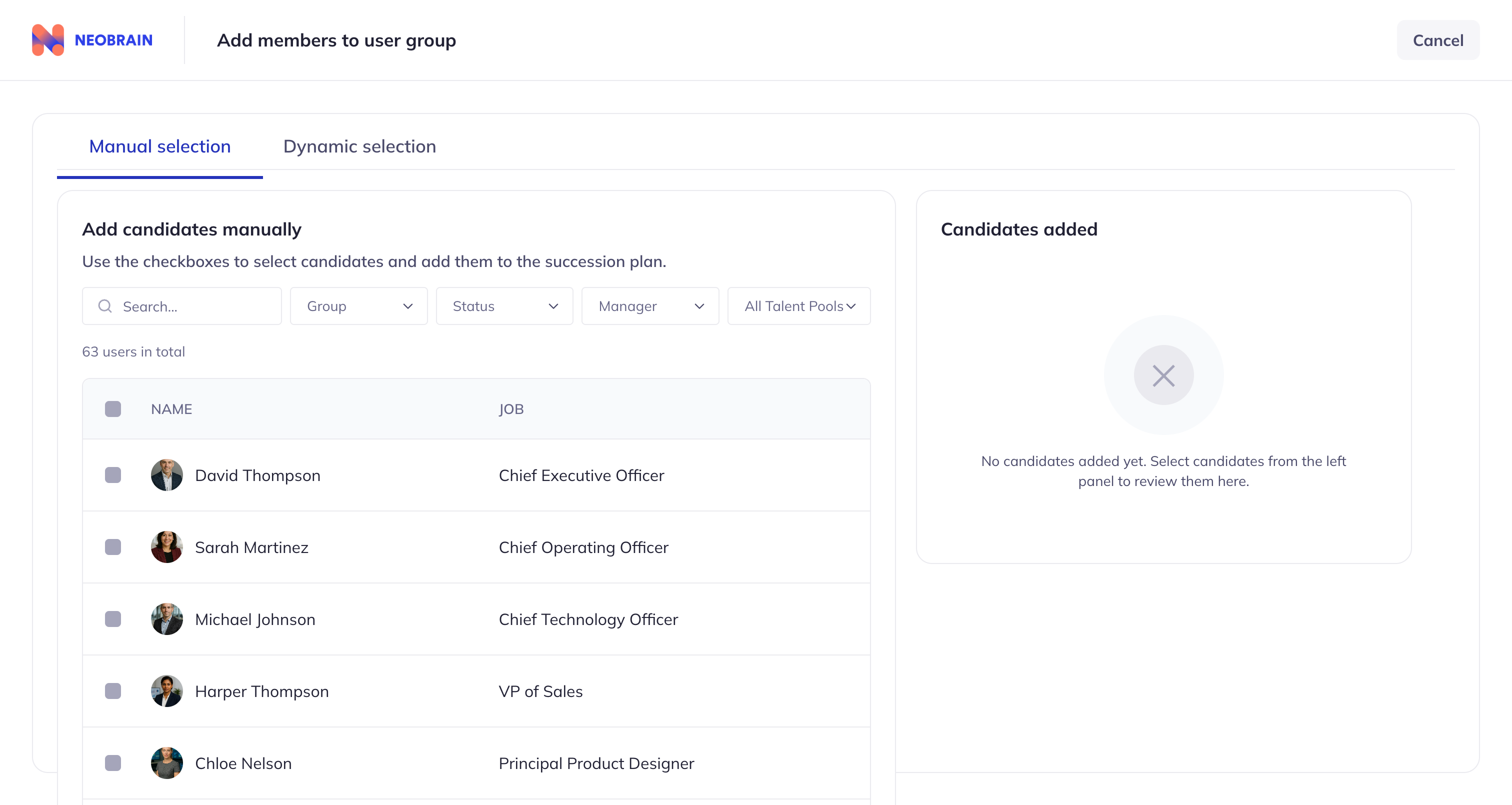 Manual member selection with search and individual user selection
Process:
- Click "Add Members" button
- Switch to "Manual" tab
- Search for users by name
- Check individual users to select
- Use "Select all" for current page
- Click "Confirm" to add selected users
Best For:
- Small, specific teams
- Cross-functional project groups
- Special access groups with deliberate membership
Dynamic Selection
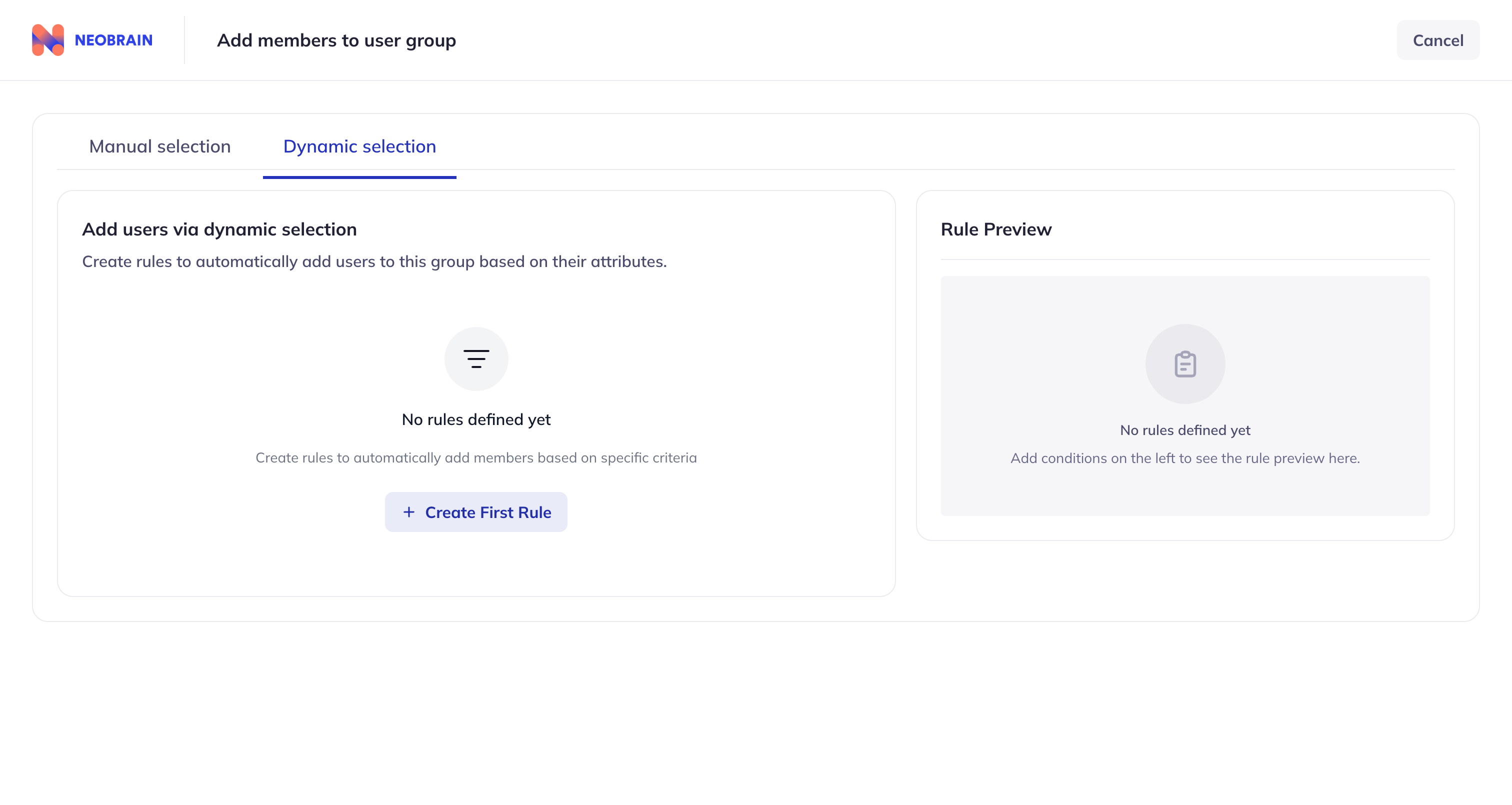 Dynamic member selection using rule-based criteria
How It Works:
- Click "Add Members" button
- Switch to "Dynamic" tab
- Define rules using profile attributes
- System automatically adds matching users
- Membership updates when user profiles change
Available Rule Fields:
| Field | Type | Example |
|---|---|---|
| Gender | Selection | Male, Female, Other |
| Name | Text | Contains "Smith" |
| Job Title | Text | Contains "Manager", "VP", "Director" |
| Department | Text | Equals "Engineering" |
| Status | Selection | Active, Inactive |
| Location | Text | Equals "Paris, France" |
| Manager | Reference | Reports to specific manager |
Operators:
| Operator | Description | Example |
|---|---|---|
= | Equals | Status = Active |
!= | Not equals | Department != Executive |
LIKE | Contains | Job LIKE Manager |
IN | In list | Location IN (Paris, London) |
NOT IN | Not in list | Department NOT IN (Executive) |
Rule Structure:
- Sections combined with OR
- Conditions within sections combined with AND or OR
- Nested conditions supported for complex logic
Example Dynamic Group:
Group: "Paris Office - All Employees"
Rules:
├── Section 1 (AND):
│   ├── Location = "Paris, France"
│   └── Status = "Active"
│
Result: 17 members automatically maintained

Group: "Paris Office - Managers"
Rules:
├── Section 1 (AND):
│   ├── Location = "Paris, France"
│   ├── Status = "Active"
│   └── Section 2 (OR):
│       ├── Job LIKE "Manager"
│       ├── Job LIKE "VP"
│       ├── Job LIKE "Director"
│       └── Job LIKE "CEO"
│
Result: 5 members automatically maintained
Group-Based
Process:
- Click "Add Members" button
- Switch to "From Group" tab
- Select source group(s)
- Members from source groups are added
- Membership updates when source groups change
Best For:
- Composing groups from existing groups
- Creating super-groups (e.g., "All Engineering" from Backend + Frontend + DevOps)
- Nested organizational structures
Role Association
Groups can have zero or more roles attached:
| Event | Result |
|---|---|
| User joins group | User gains all roles attached to the group |
| User leaves group | User loses roles (if not from another source) |
| Role added to group | All current members gain the role |
| Role removed from group | All members lose that role (if not from another source) |
Example:
Group: "Paris Office - All Employees"
Roles: Employee, Paris Office Access, France Benefits

When Sophie joins this group:
├── Sophie gains: Employee role
├── Sophie gains: Paris Office Access role
└── Sophie gains: France Benefits role

When Sophie leaves this group:
├── If Sophie has these roles from another group: No change
└── If these roles were only from this group: All three revoked
Group Workflows
Workflow 1: Create a Department Group
Step 1: Create the Group
├── Click "Create group" button
├── Enter name: "Engineering Team" (required)
├── Add French: "Équipe d'Ingénierie" (optional)
├── Add description: "All engineering department members"
└── Click "Create Group"

Step 2: Add Members
├── Click "Add Members"
├── Choose method (Manual or Dynamic)
├── For Dynamic: Set rules based on department
├── For Manual: Search and select engineers
└── Confirm selection

Step 3: Assign Roles
├── Go to group detail
├── Click "Add Role" or go to Roles module
├── Select relevant roles (e.g., "Engineer", "Code Repository Access")
└── Confirm assignment

Step 4: Verify
├── Check member count is correct
├── Verify role assignments
├── Test a member's access
Workflow 2: Create a Dynamic Location Group
Step 1: Create Group
├── Name: "Paris Office - Active"
├── Description: "All active employees in Paris office"
└── Create

Step 2: Add Dynamic Rules
├── Click "Add Members" → Dynamic tab
├── Add condition: Location = "Paris, France"
├── Add condition: Status = "Active"
├── Set operator: AND
└── Confirm

Step 3: Assign Location Roles
├── Add role: "Paris Office Access"
├── Add role: "France Benefits"
└── Verify all Paris employees gained these roles

Result: Group automatically maintains membership
as employees join/leave Paris or change status
Workflow 3: View and Filter Group Members
Step 1: Open Group Detail
├── Navigate to User Groups
├── Search for group
└── Click to open detail view

Step 2: View Population
├── See member count and list
├── Each member shows:
│   ├── Avatar
│   ├── Name
│   ├── Member Type icon (Manual/Dynamic/Group)
│   └── Date added

Step 3: Filter by Type
├── Click "Creation Type" dropdown
├── Select: Manual, Dynamic, or Group
└── View only members of that type

Step 4: Search Members
├── Use search input
├── Filter by name
└── Find specific members quickly
Workflow 4: Bulk Delete Groups
Step 1: Select Groups
├── Check boxes on groups to delete
├── Or use "Select All" for current page
└── Count shows in bulk action bar

Step 2: Delete
├── Click "Delete" in bulk action bar
├── Confirmation modal appears
├── Lists affected groups and member counts
└── Confirm deletion

Step 3: Verify
├── Groups removed from list
├── Members retain other group memberships
├── Roles from deleted groups are revoked
Pre-configured Group Examples
The system includes 31 pre-configured groups organized by category:
Executive & Leadership
| Group | Members | Roles |
|---|---|---|
| Executive Leadership Team | 5 | C-Level Executive, Administrator |
| Senior Leadership | 8 | VP/Director, People Manager |
Technology Division
| Group | Members | Roles |
|---|---|---|
| Engineering - All | 45 | Engineer |
| Backend Engineering | 4 | Backend Developer |
| Frontend Engineering | 4 | Frontend Developer |
| DevOps & Infrastructure | 4 | DevOps Specialist |
| Platform & Architecture | 8 | Staff/Principal Engineer |
| Quality Assurance | 5 | QA Specialist |
| Security Team | 4 | Security Specialist |
| Data Engineering | 2 | Data Specialist |
| Mobile Development | 3 | Engineer |
| AI/ML Team | 3 | Engineer |
Cross-Functional
| Group | Members | Roles |
|---|---|---|
| All People Managers | 22 | People Manager |
| Product Development | 50 | Various |
Regional
| Group | Members | Roles |
|---|---|---|
| US - San Francisco HQ | 27 | US Office Access |
| US - Other Locations | 10 | US Office Access |
| EMEA Region | 8 | EMEA Access |
| APAC Region | 3 | APAC Access |
Dynamic Groups (Auto-populated)
| Group | Members | Rules |
|---|---|---|
| Paris Office - All Employees | 17 | Location = "Paris, France" AND Status = "Active" |
| Paris Office - Managers | 5 | Location = "Paris, France" AND Status = "Active" AND (Job LIKE "Manager" OR "VP" OR "Director") |
Best Practices
DO: Use Clear, Descriptive Names
Good Examples:
├── "France - Engineering Team"
├── "EMEA Sales Department"
├── "Paris Office - All Staff"
├── "Project Phoenix - Core Team"
└── Clear, findable, purposeful

Bad Examples:
├── "Group1"
├── "New Group"
├── "Copy of Team"
├── "Test"
└── Unclear, hard to find, no purpose indicated
DO: Use Localization
Good:
name: {
  en: "HR Team",
  fr: "Équipe RH"
}
// French-speaking users see French name

Bad:
name: {
  en: "HR Team"
  // Missing French for French-speaking users
}
DO: Keep Groups Appropriately Sized
Recommended sizes by purpose:
├── Small team: 5-15 members
├── Department: 15-50 members
├── Division: 50-200 members
├── Regional: 100-500 members

Avoid:
├── 1-2 members (use direct role assignment instead)
├── 1000+ members (too broad, hard to manage)
DO: Prefer Dynamic Rules for Organizational Groups
Good:
Group: "Engineering Department"
Method: Dynamic
Rule: Department = "Engineering" AND Status = "Active"
├── Auto-updates when employees join/leave
├── No manual maintenance needed
└── Always accurate

Bad:
Group: "Engineering Department"
Method: Manual
├── Requires manual updates for each change
├── Easily becomes stale
└── Risk of forgotten members
DON'T: Create Duplicate Groups
Problem:
├── "Sales Team"
├── "Sales Team (copy)"
├── "Sales Team - New"
├── "Sales Team - Updated"
└── Confusion about which is authoritative

Solution:
├── One "Sales Team" group
├── Update it when needed
├── Delete unused copies
DON'T: Assign Overly Broad Roles
Problem:
Group: "All Employees"
Roles:
├── Administrator ← Too powerful for everyone!
├── HR Manager ← Not everyone needs HR access
└── Finance Manager ← Sensitive data exposure

Solution:
Group: "All Employees"
Roles:
├── Employee (basic access only)
└── Let other groups provide additional roles
DON'T: Leave Abandoned Groups
Problem:
Group: "Q3 2022 Initiative"
Members: 0 users (all removed/departed)
Roles: 3 assigned (stale)
Last updated: 18 months ago

Solution:
├── Regular cleanup reviews (monthly/quarterly)
├── Delete or archive obsolete groups
├── Remove roles from empty groups
Integration with Other Modules
| Module | Interaction |
|---|---|
| Users | Users are added as group members |
| Roles | Roles are assigned to groups; all members inherit the role |
| Permission Scopes | Groups can be referenced in scope populations |
Navigation
- Previous: Users Module
- Next: Roles Module
- Back to: Documentation Index