Permission Scopes Module
Purpose
Define populations of users that extend permission visibility beyond the default N-1 hierarchical scope. Permission Scopes (also called Visibility Groups) are the key mechanism for allowing users to see and act on employees outside their direct reporting line.
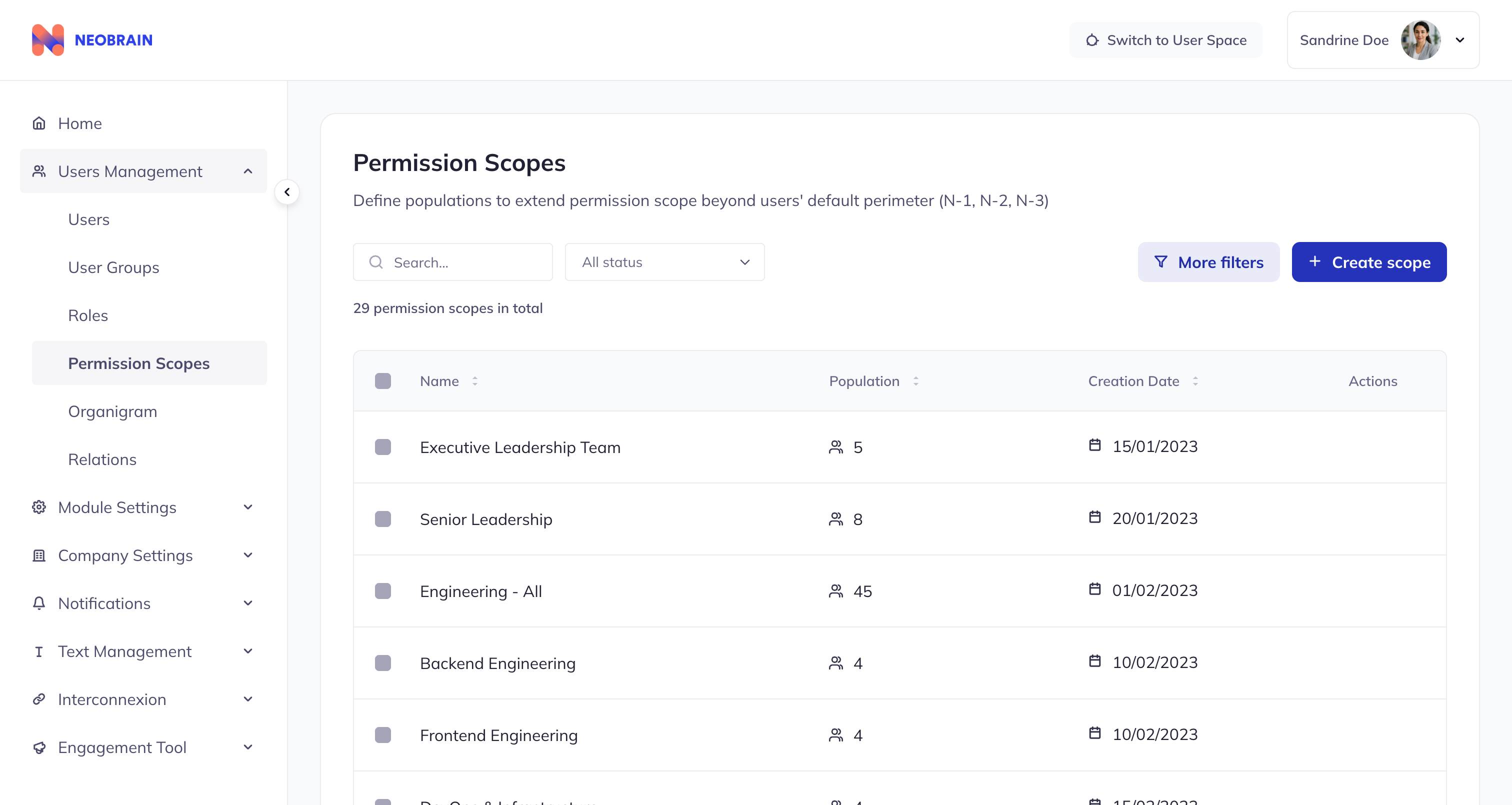 Permission Scopes list view for managing visibility populations
The Problem Permission Scopes Solve
Default N-1 Limitation
Without scopes, permissions only apply to direct reports:
Scenario: HR Business Partner
├── Job: Support Engineering department (50 people)
├── Direct Reports: 2 HR team members
├── Permission: "Read user information" (N-1 scope)
│
├── Can see: 2 direct reports
└── Cannot see: 50 Engineering employees she supports
│
└── Problem: Cannot do her job!
The Solution: Permission Scopes
Create scope: "Engineering Department"
├── Population: 50 Engineering employees
└── Assign to HR BP's "Read user information" permission

Result:
├── HR BP can now see all 50 Engineering employees
├── Still sees her 2 direct reports
└── Does NOT see other departments (Finance, Sales, etc.)
└── Can now do her job effectively
Permission Scope Data Structure
| Field | Type | Required | Description | Example |
|---|---|---|---|---|
id | number | Yes | Unique identifier | 1 |
name | LocalizedString | Yes | Localized name | { en: "HR Department", fr: "Département RH" } |
members | number | Auto | Population count | 15 |
users | GroupUser[] | Auto | Users in scope | [{id, username, avatar}] |
creationDate | string | Auto | Creation timestamp | "2024-01-15T10:00:00Z" |
roles | Role[] | Link | Roles using this scope | [{id, titles}] |
Visual Comparison
Without Scope (Default N-1)
┌─────────────────────────────────────┐
│ HR Business Partner sees:           │
│   ├── Direct Report 1               │
│   └── Direct Report 2               │
│                                      │
│ Cannot see:                          │
│   ├── Engineering (50 people)       │
│   ├── Product (15 people)           │
│   └── Other departments             │
└─────────────────────────────────────┘
With "Engineering Department" Scope
┌─────────────────────────────────────┐
│ HR Business Partner sees:           │
│   ├── Direct Report 1               │
│   ├── Direct Report 2               │
│   └── All 50 Engineering employees  │
│                                      │
│ Still cannot see:                    │
│   ├── Product (15 people)           │
│   └── Other departments             │
│                                      │
│ Extended visibility via scope       │
└─────────────────────────────────────┘
Key Features
1. Scope List View
Toolbar Features:
- Search input (filter by scope name)
- Status dropdown filter
- "More filters" button
- "Create scope" button (+)
- Description: "Define populations to extend permission scope beyond users' default perimeter (N-1, N-2, N-3)"
Table Features:
- Sortable columns: Name, Members, Creation Date
- Checkbox selection for bulk actions
- Pagination (8 items per page)
- Hover delete button on each row
2. Scope Detail View
Overview Card (Left):
- Scope name
- Creator information
- Creation date
Information Card (Right):
- Member count with icon
- Description
- Edit mode toggle
Population Section:
- Member list with avatars
- Search members input
- Filter by Creation Type dropdown
- Add/remove members buttons
- Pagination for large populations
3. Scope Creation
Required Fields:
- Name (English required)
Optional Fields:
- Name (other languages)
- Description
After Creation:
- Add population (users who will be visible)
- Link to permissions in Roles module
Population Management
Members can be added via the same methods as User Groups:
| Type | Description | Auto-Update | Best For |
|---|---|---|---|
| Manual | Hand-pick individual users | No | Specific individuals |
| Dynamic | Rule-based automatic | Yes | Department/location-based |
| Group | Reference another group | Yes | Reusing existing groups |
Understanding Population vs Permission Assignment
POPULATION (in Permission Scope):
├── The users who are VISIBLE when this scope is used
├── e.g., "Engineering Department" scope contains 50 engineers
└── These are the people who CAN BE SEEN

PERMISSION ASSIGNMENT (in Roles):
├── Which permissions use this scope
├── e.g., "Read user information" permission uses this scope
└── This determines WHAT ACTIONS can be taken

Combined effect:
├── HR BP has "Read user information" with "Engineering Dept" scope
├── HR BP can see the 50 engineers defined in the scope population
└── HR BP can read user information for those 50 engineers
Scope Categories and Examples
Geographic Scopes
| Scope | Population | Purpose |
|---|---|---|
| "EMEA Region" | 500 users | All employees in Europe, Middle East, Africa |
| "France" | 200 users | All French employees |
| "Paris Office" | 50 users | Paris office only |
Departmental Scopes
| Scope | Population | Purpose |
|---|---|---|
| "Engineering Department" | 45 users | All engineering staff |
| "HR Department" | 15 users | All HR staff |
| "Finance Department" | 12 users | All finance staff |
Project Scopes
| Scope | Population | Purpose |
|---|---|---|
| "Project Phoenix Team" | 15 users | Cross-functional project members |
| "2024 Strategic Initiative" | 25 users | Initiative participants |
Scope Workflows
Workflow 1: Create a Department Scope
Step 1: Create the Scope
├── Click "Create scope"
├── Name: "Engineering Department"
├── Name (FR): "Département d'Ingénierie"
├── Description: "All engineering team members"
└── Click "Create"

Step 2: Add Population
├── Click "Add Members"
├── Choose Dynamic tab
├── Add rule: Department = "Engineering"
├── Add rule: Status = "Active"
├── Operator: AND
└── Confirm

Step 3: Link to Permissions (in Roles module)
├── Open HR Business Partner role
├── Find "Read user information" permission
├── Click Scope button
├── Add "Engineering Department" scope
└── Confirm

Result: HR BP can now view Engineering employees
Workflow 2: Create a Regional Scope
Step 1: Create Scope
├── Name: "EMEA Region"
├── Description: "All employees in EMEA geography"
└── Create

Step 2: Add Population (multiple methods)
├── Dynamic: Location IN ("Paris", "London", "Berlin", "Madrid")
├── Or: Group-based from existing regional groups
├── Or: Manual addition for edge cases
└── Combine as needed

Step 3: Assign to Roles
├── EMEA VP role: All management permissions
├── EMEA HR Director: HR permissions
├── EMEA Finance: Finance permissions
└── Each role's permissions now extend to EMEA population
Workflow 3: View and Manage Scope Population
Step 1: Open Scope Detail
├── Navigate to Permission Scopes
├── Search for scope
└── Click to open detail

Step 2: View Population
├── See member count
├── View member list with avatars
├── Each member shows:
│   ├── Name
│   ├── Member Type (Manual/Dynamic/Group)
│   └── Date added

Step 3: Filter and Search
├── Filter by Creation Type
├── Search by name
└── Navigate pages

Step 4: Modify Population
├── Add Members: Click "Add Members" button
├── Remove Members: Select and click "Remove"
└── Changes reflected immediately
Scope Hierarchy Strategy
Recommended Structure
Level 1: Global (rarely used)
└── "Global - All Employees"

Level 2: Regional
├── "EMEA Region"
├── "APAC Region"
└── "Americas Region"

Level 3: Country
├── "France"
├── "Germany"
├── "United Kingdom"
└── ...

Level 4: Department (cross-regional)
├── "Engineering Department"
├── "HR Department"
├── "Finance Department"
└── ...

Level 5: Team (most specific)
├── "Engineering - Frontend Team"
├── "HR - Recruiting Team"
├── "Finance - Payroll Team"
└── ...
Combining Multiple Scopes
A single permission can have multiple scopes assigned:
Role: "HR Business Partner"
Permission: "Read user information"
Scopes:
├── "France" (geographic)
└── "Engineering Department" (functional)

Effect: Can see French employees AND Engineering employees
(even if Engineering employees are not in France)
Best Practices
DO: Use Clear Geographic/Organizational Boundaries
Good scope hierarchy:
├── Geographic scopes:
│   ├── EMEA Region
│   ├── APAC Region
│   └── Americas Region
├── Country scopes:
│   ├── France
│   ├── Germany
│   └── United Kingdom
└── Department scopes:
    ├── Engineering
    ├── HR
    └── Finance
DO: Keep Scopes Reasonably Sized
Recommended sizes:
├── Team: 5-30 users
├── Department: 30-200 users
├── Region: 200-1000 users
└── Global: Use with extreme caution

Too small (1-5 users):
├── Consider direct permission assignment
└── Scope adds unnecessary complexity

Too large (5000+ users):
├── Defeats purpose of scoped access
└── Consider if everyone really needs access
DO: Name Scopes Consistently
Good naming patterns:
├── "[Region] - [Department]" → "EMEA - Engineering"
├── "[Location] - [Team]" → "Paris - Sales Team"
├── "[Function] Department" → "HR Department"
└── "Project [Name] Team" → "Project Phoenix Team"
DO: Review Scope Usage Regularly
Monthly review checklist:
├── Remove departed employees from populations
├── Add new team members as needed
├── Verify scope is still being used
├── Check which permissions reference the scope
├── Delete unused scopes
└── Update dynamic rules if criteria changed
DON'T: Create "Everyone" Scopes
Problem:
Scope: "All Users"
├── Population: 5000 users
├── Used by 50 permissions
└── Everyone sees everyone

Issues:
├── No access control (defeats purpose)
├── Privacy concerns
├── Performance impact
└── Impossible to audit

Solution:
├── Create specific scopes by function
├── Only include necessary users
├── Regular access reviews
DON'T: Duplicate Scopes
Problem:
├── "HR Department"
├── "HR Department (copy)"
├── "HR Team"
├── "HR - All"
└── Same 15 users in each

Issues:
├── Confusion about which to use
├── Inconsistent membership updates
├── Maintenance nightmare
└── Audit complexity

Solution:
├── One canonical scope per logical group
├── Clear naming convention
├── Delete duplicates
DON'T: Create Scopes for Temporary Needs
Problem:
├── "Q1 2024 Project Team"
├── "Summer Interns 2024"
├── "Temp Contractors March"
└── 50+ dated scopes

Issues:
├── Scopes become stale
├── Never cleaned up
└── List becomes unusable

Solution:
├── Reusable scope names: "Project Teams", "Current Interns"
├── Update membership, not create new scopes
├── Set calendar reminders to clean up
Scope Examples
Good Example: Department Scope
Name: { en: "Engineering Team", fr: "Équipe Engineering" }
Population: 45 users
├── All developers (30)
├── All QA engineers (8)
├── All DevOps engineers (5)
└── Engineering management (2)

Used by:
├── HR Business Partner role → "Read user information"
├── Recruiting Manager role → "Read user skills"
└── Facilities Manager role → "Read user information"

Purpose: Allow non-Engineering staff to view Engineering employees
when their job function requires it
Good Example: Regional Scope
Name: { en: "EMEA Region", fr: "Région EMEA" }
Population: 500 users
├── All employees in Europe
├── All employees in Middle East
└── All employees in Africa

Used by:
├── EMEA VP role → All management permissions
├── EMEA HR Director role → HR permissions
└── EMEA Finance Controller role → Finance permissions

Purpose: Allow regional leadership to manage their geography
Good Example: Cross-Functional Project Scope
Name: { en: "Project Phoenix Team" }
Population: 15 users
├── 5 from Engineering
├── 4 from Product
├── 3 from Design
└── 3 from Marketing

Used by:
├── Project Manager role → "Read objectives", "Update objectives"
└── Project Viewer role → "Read objectives"

Purpose: Project team members can see each other's objectives
regardless of department
Bad Example: Overly Broad Scope
Name: { en: "Everyone Everywhere" }
Population: 5000 users (entire company)
Used by: 50+ permissions

Problems:
├── No access control
├── Everyone sees everyone
├── Privacy violations
├── Defeats RBAC purpose
└── Should be deleted
Bad Example: Abandoned Scope
Name: { en: "2022 Hackathon Participants" }
Population: 0 users (all removed)
Created: 2 years ago
Used by: 0 permissions

Problems:
├── Clutters scope list
├── Never cleaned up
├── Should be deleted
Integration with Roles
Assigning Scopes to Permissions
- Go to Roles module
- Open role detail
- Go to Permissions tab
- Click scope button on permission row
- Select visibility groups (scopes)
- Confirm selection
Viewing Scope Usage
From scope detail, you can see:
- Which roles reference this scope (if tracked)
- How many permissions use this scope
- Population statistics
Scope Actions
Individual Actions
| Action | Description |
|---|---|
| View | Click row to see details |
| Edit | Modify name, description |
| Export | Download scope data |
| Duplicate | Create copy of scope |
| Delete | Remove scope (with confirmation) |
Population Actions
| Action | Description |
|---|---|
| Add Members | Add users to population |
| Remove | Remove selected members |
Bulk Actions
| Action | Description |
|---|---|
| Export | Export selected scopes |
| Delete | Delete selected scopes |
Navigation
- Previous: Roles Module
- Next: Best Practices
- Back to: Documentation Index