Roles Module
Purpose
Define sets of permissions that can be assigned to users or groups. Roles are the primary mechanism for controlling what actions users can perform in the system. Each role contains a collection of permissions organized by category, and permissions can be enhanced with scopes to extend visibility.
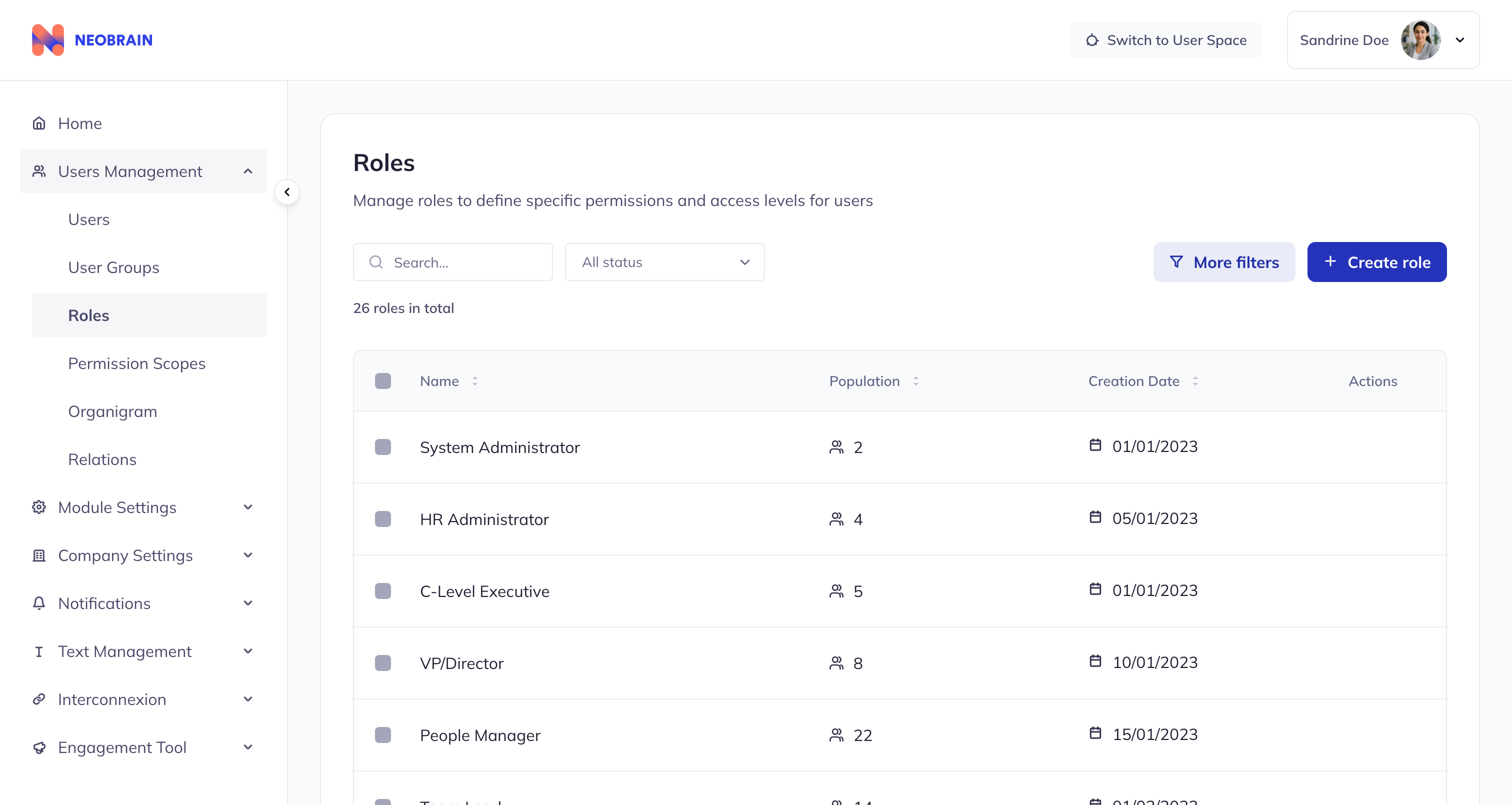 Roles list view with population counts and management actions
Role Data Structure
| Field | Type | Required | Description | Example |
|---|---|---|---|---|
id | number | Yes | Unique identifier | 1 |
name | LocalizedString | Yes | Localized name | { en: "Administrator", fr: "Administrateur" } |
members | number | Auto | User count with this role | 5 |
users | RoleUser[] | Auto | Users assigned to role | [{id, username, avatar}] |
creationDate | string | Auto | Creation timestamp | "2024-01-10T09:00:00Z" |
Role Detail View
The role detail view has two main tabs:
Permissions Tab
Manage which actions the role can perform.
Features:
- Search for specific permissions
- Expand/collapse permission categories
- Toggle individual permissions or entire categories
- Assign permission scopes
- Bulk operations on multiple permissions
Layout:
┌─────────────────────────────────────────────────────────────────┐
│ Role: HR Manager                                          [Edit]│
├─────────────────────────────────────────────────────────────────┤
│ [Permissions] [Population]                                      │
├─────────────────────────────────────────────────────────────────┤
│ Search permissions...                    [Manage Scopes (bulk)] │
├─────────────────────────────────────────────────────────────────┤
│ ☐ ▼ Access Control (6 permissions)                    [Scope]  │
│     ☐ Add role to user                   N-1 (default) [Scope]  │
│     ☐ Create role                        N-1 (default) [Scope]  │
│     ☑ Read roles                         2 groups      [Scope]  │
│                                                                  │
│ ☑ ▼ User (10 permissions)                              [Scope]  │
│     ☑ Read user information              3 groups      [Scope]  │
│     ☑ Update user                        N-1 (default) [Scope]  │
│     ☐ Create user                        N-1 (default) [Scope]  │
│     ...                                                          │
└─────────────────────────────────────────────────────────────────┘
Population Tab
Manage which users have this role.
Features:
- Search members by name
- Filter by creation type (Manual, Dynamic, Group)
- Add new members
- Remove selected members
- Pagination (10 items per page)
Layout:
┌─────────────────────────────────────────────────────────────────┐
│ Role: HR Manager                                          [Edit]│
├─────────────────────────────────────────────────────────────────┤
│ [Permissions] [Population]                                      │
├─────────────────────────────────────────────────────────────────┤
│ Search members...     Creation Type: [All ▼]    [Add Members]  │
├─────────────────────────────────────────────────────────────────┤
│ ☐ Sophie Martin      Manual       Added Jan 15, 2024           │
│ ☐ Thomas Bernard     Dynamic      Added Feb 3, 2024            │
│ ☐ Marie Dupont       Manual       Added Dec 1, 2023            │
│ ...                                                              │
├─────────────────────────────────────────────────────────────────┤
│                                              Page 1 of 3 [< >]  │
└─────────────────────────────────────────────────────────────────┘
Permission Categories
Permissions are organized into 20+ categories for easier management:
| Category | Count | Examples |
|---|---|---|
| Access Control | 6 | Add role to user, Create role, Delete roles, Read roles |
| Bulk Task | 1 | Read bulk tasks |
| Campaign | 4 | Create, delete, read, update campaigns |
| Company | 2 | Read/update company configuration |
| Field | 8 | CRUD for custom and standard fields |
| Group | 17 | Manage user groups and visibility groups |
| Job | 8 | Job listings and offers management |
| Job Skill | 4 | CRUD for job skills |
| 1 | Use LinkedIn API | |
| Media | 4 | CRUD for media files |
| Objective | 5 | OKR and objective management |
| Review | 3 | Performance review management |
| Skill | 4 | CRUD for skills |
| Skill Group | 4 | CRUD for skill groups |
| Smart Trad | 4 | Translation management |
| Talent Search | 1 | Use TalentSearch feature |
| Training | 4 | CRUD for trainings |
| Training Skill | 3 | Create, delete, read training skills |
| User | 10 | User management operations |
| User Skill | 4 | CRUD for user skills |
Permission States
Each permission can be in one of two states:
| State | Visual | Effect |
|---|---|---|
| Activated | Toggle ON (blue) | Permission is granted to role members |
| Deactivated | Toggle OFF (gray) | Permission is denied |
Category-Level Toggle
- Toggling a category header activates/deactivates ALL permissions in that category
- Individual permissions can still be toggled independently
- Category shows "Activated" (blue toggle) if ANY permission is active
Permission Scope Assignment
Each permission can have 0 or more Permission Scopes attached to extend visibility:
| Configuration | Display | Effect |
|---|---|---|
| No scope | "N-1 (default)" | Permission applies to direct reports only |
| 1+ scopes | "X groups" | Permission applies to users in those scopes |
How Scopes Work
Without Scope (Default N-1):
┌─────────────────────────────────────┐
│ Manager can see/act on:             │
│   └── Only direct reports (N-1)     │
│                                      │
│ Cannot see: Other departments       │
└─────────────────────────────────────┘

With "Engineering Department" Scope:
┌─────────────────────────────────────┐
│ Manager can see/act on:             │
│   └── All Engineering team members  │
│       (regardless of hierarchy)     │
│                                      │
│ Extended visibility granted         │
└─────────────────────────────────────┘
Assigning Scopes to a Permission
- Find the permission in the Permissions tab
- Click the "Scope" button on the permission row
- Modal opens showing available visibility groups
- Select groups to add as scopes
- Added groups appear in the right panel
- Click "Confirm" to save
Bulk Scope Assignment
- Select multiple permissions using checkboxes
- Click "Manage Permission Scopes" in bulk action bar
- Select groups to apply
- Warning: This overwrites existing scopes on all selected permissions
- Click "Confirm"
Role Actions
Individual Actions
| Action | Description |
|---|---|
| View | Click row to see details |
| Edit | Modify name, description |
| Export | Download role data |
| Duplicate | Create copy of role |
| Delete | Remove role (with confirmation) |
Permission Bulk Actions
| Action | Description |
|---|---|
| Activate | Enable selected permissions |
| Deactivate | Disable selected permissions |
| Manage Permission Scopes | Assign scopes to selected permissions |
Member Bulk Actions
| Action | Description |
|---|---|
| Remove | Remove selected members from role |
Role Creation
Required Fields:
- Name (English required)
- Description (optional, max 200 characters)
Process:
- Click "Create role" button
- Enter role name
- Enter description (optional)
- Click "Create Role"
- Role created with all permissions deactivated
- Go to role detail to configure permissions
Role Workflows
Workflow 1: Create a New Team Leader Role
Step 1: Create Role
├── Click "Create role"
├── Name: "Team Leader"
├── Description: "Manages direct reports, objectives, and reviews"
└── Click "Create Role"

Step 2: Configure Permissions
├── Go to Permissions tab
├── Expand "User" category
│   ├── Enable: Read user information
│   ├── Enable: Read user skills
│   └── Disable: Create user, Delete user
├── Expand "Objective" category
│   ├── Enable: Read objectives
│   ├── Enable: Update objective
│   └── Enable: Change objective status
├── Expand "Review" category
│   └── Enable: Read reviews
└── Leave all as N-1 scope (direct reports only)

Step 3: Verify Configuration
├── Review activated permissions
├── Confirm scopes are appropriate
└── Test with a team leader user
Workflow 2: Configure HR Role with Extended Scope
Step 1: Create or Edit HR Role
├── Name: "HR Business Partner"
└── Description: "HR support for assigned departments"

Step 2: Enable HR Permissions
├── User category:
│   ├── Read user information ✓
│   └── Update user ✓
├── Review category:
│   └── Read reviews ✓
└── Training category:
    └── Read trainings ✓

Step 3: Assign Extended Scopes
├── For "Read user information":
│   ├── Click Scope button
│   ├── Add "Engineering Department" scope
│   ├── Add "Product Department" scope
│   └── Confirm
├── For "Read reviews":
│   ├── Click Scope button
│   ├── Add same scopes
│   └── Confirm
└── Keep "Update user" as N-1 (can only edit own team)

Result: HR BP can VIEW Engineering & Product employees
but can only UPDATE their own direct reports
Workflow 3: Bulk Scope Assignment
Step 1: Select Permissions
├── Check "Read user information"
├── Check "Read user skills"
├── Check "Read objectives"
└── (Multiple permissions selected)

Step 2: Open Bulk Modal
├── Click "Manage Permission Scopes"
├── Modal opens

Step 3: Select Scopes
├── Add "EMEA Region" scope
├── Add "Engineering Department" scope
└── Review selection

Step 4: Apply
├── Click "Confirm"
├── WARNING: This overwrites existing scopes
└── All selected permissions now have these 2 scopes
Best Practices
DO: Follow Principle of Least Privilege
Good:
Role: "Team Leader"
├── Read user information ✓ (N-1 scope)
├── Read objectives ✓ (N-1 scope)
├── Update objectives ✓ (N-1 scope)
├── Read reviews ✓ (N-1 scope)
├── Create user ✗ (not needed)
├── Delete user ✗ (too dangerous)
└── Company configuration ✗ (admin only)

Rationale: Enable only what's needed for the job function
DO: Use Meaningful Role Names
Good:
├── "HR Manager"
├── "Team Leader"
├── "Finance Analyst"
├── "Project Viewer"
└── "System Administrator"

Bad:
├── "Role1"
├── "New Role"
├── "Admin Copy"
└── "Test Role Final v2"
DO: Document Role Purpose
Role: "HR Business Partner"
Description: "Provides HR support to specific departments.
Can view and update employee information for assigned
departments but cannot create or delete users."
DO: Assign Appropriate Scopes
Role: "HR Business Partner - Engineering"
Permission: "Read user information"
Scope: "Engineering Department" ✓ (matches role function)

Role: "Finance Manager"
Permission: "Read financial reports"
Scope: "Finance Department" ✓ (appropriate to role)
DON'T: Create "Super Admin" Roles
Problem:
Role: "Super Admin"
├── ALL 100+ permissions enabled
├── ALL scopes attached
└── Assigned to 20+ users

Issues:
├── Security risk
├── No accountability
├── Violates least privilege
└── Impossible to audit

Solution:
├── Create specific admin roles
├── Limit scope to job function
├── Restrict to 1-3 users
DON'T: Duplicate Roles for Minor Variations
Problem:
├── "HR Manager"
├── "HR Manager (Paris)"
├── "HR Manager (London)"
├── "HR Manager (Copy)"
├── "HR Manager - Updated"
└── 50+ similar roles

Solution:
├── One "HR Manager" role
├── Use Permission Scopes for geographic variations
├── e.g., Permission + "Paris Office" scope
└── Much easier to maintain
DON'T: Assign Conflicting Scopes
Problem:
Permission: "Read financial data"
Scope: "Engineering Department" ← Wrong scope!

Issue:
├── Engineering doesn't need financial access
├── Finance employees can't see their data
└── Security and access confusion

Solution:
Permission: "Read financial data"
Scope: "Finance Department" ← Correct scope
Role Design Patterns
Pattern 1: Function-Based Roles
├── HR Manager (HR functions)
├── Recruiter (recruitment functions)
├── Finance Manager (finance functions)
├── Team Leader (team management)
└── Employee (basic employee functions)
Pattern 2: Access-Level Roles
├── Administrator (full access)
├── Manager (department-level access)
├── Employee (personal access)
└── Viewer (read-only access)
Pattern 3: Hybrid Approach (Recommended)
Base role + Function role + Scope:

User: Marie Dupont
├── Base Role: Employee (basic access)
├── Function Role: HR Business Partner
└── Scope applied: "Engineering Department"

Result: HR BP with visibility to Engineering team
Integration with Other Modules
| Module | Interaction |
|---|---|
| Users | Users are assigned to role's population |
| User Groups | Groups have roles attached; members inherit |
| Permission Scopes | Scopes are attached to role's permissions |
Navigation
- Previous: User Groups Module
- Next: Permission Scopes Module
- Back to: Documentation Index