Tests and assessments — functional guide
Tests and assessments let employees complete assigned tests and consult available results. Authorized managers find tests, assign them to employees and follow completion. Depending on the provider and the company's configuration, results can also contribute to the employee's skill portfolio.
See the configuration guide for activation, visibility and score conversion, and the technical guide for implementation details.
Before you begin
Employees need an authenticated personal account and an assigned test available to their company. Managers need access to the test catalogue and to the relevant employee population. Administrators configure provider availability, result visibility, notification templates and skill mappings before use. Provider access and available languages depend on the company's setup.
Menu labels depend on company navigation configuration. Managers commonly access the catalogue through Performance → Tests Marketplace; employees access assigned tests through Tests in the personal workspace.
Terminology and scope
| Term | Meaning |
|---|---|
| Test catalogue / Tests marketplace | Searchable list of tests available through the company's configuration. |
| Assignment | A test attached to an employee, with its own completion and visibility information. |
| Mandatory test | An assignment marked as required; this is separate from completion. |
| Result / report | Provider output, which can include a report document and numerical data. |
| Test-derived skill | A portfolio skill updated from a mapped test result, rather than a self-rating. |
| Internal questionnaire | A company form using questionnaire assignments and answers, rather than a provider test attempt. |
The employee test centre can aggregate provider tests and eligible internal questionnaires. Questionnaire design belongs to Questionnaires; interviews, 360 feedback and skill self-declaration campaigns have separate journeys. The documentation category Skills → Tests and assessments is an information structure, not a guarantee of the application's menu wording.
Manager: find a test
- In Espace manager, open Performance → Tests Marketplace. Menu labels can vary by company configuration.
- In Votre recherche, enter a test title.
- Refine the search using Éditeur (provider), Catégorie, Difficulté du test (si technique ou langue) and Langue du test.
- Choose Rechercher. Use Réinitialiser la recherche to clear restrictive criteria.
- Choose VOIR LE TEST on a result card. Review the test title and provider, then its Description, Collaborateurs and Match de compétences tabs. Duration and difficulty are shown only when supplied by the catalogue.
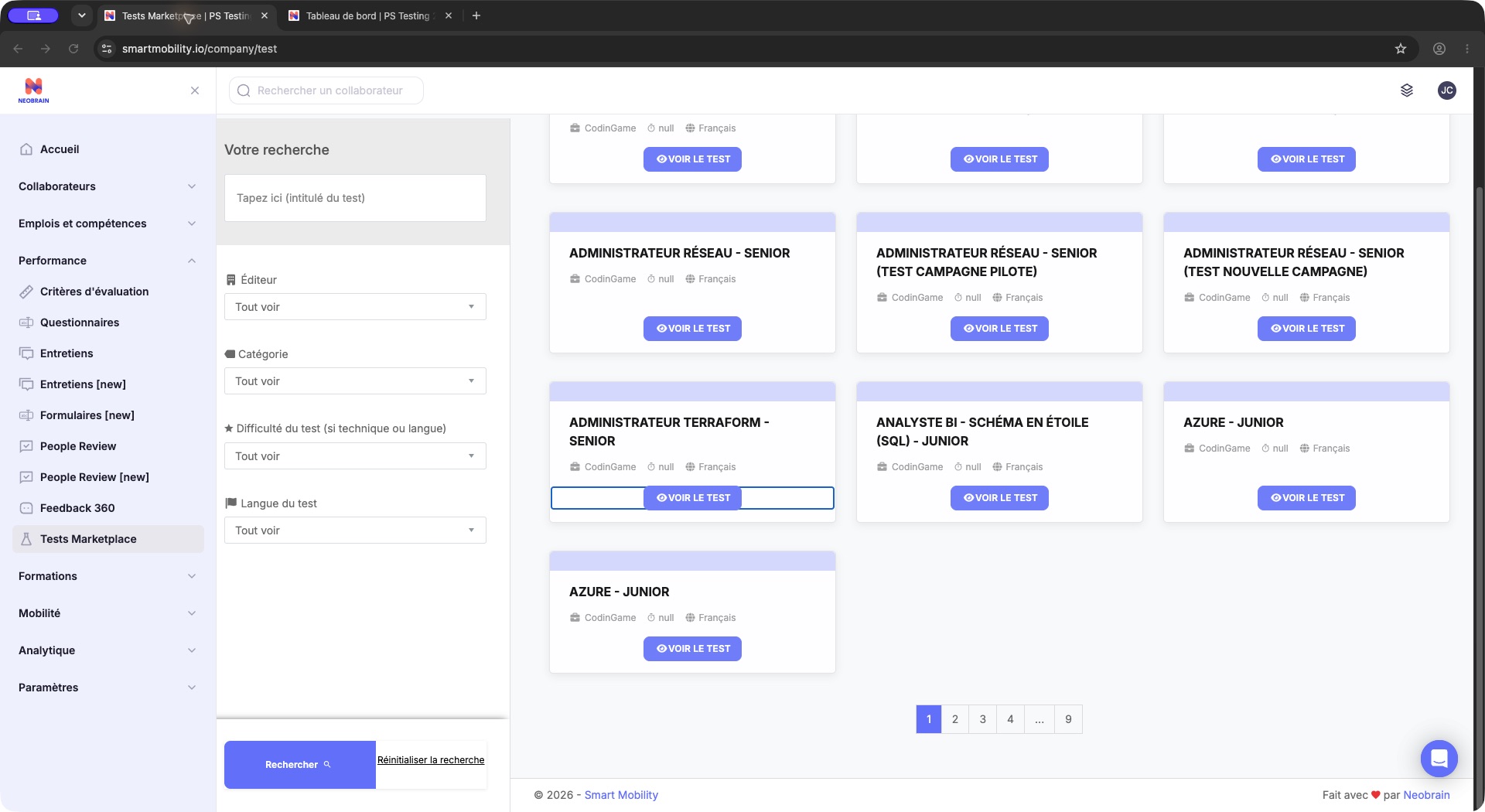
Test cards show the provider, language and available details. Search by title or provider, then choose View test (French: VOIR LE TEST) to inspect a card. Catalogue contents and pagination depend on the tests available to your company.
If a search returns no results, clear the title and reset filters to Tout voir. Clearing a search cannot add tests that are not available to the company. Ask the company administrator to check availability if the unrestricted search stays empty; the catalogue is not a test-authoring screen.
Manager: assign and follow completion
Assign a test to employees
- Open VOIR LE TEST → Collaborateurs. The initial table can show Aucun élément à afficher.
- Choose Assigner des collaborateurs to open Sélectionner les collaborateurs devant passer ce test.
- Locate the intended employee and check the correct row. Confirm the selection in Collaborateurs sélectionnés (n) on the right.
- Review Rendre obligatoire. Set it according to the assignment requirements.
- Review the email notification checkbox. Choose whether SmartMobility should send an assignment notification.
- Choose Valider les collaborateurs. Confirm the assignment when prompted.
- Check the saved participant row and its pending status.
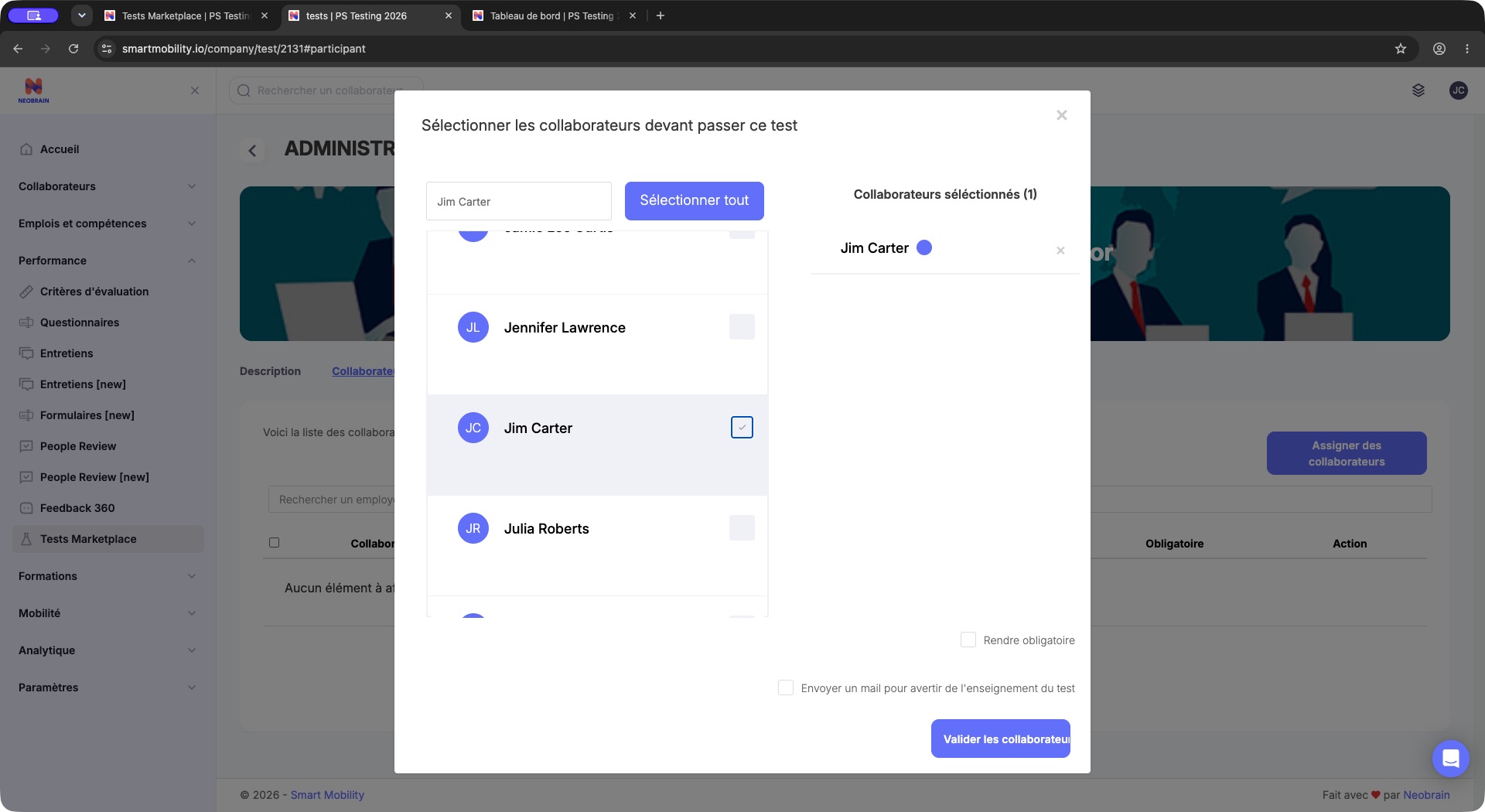
The selected employee appears in the separate right-hand selection panel. Review that panel, the mandatory option and notification checkbox before Valider les collaborateurs; the screenshot itself precedes assignment confirmation.
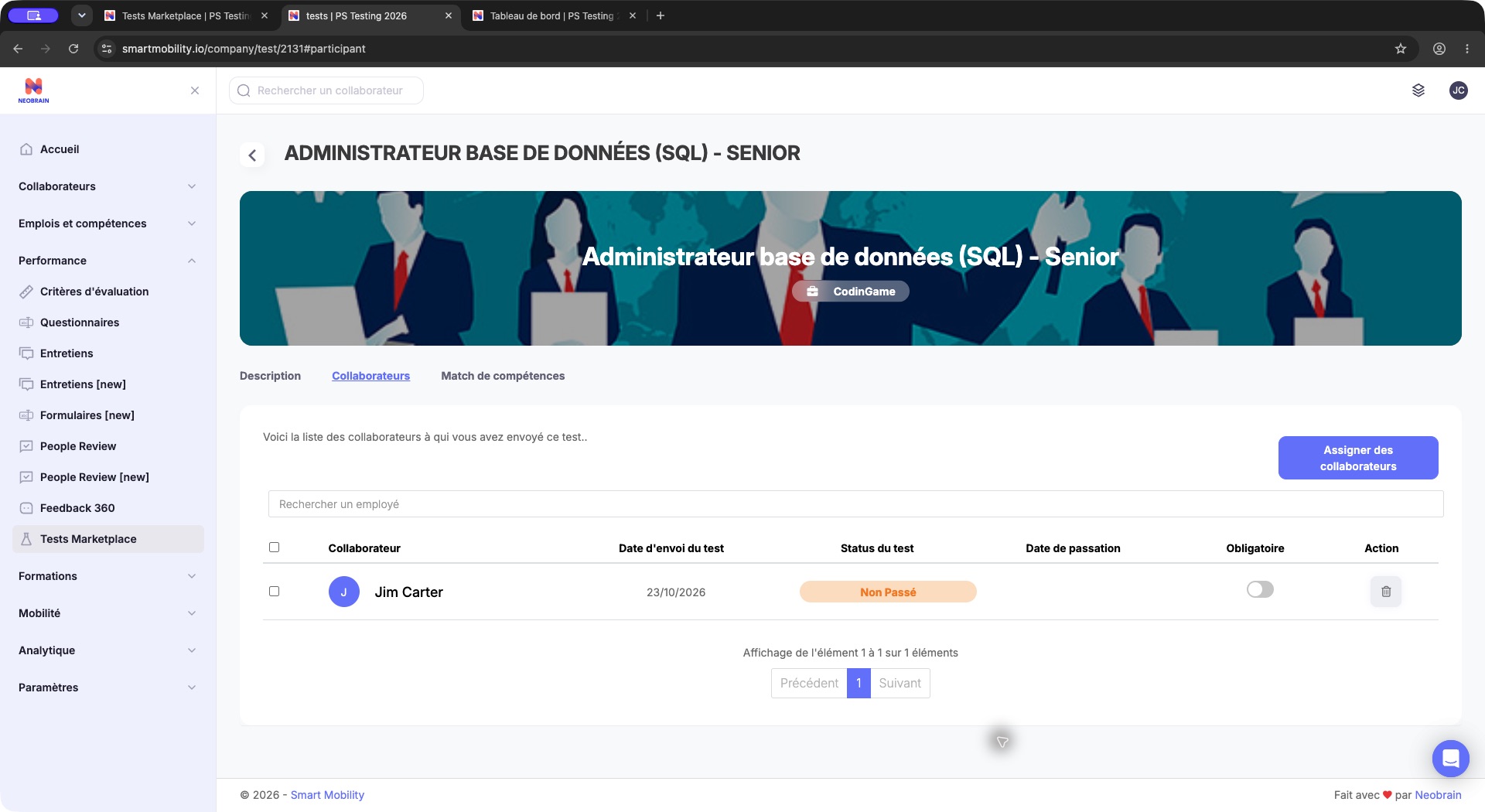
A saved participant row shows its assignment date and completion status. A persisted assignment does not mean the external test has been taken.
The participant table's Obligatoire switch changes required status independently of completion. Employees see the required indicator on the assignment card when the test is mandatory.
Expected result: an assignment is persisted for eligible submitted employees. Ordinary assignment reuses an existing employee/test record; it is not a universal way to create a fresh attempt. The notification path sends mail only for newly created assignments when requested. An assignment notification is distinct from an external provider invitation.
Reassignment is a separate, permission-dependent action and depends on provider support. A pending attempt can prevent another reassignment. Do not remove results to simulate a retake: removal can invoke a provider operation as well as remove the local record.
Employee: complete an assigned test
Open and interpret the test centre
- Switch to Espace personnel while keeping the same account.
- Choose Tests in the main navigation or the TESTS shortcut on the home page.
- Read the summary counters: Questionnaires, Complétés and À faire, plus the Tests (completed/total) heading.
- Open Nouveaux tests to inspect pending assignments, then Tests réussis to inspect available completed results.
The test centre shows assigned tests, available internal questionnaires, completed items and items to do. Nouveaux tests lists pending assignments; Tests réussis lists results available to the employee. An empty state such as Aucun test passé does not by itself indicate a failed attempt.
The summary can also include eligible internal questionnaires. For provider tests, completion depends on the result or report returned by the provider. The Tests réussis label does not by itself establish a passing score.
Start and complete an assigned test
- Open Tests in your personal workspace or use the assignment link supplied by your company.
- In Nouveaux tests, check the test title, description, language and mandatory indicator.
- Select the assigned test when ready to start. A provider-backed test can open in a new tab; built-in tests can use a local questionnaire route.
- Follow the instructions shown by the test provider, including its timing and completion requirements.
- Return to SmartMobility and check the pending/completed sections. Result synchronization can occur when returning to the application or reopening the test centre.
- Open the result or report when available and permitted.
If the provider test cannot be opened, SmartMobility may display Ce test ne semble pas disponible. Notre équipe support va contacter l'éditeur et reviendra vers vous. The assignment can remain pending. Ask the company administrator to check provider availability and access before retrying.
Expected result when launch and completion succeed: completion and available report data appear after successful synchronization. Starting a test can create the provider-side candidate or attempt. Report generation and synchronization are provider-dependent; an immediate report is not guaranteed.
For ordinary provider tests, the pending/completed status depends on report availability. It is not a universal pass/fail classification. Level-based English tests use a separate threshold and progression flow; a completed attempt below the required level can still need further action.
Results, skills and permissions
Result visibility can be configured for the manager, the employee or both. Check the result's visibility controls to confirm its audience. Where an employee sharing action is offered, it changes result visibility and sends a notification to the manager. Sharing is an explicit action; viewing a result does not share it.
A mapped provider result can add or update skills with source Test, a converted mastery level and a test score. This behavior differs by provider and mapping. It does not imply that every completed test updates every skill. In the legacy interface, test-derived mastery is not editable through the ordinary self-rating control. See Skills Mapping.
Manager population access, assignment actions, mandatory status, deletion and reassignment are separate concerns. A catalogue or participant table being visible does not prove permission for every action.
Troubleshooting and FAQ
| Situation | What to check |
|---|---|
| Tests entry is missing | Check the workspace and company navigation. In employees access assigned tests in the personal workspace; managers use the configured catalogue entry. |
| Provider settings display an authorization message | Provider settings are managed separately from the test catalogue. Contact the company administrator if access is required. |
| Catalogue shows no results | Reset title and filters; ask an administrator to check test availability, provider catalogue import and active status. The catalogue lists existing tests; it is not used to create tests. |
| Employee is absent from the assignment picker | Check manager access to the employee population and whether the employee already has an assignment. |
| No assignment email arrived | Whether notification was selected, whether the assignment was new, the employee's manager context and the configured notification template/language. |
| Launch returns with Ce test ne semble pas disponible… | keep the pending record and ask the company administrator to check provider launch configuration. A saved local assignment does not guarantee that the external test is available. |
| Launch does not work | Check that the assignment belongs to the employee and whether a result is already available. |
| Completed test still looks pending | Provider synchronization and report availability; ask support to inspect the existing attempt before requesting another. |
| PDF is unavailable | Provider report generation and import. The application checks PDF content and can report that no PDF is available. |
| Skill level did not change | Test-to-skill mapping, provider-specific import rules, score thresholds and employee job context. |
| Retake is unavailable | Reassignment permission, provider support and an already pending attempt. |
Legacy and redesigned behavior
The provider-test catalogue and personal test journey use the legacy interface. Availability may vary by navigation entry and company configuration; see the technical guide for implementation context.
If a provider reports that a test is unavailable, keep the assignment pending and ask the test administrator to check provider availability and entitlement before retrying. A saved assignment does not guarantee that the external test can launch. Completion, returned scores and converted skills appear only after a supported attempt and result synchronization.
Last updated on 3 November 2026