Skills Mapping — functional guide
Skills Mapping connects an employee's skills with their mastery, motivation and the expectations of a job. Employees maintain their portfolio and identify development priorities; authorized managers review employee skills. The company vocabulary and job requirements are maintained in the Jobs & skills framework.
Use the configuration guide for activation and access, and the technical guide for data flows and APIs.
Before you begin
You need an authenticated account, access to the relevant workspace and profile, and a configured skills framework. A job comparison also needs a job with attached skills and expected levels. The interface may use translated labels; the English guide explains each control and its purpose.
| Term | Meaning |
|---|---|
| Skill portfolio | The skills attached to an employee, including job-related and individually added skills. |
| Niveau de maîtrise — mastery | The employee's proficiency, using the scale configured for the company. |
| Motivation | Desire to use a skill in future. It is separate from proficiency and follows the company scale. |
| Required level | The expectation attached to a job's skill. Comparing with a job does not change the employee's assignment. |
| Locked skill | A skill protected from removal, for example because it belongs to an assigned job. A removal lock and a rating restriction are separate rules. |
| Recommendation | An endorsement displayed separately from mastery and motivation; it is not an assessed level. |
Employee: review your skills
- Use the workspace switcher to open Espace personnel.
- Open Profil → Mes compétences.
- Expand a skill group if necessary. Read each skill's Niveau de maîtrise, Motivation, recommendations and source indicator.
- Hover over the rating controls to read the level descriptions before choosing a value. Read the descriptions shown for each level before choosing a value.
- Where your company allows it, select a mastery level and a motivation level independently. Treat these controls as an edit: the legacy code saves changes through background requests, without a separate page-wide Save step.
- Reopen the profile to confirm the displayed value after making an authorized change.
Some skills are linked to a job and show a lock or source indicator. An unrated skill does not establish a low proficiency level.
The available rating controls depend on the skill source and company settings. A visible skill is not necessarily editable. See the configuration rules.
Add skills from the library
- From Mes compétences, choose Ajouter des compétences.
- Enter a skill, keyword or domain, then run the search using the magnifying-glass button.
- Review the available groups and sources. Search results are candidates, not skills already added to the portfolio. Review each skill and its group before selecting it.
- Select relevant skills and review them in the selected-skills panel. Rate each selected skill's mastery and, when shown, motivation before submitting the selection.
- Submit only when the selection is ready. After submitting, return to Mes compétences and confirm each skill appears in the portfolio.
- Use Retour à mon profil to leave without saving a pending selection.
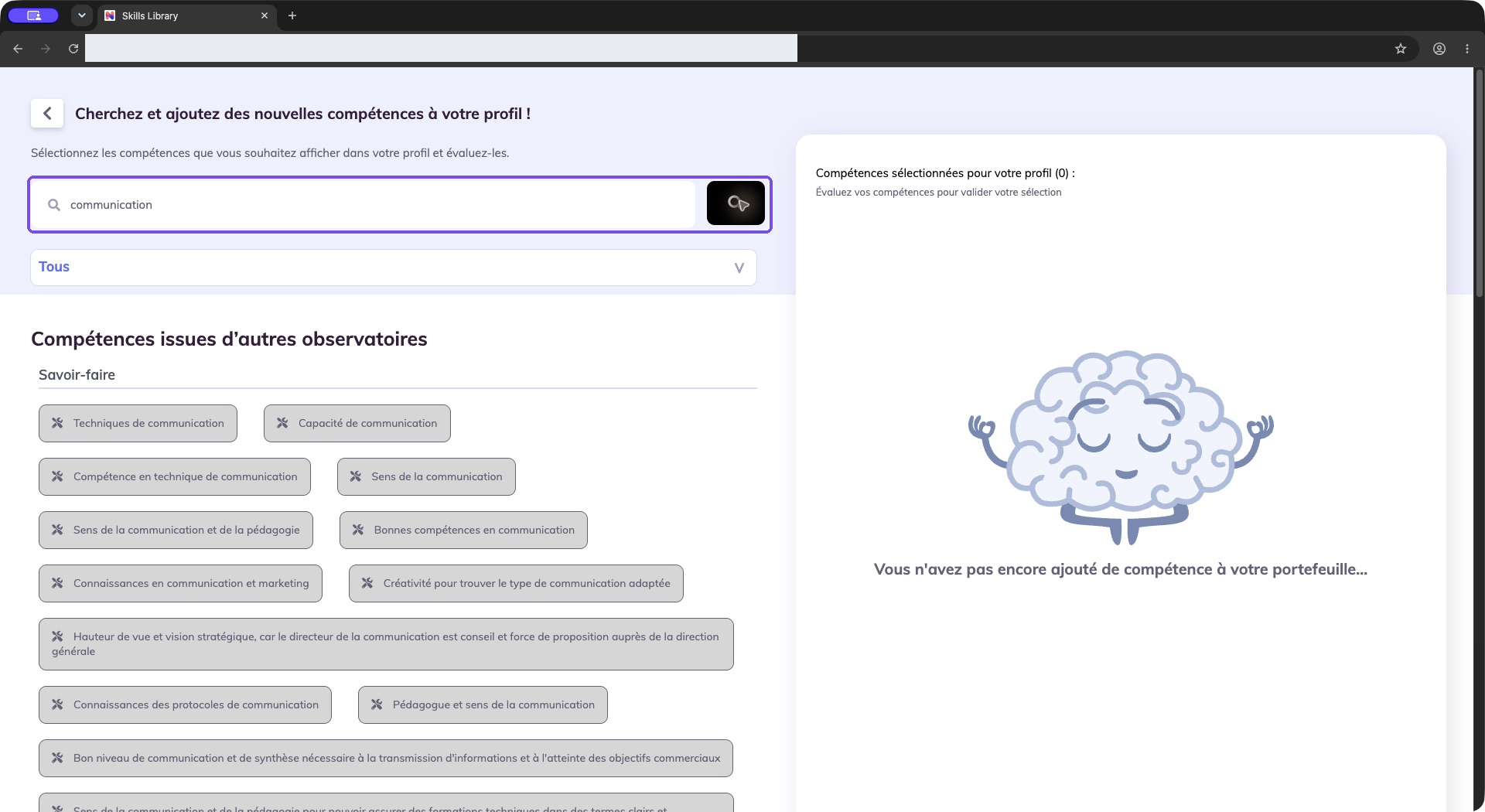
The search results list available skills. Select the relevant items to assess them before adding them to the portfolio. The selected-skills panel shows the pending selection; it does not represent the whole portfolio.
The initial library page asks you to launch a search. That state does not mean the company has no skills. Search content depends on the available repositories, observatories and active language.
When a skill is added from the skills library, set its mastery and motivation as requested. On Mes compétences, adjust each rating independently; the updated value is saved without a separate page-wide Save action. Reopen the profile to confirm it.
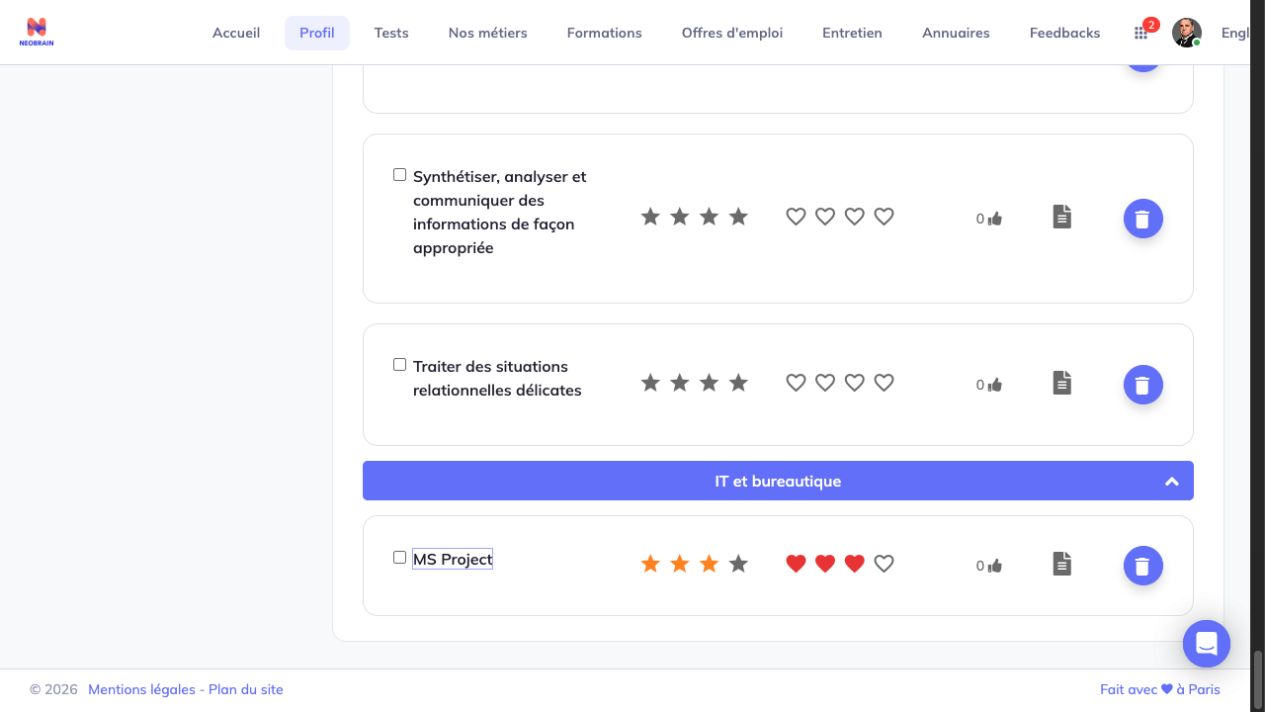
Mastery and motivation are separate ratings. Changing either one does not change the employee’s assigned job.
Remove an individually added skill
- Where removal is enabled, select the eligible individually added skills you want to remove.
- Review the selection before choosing Supprimer le/les élément(s).
- Reopen Mes compétences to check the resulting list.
Tout sélectionner and Tout désélectionner help manage the selection; they do not override locks.
Protected job skills and explicitly locked skills cannot be removed through the employee bulk-removal action. Always review the confirmation and check the resulting portfolio.
When removal is available, the action applies only to the selected employee-added skills. Review the confirmation list before proceeding, then reopen the portfolio to confirm the resulting skill list. Existing protected or job-required skills are not removed by this employee action.
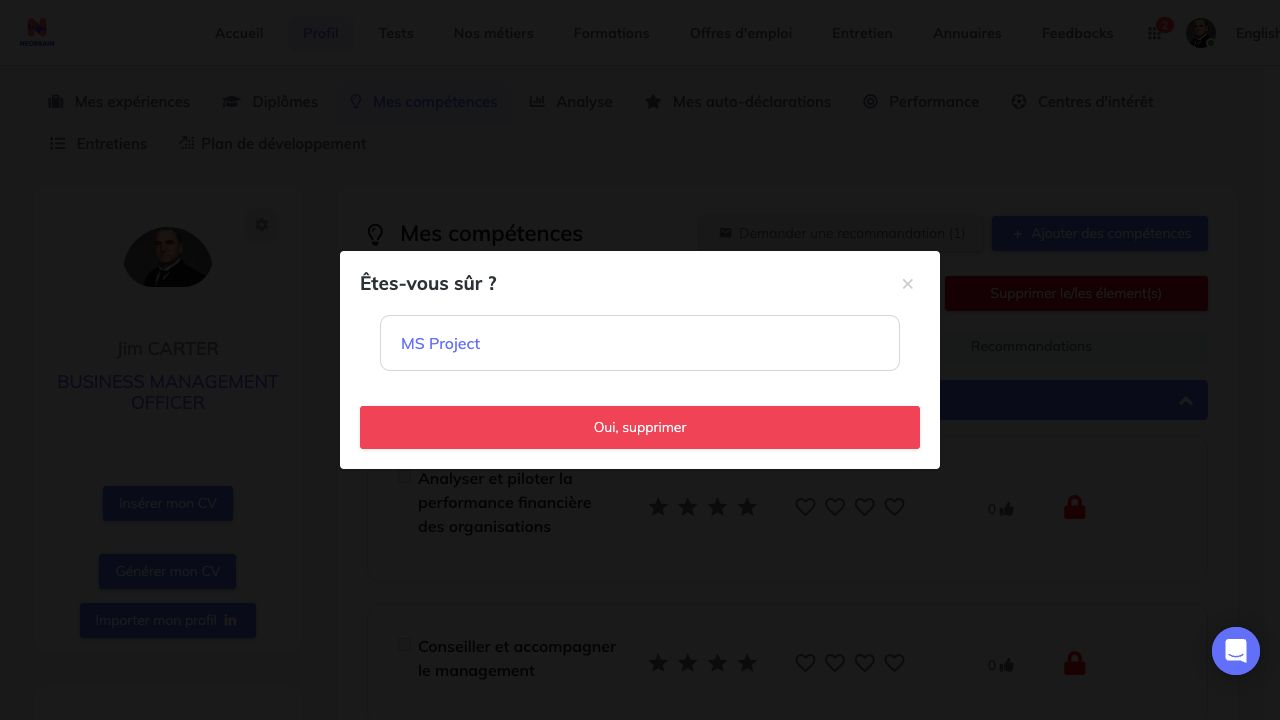
The confirmation lists the skills selected for removal. Check this list before confirming; locked job skills follow different removal restrictions.
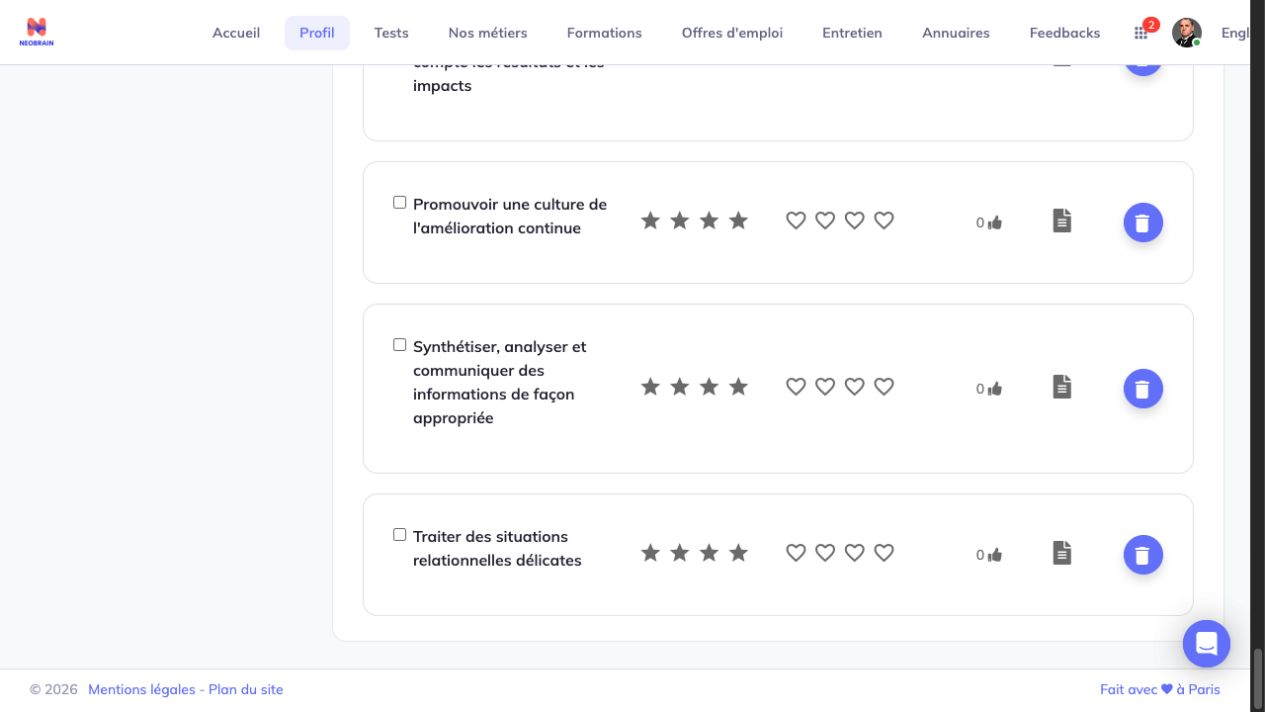
The reopened portfolio reflects the removal of the individually added skill.
Employee: compare against a job
- Open Profil → Analyse.
- Review Forces clés principales and Principaux domaines de développement when those panels are available. The legend identifies the required job level and the indicator for exceeding it.
- In Sélectionner un métier auquel vous comparer, choose an available job. The initial job selection may depend on the employee's assignment and company configuration.
- Use Filtrer par type de compétences to switch the displayed group, such as Savoir-faire, Savoir-être, IT et bureautique or Langues. The available names are company data.
- Read the comparison chart together with its legend: above expectation, meeting expectation, to strengthen, to develop and to acquire. Hover for available detail. These categories compare skill levels with job expectations; they are different from the motivation quadrants below.
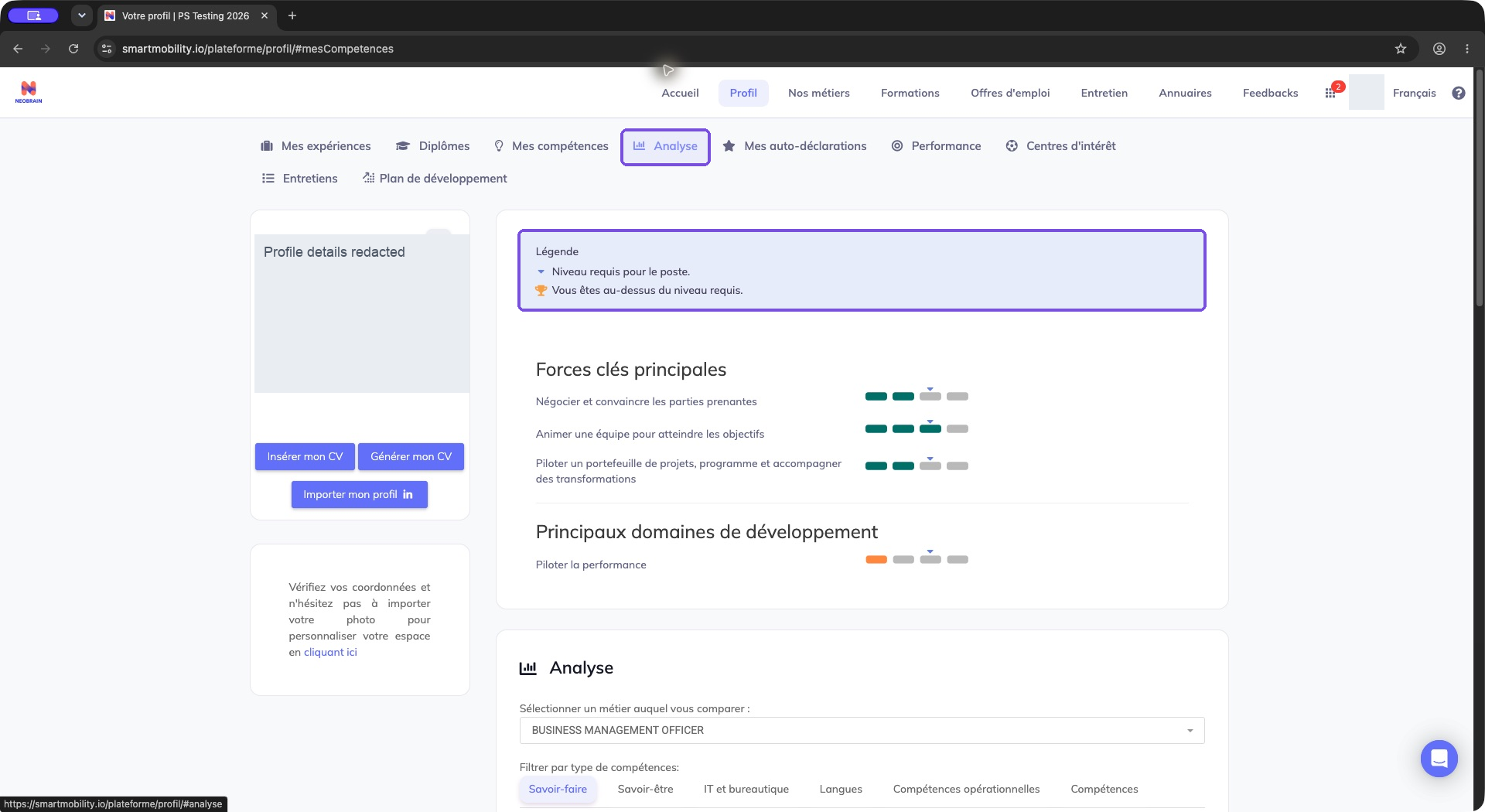
The Analysis tab and required-job-level legend are outlined above strengths and development areas. Read declared levels against job expectations, then use the comparison controls lower on the page; the legend is not a new assessment. Full application window, with profile identity redacted. The comparison selector and group tabs are below the overview.
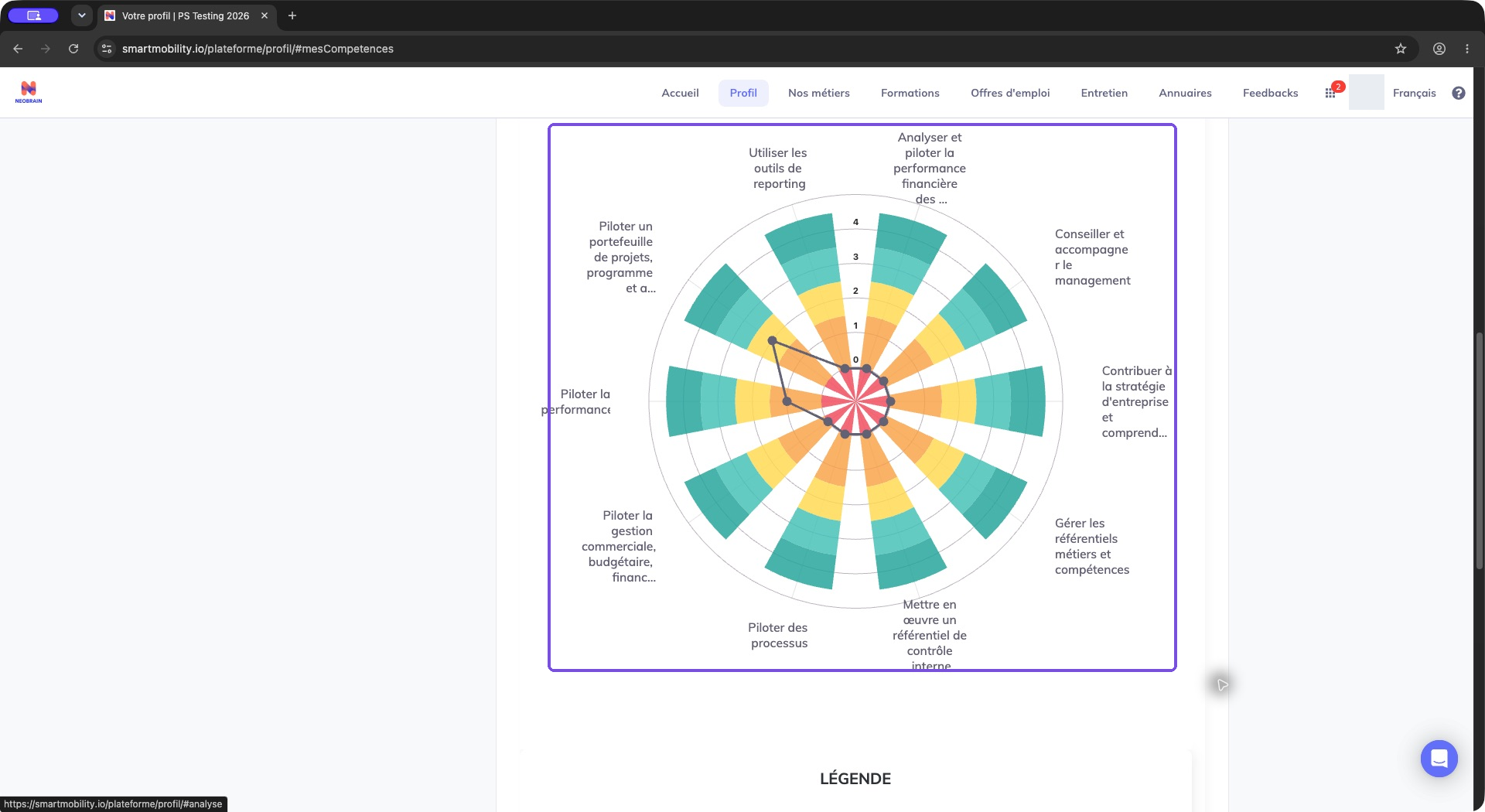
The radial chart compares the employee with the selected job and includes the required-level legend below. Check the chosen job and legend before interpreting a gap; this comparison does not change the employee’s assigned job. Read the legend and underlying ratings rather than interpreting an empty or zero-looking point as a completed assessment.
Interpret the mastery–motivation map
- Scroll to Les forces et les axes de développements.
- Read the horizontal Maîtrise axis and vertical Motivation axis.
- Use the displayed color legend below to interpret each skill’s position.
| Color | Meaning in the legend | Practical use |
|---|---|---|
| Green | I master these skills and want to keep using them. | Identify strengths to apply. |
| Blue | I want to develop these skills in future. | Discuss learning and practice opportunities. |
| Orange | I master these skills but no longer want to use them. | Discuss motivation separately from ability. |
| Pink | I do not want to capitalize on these skills. | Clarify future priorities with the employee. |
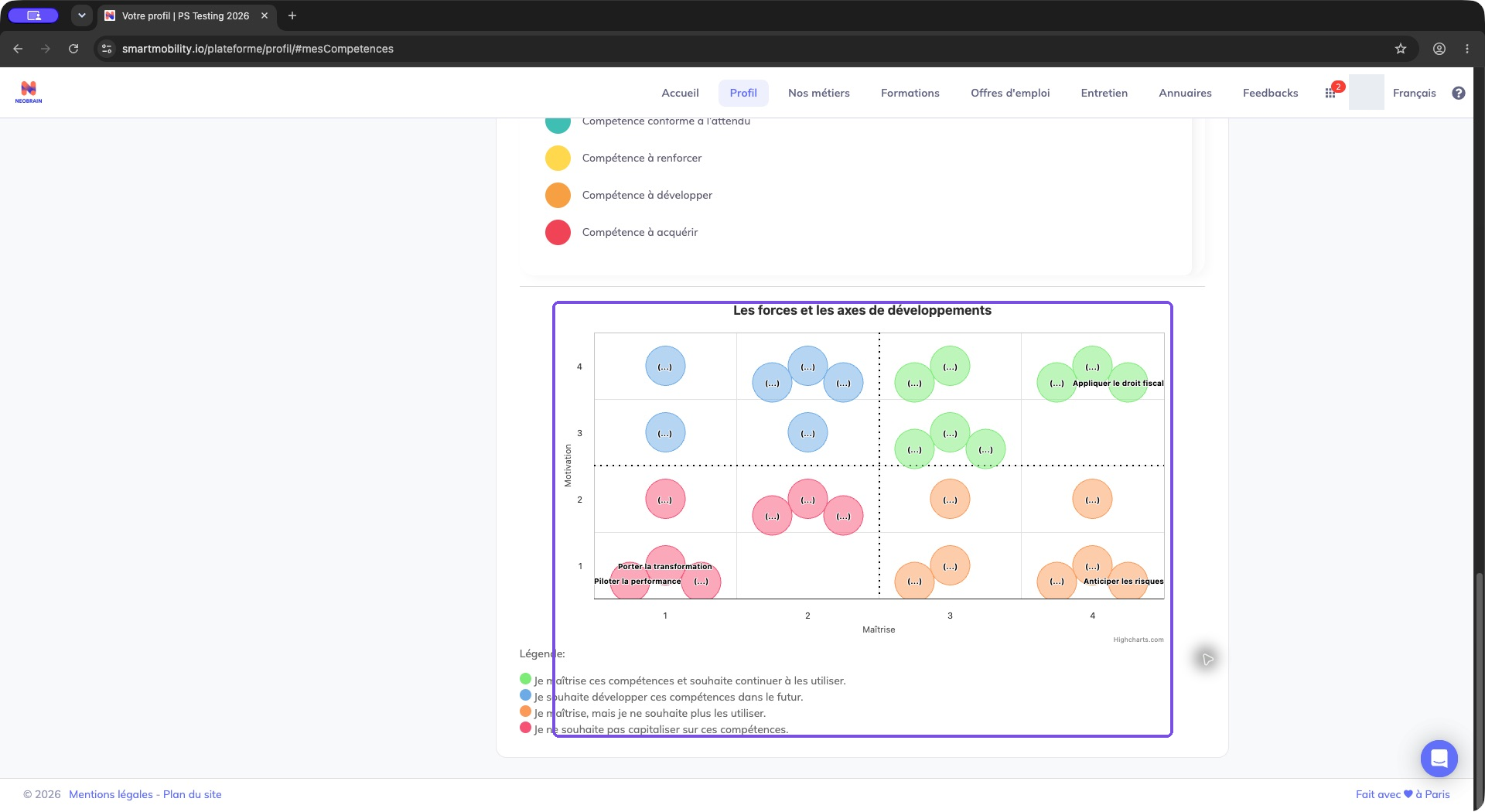
The outlined bubble map places mastery horizontally and motivation vertically, with a color legend below. Read both axes and the legend before discussing a skill; a missing bubble does not prove the skill is absent from the portfolio.
The map can omit skills without both a mastery and motivation rating. Overlapping points may be displaced for readability, and long names may be shortened. Use the skill row and hover information to interpret the ratings; an absent bubble does not mean the skill is missing from the portfolio.
Manager: review an employee's portfolio
- Switch to Espace manager.
- Open Collaborateurs → Liste des Collaborateurs and choose an employee within your authorized population.
- Open Profil → Compétences in the employee detail.
- Review the grouped skill rows, mastery, motivation, recommendations and locks. Available controls depend on role permissions and company settings.
- Use available maintenance actions only within your permissions. The ability to view a portfolio does not establish permission to change the employee's or manager's ratings.
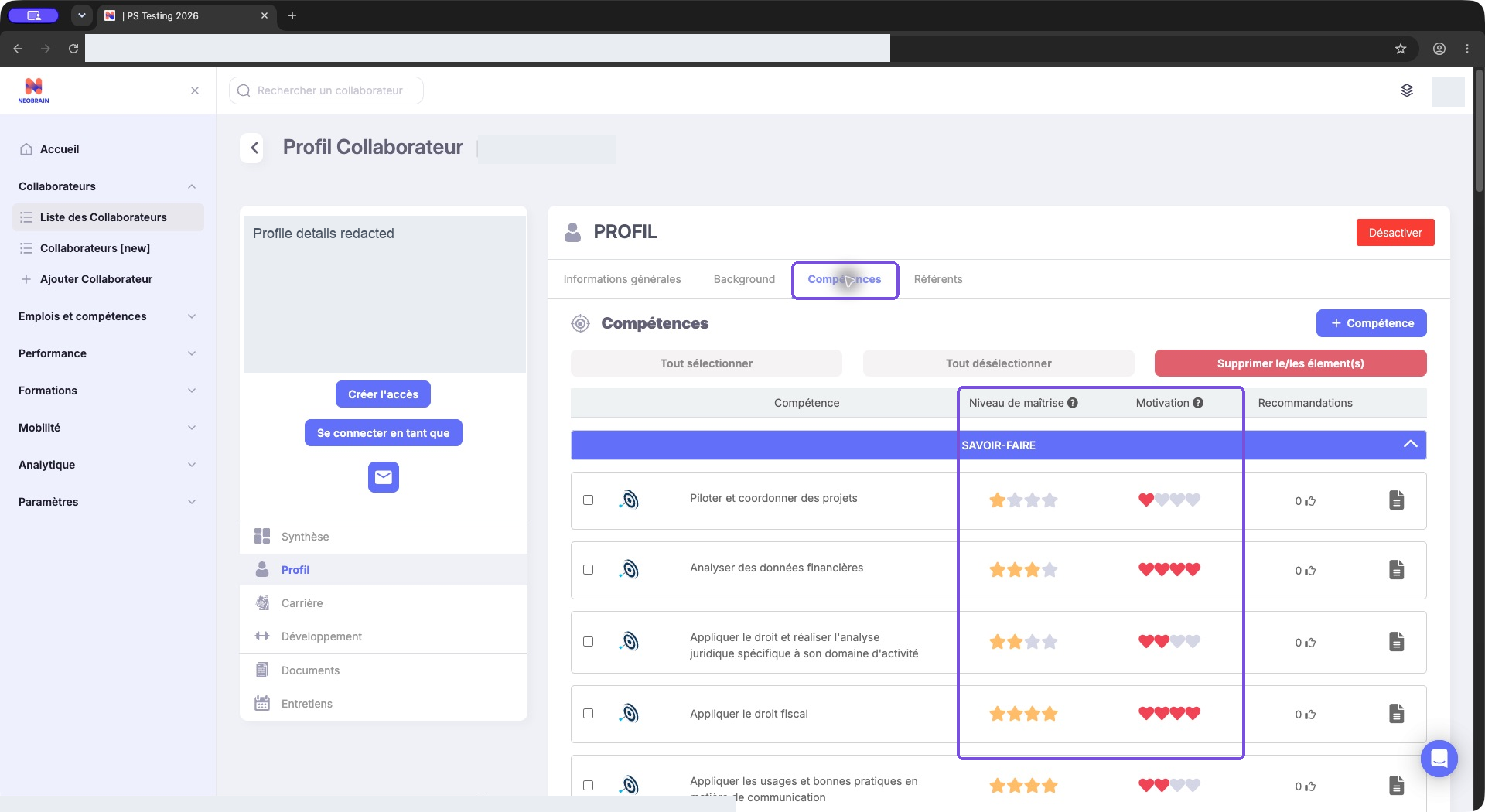
The Skills tab shows an employee’s portfolio in manager space. Read mastery and motivation separately, and use rating or maintenance controls only when your role permits them.
Manager access to employee portfolios, skill addition and rating changes can be controlled separately. Contact an administrator if a section or action is unavailable.
Business rules, troubleshooting and FAQ
| Situation | What to check |
|---|---|
| No Ajouter des compétences button | Workspace, profile access and activation of employee skill addition. The library or a different add-skill dialog may be selected by company configuration. |
| No results in the library | Launch a search, try a broader term, check the active language, and ask an administrator to check repositories, observatories and search-service availability. |
| Selection cannot be submitted | Every selected skill needs mastery and, when visible, motivation. A configured quota can also reject additional skills outside the current job. |
| A skill cannot be removed | Read its source/lock explanation. Assigned-job skills, alternative-job skills and explicitly locked skills can be protected. Ask the framework owner to investigate an incorrect job link. |
| A skill exists but is missing from the map | Check whether both mastery and motivation are rated. Also distinguish a job comparison, which is scoped to job requirements, from the overall motivation map. |
| Comparison job or chart is absent | Check assigned/available jobs, their translated skill data and comparator activation. Controls can be hidden independently. |
| A manager sees different controls | Check employee visibility, role permissions and the relevant workspace. Controls depend on the role and company settings. |
Selecting a comparison job is an exploration action, not a transfer request. Skill suggestions and endorsements do not constitute a manager assessment. Self-declaration campaigns and interview questionnaires have their own lifecycle; see Interviews for that journey.
Legacy and redesigned behavior
The employee profile and manager portfolio-analysis screens described here use the legacy experience, which can appear inside a redesigned navigation shell. This does not establish a separate nextgen portfolio or job-comparison workflow. Available profile and analysis controls depend on workspace and company configuration. For API and implementation details, see the technical guide.
Last updated on 3 November 2026