Intelligent skills management engine — functional guide
The intelligent skills management engine helps employees find relevant skills to add to their profile from different referentials. It combines the company's available skills with configured external observatories. Employees review the proposed skills and assess their mastery and motivation before adding them.
There are two complementary journeys: search for skills in the Skills Library, or review ongoing personalized suggestions when that feature is enabled. A suggestion identifies a potentially relevant skill; it does not certify proficiency.
See the configuration guide for source selection and activation, and the technical guide for the search, inference and persistence flows.
Before you begin
Employees need access to their personal profile and the skill library. Administrators maintain available company referentials, enabled observatories and assessment settings. Managers may have a separate journey for adding skills to an employee, subject to permissions; the steps below describe employees updating their own profile.
Search needs a keyword and available source content. Personalized suggestions need usable profile information and their own activation settings. Changing persona changes the workspace, not the signed-in identity.
| Term | Meaning |
|---|---|
| Referential | A catalog of skills used as a source of suggestions. |
| Internal referential | Skills presented under the company's internal-source heading. |
| Observatory | An additional configured source of skills outside that internal catalog. |
| Selection / portfolio | Skills temporarily selected in the library, pending assessment and saving. |
| Mastery / Niveau | The employee's declared proficiency. |
| Motivation | The employee's interest in using the skill. |
| Personalized suggestion | A candidate inferred from profile information and eligible referentials. |
Open the library
- Open your Espace personnel, using the workspace selector if necessary.
- Choose Profil, then Mes compétences.
- Choose Ajouter des compétences.
- The library asks you to enter a skill, keyword or domain. Before a search, it displays Veuillez lancer une recherche pour afficher des compétences.
The library page introduces the skill search and addition workflow.
Search and compare sources
- Enter a meaningful keyword, such as
gestion de projet. - Choose the search button.
- Compare the returned skill labels and categories before selecting a candidate.
Search results can be grouped into sections such as Compétences issues du référentiel interne and Compétences issues d’autres observatoires. Compare the title and description when similar candidates appear in more than one source.
The Tous control and categories such as IT et bureautique and Savoir-faire help organize the results. Source headings identify the available skill families. Do not assume a particular external standard is enabled merely because results from another source appear.
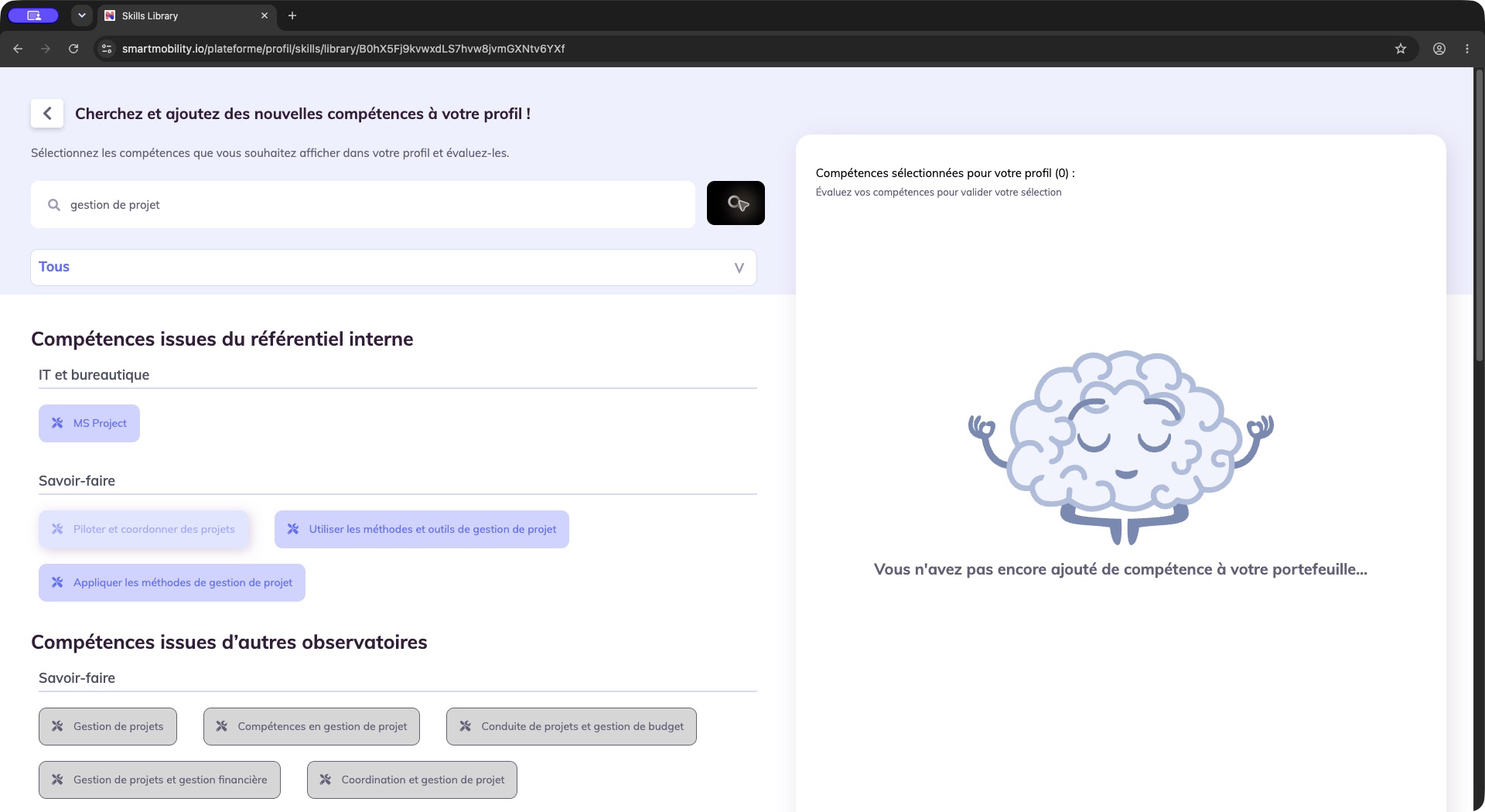
Search results are grouped by source, with the temporary selection panel beside them. Compare titles and source families before choosing a skill; a search result is not yet part of the employee portfolio.
Expected result: relevant candidates from the eligible sources appear. Results depend on the query, available referentials and the configured search service; identical wording or counts are not guaranteed across companies.
Select and assess skills
- Choose a relevant skill. It appears in Compétences sélectionnées pour votre profil, and the selection counter increases.
- Set Niveau using the stars.
- Set Motivation using the hearts when that field is displayed.
- Repeat for any additional skills you want to add.
- Use the trash icon to remove an item from the temporary selection.
- Choose Enregistrer when the required assessments are complete. The application returns to Profil → Mes compétences; locate the added skill and check its stars and hearts.
- Reload the profile and open Mes compétences again if necessary. Confirm the skill and both ratings before continuing to job comparison or recommendations.
The rating controls appear after you select a skill. Complete the required ratings before saving; if the save control is unavailable, review all selected items for missing assessments.
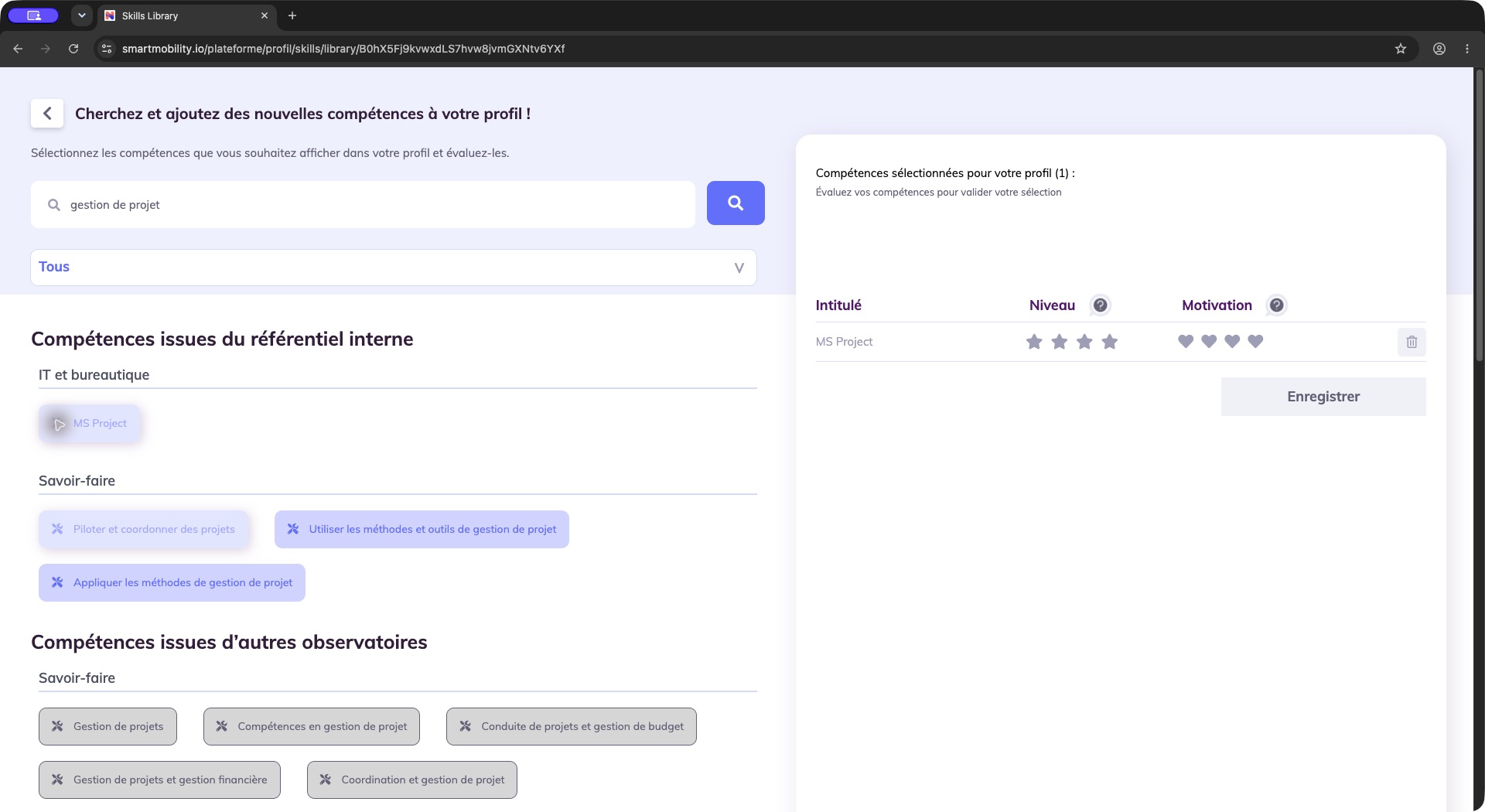
The selected skill is pending assessment. Set the required ratings before saving, or remove it from the temporary selection.
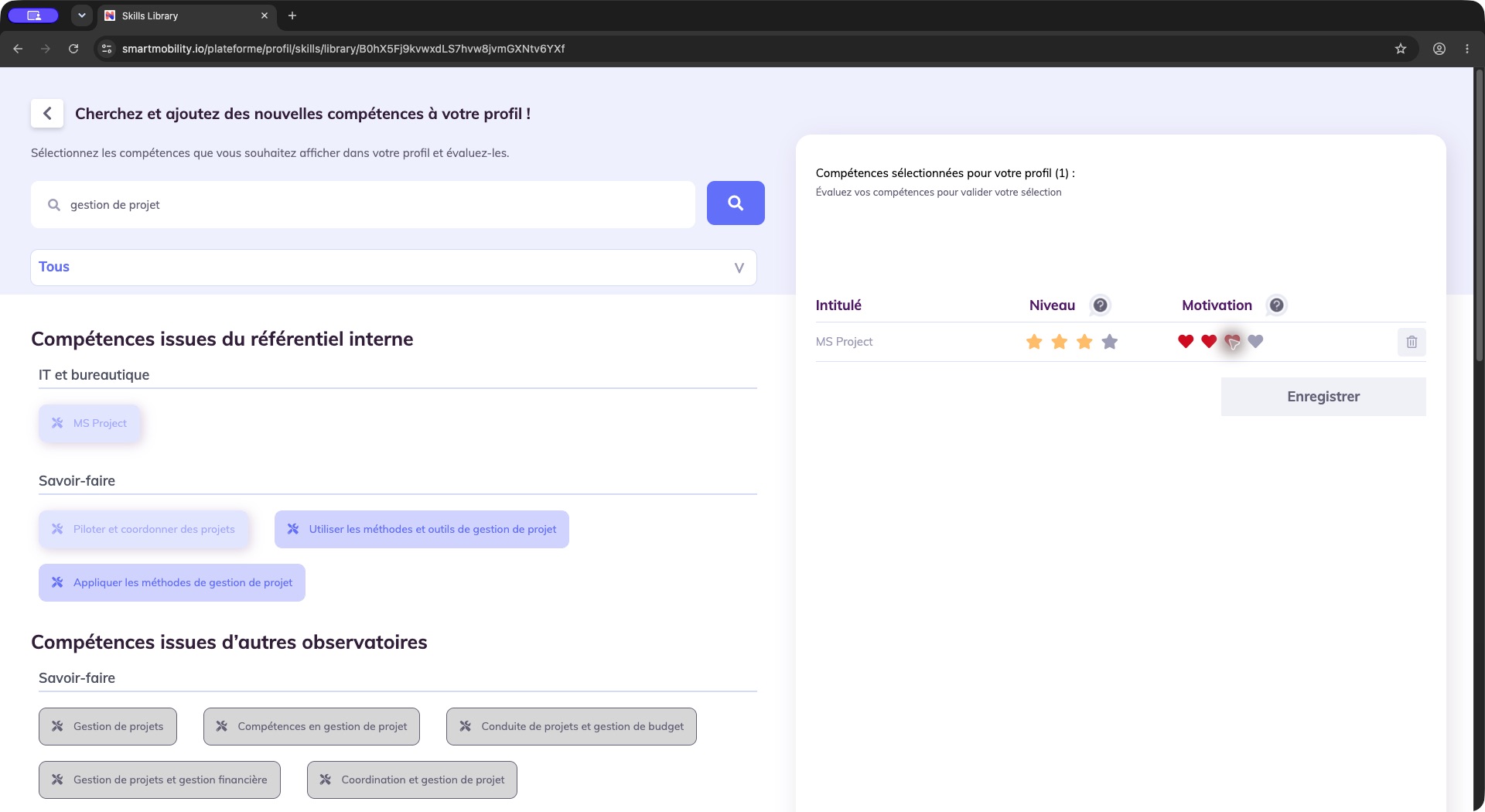
Review the selected skill and its mastery and motivation ratings before saving.
Each selected skill needs a mastery rating. Motivation is also required when the field is shown. Choose Enregistrer after completing the required ratings, then return to Profil → Mes compétences and confirm the addition. Existing skill associations are not added a second time.
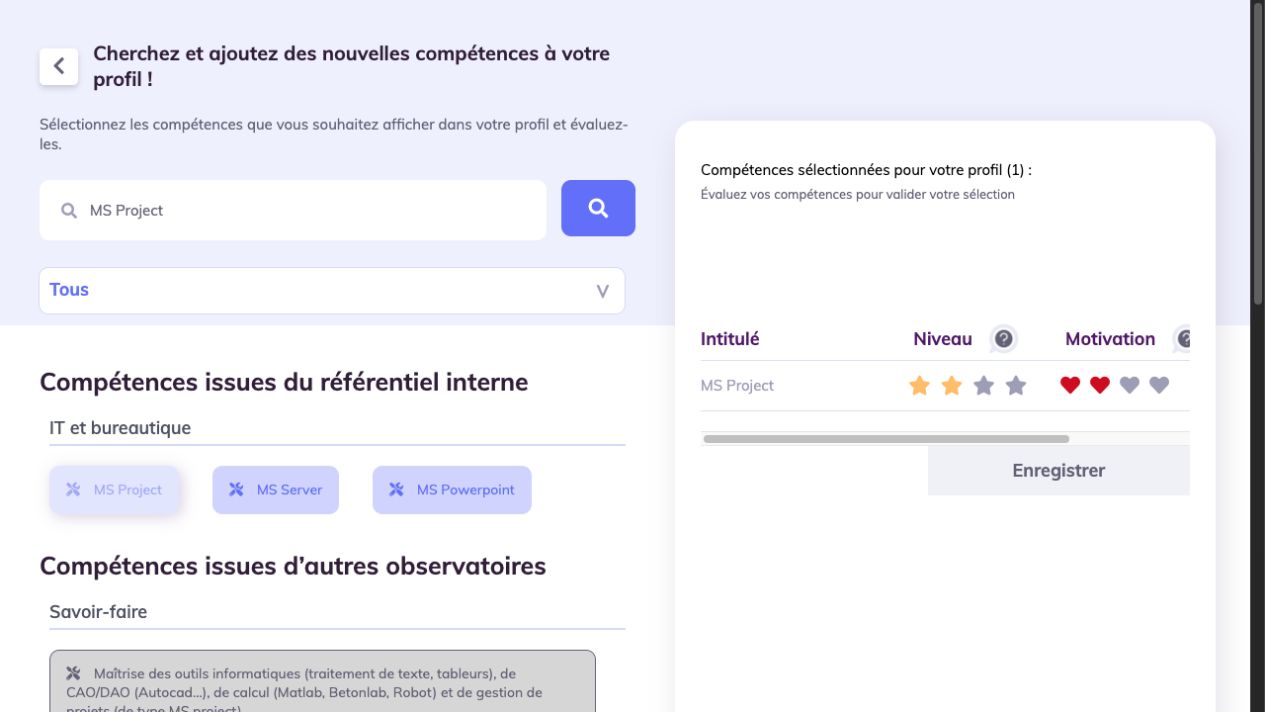
The selected skill has the required ratings and is ready to save.
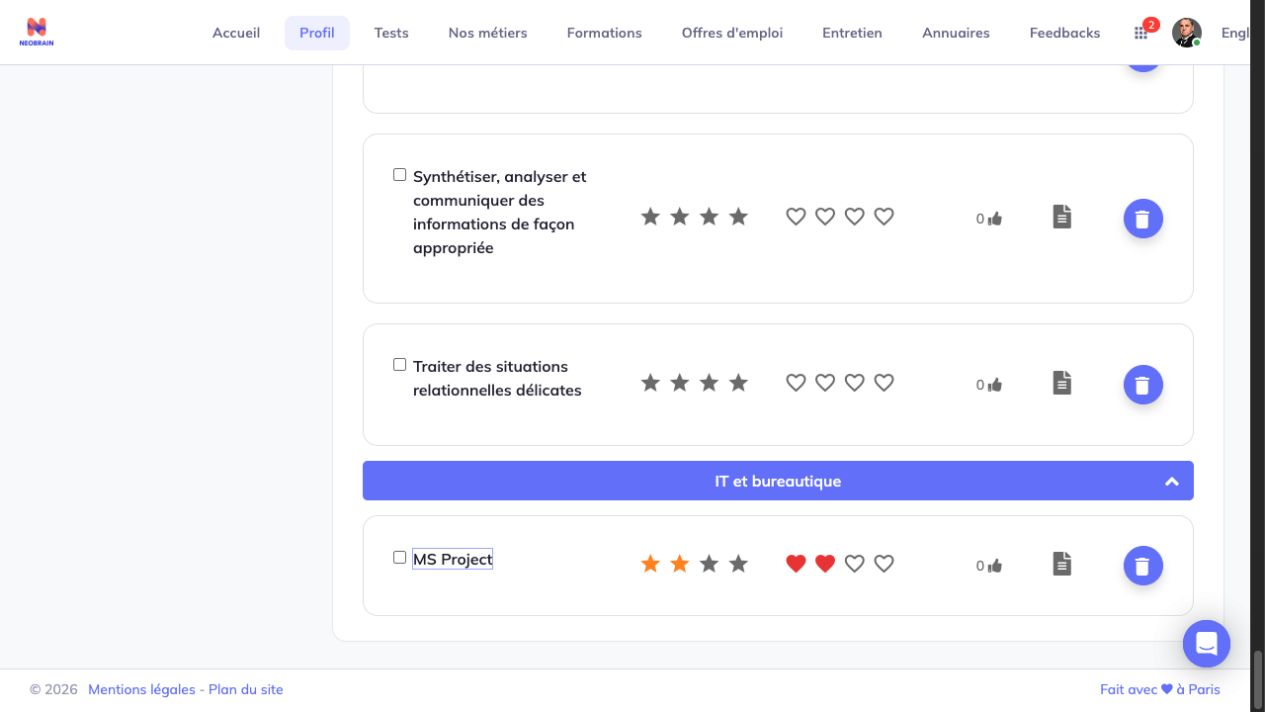
The skill appears in the portfolio with its saved ratings after reopening.
Review ongoing personalized suggestions
This panel is available when personalized suggestions are enabled for the company and the profile has eligible information.
- Read the suggested skill’s title and description.
- Ignore an irrelevant suggestion, or choose to add a relevant one.
- For an addition, assess mastery and motivation before confirming.
The panel also offers a control to return to the previous suggestion. Its refresh and undo behavior depends on the implementation described below.
The implementation can derive candidates from work experience, and the newer inference path also uses diplomas and interests. It excludes existing/ignored skills through that path's inputs. The older implementation uses experience job titles and persisted suggestion decisions. These paths have different refresh and undo behavior; consult the technical guide before promising that undo removes a saved skill.
If the card is unavailable, the library search can still be available. The absence of the card does not mean that multi-referential search is disabled.
Business rules and permissions
Library search and personalized suggestions can use separate source settings. Available company referentials are combined with the observatories configured for the journey. External skills may be copied into a company-owned referential before assignment; appearing in search results does not add them to the employee profile.
Adding skills to another employee is subject to account, tenant and relationship checks. A configured maximum number of skills outside the employee's assigned job can prevent additional declarations. Job-derived skills can be locked and protected from removal. Assessment scales and motivation visibility vary by configuration.
Troubleshooting and FAQ
| Situation | What to check |
|---|---|
| No skills displayed on entry | Launch a search; the initial empty state is expected. |
| Search has no useful results | Try a more precise keyword; ask the administrator to check source availability and indexing. |
| Only internal results appear | External observatories may not be enabled for library search, or may have no matching indexed skills. |
| Save is inactive | Assess every selected skill and complete motivation if shown. |
| A skill disappears from the selection | Check whether it was removed with the trash icon; selection is separate from the saved profile. |
| Addition is refused by a quota message | Check the company limit for self-declared skills outside the assigned job. |
| No ongoing suggestion card | Check panel activation, inference mode, available profile inputs and quota. |
| Similar skill names appear | Compare meanings and source families; a semantic search is not a guarantee of complete deduplication. |
Does adding a suggestion change the company's job requirements? Adding a skill updates the employee portfolio; it does not change a job's required skills.
Does an AI suggestion establish mastery? No. Relevance and the employee's declared assessment are separate information.
For details about search, inference and persistence, see the technical guide.
Interface generation
The Skills Library and ongoing personalized-suggestion journeys use the legacy profile interface. Newer suggestion services can run behind that interface; they do not imply a separate redesigned library. Ask your administrator which suggestion sources are enabled. For implementation details, see the technical guide.
Last updated on 3 November 2026