Pulse — configuration guide
For authorized administrators preparing Pulse campaigns. See Functional for the owner/respondent journey and Technical for implementation details.
Access and dependencies
Pulse access depends on tenant activation and role permissions. Creation and modification require their respective access; a visible navigation entry does not guarantee every action is available.
Prepare a questionnaire of type Pulse in Questionnaires, a participant population and campaign dates. The campaign belongs to the company/tenant in which it is created.
Configure a campaign
- Open Performance → Pulse in the company/Manager area and choose the add action. The system immediately saves an initial draft.
- In Informations, enter a clear name, description, start date/time and end date/time. Retain Draft while preparing. Choose Save and exit or the continue action to save before moving on.
- In Participants, use the population picker to select the intended employees. Check the resulting list before saving. Visibility depends on company hierarchy and account scope.
- In Questionnaire, select an existing questionnaire of type Pulse for this tenant and save. The selector is locked once a published campaign has started or a submitted form exists. Finalize question content before launch.
- In Planification, review any planned email's subject, text, schedule and recipient information. Email recipients are based on the campaign population.
- Review the campaign summary and its shared response link. Change status to Published only after the dates and content are ready. Opening a confirmation screen or finishing navigation does not itself publish the campaign.
- Confirm the link is available during the intended response window and check the planned communication before sharing it with the population.
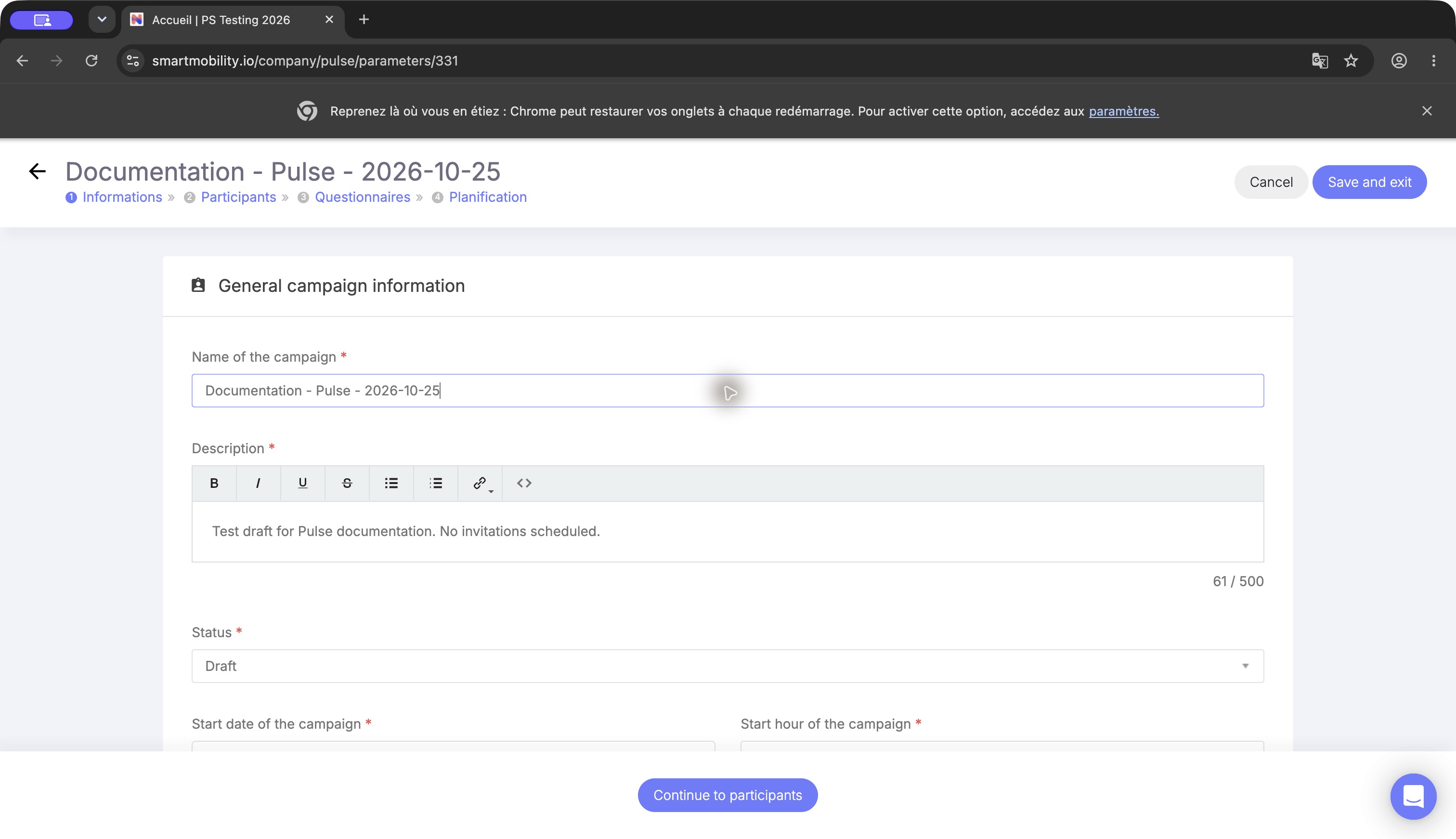
Enter campaign information and dates on this page, then continue to participants. Draft is a preparation status; set Published only when the campaign is ready.
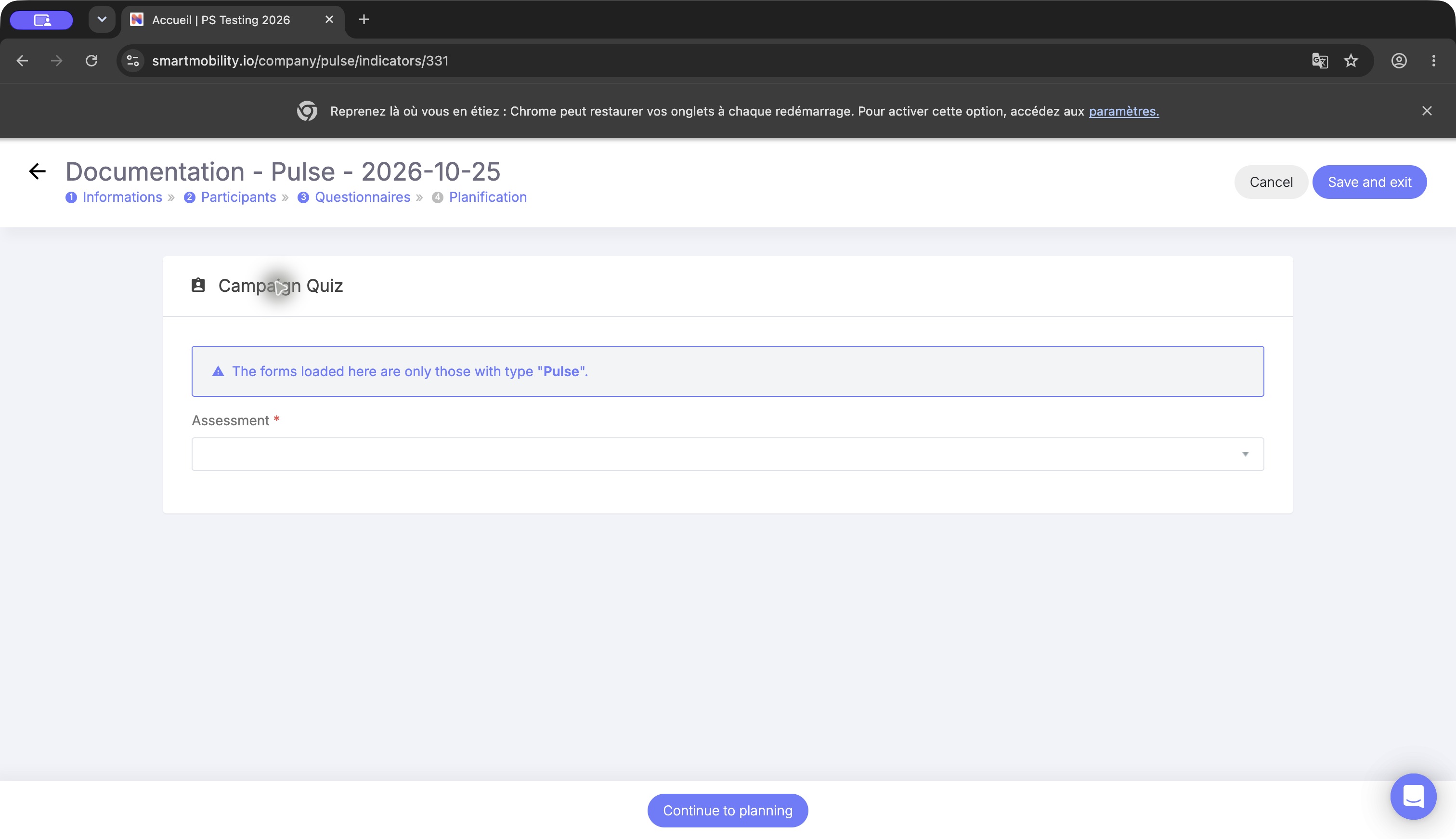
Select an Assessment of type Pulse. The selector lists eligible Pulse forms; it is not the survey respondents complete.
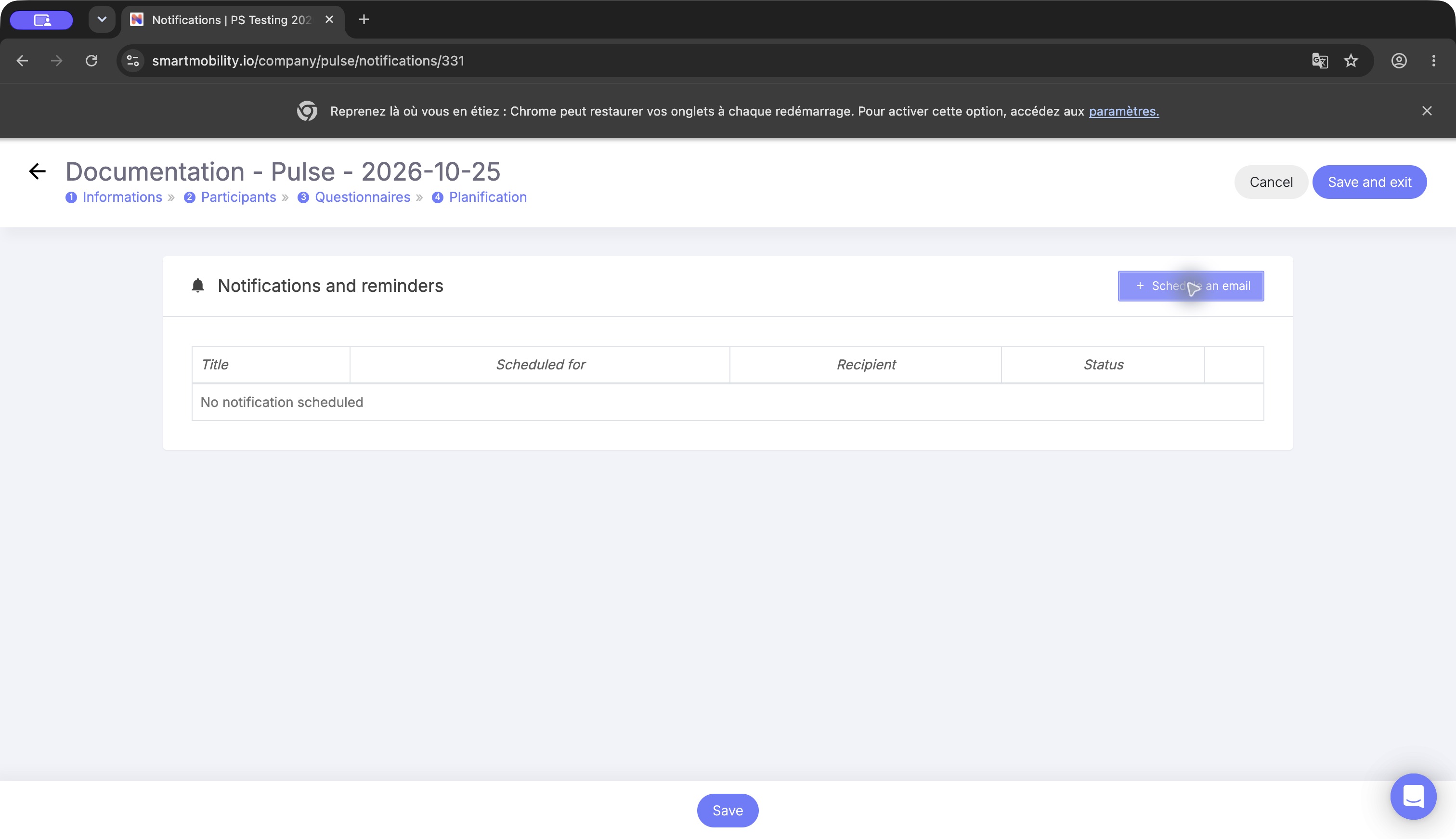
Use Schedule an email to prepare a campaign message. Review recipients and schedule; a planned email is separate from survey responses.
Fields, values and defaults
| Field | Scope, default and rule |
|---|---|
| Campaign name | Campaign-specific, initially Campagne #…; non-empty in the information form's client validation. Mapping length is 255 characters. |
| Description | Rich-text editor with a 500-character visible-text counter. It is marked required visually, but the inspected client validation does not reject an empty description. The mapping still declares length 255; see the implementation limitation below. |
| Status | Draft (brouillon) or Published (publiée); creation starts in Draft. |
| Start/end date and hour | Required by the client validation. UI dates are localized and normalized to DD/MM/YYYY before sending; hours use HH:mm. Backend parsing uses the server's default timezone. No tenant-timezone guarantee or start-before-end check was established. |
| Questionnaire | One Assessment; the picker lists tenant assessments of type pulse. No automatic questionnaire assignment was verified. |
| Participants | PulseUser records initialized with done = false; distinct from submitted forms. |
| Shared survey link | Generated per campaign; external entry checks dates, draft status and the browser completion cookie. It is not scoped to a named respondent. |
| Planned email | Stored as an Email record associated with entity pulse and the campaign ID. Sending requires a published campaign and the background notification command. |
The editor allows up to 500 visible characters in the description, while the application mapping allows 255 stored characters. Rich-text markup also contributes to stored length. Keep descriptions concise and confirm they are retained after saving.
Communication and effect on users
The email service sends planned communication for published campaigns to the campaign population, using participant names in supported placeholders. It does not filter recipients by submitted-response status. Do not assume publication alone sends an email or that reminders target only people who have not responded.
The email editor may offer placeholders such as [[firstname]], [[lastname]] and [[formLink]]. Confirm that each placeholder is supported in the rendered message; the Pulse sender substitutes the participant's first and last names. If needed, include the campaign link directly.
The shared response link accepts answers without linking the resulting PulseForm directly to a user. Adding a participant does not prove they have answered, and a successful external save does not update PulseUser.done in the traced handler.
Safe changes, rollback and validation
Before launch, review the summary after saving each section. Keep a draft isolated from planned mail and use a small intended population for delivery checks. Returning to Draft blocks normal entry to the survey page and the inspected Pulse email sender; it does not delete existing answers or establish cancellation of already delivered mail.
Treat questionnaire changes after responses as a reporting-integrity change. The selector lock is a UI rule. Replacing population or dates is not a rollback of answers. A campaign delete removes the entity and has cascading response relationships; there is no verified restore workflow, so deletion is not a safe rollback procedure.
| Problem | Validation / corrective step |
|---|---|
| Save is blocked | Supply name and all four date/time fields; check the description counter. |
| Description fails or changes after saving | Shorten it and verify persistence; investigate the mapping/schema mismatch. |
| Questionnaire is missing or read-only | Check type Pulse, tenant ownership, publication/start time and existing responses. |
| Participant changes fail | Check end date and account visibility; confirm the saved list after reopening. |
| Mail is not sent | Check publication, schedule, participant addresses, background command and transport logs. |
| Response page shows not started/ended | Check status and dates against the server's effective clock/timezone. |
Implementation reference
The Pulse workflow uses legacy Symfony forms, Twig/jQuery screens and Doctrine models.
Sources relative to smartmobility-legacy: src/Company/PulseBundle/Controller/DefaultController.php, Form/Type/PulseType.php and Resources/views/Default/{parameters,users,assessment,notification,confirmation,pulse}.html.twig; src/Main/ConfigBundle/Resources/config/doctrine/Pulse*.orm.yml; web/assets/js/pulse-characters-limitation.js; src/Command/Notifications/EmailProgramationCampaignCommand.php; app/Resources/views/core_company_theme_v3.html.twig.
Application coverage
The campaign setup guide is illustrated with the information, participant, questionnaire and planning steps. A live respondent answer and post-launch response summary require a published campaign with an eligible questionnaire and remain outside the available product illustrations.
Last updated on 3 November 2026