Pulse — functional guide
Pulse collects short survey responses through a campaign questionnaire. Campaign owners prepare the audience, questionnaire, dates and communication; respondents use a shared survey link. See Configuration to prepare a campaign and Technical for the implementation.
Before you begin
This guide is for campaign owners and survey respondents. An owner needs access to Performance → Pulse in the company/Manager area. A respondent needs the campaign link and a campaign that is published and within its response window.
A campaign contains dates, status, participants and one questionnaire of type Pulse. Participants are the invitation population. Responses are submitted forms, stored separately from that population; invitation and response counts are not interchangeable.
Prepare and follow a campaign
- In the company/Manager area, open Performance → Pulse. Use the upcoming, current, completed or draft view to locate a campaign. These views reflect publication status and dates.
- Open the campaign to inspect its status, questionnaire, dates, participant count and response count. If no participants or answers exist, the summary displays an empty-state message.
- To prepare a new campaign, use the add action, then complete Informations, Participants, Questionnaire, and Planification. Opening the add action immediately saves a draft; leaving the wizard does not undo its creation.
- Keep the campaign in Draft while selecting the population and a questionnaire of type Pulse. Save each section before leaving it. The questionnaire selection becomes read-only after a published campaign starts or once a response exists.
- Review dates, questionnaire, population and any planned email. Set Published when ready. The response page also checks the campaign dates; publication alone does not make a future campaign answerable.
- Open the summary to obtain the campaign's survey link. Share it through the approved campaign communication. A shared link is not an individual invitation token.
- Follow the response count and the submitted-form table, which shows submission date/time and duration. The campaign summary does not present an aggregate score; consult submitted forms for response details.
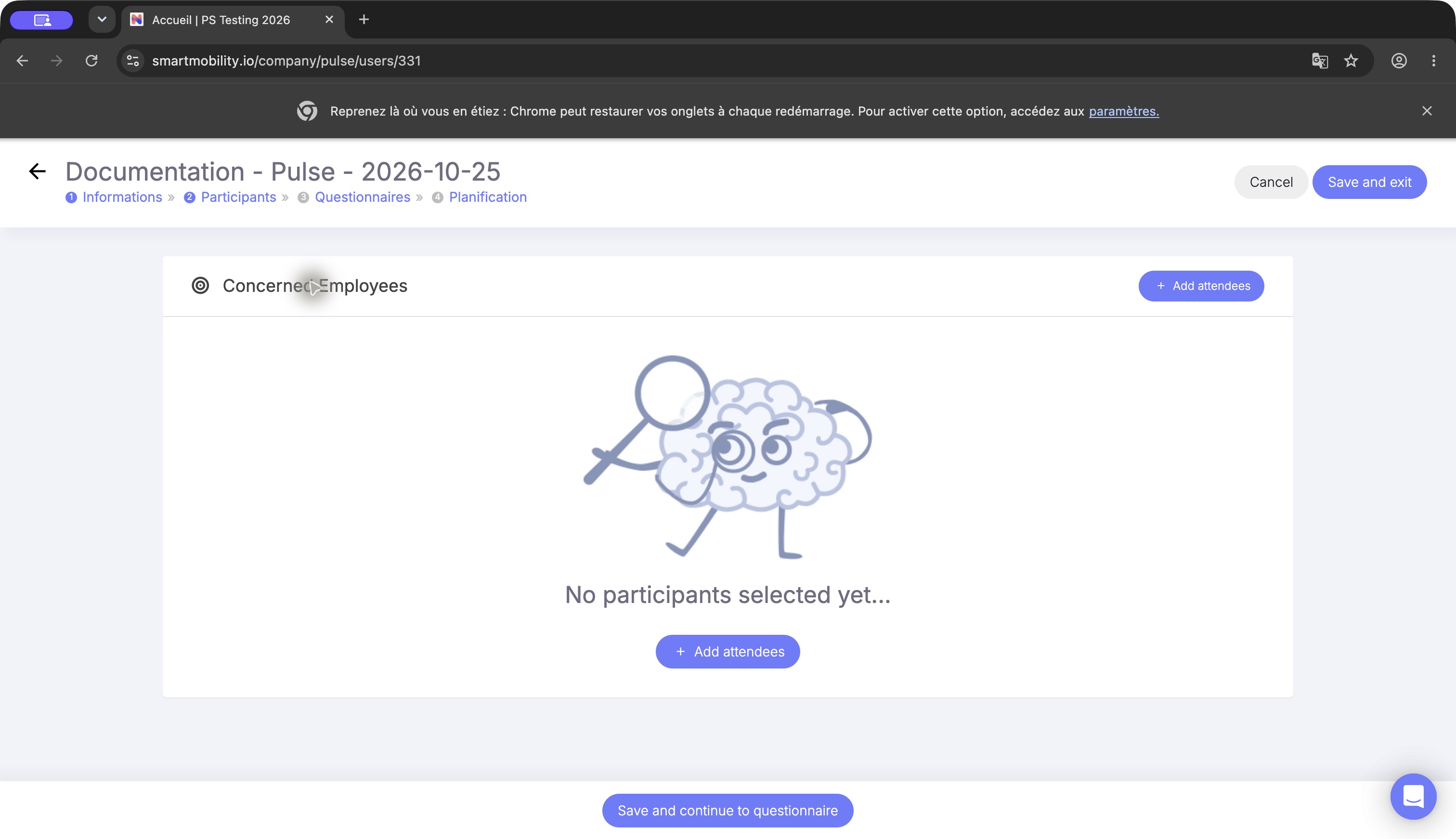
Use Add attendees to select the invitation population. Review the selected people before continuing; membership and submitted-response counts are separate.
Respond to a Pulse survey
Respondents use the shared campaign link during the response window.
- Open the campaign link and read its introduction.
- Complete the displayed questionnaire and review your answers.
- Submit the questionnaire.
Questions can include text, selection, date, choice, rating and long-text inputs, grouped by section. A successful submission records the answers and completion duration. The same browser may prevent reopening the submitted campaign for a limited period.
The entry page is unavailable when dates are missing, the campaign has not begun or remains in draft, the end date has passed, or the browser already has the completion cookie. This duplicate check is browser-based; it does not guarantee one response per employee. Required-answer validation follows the configured questionnaire.
Business rules and permissions
Pulse access depends on tenant activation and permissions. Creation and modification controls have additional role conditions; see Configuration. Visibility can depend on the current company persona and organizational scope.
Participants and responses serve different purposes. The external response model has no direct user relationship, but the campaign retains an identified invitation population and response timestamps. This is insufficient evidence for a broad privacy or anonymity guarantee. Avoid identifying details in free-text answers and use the organization's approved privacy wording.
FAQ and troubleshooting
| Situation | What to check |
|---|---|
| Pulse is absent from the menu | Company/Manager persona, tenant activation and role permissions. |
| The campaign is absent from Current | Draft status, start/end dates and organizational visibility. |
| No questionnaire is available | A questionnaire of type Pulse must exist in the same tenant. |
| Questionnaire selection is locked | A published campaign has started or submitted forms exist. |
| The survey cannot be opened | Missing dates, draft/future campaign, past end date or completion cookie. |
| Participants exist but responses are zero | An invitation population does not itself create submitted forms. |
| A planned email has not arrived | Publication, scheduled date, recipient population and notification processing. |
Interface generation
Pulse uses the legacy campaign workflow, which can appear inside a redesigned navigation shell. The shell does not change survey availability or response steps. Ask your administrator which campaign experience is enabled; see the technical guide for implementation details.
Last updated on 3 November 2026