360 feedback — functional guide
Collect contextual feedback about an employee or manager from designated contributors. A participant is the person being evaluated; a contributor/reviewer answers a questionnaire about that person. The same person can receive feedback in one campaign and contribute to another.
360 feedback is not anonymous. The product FAQ explicitly confirms this; do not promise anonymous answers to contributors. This is separate from anonymous engagement surveys.
Before you begin
HR and managers need an authorized manager space, enabled 360 feedback access and an accessible campaign population. Employees need personal-space access and an actual participant or reviewer assignment. A job title or switching spaces does not grant access. Campaign setup requires a 360 questionnaire, users and their reporting relationships; see Configuration.
Follow a campaign as HR or manager
Find a campaign
- In the top-right space selector, choose Manager area.
- Open Performance → 360 Feedback (
/feedback). - Choose Not started, In progress, Completed or Drafts. In progress is initially active.
- When a campaign is available, open its summary and choose the employee feedback/detail view available to your role.
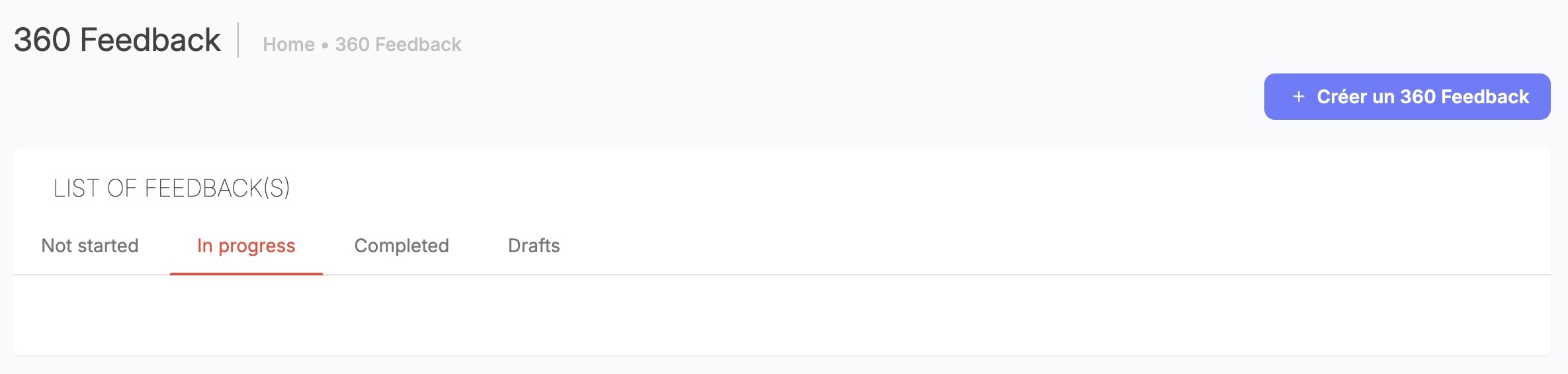
Choose the tab that matches the campaign’s dates or saved status. Opening Create starts a draft; use it only when you are ready to configure a campaign.
The four tabs switch displayed campaign groups immediately; they do not publish, close or archive a campaign. Not started and Completed derive from dates; Drafts derives from saved status. These are not four stored lifecycle statuses. The legacy tab predicates can overlap: do not infer an exclusive lifecycle from their names. Clear a tab restriction by choosing another tab.
Campaign cards and participant counts depend on permissions, manager/delegate relationships, campaign type and reviewer completion. An empty tab does not establish that the tenant has no campaigns.
Review progress and contributors
- Open the campaign summary and choose Accéder aux feedback(s).
- On the participant row, choose Voir plus to inspect assigned contributors and submission progress.
- Where offered, open Ajouter un ou plusieurs contributeurs to search for eligible users and select the intended contributors.
- Review the selection before Valider les contributeurs. Close the selector without validation to leave assignments unchanged.
When no contributors are assigned, the participant row indicates that no active contributor has been selected and completion is 0%. Use the contributor selector to review eligible people before saving assignments.
| Control/action | Purpose, choices and effect |
|---|---|
| Campaign summary | Shows campaign dates, participant count, questionnaire and related progress. Counts reflect the relevant view's scope; they are not a universal company total. |
| Participant/contributor detail | Opens the selected evaluated person's assignments. Available population depends on role and relationships. |
| View questionnaire | Company-side questionnaire view is rendered read-only. Viewing does not submit feedback. |
| Add contributors | Employee-campaign workflow supports one or several existing users; adding persists assignments and can send notification emails. It is a business change. |
| Allow participant to add contributors | Per-participant option. Enables a conditional action in their received-feedback view; it is separate from campaign visibility. |
| Reminder | Sends a message; it is not a list refresh. Check recipients and completion before sending. Delivery depends on notification configuration. |
Do not interpret completion as a score: it describes submitted questionnaires. For example, illustratively, two submitted contributions out of four correspond to 50% completion; this says nothing about the employee's assessed performance.
Permissions and business rules
Legacy templates distinguish all-interview access, participant's direct manager/delegate, and a separate permission for management feedback. Manager-campaign visibility differs from employee-campaign visibility. The campaign creation action is permission-dependent. These display rules do not establish complete server authorization; endpoint-level caveats are in Technical.
Campaign creation is an administrator task. Opening the Create link creates a saved draft immediately. Do not open it merely to preview a blank form.
Give and receive feedback in personal space
Give feedback
- In the space selector, choose Personal space, then open Feedbacks (
/plateforme/feedback/). - Select 360 Feedback sent. This lists questionnaires assigned to you as a contributor, including work still to complete.
- For an assignment, check its campaign, evaluated person, due date and status; choose the complete action if it is unfinished or the view action if it is complete.
- Answer the configured questions and move between sections. Save progress using the form's available save controls; final submission is a distinct action.
- Review your answers before submitting. A completed questionnaire is displayed read-only; ask the campaign administrator if a correction is needed.
Unfinished reviewer assignments enter this list while the campaign is published and within its open date range. Completed assignments remain listed while their campaign is published. Only the assigned contributor can open that questionnaire. Saving and submitting may have separate deadline rules.
Question formats depend on the assigned template: text, multiple-choice/selection and ratings have different input rules. Section navigation changes the displayed section; it is not final submission. Choice sets, required fields and scales are questionnaire-defined; there is no universal rating scale or answer list.
Read feedback received
- Select 360 Feedback received to see campaigns where you are the evaluated participant.
- If available, use See more to expand contributor detail and submission progress; toggle it again to collapse.
- Where authorized, open available response details. The view identifies contributors and their status; responses are not anonymous.
- An add-contributor action appears only when the participant's permission option is enabled. Selecting users and confirming adds assignments; simply switching tabs does not.
The received-feedback view reports progress from submitted contributions. Its eligibility rules differ from the sent-feedback list; contact the campaign administrator if an expected campaign is missing.
Troubleshooting and FAQ
| Situation | What to check |
|---|---|
| No 360 feedback menu | Correct space, module activation and role access. |
| Empty manager tab | Other tabs, campaign dates/status, campaign type and manager/delegate scope. |
| Empty sent list | Actual reviewer assignment, publication and dates; participant membership alone is insufficient. |
| Received feedback but nothing to complete | You may be the evaluated person rather than a contributor. |
| Cannot add contributors | Participant-specific permission and available user population; ask the campaign administrator. |
| Form is read-only | Completed assignment or company-side consultation view. |
| No invitation email | Correct assignment, published campaign, valid recipient address and configured notification templates; list availability and email delivery are separate. |
| Need anonymous feedback | This module does not anonymize contributions; discuss the appropriate survey workflow. |
Legacy versus redesigned behavior
The 360 feedback module uses the legacy Symfony/Twig workflow, even when reached through current application navigation. The nextgen campaign experience and automatic migration are separate deployment concerns. AIHub matching/job-offer feedback is a different feature.
About this guide
This workflow describes the legacy 360 feedback module. For configuration and implementation details, see Configuration and Technical. Availability depends on the permissions, features and campaign setup configured for your organization.
Last updated on 3 November 2026