Talent Marketplace — functional guide
Before you begin
Talent Marketplace helps HR teams and managers discover employees for an internal mobility or staffing need, using professional criteria and job or offer matching. Sign in with a role authorized to use the directory and view the intended population. Available profiles, fields and options depend on your organization's configuration and the data recorded in profiles.
This guide separates HR/manager usage and employee usage. Access, available filters and visible information are evaluated independently in each space. Administrator tasks are covered in the configuration guide.
| Term | Meaning |
|---|---|
| Filter | A criterion applied when you run the employee search. |
| Matching reference | A job or offer used by the matching controls, distinct from filtering by an employee's job. |
| AI prefill | Suggested filter values generated from a description. It does not run the employee search. |
| Visibility scope | The population your role is allowed to view. |
Find people in the manager directory
Open the directory and understand the page
- Open Mobility > Talent Marketplace in the manager workspace.
- Review the results area and the filter panel on the right.
- Scroll within the filter panel to reach Filter matching and Start search.
Use the filters to prepare your criteria, then select Start search to retrieve matching profiles.
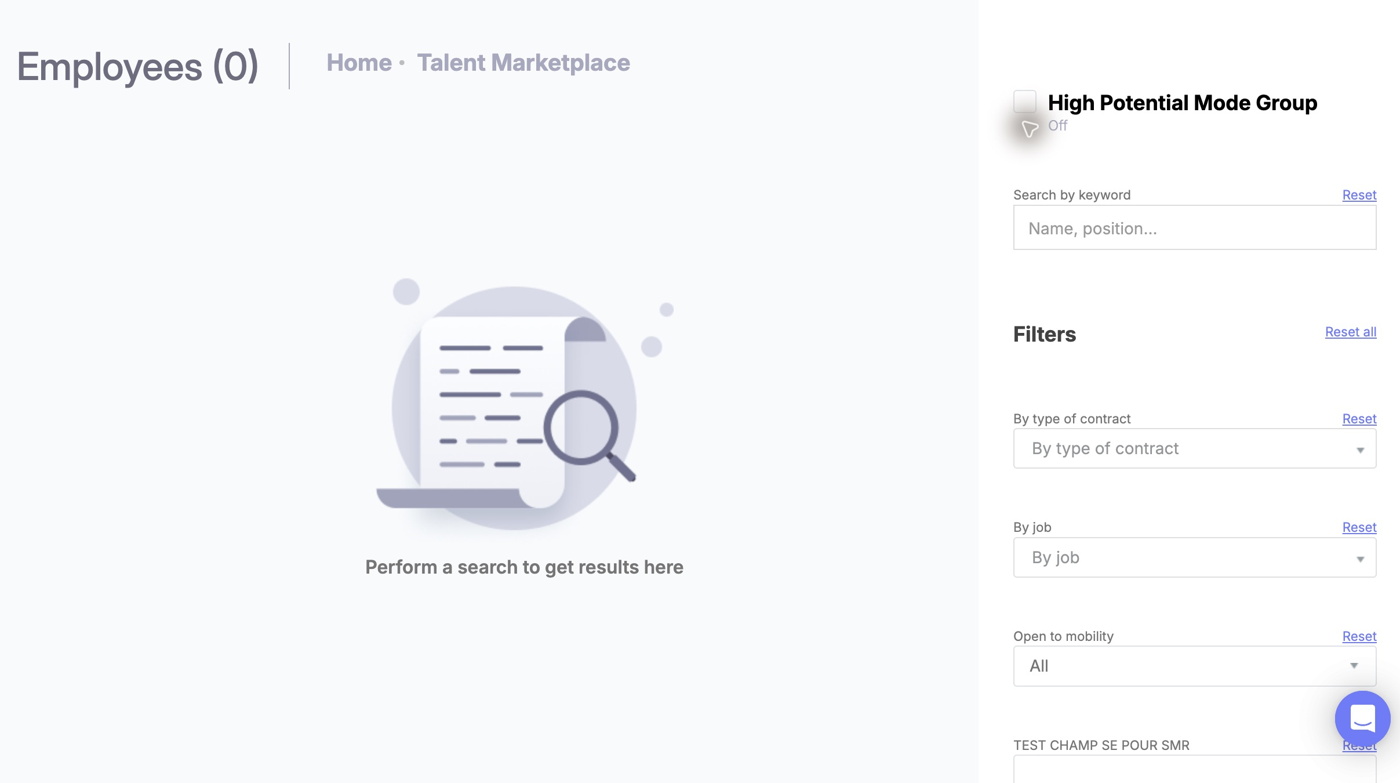
The results area is waiting for a search and the criteria panel is on the right. Set the intended filters, scroll to Start search and launch it; the initial zero is not a count of all available employees. Contract, job, mobility and organization-defined filters can be available; AI prefill and offer matching depend on configuration. Organization-defined labels may remain untranslated.
Search for employees
- Enter a keyword or choose the filters useful for your need.
- If needed, select a job or offer in Matching filters.
- Select Start search to retrieve profiles. Changing a criterion alone does not run this search.
- Review the counter and profile cards. Results can span several pages; use the page controls to continue.
- Select View profile to open the profile in a new tab.
- Return to the directory, adjust the criteria and run the search again.
An unrestricted search can return profiles across multiple pages. The result count depends on the available population and is not a product-wide reference count.
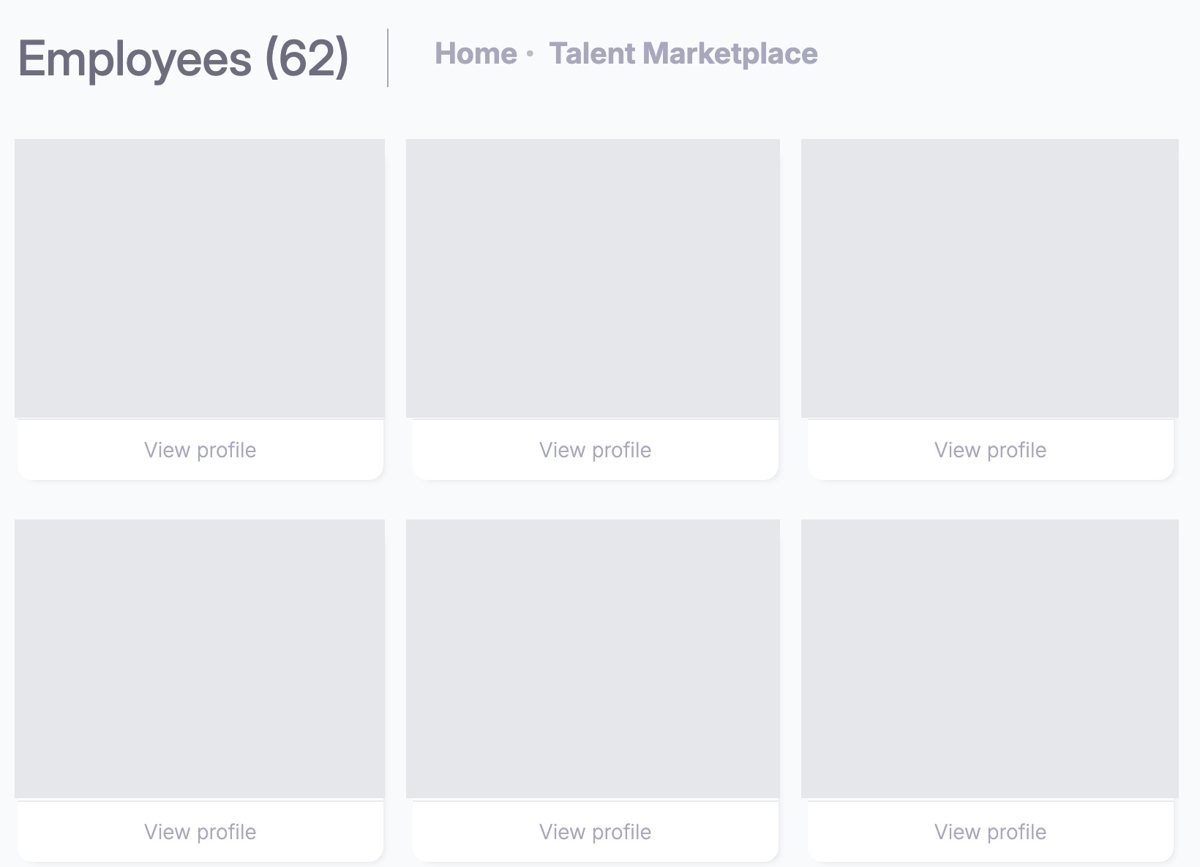
The search has returned employee cards, with identifying content masked. Use View profile on an authorized result to inspect details; the masked cards cannot establish a particular person’s skills or score. Real search results; grey masks remove identifying card content. Use View profile to open a returned profile. The count is environment-specific.
Keyword — “Search by keyword”
Use Name, position… for a name or function keyword when you already have a specific search term. The field starts empty and uses keyword tags. Its adjacent Reset clears that criterion. For a catalogue job selection, use By job instead of relying on free text.
Use a function keyword when you have a specific term. For exact job criteria, select a catalogue job under By job.
Filters — narrow the employee population
The directory can provide contract, job and mobility criteria. Each criterion has its own Reset action; available filters depend on company configuration.
Contract type — “By type of contract”
Use this multiple-choice selector to specify contract types. Open the list, choose one or more values, and check the selected items before running the search. Use the adjacent Reset to clear the selection.
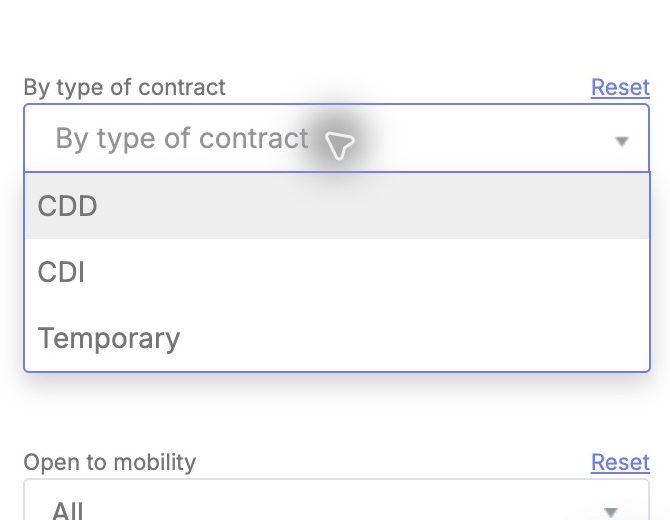
Select the intended contract criteria and run the search again. These choices filter the population; they do not change an employee’s contract. Available labels depend on the organization.
Selecting a contract does not change an employee's contract or create a mobility request. If you select several values, review the returned profiles to confirm they fit the need.
Employee job — “By job” under “Filters”
Use this multiple-choice selector for the jobs you want to use as employee criteria. The list is supplied by the organization's active, visible job catalogue. Search within the selector to locate a title, select the relevant entries, and clear the selection with Reset.
The selector uses the organization's catalogue. Job titles may remain in French even when the interface is English. A listed title does not establish that a corresponding employee exists.
Illustrative use: choose ACHETEUR to set an employee-job criterion, then run the search. This control supports multiple jobs. The identically labelled selector under Matching filters accepts a single matching reference and serves a different purpose.
Open to mobility
Choose one value:
| Choice | How to use it |
|---|---|
| All | Initial state; no mobility preference selected. |
| Yes | Request profiles recorded as open to mobility. |
| No | Request profiles recorded as not open to mobility. |
The control has one selected value at a time. Its Reset restores the empty-value All choice.
Choose Yes to explore employees open to a move. This is a search criterion; it does not update an employee's mobility preference.
Matching filters — choose a reference
Job matching — “By job” under “Filter matching”
Select one job as a matching reference. The list uses the active, visible job catalogue. The selector starts empty; use its Reset to remove the reference. Use this when the need is framed around a target job, while using the employee-job selector above when you want a job criterion on the population.
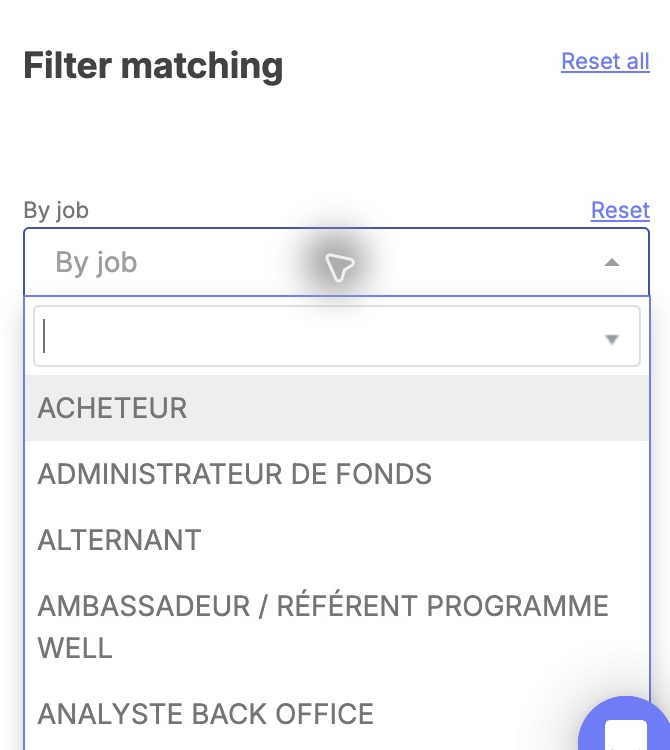
The matching section offers a reference-job selector distinct from the population’s job filter. Choose the reference for comparison, then launch the search; this selection does not assign that job to a person. This single-reference selector is separate from the multiple-job population filter. Catalogue titles are organizational data and are not all translated. Choose a reference and then select Start search.
A selected job is a comparison reference, not a guaranteed match or ranking outcome. Review the returned profiles against the staffing need.
Job-offer matching — conditional control
Select one available offer as a matching reference, then run the search. The list starts empty, and offer labels can include a code before the title. Use the adjacent Reset to clear it. This control is available when offer matching is enabled and matching scores are available for the organization.
When internal-offer matching is enabled, choose an offer associated with the staffing need. Available titles depend on your organization's offers. Selecting an offer does not submit an application.
Some organizations require at least one population filter before allowing matching or search. If a control is disabled, fill a relevant criterion first.
Describe the desired profile with AI
When enabled, Describe the profile you are looking for turns a description into proposed filter values.
Availability: AI prefill appears only when enabled for the organization and role. If the block is unavailable, continue with manual filters. The workflow below describes the available controls; exact suggestions depend on the service and profile data.
- Enter a professional description of up to 4,000 characters. Avoid personal or confidential information.
- Select Search in the AI block.
- Review every proposed criterion, including values removed or replaced.
- Correct or remove suggestions as needed.
- Select Start search to retrieve employees.
Illustrative description: “Find HR employees open to mobility.” Add a city or language only if that filter is available. AI can prefill only the displayed filters; it cannot activate missing criteria or guarantee that a corresponding employee exists.
When the AI service returns usable suggestions, review them before running the employee search. A new description can replace previous criteria; an empty suggestion list does not indicate that no employees match. If suggestions are unavailable, enter criteria manually.
Reset and other page actions
| Action | Effect |
|---|---|
| Reset beside one filter | Clears that criterion; a mobility reset returns to All. |
| Reset all under Filters | Reloads the page. Expect the initial search state, rather than a reset limited to one group. |
| Reset all under Matching filters | Clears the job and offer matching references. |
| Reset below Start search | Reloads the page. |
| Start search | Retrieves profiles using the prepared criteria; it does not save profile changes. |
| View profile | Opens the selected profile in a new tab, subject to access checks. |
After a change, run the search again to obtain results for the revised criteria; previous cards do not refresh automatically.
Optional filters and advanced options
The location/background, age/seniority, language and skill controls below are available in expanded configurations. Custom fields and high-potential criteria are also conditional. Their availability depends on activation, permissions and populated data; they do not appear in every organization.
Location, organization and background
Text fields start empty in the template; selectors start without an explicit selection unless noted. Use the criterion's Reset to clear it. Dynamic choices reflect organizational data and may be empty. The examples below illustrate input, not guaranteed results.
| Control | Choices, purpose and example |
|---|---|
| City / Country | Separate text fields for location criteria. Enter a city or country relevant to your search. |
| Direction | One organizational direction from the organization's recorded directions. Use it for a need tied to a specific direction. |
| Project | One project from configured projects with assigned users. Choose the project relevant to the search. |
| Domain | Text criterion for the recorded domain. Enter a domain term when that information is populated. |
| Nationality | Text criterion, shown only when enabled. Available values depend on the organization's profile data. |
| Gender | Conditional selector; available values depend on the organization's configuration. |
| Diploma | Multiple choices loaded through diploma search. Look up a qualification, select entries, and reset to clear; available qualifications depend on data. |
| School | Text criterion for a school. Enter the institution name used in employee profiles. |
| Job family | Multiple choices from the job-family reference list. This list is omitted when a custom job field already supplies the job-family classification. |
Age and seniority ranges
Both controls have separate Minimum and Maximum numeric inputs with a lower bound of zero. You can enter one bound or both; reset clears both. When both are entered, use a maximum strictly greater than the minimum. Invalid ranges display a validation message and prevent the search.
The unit for seniority is specified by the field label and surrounding context. If both bounds are entered, keep the maximum above the minimum.
Languages and skills
Languages accepts multiple choices from profile language data for the organization. Select the languages relevant to the need; an empty selection leaves the criterion unset. Review results to confirm the profiles meet the language requirement.
Skills provides a search selector that adds chosen skills to a list. A newly added skill starts at level 1. Adjust its level using the rating control, whose labels can be customized, or remove a skill using its cross. The group's Reset clears the selected-skill list.
Illustrative use: select a professional skill available in the catalogue, inspect the level label, then set the intended level before running the search. An AI-generated skill can include a proposed level; review it.
Custom employee and job fields
Organizations can add fields to the filter form. Their label, input type and choices depend on the field definition; not every custom field is a text search. Use its displayed choices or range controls, then run the search. Filter availability and visibility in the detailed profile are separate settings.
High-potential mode
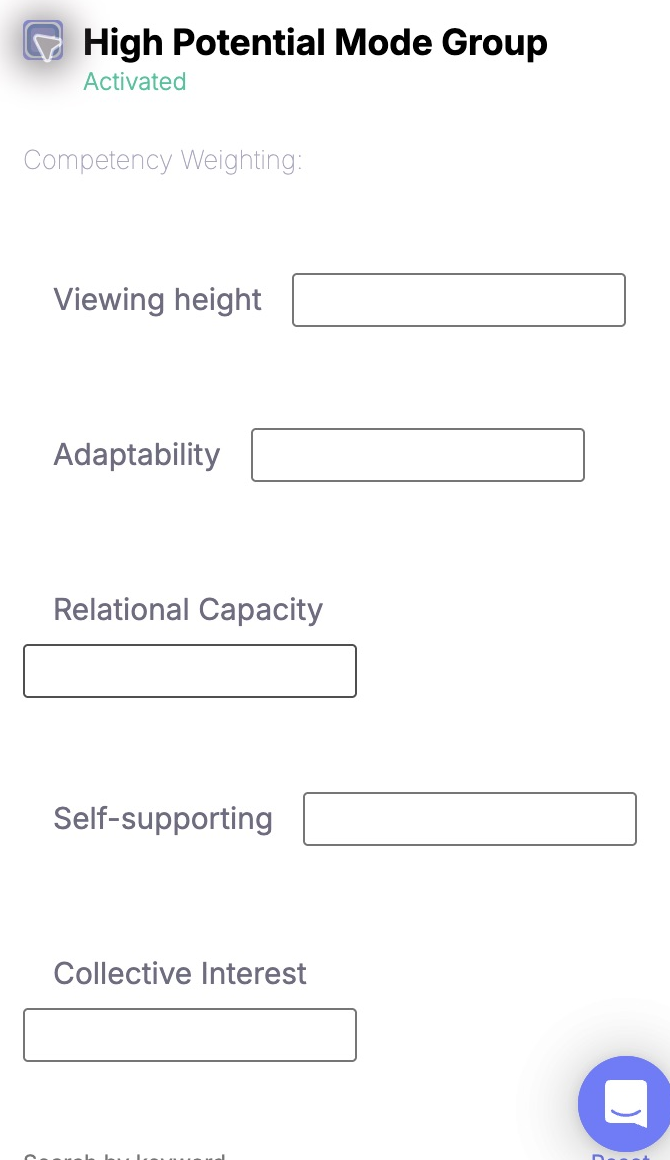
When high-potential criteria are enabled, five criterion inputs appear. Read each description before setting its range. The displayed controls configure search criteria; they do not by themselves change an employee assessment.
For authorized roles, an initially unchecked toggle can expose five range criteria: view height, adaptability, relational ability, self-supporting and collective interest. Their labels and available controls can vary by language and configuration. Use the displayed descriptions to interpret each range; these search criteria do not replace an employee assessment.
Combining criteria
The page submits the selected criteria together. If a combination gives unexpected results, apply one criterion at a time and ask the administrator to confirm the relevant data and search rules. Missing profile values can affect results.
Profile details and visibility
The detail view displays information authorized for the role, including configured standard/custom fields and available profile information. Employee and HR/manager field visibility are configured separately. Access is limited to the employee population and profile visibility allowed for your role.
Use View profile from a returned card. A redirect or inaccessible profile can indicate a role, scope, visibility or profile-data issue. An authorized profile can display Skills, Experiences and Diploma tabs, a skill search and, where enabled, Generate CV. Available details depend on configuration.
Troubleshooting
| Situation | Action |
|---|---|
| Initial counter is zero | Run a search; the initial screen has not retrieved employees yet. |
| Search returns no profiles | Remove one criterion, check recorded values, then search again. |
| A filter or matching control is missing | Ask an administrator to check activation, permissions and data dependencies. |
| Matching or search is disabled | Check whether a population criterion is required and whether a range is invalid. |
| AI is unavailable | Continue with manual filters; retry the AI request later. |
| AI suggests nothing | Existing filters remain; choose criteria manually. This says nothing about employee availability. |
| AI description is empty or too long | Enter a non-empty description within 4,000 characters. |
| Criteria changed but cards look unchanged | Select Start search again. |
| Session expires or connectivity fails | Sign in or restore connectivity, review criteria and retry. |
| Profile cannot be opened | Ask the administrator to check permissions, scope, individual visibility and profile completeness. |
Use the employee directory
Switch to the personal space
Use the dedicated Spaces switch at the top right of the manager area and select Personal space. In the personal space, the top-right Apps menu provides Manager area and Personal space. Switching spaces changes navigation; it does not grant directory access.
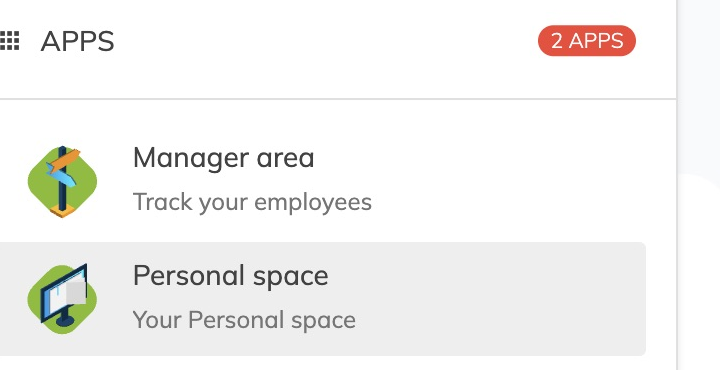
The Apps menu offers manager and personal workspaces for the same account. Choose the space relevant to your search; changing spaces does not activate an unavailable employee directory.
Employee-directory access
The employee directory is available only when your organization enables it for your role. Its navigation entry and filters can differ from the manager directory. Ask an administrator to check employee-directory activation and access if the entry is unavailable.

The personal navigation provides employee features for this account. If the employee directory is enabled, its entry appears according to the organization's navigation and access settings.
Workflow when the employee directory is enabled
When your organization enables the employee directory:
- Open the employee directory from the navigation supplied by your organization. Its menu location depends on company configuration.
- Enter a keyword and select the available employee-side filters. These are configured separately from the manager view.
- Optionally choose a job reference, or an offer reference when employee offer matching is enabled and its backing data is available.
- Launch the search and inspect the returned authorized profiles.
- Open an authorized profile and review the information enabled for the employee context.
- Clear one criterion or reload with the page-wide reset, then rerun the search.
| Employee control | Behavior and availability |
|---|---|
| Keyword | Text search for the intended name or function. |
| Contract, job, languages, diploma and job family | Template-defined selectors; several support multiple values. Available lists depend on organizational data and employee-side activation. |
| City, country, nationality, domain and school | Conditional text criteria. Do not assume that manager-side activation exposes them to employees. |
| Mobility | All/Yes/No selector when enabled for employees; reset clears the selected preference. |
| Age/seniority | Optional numeric bounds. Use the displayed field labels to interpret the units and enter a valid range. |
| Skills | Search and add skills, set the displayed level, remove an item or clear the list. The employee template initializes a new skill at level 1. |
| Custom fields | Employee filter context; labels, choices and defaults depend on the field definition. |
| Job / offer matching | Single-reference controls; offer matching has its own employee-side activation and backing-data dependency. |
| AI description | Manager AI prefill is not part of the employee workflow described here. |
Per-filter Reset clears that criterion. Reset all in the population section and the bottom reset reload the page; the matching reset clears its job and offer references.
Differences between the two directories
| Point | HR/manager | Employee |
|---|---|---|
| Access | Manager/HR permission and module rules | Separate employee-directory activation |
| Custom filter context | Manager/HR fields | Employee fields |
| Detailed-profile fields | Manager/HR visibility settings | Employee visibility settings |
| Offer matching | Manager-side activation | Employee-side activation |
| AI prefill | Available when enabled for the manager role | No equivalent employee-side prefill is defined for this workflow |
Legacy and redesigned experience
Manager and employee directories can differ in navigation, filters, profile visibility and offer matching. Follow the controls available in your workspace; administrator settings determine access. Talent pools, applications, career plans and development plans are separate features.
For implementation details and differences between application generations, see the technical guide.
Last updated on 3 November 2026