Job galaxy — functional guide
Explore possible job moves from your current role, review a suggested route and identify skills to develop. Open Job galaxy in the employee workspace (Nos métiers → Galaxie in French).
See configuration for activation and data prerequisites and technical for the implementation and service contracts.
Before you begin
Employees use their Espace personnel. A manager workspace does not automatically provide galaxy administration rights. You need an assigned current job, the company galaxy module enabled, eligible job descriptions and available job proximity data.
| Term | Meaning |
|---|---|
Current job / (moi) | The assigned role at the center of your map. Exploring another job does not change it. |
| Job family | Company classification used to group jobs and prepare path candidates. |
| Proximity | A stored matching score used to organize jobs into green, orange and red groups. Thresholds depend on company configuration. |
| Suggested route / Mobilités | Proposed sequence from the current job to a selected target, with an explanation when available. |
| Favorite | A saved job, separate from a career plan. |
| Career plan | A named plan containing target jobs and configured time horizons. |
The available map, target jobs and route explanations depend on the employee's assigned role, company job data and matching results. A suggested route is a planning aid, not a universal recommendation.
Open and navigate the map
- If necessary, use Espaces → Espace personnel.
- Open Nos métiers, then Galaxie.
- Locate your current job in the center. Nearby jobs are arranged around it; family labels and colors help exploration.
- Use the bottom-right zoom slider or − / + to change the view. Use the recenter control to return to your starting position.
- Use the search field when labels are too small or a target is outside the visible area.
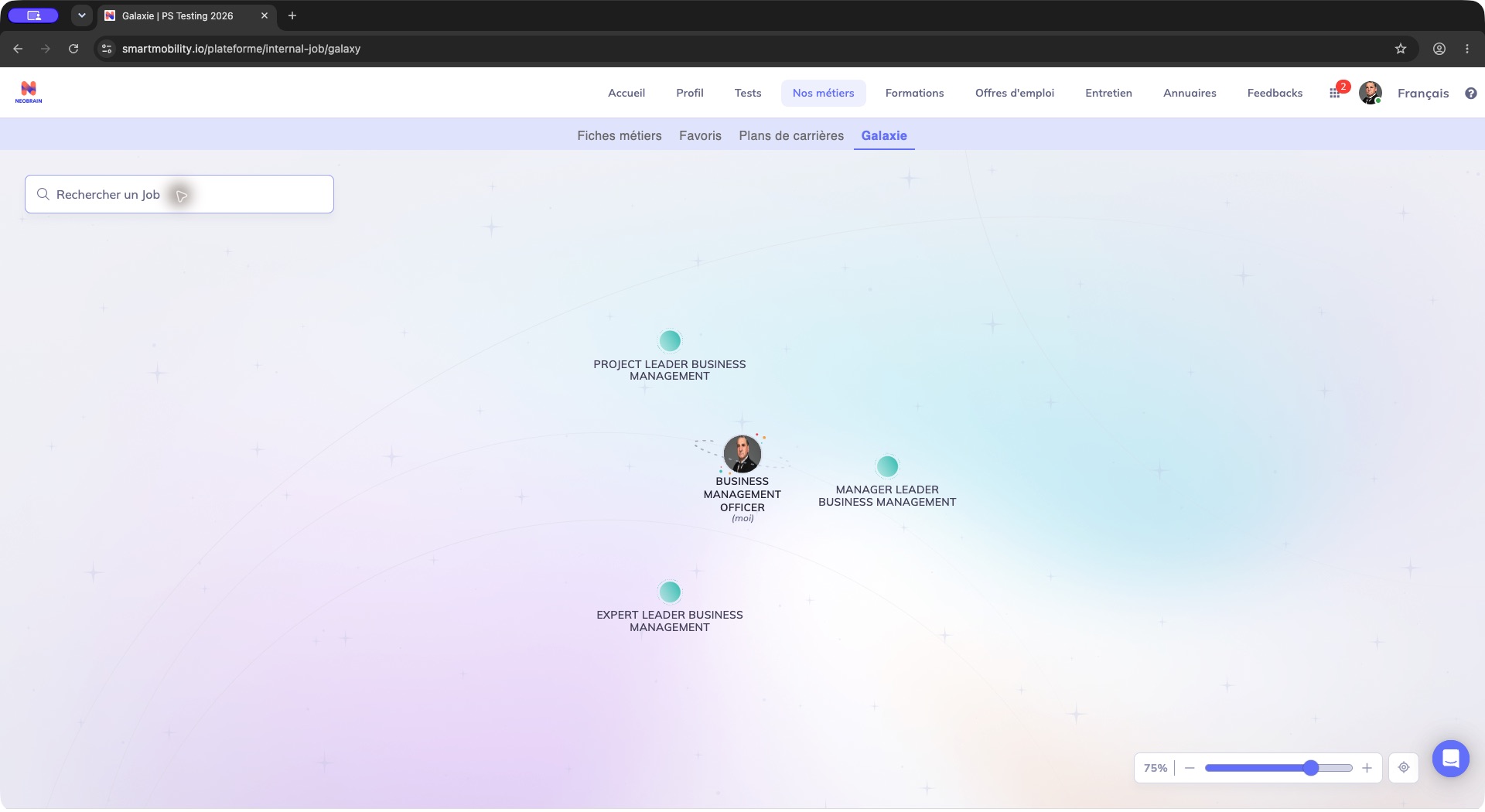
The map places the current job among nearby roles and provides title search and zoom controls. Search for a target or adjust the view before selecting a job; map position is not a vacancy count. Use title search when a role is difficult to locate on the map.
The map shows jobs available for your profile and company configuration. Search helps locate a displayed job; it is not a list of open vacancies or necessarily the full company framework.
Find a job and review a route
- Enter part of a job title in Rechercher un Job. The matching list includes job titles and family names.
- Select the intended result. Wait while the professional route loads.
- Review the job description in the left panel and the highlighted route on the map.
- Scroll inside the panel to read Mobilités, Pourquoi ce chemin ?, Compétences principales and Formation recommandée when present.
- Use Voir fiche métier to open the complete job sheet in another tab. Use the panel arrow to collapse it or the search × to clear the selection and restore the map.
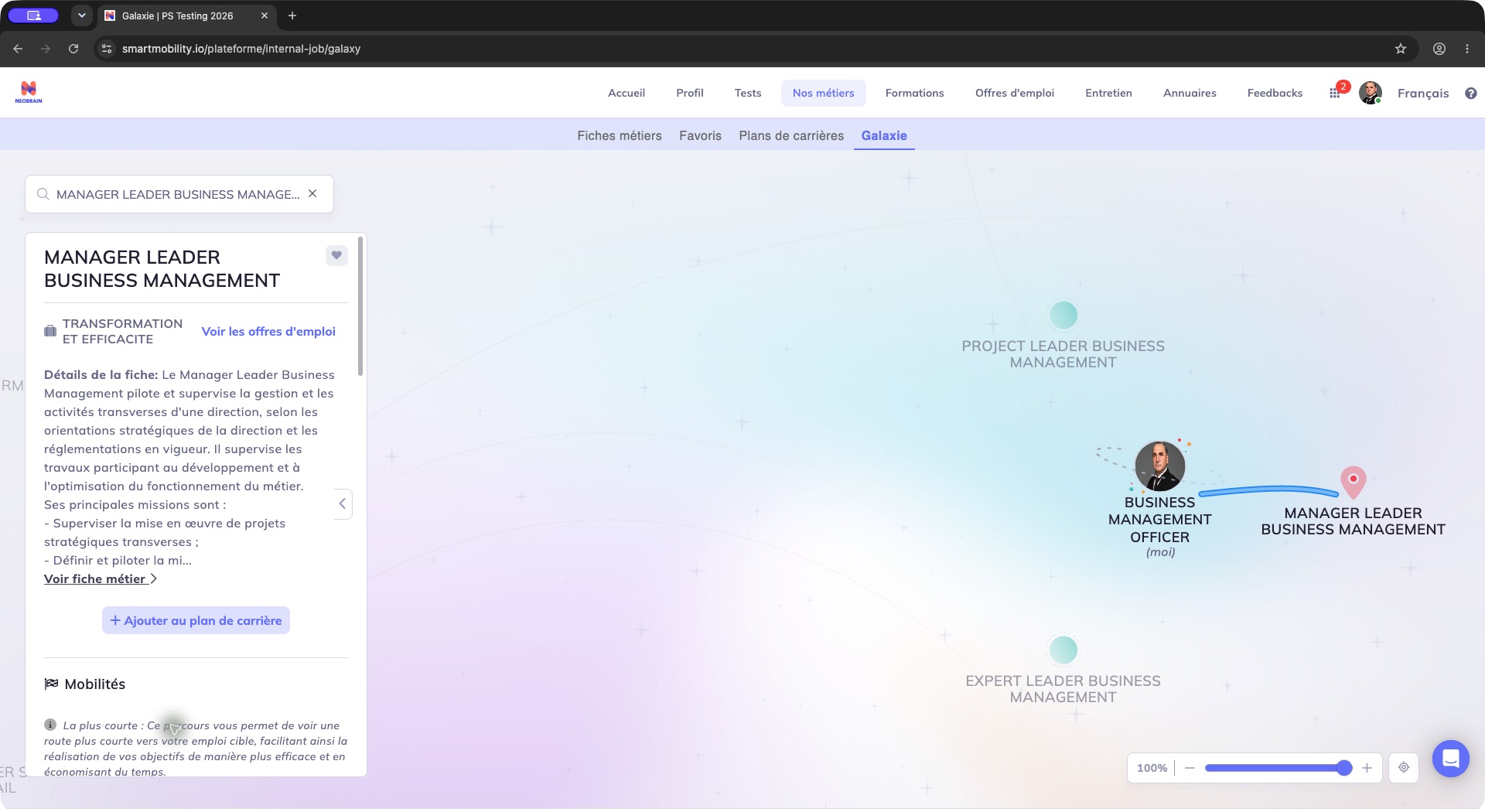
The selected target opens a job panel on the left and a highlighted route on the map. Read the target and route explanation, then open the job sheet if needed; the suggested route does not change your assigned job.
Treat a suggested route and its explanation as planning guidance. Review its feasibility with your manager or HR before using it to plan a move.
The star rows compare Niveau requis with Mon niveau. A displayed comparison does not update your profile rating. Voir plus under recommended training opens a training search with skill criteria; finding a course does not enroll you. Voir les offres d'emploi continues to job-offer discovery; a job description can exist without an open vacancy.
Save a favorite or a career target
The heart saves or removes the selected job as a favorite; the Favoris tab provides the saved list. Favorite status is separate from adding the job to a career plan.
To prepare a career target:
- Choose Ajouter au plan de carrière.
- Select an existing plan, or choose Créer un nouveau plan de carrière.
- For a new plan, enter a name that distinguishes it from your other plans. The first plan may be marked as the main plan.
- Continue through the available plan and time-horizon choices, then use the displayed save action.
- Open Plans de carrières and check that the intended job and horizon were saved.
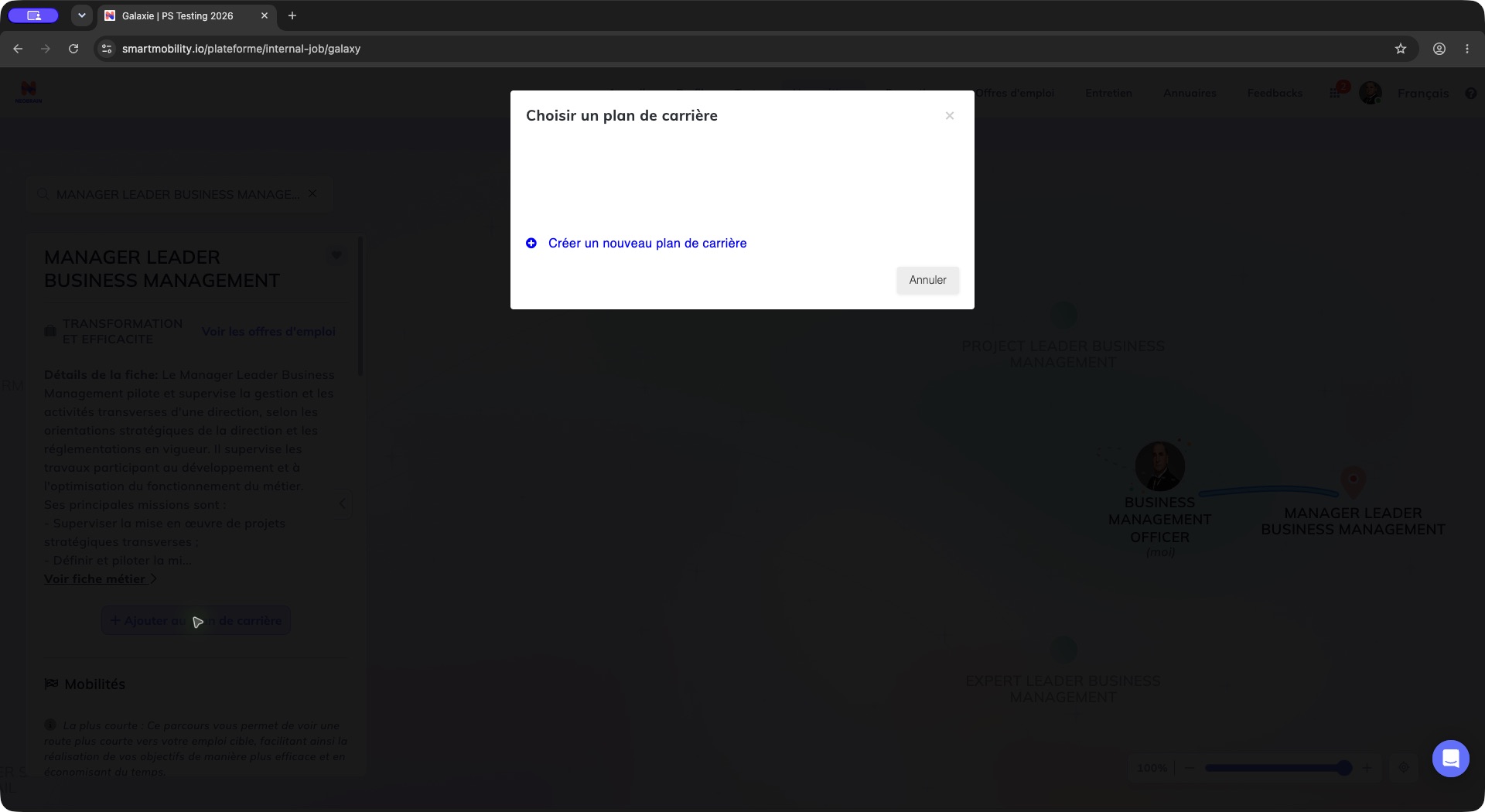
The dialog offers a career-plan destination, with creation offered when no existing plan is listed. Choose an available plan or begin creation; opening this selector has not saved the target.
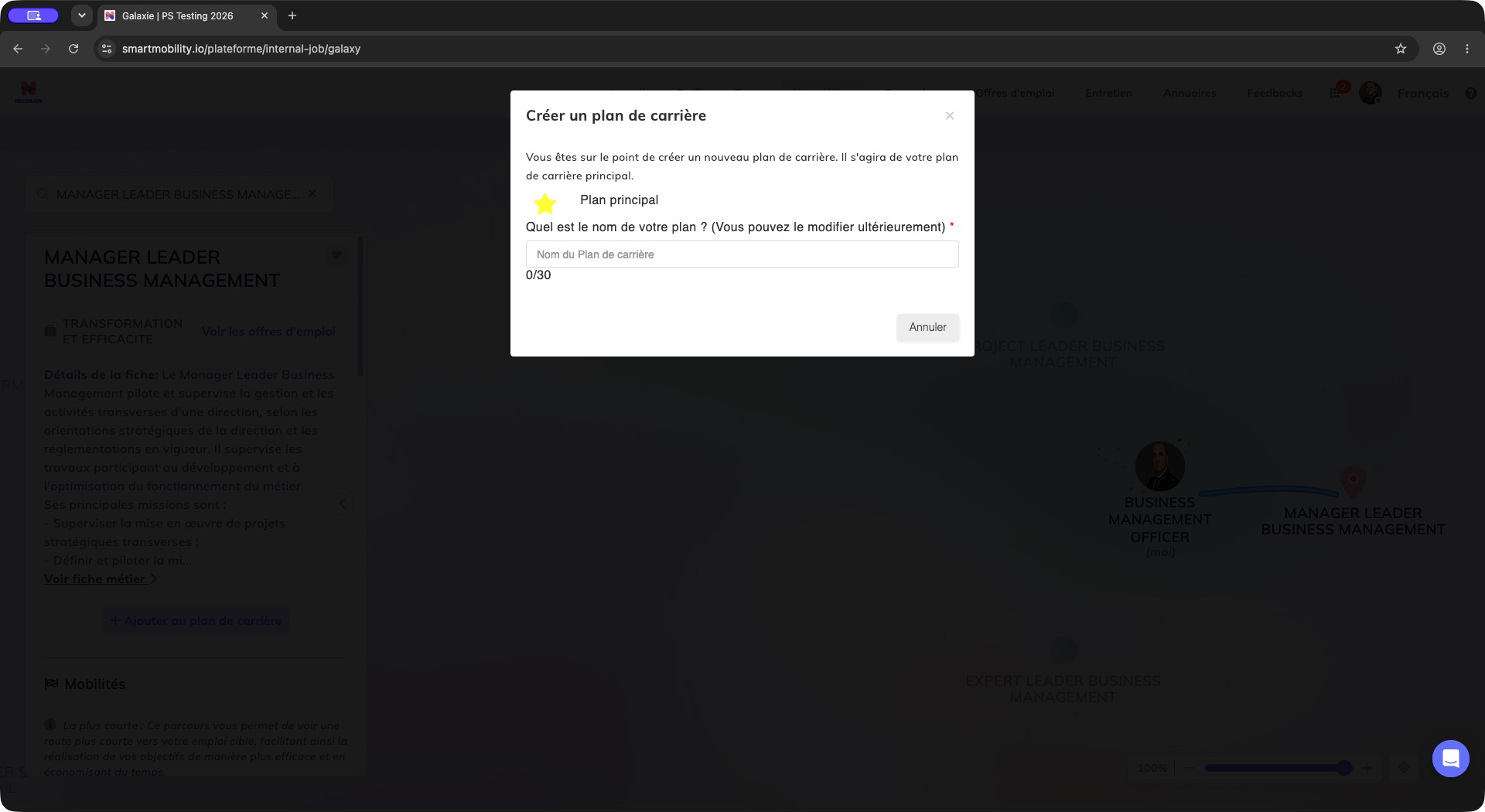
The new-plan dialog asks for a name and displays its character counter. Enter a name that distinguishes the plan before continuing to the target and horizon choices.
You can maintain up to three career plans and work with one selected plan at a time. Add a target job to an available horizon; a job already attached to that plan is not added again. After saving, check that the target appears under the intended horizon.
Rules, access and generation differences
- Galaxy access is controlled by company activation. The current submenu disables the galaxy link when the employee has no assigned job.
- Job availability depends on publication, language, profile matching data and company settings. A missing result does not prove the job is absent from the company framework.
- Some deployments open this legacy journey from a redesigned navigation shell. Availability of a separate redesigned galaxy journey depends on the company setup.
- Mentor and “test a job” options appear only when the required features and eligibility conditions are in place.
If a title search returns no matching job, revise the title or filters. A recent-history suggestion is not necessarily a match for the current search.
FAQ and troubleshooting
| Situation | Next check |
|---|---|
| Galaxie missing or disabled | Personal workspace, module activation and assigned current job. |
| Expected job absent from search | Title, locale, publication/visibility, family mapping, grading and availability of matching scores; the loaded set is capped. |
| No route or persistent loading | Retry once after reopening the page; ask support to check candidate data, AI service, validation and cache. An absent route is not an HR eligibility decision. |
| Colors unexpected | Company proximity thresholds and freshness of matching data. Do not interpret map distance as a vacancy count. |
| No training or offers | Availability of relevant courses/offers and enabled modules; the target job can still be valid. |
| Cannot create another plan | Check the three-plan limit and configured target horizons. |
| Session expires | Reopen the galaxy from the normal navigation while retaining the same authorized account. |
Interface generation
Job Galaxy may open from a redesigned navigation shell while retaining its legacy journey. Availability and matching results depend on company configuration, profile data and permissions; see the technical guide for implementation details.
If no target appears, ask an authorized administrator to check eligible jobs, translations, grading and saved matching data, then reopen the map. An empty result does not establish that the job catalogue is empty or that the feature is unavailable.
Last updated on 3 November 2026