Career plan — functional guide
Build a named career scenario, attach target jobs to time horizons, and review your match with those jobs. A target expresses a career interest; it does not change your assigned job or submit a job application. This documentation groups the feature under Opportunities → Career plan. In the application, open Career planner → Career plans (French: Nos métiers → Plans de carrière; labels can be customized).
See the configuration guide for activation and horizons and the technical guide for implementation details.
Before you begin
Employees manage their own plans in Personal space. Managers can review authorized employee profiles when the career section and their permissions allow it. Switching spaces keeps the same account and does not grant administrator access.
You need an authenticated company account, an enabled career-plan entry, eligible job descriptions, and configured target horizons to add jobs.
| Term | Meaning |
|---|---|
| Main plan, plan B, plan C | Three possible scenarios, each with its own name and target jobs. |
| Target job | A reference job you would like to move toward. |
| Horizon | A company-defined start/end interval in years, selected for a target job. |
| Match percentage | A stored user/job matching score, distinct from action completion or an offer of employment. |
| Favorite | A saved job in another tab; saving a favorite alone does not add a career target. |
Open your plans
- Use the Apps/Spaces control to choose Personal space if necessary.
- Open Career planner, then Career plans.
- Review each card's plan type, name, creator, target-position count and last-update date.
- Open a card to see the plan's target jobs. An empty plan displays This Career plan does not include any target job.
The job search and Advanced search controls help locate available jobs; they do not change saved career plans.
Create a scenario
- Choose Add a Career plan.
- Check the proposed type. The next available slot is assigned automatically: main plan, then B, then C.
- Enter a required name, up to 30 characters shown in the interface. The counter shows the length.
- Choose the dialog’s save action.
- Confirm that the new plan opens with the intended name and zero target positions.
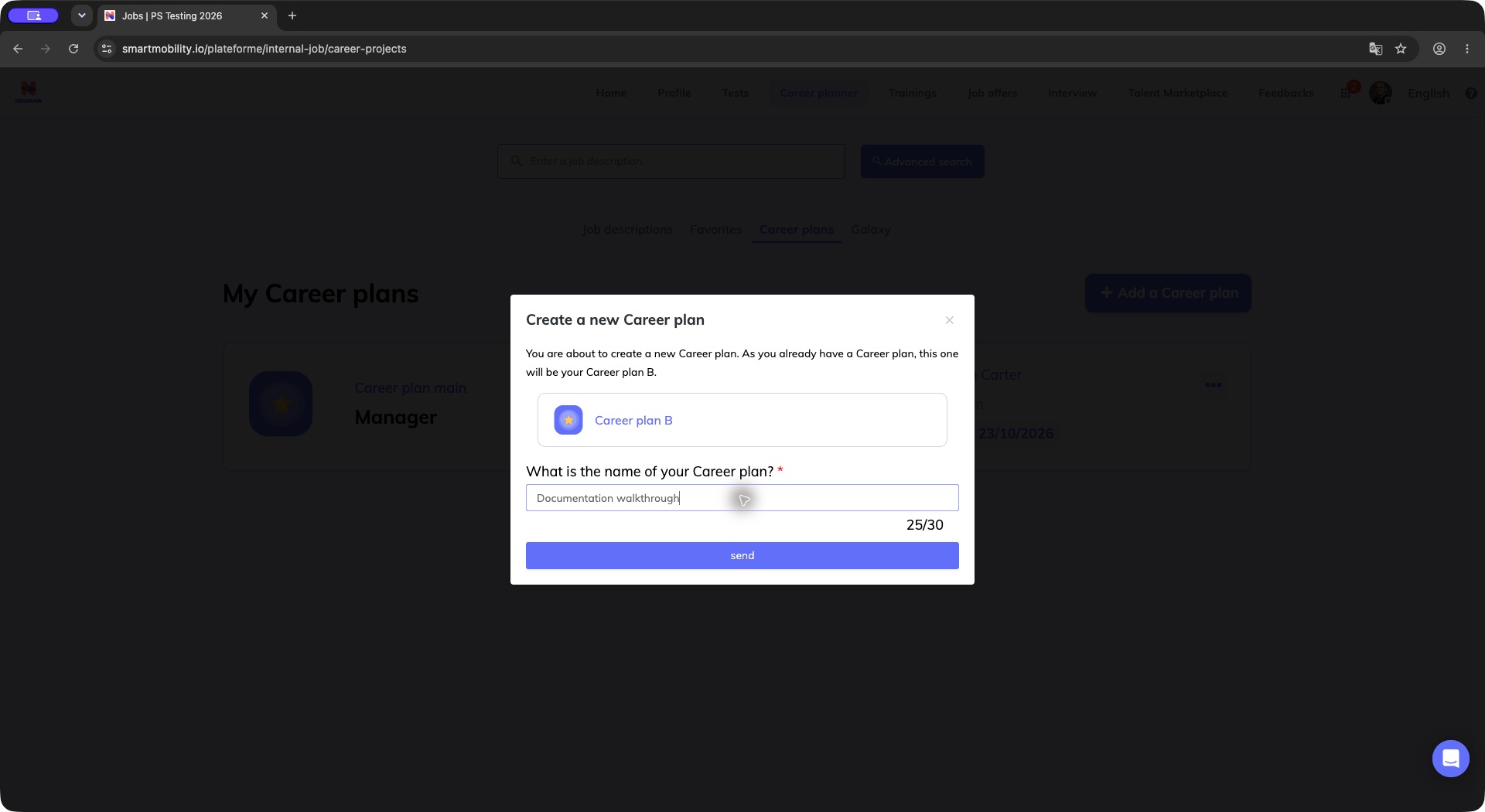
The creation dialog identifies the next scenario and requires a name, with a 30-character counter. Review the scenario and name before saving; this dialog alone does not show the resulting plan.
The next available plan type is assigned automatically. The standalone flow supports up to three plans; enter a name within the displayed 30-character limit.
Add a job and horizon
- Open the plan and choose Add job.
- Open Job aimed, type part of a job title, and select the reference job.
- Select one of the required When would you see yourself in this position? horizons. Check that the option is selected before saving.
- Choose Add.
- Wait for the detail view to refresh. Confirm that the target-position count increased and that the job card shows the correct title and horizon.
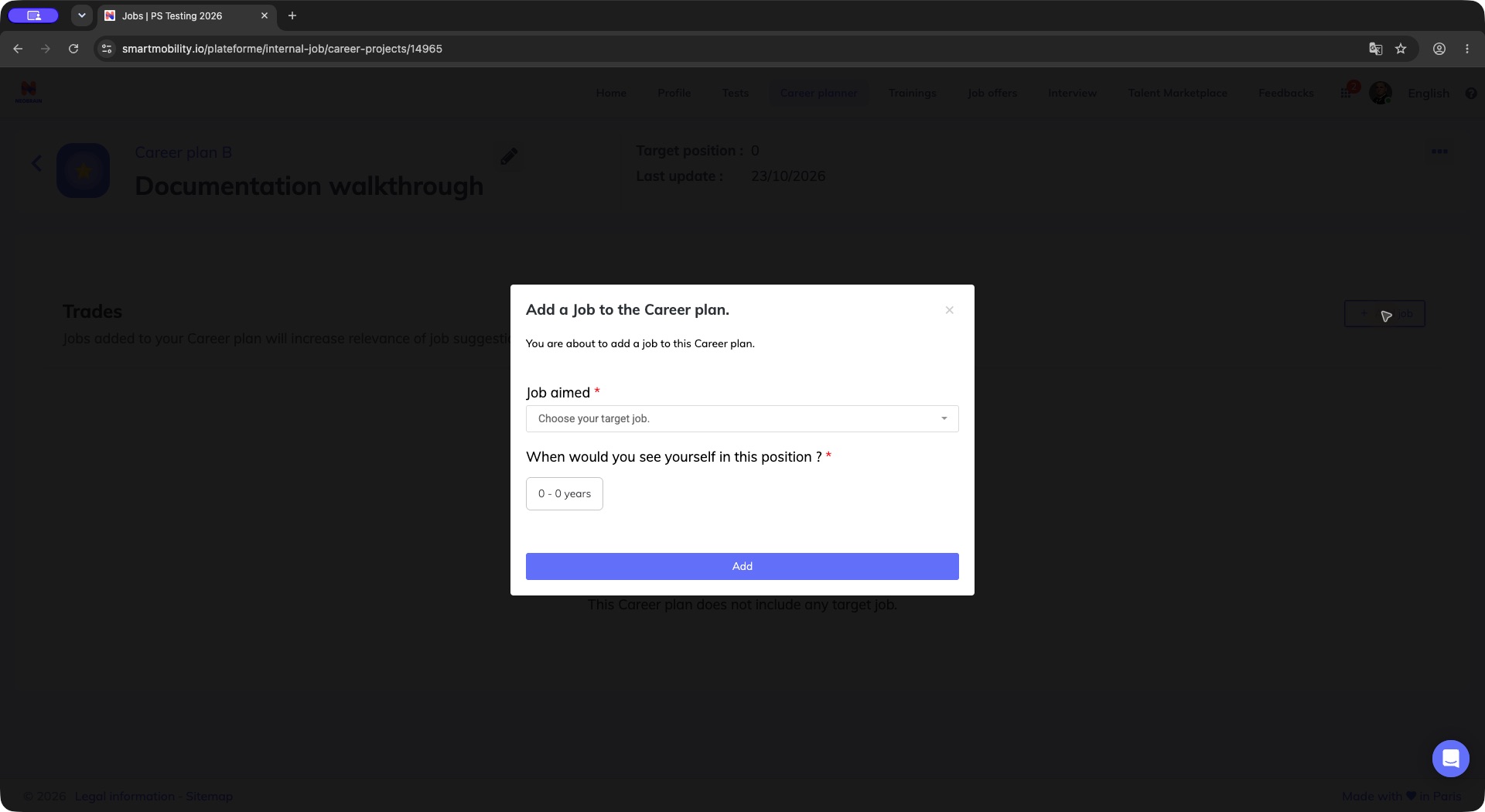
The target dialog separates the reference job from its required time horizon. Select both before Add; available intervals depend on company configuration.
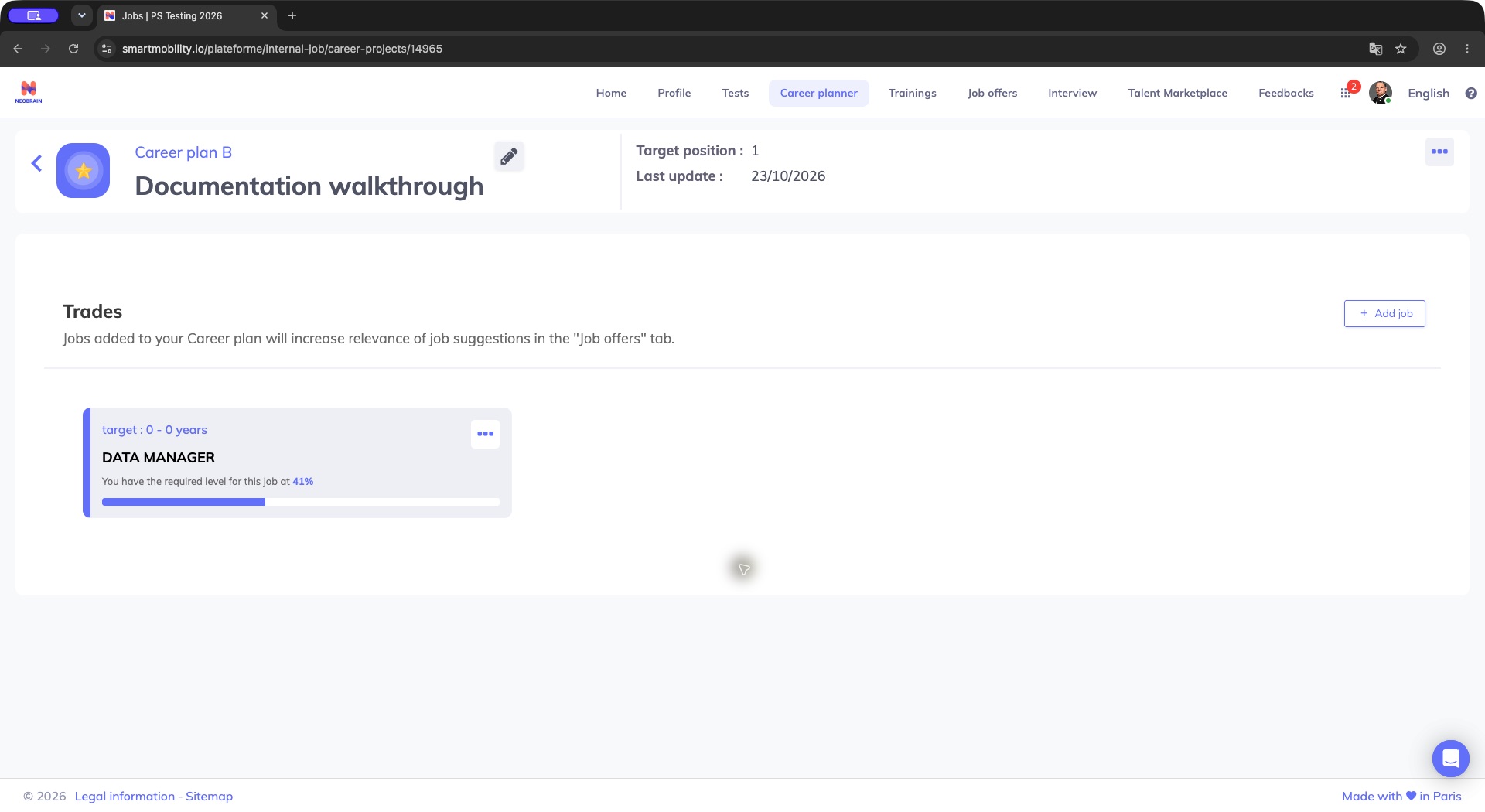
The reopened plan shows its saved target, horizon and match display. Check the target in the intended scenario before adding another; the match is not action completion.
In the standalone plan, each configured horizon can be associated with one target job. The plan can contain no more target jobs than there are configured horizons. This per-plan capacity is separate from the limit of three scenarios.
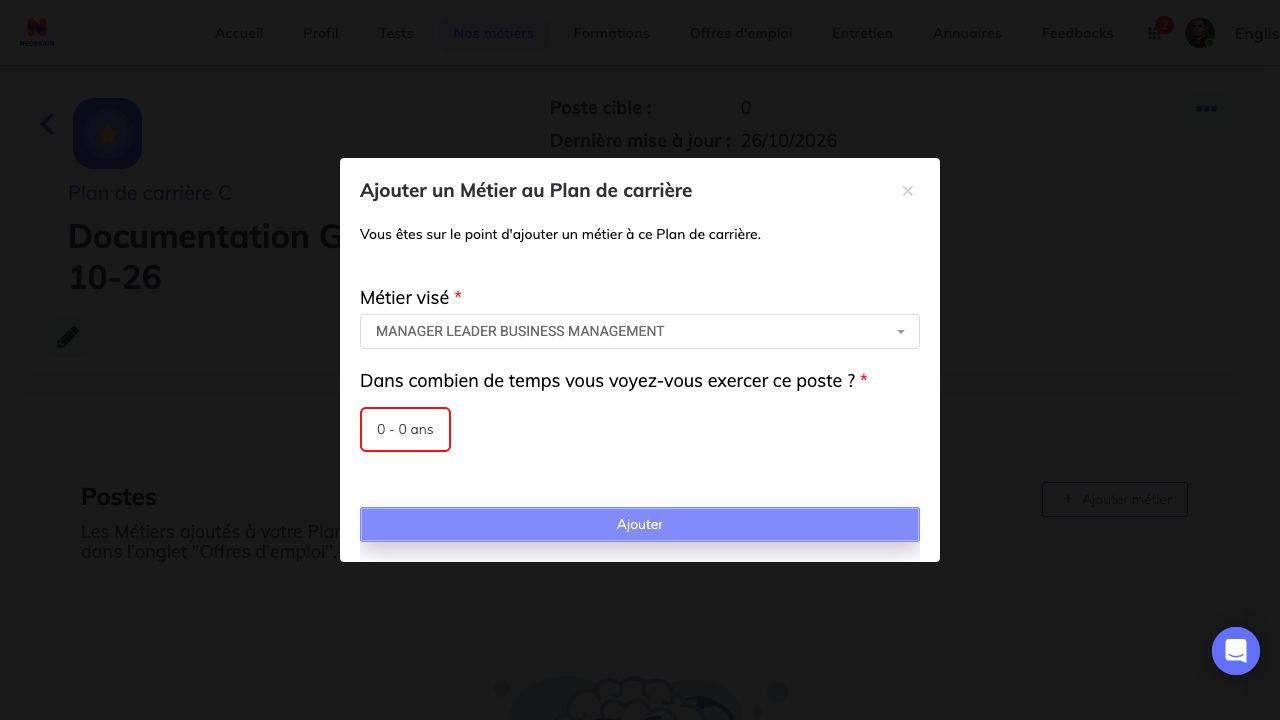
The job is selected but the horizon is missing. Select an available interval before retrying Ajouter; the red outline is validation, not a saved target.
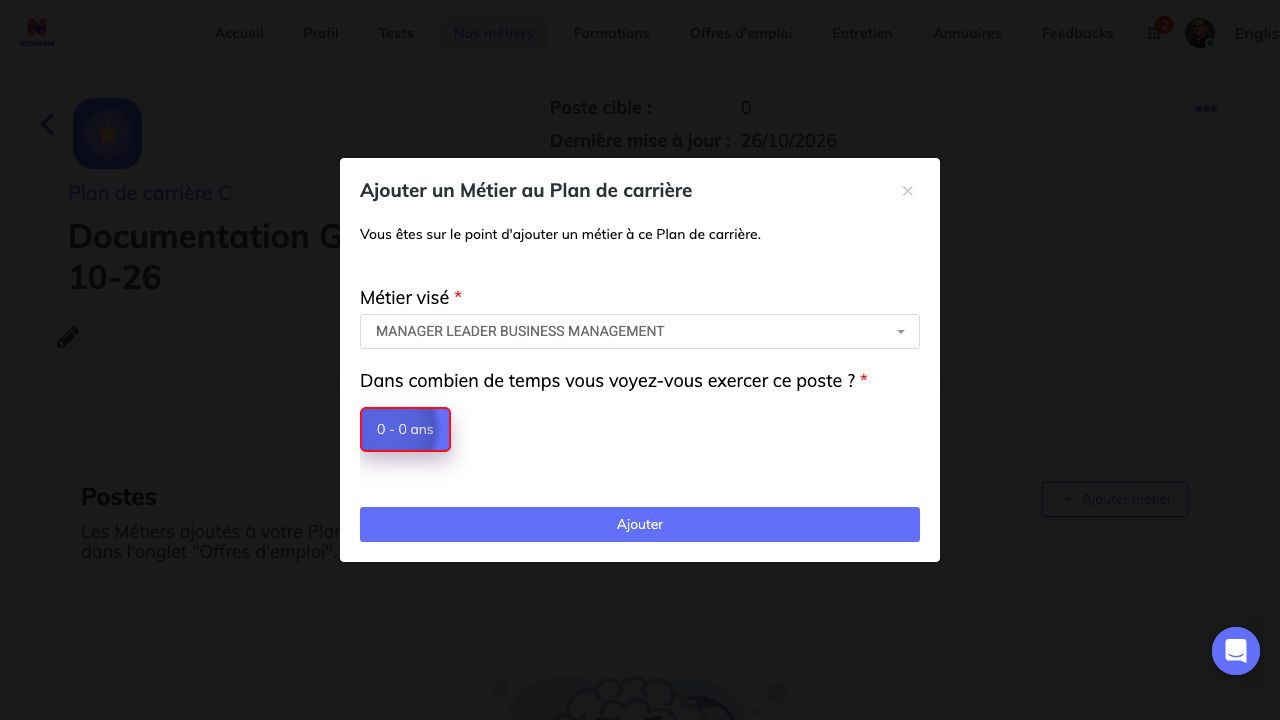
The intended job and an available horizon are selected. Review both before saving; interval choices depend on company configuration.
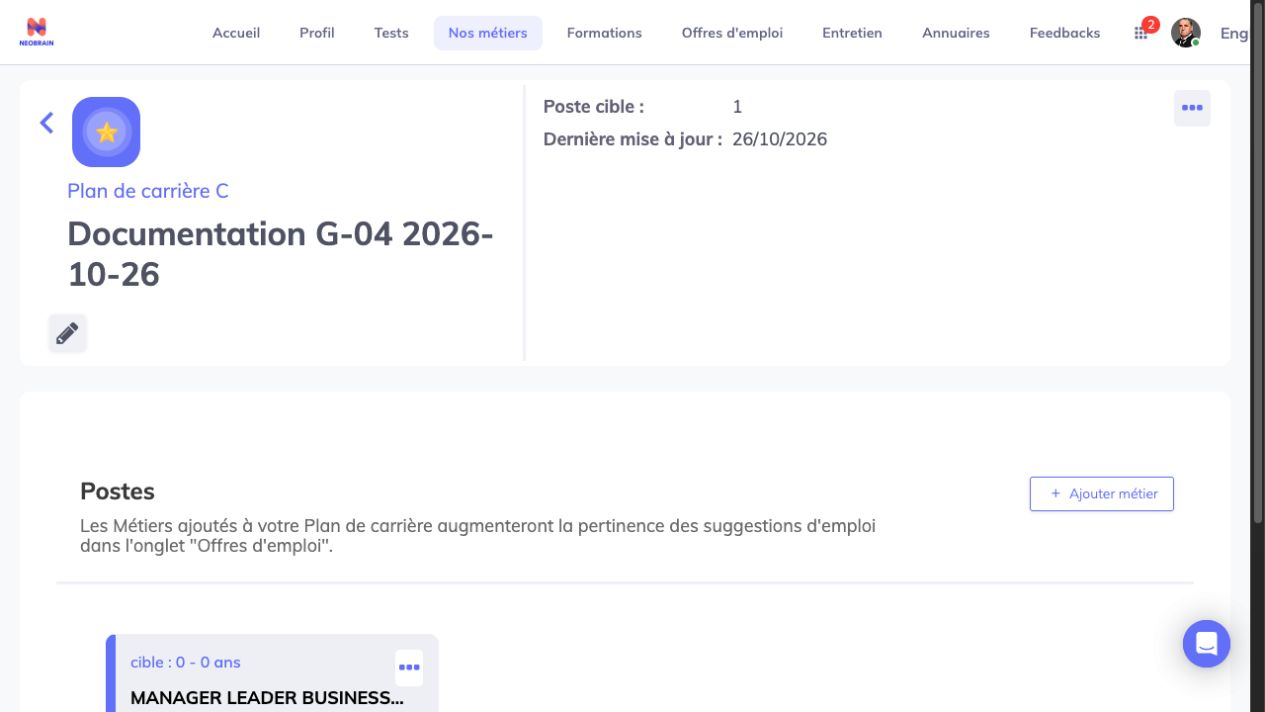
The reopened plan retains its target, horizon and matching display. Check the saved target after reopening; matching is an indicator associated with the current profile and job data.
Maintain a plan
- Open the plan and select the pencil beside its name.
- Edit the inline name, then select the check mark to save.
- Reopen the plan to check the saved name.
After saving the name, reopen the plan and confirm that the new name appears in its header and that its target jobs remain attached.
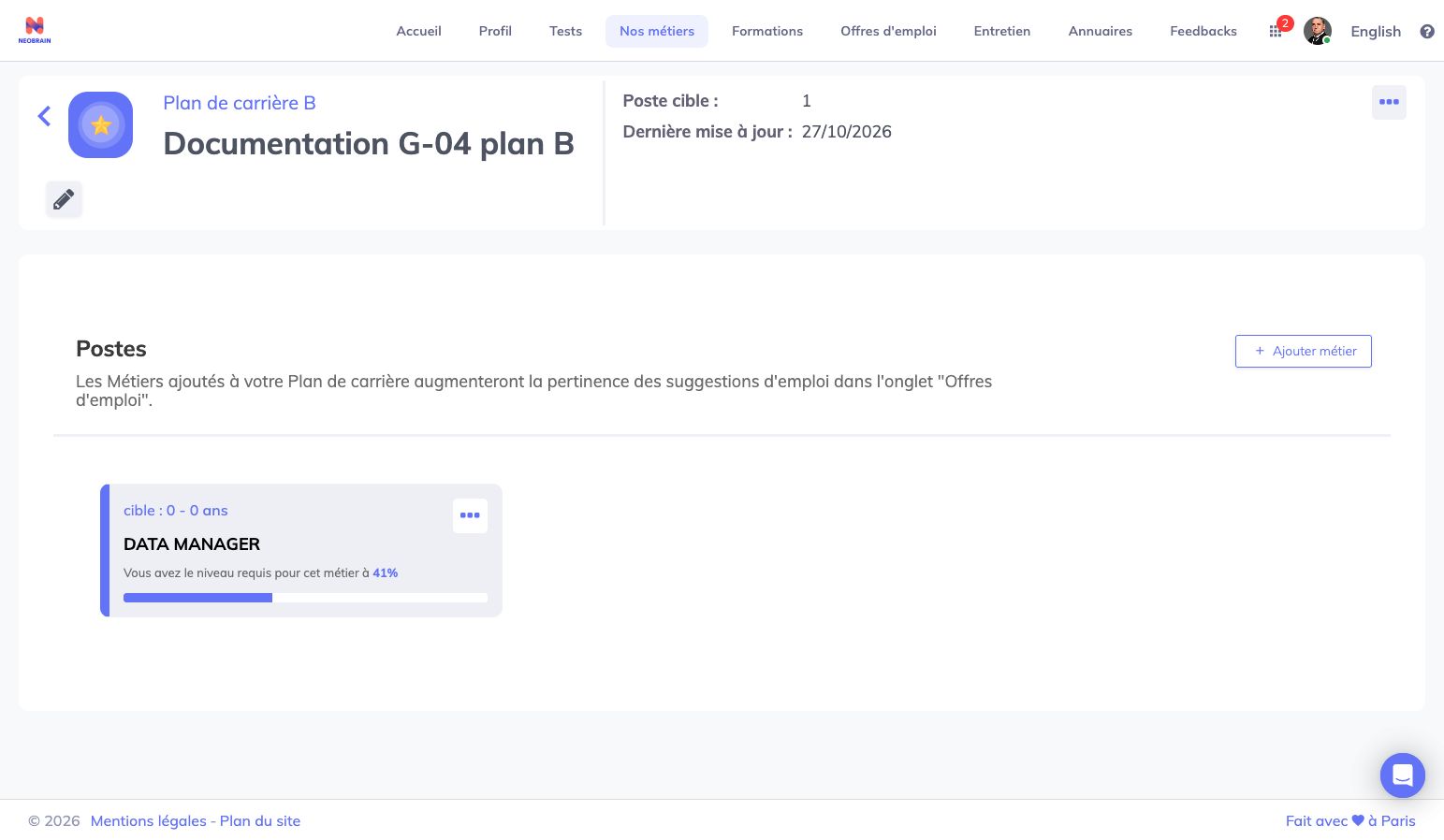
The renamed plan retains its existing target. Confirm the displayed name and target after reopening; the example match and horizon are specific to the organization's data.
The plan menu can offer plan deletion, while a target card can offer modification or removal. Editing a target changes its selected job or horizon. Read the confirmation carefully: removing a target and deleting an entire plan have different scopes.
View an employee’s career plans as a manager
Managers use the career section of an employee profile when their role and the profile’s visibility settings allow it. Career plans and targets are separate from development-plan actions; use the development-plan workflow to create and track assigned development actions.
Manager access to an employee's plans depends on profile visibility and role permissions. If the career section is unavailable, ask an administrator to review those access settings.
Rules, validation and troubleshooting
| Situation | What to do |
|---|---|
| Career plans tab missing | Ask an administrator to check employee activation and the selected workspace. |
| Name cannot be submitted | Enter a nonempty name within the UI's 30-character limit. |
| Fourth plan refused | Review existing scenarios; the standalone limit is three. |
| Your Career plan is complete | All available horizon slots may be occupied. Review the plan's target jobs and company horizons. |
| No job can be selected | Check search text, eligible company job descriptions and language with your administrator. |
| Save does not complete | Select both job and horizon, wait for refresh, then reopen the plan to check persistence before retrying. |
| Match is zero or unexpected | Ask for review of profile skills and stored job matching; zero can also mean no stored matching record. |
| Configuration access denied | Use an authorized company administrator; changing spaces alone does not grant access. |
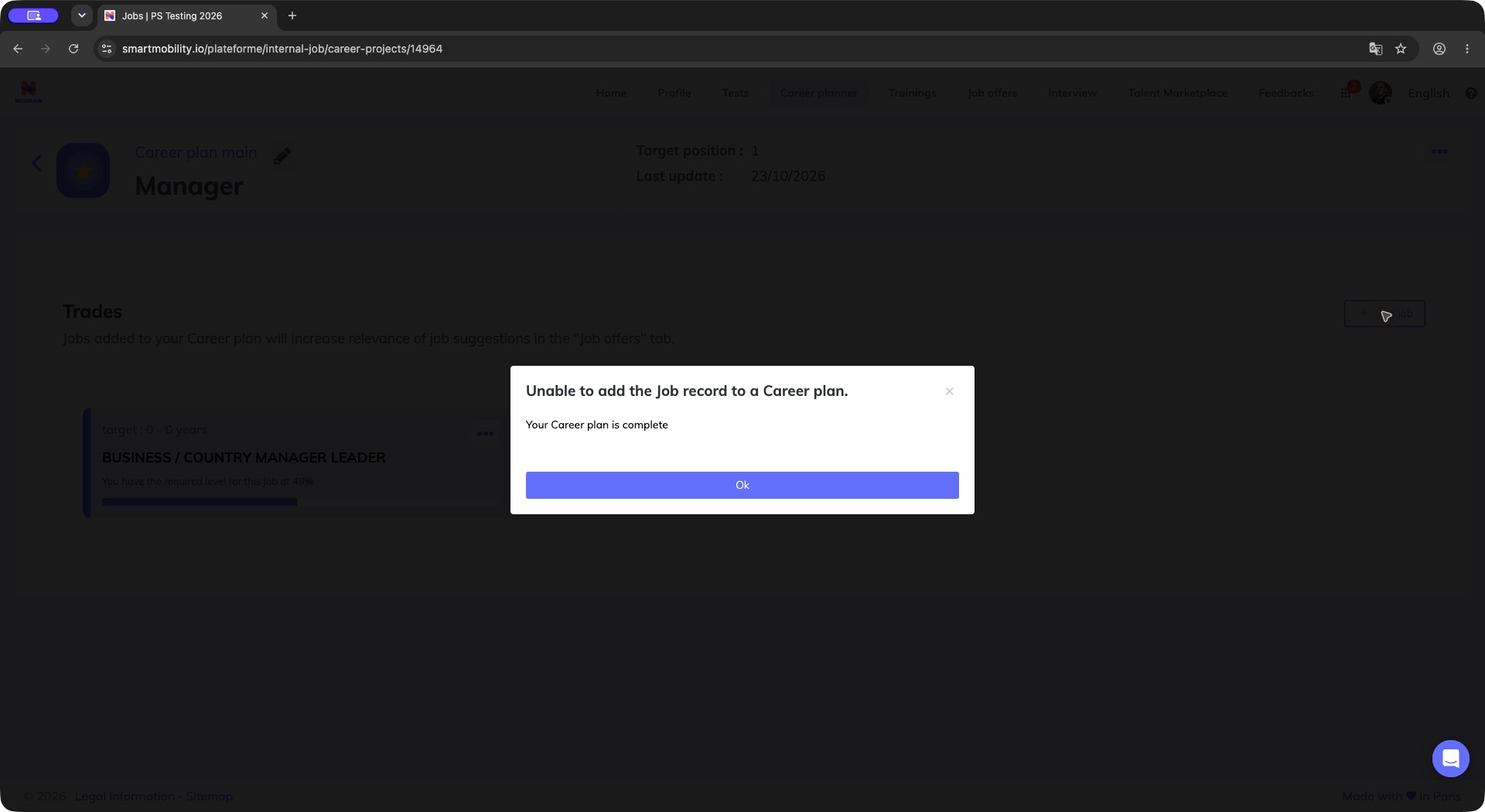
The dialog says the career plan is complete and refuses another target. Close the message and review the plan’s existing jobs and configured horizons; this is not the separate limit on the number of plan scenarios.
When no target can be added, review the plan's existing jobs and configured horizons. Job suggestions can depend on career targets; training suggestions have separate configuration. Saving a target does not guarantee an immediate recommendation or notification.
Interface and related journeys
The standalone career-plan workflow is available through the legacy career planner. A modern navigation shell does not necessarily mean every career feature has moved to a redesigned module. Use Job Galaxy to explore related jobs and add a career target where that option is available. For assigned actions, use the separate development-plan workflow. Implementation details are in the technical guide.
Last updated on 3 November 2026