Roles and permissions — redesign functional guide
Inspect roles and permissions
Open a role
Open Settings > Roles when it is available for your responsibility. Access depends on your assigned permissions; not every manager can administer roles.

Open Roles to review role access. Groups and Visibility manage related but separate parts of access.
- Open Settings > Roles if it is available for your responsibility.
- Search for the role you need to inspect; clear the search to return to the full available list.
- Open its row. Review role information and the counts for associated people, enabled permissions and visibility groups.
- Inspect Permissions to understand the enabled actions and Population to identify who receives them.
- If a permission or population needs to change, follow the administrator configuration guide. A reader should not use activation switches as display filters.
Expected result: you can explain who receives the role, what actions it supplies and which scopes are attached. To understand a person's effective access, also review direct roles, group-derived roles, user-level visibility and separate campaign assignments.
Roles list: search, columns and pagination
The list includes role search, role details and pagination. Depending on your permissions, it may also offer role creation. A creator label can be unavailable; this does not mean that the role has no creator.
Role search accepts a text query and returns matching roles. It does not change a role. The visible search controls depend on the interface; do not assume that additional filters are available.
For a practical search, enter part of a known role title, then open the matching role. An unmatched term returns a no-results state; clearing it restores the list. This is distinct from a tenant with no roles configured.
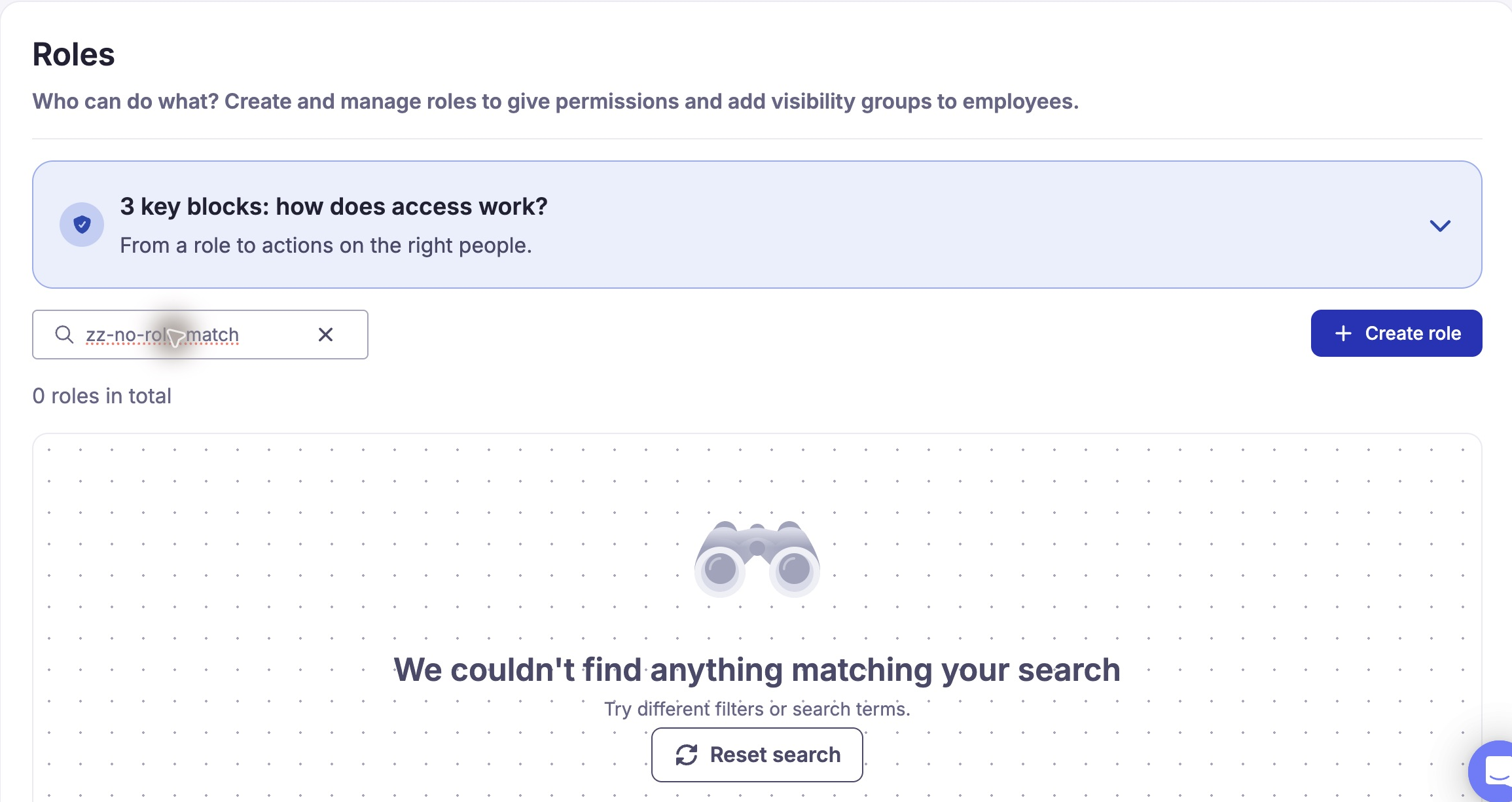
If no role matches the query, clear or revise it to see the available roles. An empty result does not mean that no roles are configured.
Role detail: permissions and available actions
- Open the selected role’s Permissions tab.
- Use its search to find a permission. This search is separate from the role-list search.
- Expand the category to read descriptions, activation states and visibility information.
Searching and expanding categories do not change grants. Activation switches and bulk actions are configuration controls, described in the configuration guide.
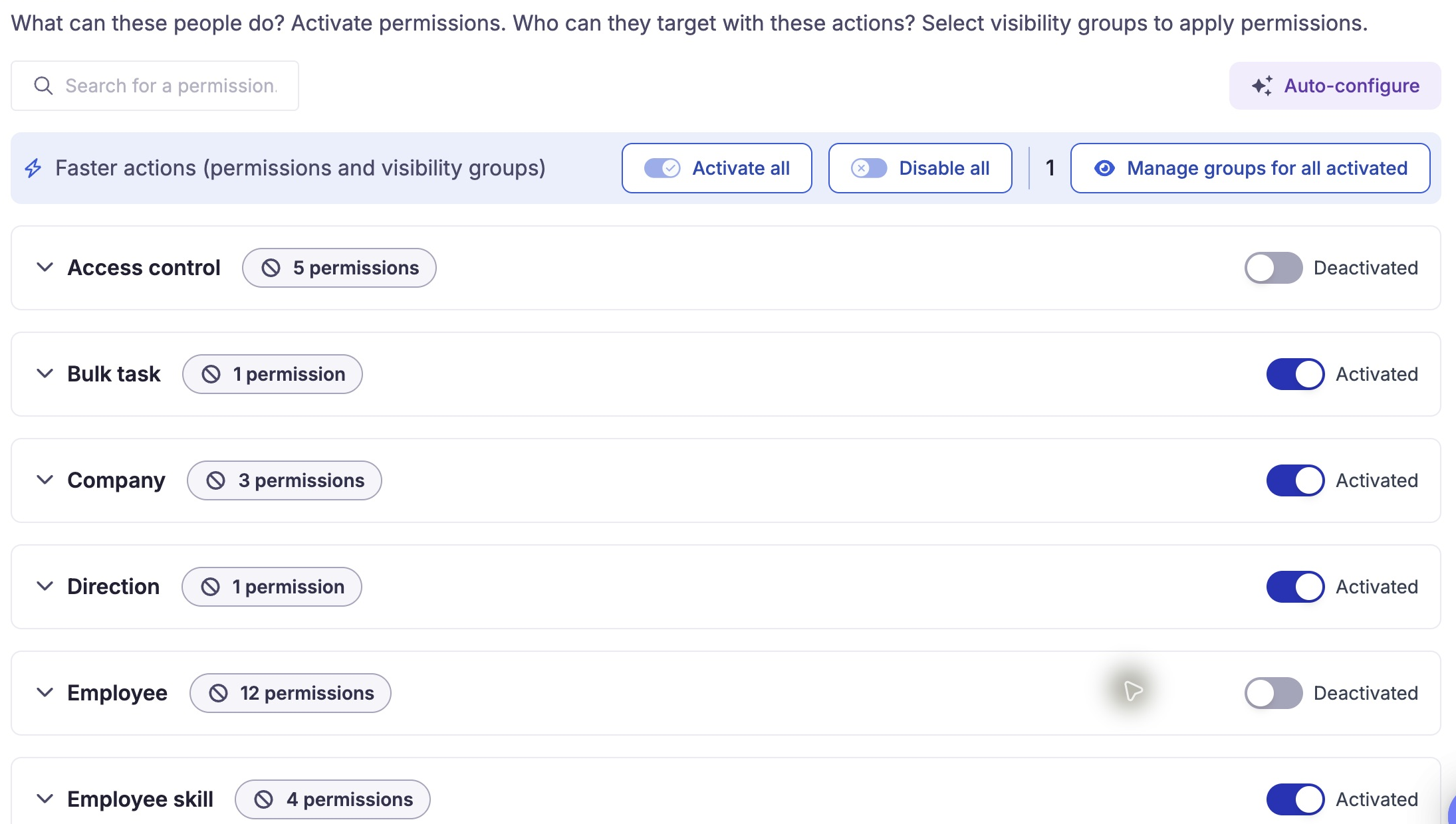
Use search and category headings to find an action. Switches and bulk commands change the role; follow the configuration procedure before using them.
| Control | Choices, effect and reset |
|---|---|
| Search for a permission | Enter a term to find matching permission titles. Clear it to show all categories again. Permissions outside the results keep their current settings. |
| Category arrow | Expands or collapses a permission table without changing grants. Categories come from the permission catalogue. |
| Category count and switch | The count reflects the permissions currently shown in that category; a filtered count is not the full role total. The switch changes permissions rather than filtering the list. |
| Permission switch | Activates or deactivates a permission. Changes apply from this screen; role-update access is required. If the update fails, check the displayed state before continuing. |
| Row selection / bulk actions | Checkboxes select permissions for bulk activation, deactivation or visibility management; they are not employee filters. Bulk activation or deactivation asks for confirmation. |
| Activate all / Disable all | Configuration actions affecting the role; do not use them to expand or hide rows. Refer to the configuration guide before applying. |
| Manage groups for all activated | Opens management of shared visibility attachments for enabled permissions. Individual permissions also offer group management when applicable. |
| Auto-configure | Opens Admin, Human Resources, Manager and Employee preset choices. The dialog warns that current permission settings will be lost. Closing or cancelling leaves the preset unapplied. |
Use the permission search to narrow the list, then read the action description and current status. Clear the term to return to the full category list.
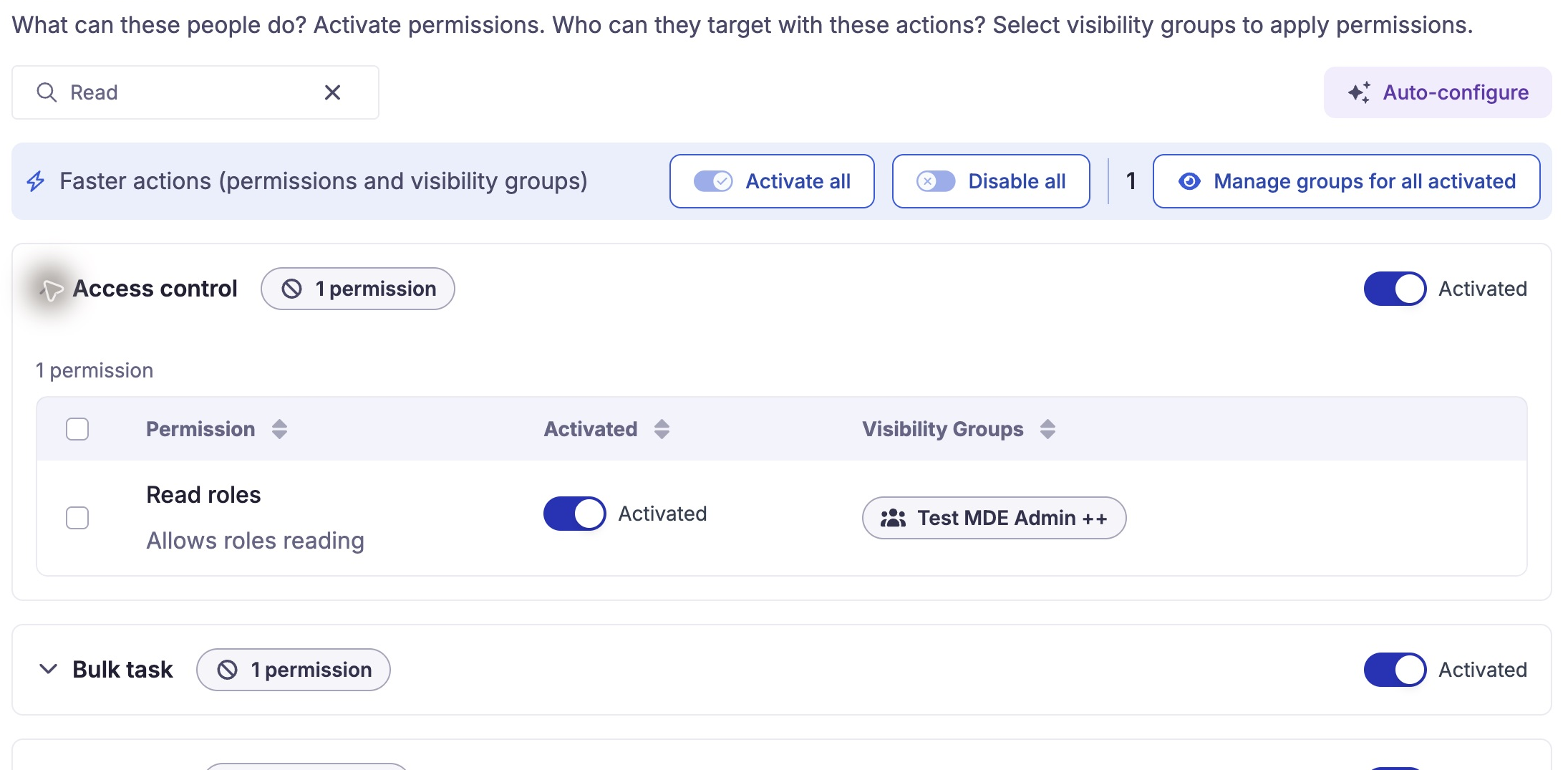
The expanded category matches the search. Review the action description and status; clear the search to see all categories.
Population and assignment sources
In Population, an administrator can review direct and group-derived recipients, including the source of an assignment. A person who receives a role through a group must be removed from that group or have the group assignment changed; removing an unrelated direct assignment will not remove inherited access.
To investigate unexpected access, ask the administrator to check both direct assignments and group membership, then other roles granting the same action. Removing one assignment can leave another valid grant. A population change affects who receives actions; it does not simply change a displayed filter.
Legacy manager experience
In legacy workspaces, an employee can receive actions through more than one permission profile. Module relationships and workflow assignments can add further restrictions. Ask an administrator to review all applicable profiles before changing access.
Employee access
Nextgen roles determine actions; visibility scopes and data filters determine which records are in scope. A role name, menu entry or campaign assignment alone does not establish all access. See configuration and technical.
Last updated on 3 November 2026