Roles and permissions — redesign configuration guide
Before configuration
Identify whether the target screen is legacy, nextgen or a hybrid journey. Record the intended recipients, allowed actions and visible employee population separately. Prepare one representative recipient and both an in-scope and out-of-scope record for validation. Use the functional guide to distinguish membership from visibility.
Evidence: local sources, connected Confluence pages and read-only smartmobility.io inspection on 15 October 2026. Observed in application applies to the English/French nextgen role editor, search and preset dialogs. Writes, grants and activation were not performed. Other implementation claims are Verified in code unless marked Documented in Confluence or Not verified.
Configuration ownership and generation
| Owner / scope | Legacy | Nextgen |
|---|---|---|
| Project / platform core | Tenant activation, legacy profile catalogue and navigation rights; privileged setup surface | Permission catalogue, preset definitions, hybrid integration, space access and privileged initialization |
| Customer administrator / functionality | Available legacy controls depend on delegated access; the prescribed functional test account was denied Configuration during this inspection | Settings > Roles: localized role information, actions, population and visibility attachments, subject to separate permissions |
The shell's appearance does not identify the embedded implementation. Observed in application: the Roles screen in the manager shell embeds nextgen content. Documented in Confluence: the SMR playbook, version 3, 24 September 2026, separates legacy menu rights and nextgen action permissions. Current code can also consult nextgen scopes when building the menu, so both layers need checking.
Project/platform core — nextgen and shared activation
Owner: authorized platform/project team. Customer administrators should confirm readiness with that team; the following is a dependency reference, not instructions to edit server configuration.
Documented in Confluence: Back-office V3, version 2, 8 July 2026, and the September playbook describe Theme V3 and hybrid mode as separate activation steps. Theme V3 alone does not establish nextgen role/action access. The playbook recommends legacy Settings Module and the relevant new-module menu rights before nextgen role setup.
Verified in code: legacy FeatureSwitchListener distinguishes the hybrid and V3-theme activations. V3 activation also persists compatibility theme flags. Hybrid activation publishes configuration and, in the implemented impersonation context, attempts administrator initialization through the integration service. It logs initialization failure; a switch being enabled is not proof of successful role initialization. Nextgen space access uses separate admin/personal-space permissions. See the technical guide for paths and failure behavior.
The backend permission catalogue and preset mapping are platform-owned. The four preset labels do not define a permanent list of actions, and adding a module can change the available catalogue. Prepare recipient groups and visibility groups before attaching them. No automatic migration of legacy profiles or a universal default hierarchy depth was verified.
Safe rollout: agree the intended role architecture, validate representative accounts on a suitable test tenant, then have the authorized owner apply validated settings. Turning off the hybrid switch is not established as a rollback of roles, recipients or permission scopes.
Customer administrator — nextgen configuration
Administrative rights
Delegate these permissions according to the tasks the administrator must perform:
| Task | Required permission |
|---|---|
| List or read roles, view attached groups and consolidated population | read-role |
| Create or clone roles | create-role |
| Edit role information, change permissions, presets or visibility attachments | update-role |
| Delete an unused role | delete-role |
| Add / remove a direct user | add-role-to-user / remove-role-from-user |
| Attach / detach a user group | add-role-to-user-group / remove-role-from-user-group |
These are role-management rights, not the complete application permission catalogue. Related user/group selection screens can require their own read permissions.
Create and describe the role
Create a role using a required name and optional description. The frontend sends these as localized title and description values using the company locale. The API also supports an optional role code, unique within the company; the inspected creation form does not expose a code field.
Use the description to identify the role's intended recipients and purpose. Creation alone does not assign users or guarantee an enabled action bundle. Inspect the Permissions and Population settings next.
Inspect the role controls
Observed in application: the Permissions panel has its own search, expandable categories, individual activation switches, bulk-selection checkboxes, Activate all, Disable all and Manage groups for all activated. Search/expansion changes the display; activation/group actions change configuration.
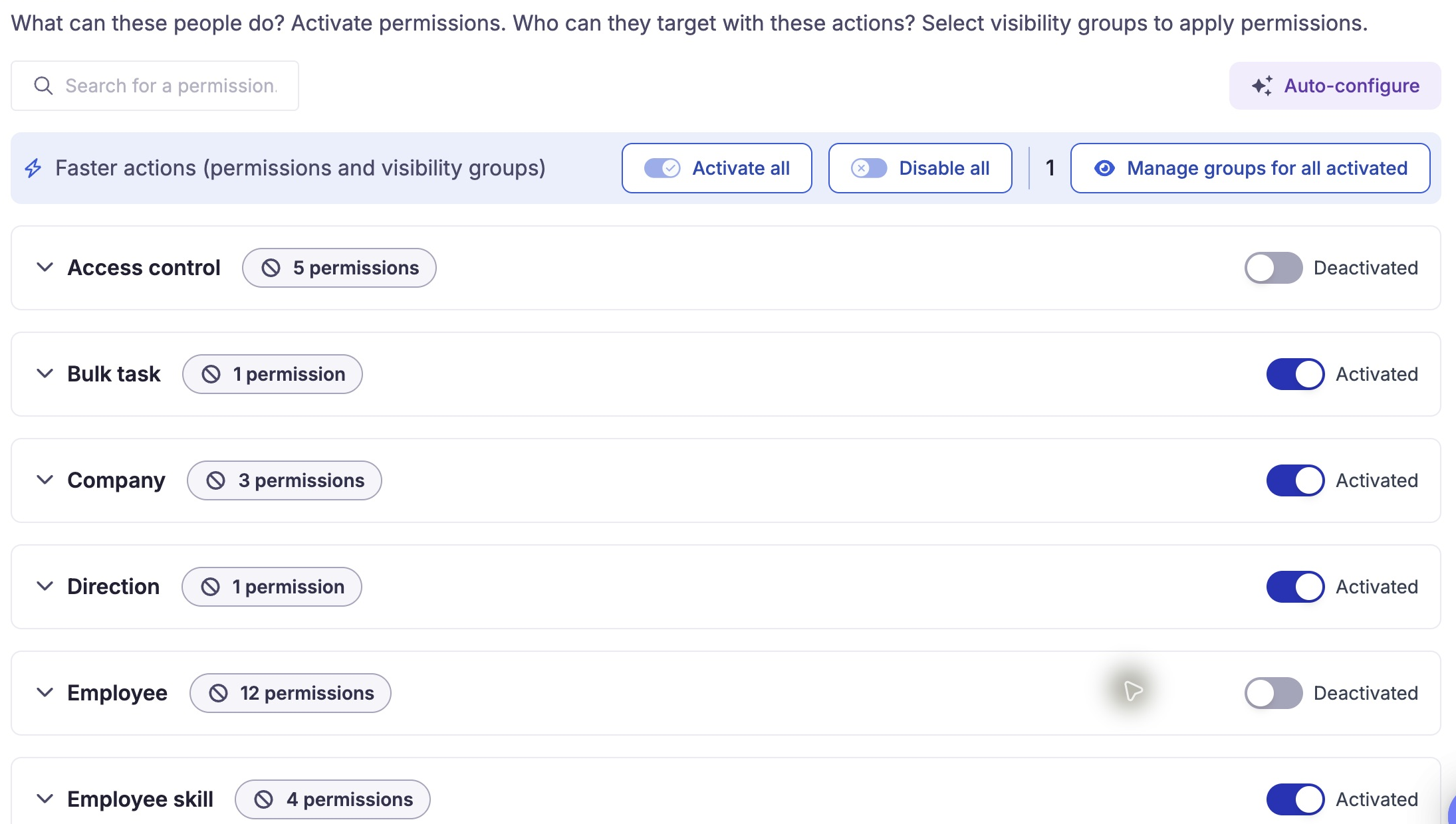
The Permissions view separates search and category expansion from activation switches and bulk configuration actions. Search for an action to inspect it; use the configuration procedure before changing a grant. 15 October 2026, already-authorized administrator context, English interface. No switch or bulk action was applied.
Verified in code: permission search is initially empty, single-valued, case-insensitive against translated titles, trimmed and debounced. Clear it before assessing full category totals: category counts and aggregate activation state use the currently displayed permissions. A row toggle sends its request without a page-level Save; bulk and category activation/deactivation use confirmation dialogs. Do not assume a displayed switch is only a filter.
Enable permissions or apply a preset
Search permissions by translated label and enable the required actions within each module. Search narrows the display; it does not remove enabled permissions outside the search result.
Employee, Manager, HR and Admin presets offer starting bundles. In the inspected frontend, applying a preset sends strict=true: actions outside the preset are removed and missing preset actions are added. Existing scopes on retained permissions remain, and role visibility defaults are propagated to enabled permissions. The exact bundle comes from the backend permission catalogue; it is not fixed by the displayed role name.
Before applying a preset, review the replacement warning. The screen offers Restore previous for the current editing session; check the resulting permissions and visibility before leaving the role. Do not rely on this control as a role history.
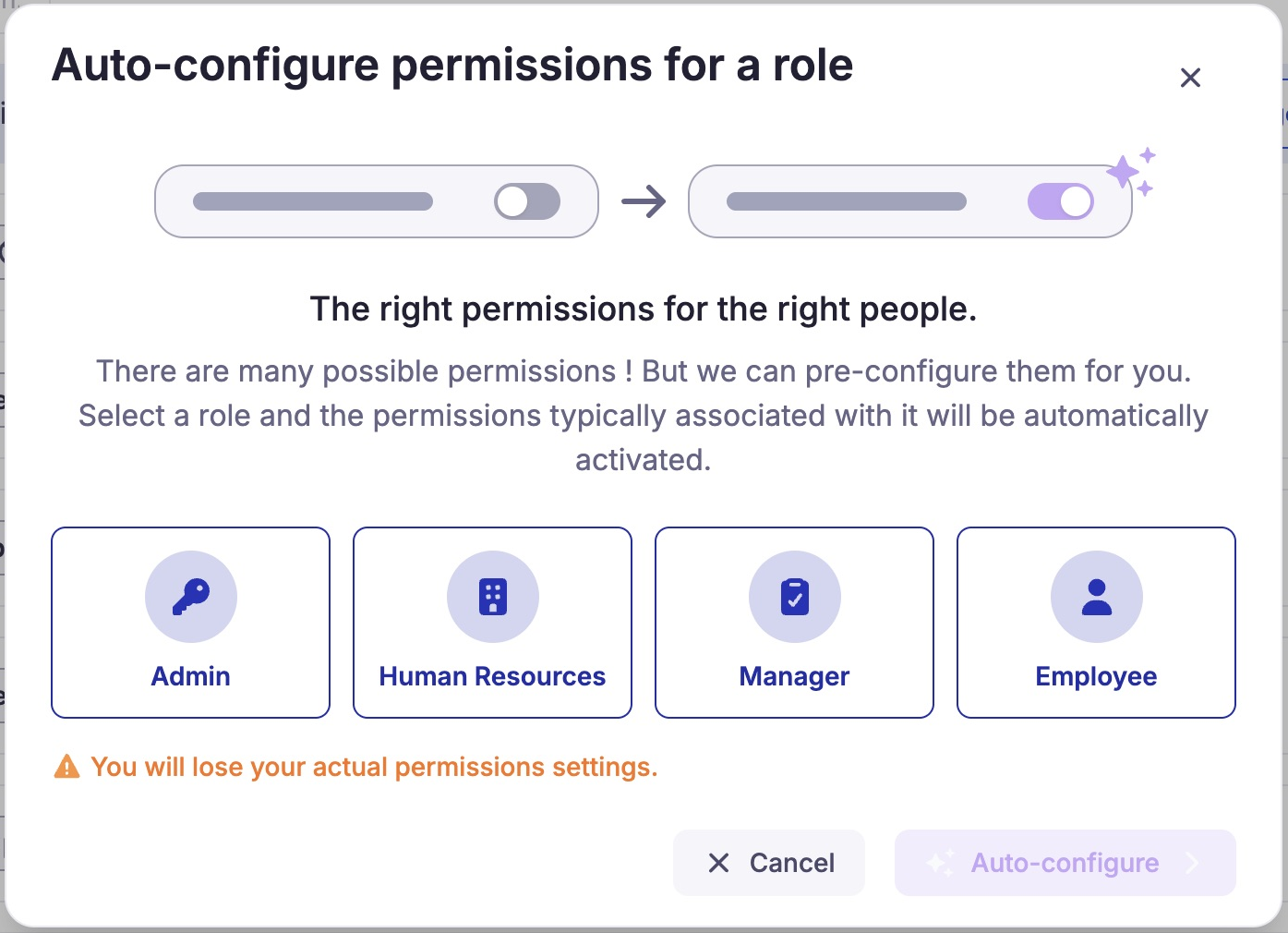
The preset dialog offers administrator, HR, manager and employee choices and warns that existing permission settings will be replaced. Review that warning before applying a preset; Cancel closes the dialog without applying one. Observed in application, 15 October 2026, administrator context, English interface. Admin, Human Resources, Manager and Employee are available choices; no choice was applied. The confirm action is disabled until a preset is selected.
Configure visibility groups
Review both the role defaults and the visibility groups attached to each enabled permission:
| Change | Verified backend behavior |
|---|---|
| Attach visibility groups to a role | Adds them to every enabled permission without duplicating existing attachments. |
| Enable a new permission | Propagates the role's currently attached default groups to enabled permissions. |
| Apply a preset | Propagates role defaults after updating the permission bundle. |
| Remove a group from a specific permission | Removes that attachment and also removes the group from the role's default attachments. Other permission-specific copies are not removed by that listener. |
| Remove a group from role defaults | The inspected detach path removes the default relation; no corresponding listener clearing every permission-specific copy was found. Review each enabled permission. |
The practical consequence is that role defaults and effective permission scopes can diverge. Inspect permission-specific attachments after changes rather than assuming that one default change removed every scope grant.
An empty permission-specific group list does not independently define the final population. The resolver also adds user-level visibility assignments, and the target resource determines how scope is enforced. Privileged system scope handling is separate from ordinary role names.
Assign recipients
In Population, add individual users or attach user groups. The consolidated backend population includes direct and group-derived membership. Use its assignment-source information to understand why a person receives the role.
A user group answers “who gets the role”; a visibility group answers a separate scope question. A direct assignment removal does not revoke a role still inherited through a group. Before removing access, inspect every assignment source and every other role granting the target action.
Clone, reset and delete
Clone: the backend copies translations and enabled rights. Configure visibility defaults, permission scopes and recipients again; they are not copied by cloneRole.
Reset: the backend reset endpoint removes enabled role rights and their permission-specific visibility links. It does not restore an Employee preset. Recipient links and role-level visibility defaults are not cleared by this method.
Delete: remove all direct user links and all attached user groups first. A user group with zero members still counts as a link. The backend rejects deletion while either type of relation exists.
Validate the resulting access
After applying a role change, reopen the role and review its Permissions, Visibility and Population totals and entries. Then use an account that receives the role to confirm the intended workflow:
| Review | Expected result |
|---|---|
| Intended action on an in-scope record | The recipient can complete the permitted action. |
| Excluded action | The recipient cannot perform that action. |
| Record outside the intended population | The module applies its documented visibility rules. |
| Direct assignment removed while a group remains | The role still appears through the group assignment. |
| Final intended grant removed | The recipient no longer has the action through another role or group. |
| Visibility narrowed | Each affected permission reflects the intended scope; user-level visibility is also reviewed. |
| Campaign workflow | Campaign assignment, relationships and workflow stages are checked separately. |
Use a recipient account with the intended role and scope. Privileged administrator access can produce a different result from ordinary recipient access.
Hybrid deployments
Legacy contains a hybrid-mode service that fetches nextgen right slugs and a service that requests nextgen administrator initialization. These establish integration paths, not full synchronization of profiles, roles, recipients and scopes. Configure and validate each target implementation; no automatic migration or permission-equivalence guarantee was verified.
See the technical guide for source references and the API contract used by the editor.
Create a role
- Open Paramètres → Rôles, then Create a role in the embedded redesigned screen.
- Enter Name of the role and an optional description. Submitting a blank name displays Please enter a name for the role.
- Choose Confirm and reopen the saved role.
- Check the name and description and read the three independent totals: People associated, Permissions activated and Visibility groups associated. Role creation alone does not establish effective access for an employee.
After reopening, confirm that the role name and description are present. The three totals are independent: People associated, Permissions activated and Visibility groups associated. A role with zero permissions and recipients does not grant access.
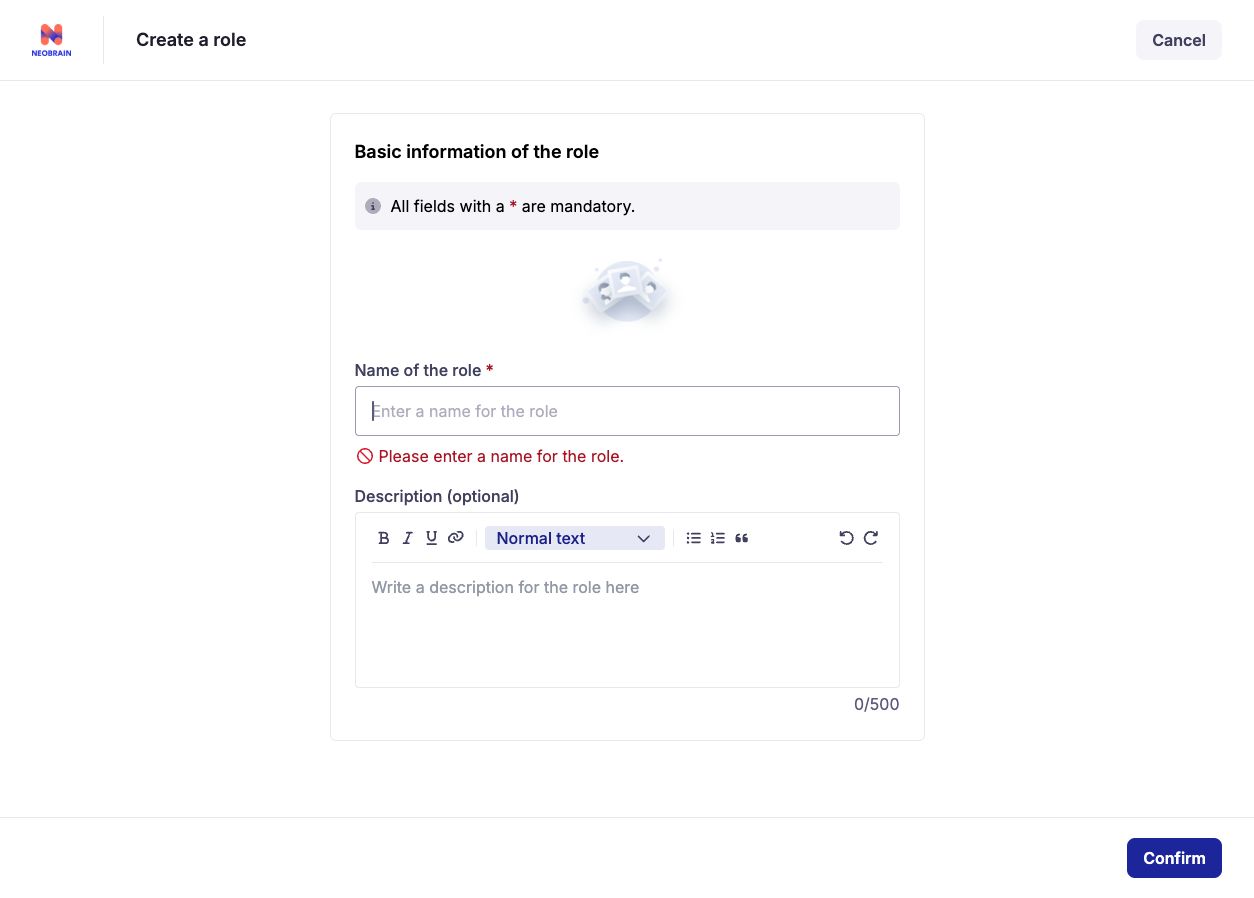
A blank role name is rejected. Enter a name before Confirm; this state has not created a role.
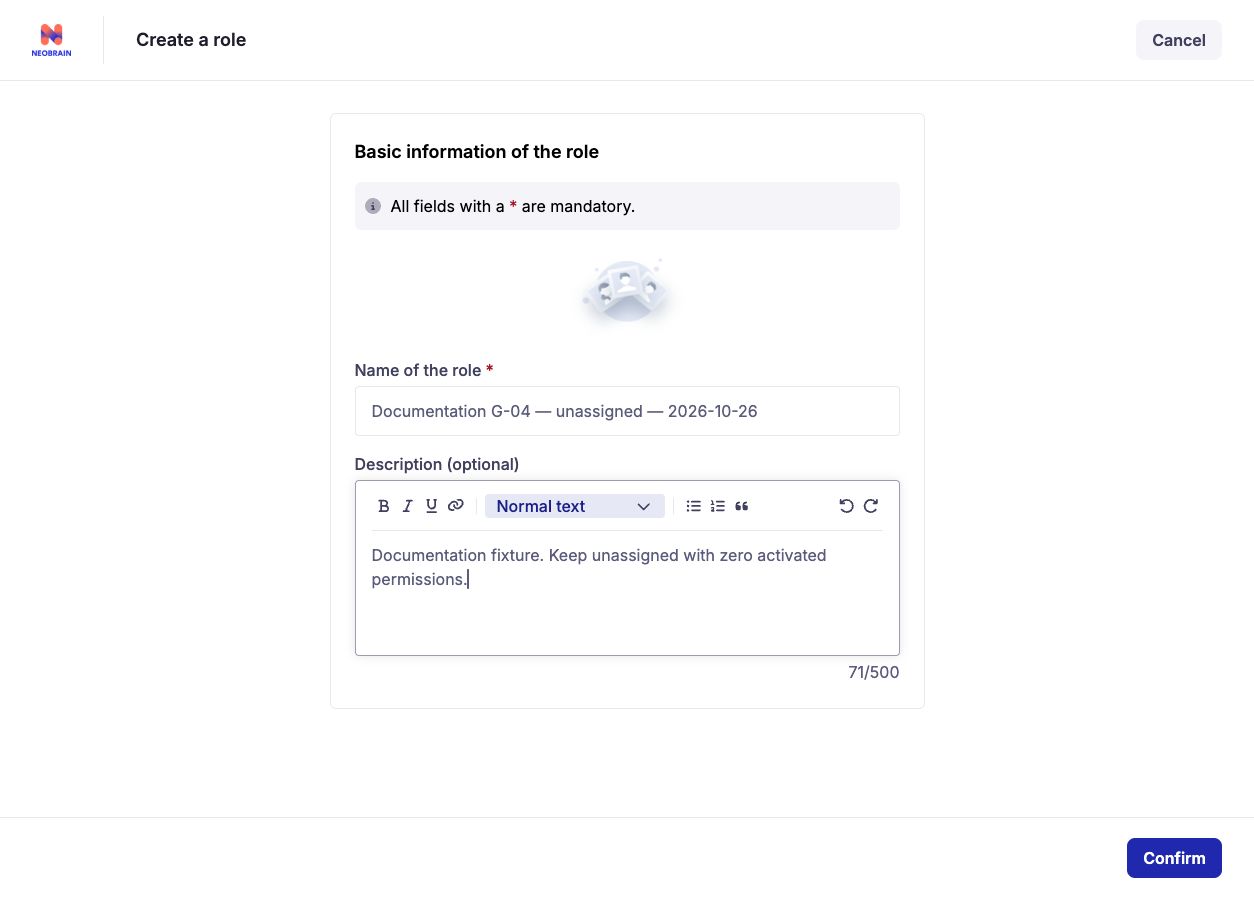
The fixture has a name and description. Review these metadata before Confirm; no permission or recipient is selected here.
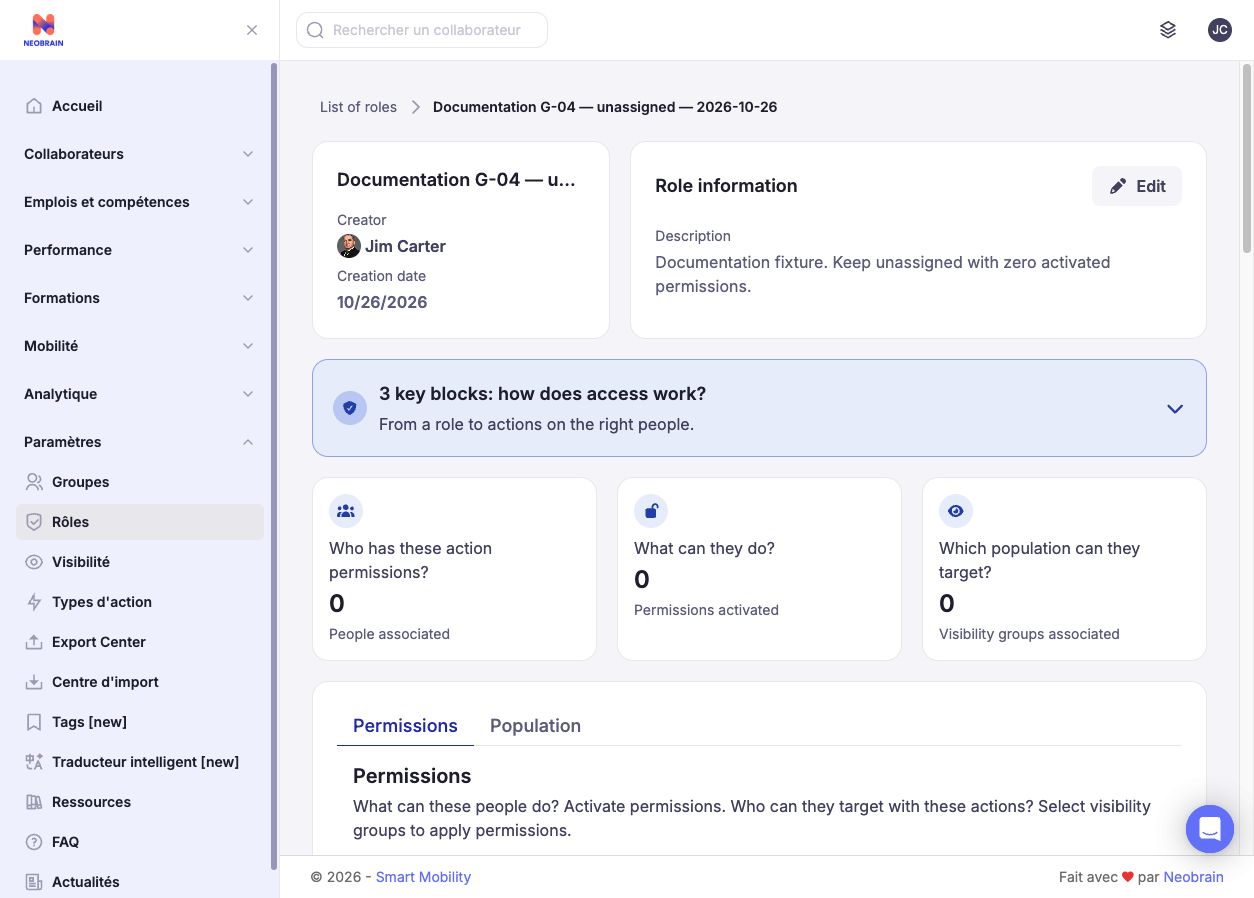
The reopened role shows zero people, permissions and visibility groups. This is a saved metadata example, not a configured access grant.
Additional references and interface differences
Documented in Confluence: SMR - Roles & permission, version 4, 10 April 2026; Back-office V3, version 2, 8 July 2026; Playbook SMR, version 3, 24 September 2026. The April page's exclusion intent is not proof that later hybrid code stopped using legacy authorization. The later guidance and inspected code describe coexistence. “One group = one role” in the playbook is a deployment recommendation, not a database cardinality restriction.
The Visibility System, version 9, 11 October 2023, documents historical visibility setup and broad-right precedence. Its historical participant prerequisites and rollout phases were not verified as current nextgen requirements and are not carried into these steps.
The supplied KBCT entry returned 404. The supplied PS pages were read: Delivery Philosophy & Project Methodology, version 7, 30 December 2025, and Onboarding/learning and partner certification, version 9, 18 February 2026. They provide methodology, not field defaults or permissions.
The technical guide describes legacy/nextgen coexistence and the implementation details behind role permissions. Available controls depend on your assigned administration permissions and the workspace generation.
Last updated on 3 November 2026