HR Dashboard — functional guide
The HR Dashboard brings together profile completion, job proficiency, skill mastery, motivation and campaign follow-up for an authorized employee population. HR teams use it to identify data gaps and development priorities; managers use the same dashboard for their permitted team scope.
Open the manager or HR workspace and choose Analytics → Dashboards (the exact menu label may vary). In the current French interface, the page is titled Tableau de bord du manager.
See the configuration guide for activation and population dependencies and the technical guide for calculations and request contracts.
Before you begin
You need an authenticated manager/HR workspace, dashboard access, enabled dashboard tabs and a permitted employee population. Job-based analysis also needs assigned jobs, expected job-skill levels and employee skill ratings. These are separate prerequisites: opening a dashboard does not establish that every chart has usable data.
| Term | Meaning |
|---|---|
| Périmètre concerné | Employee population selected for the dashboard. Its count is not the number of rated employees in every chart. |
| N - 1 / hierarchy levels | Organizational levels available to the signed-in manager. Check the resulting population rather than assuming a team from the level's name alone. |
| Tous mes niveaux | Selects the available hierarchy levels; it is separate from company-wide scope. |
| Tous les Collaborateurs | Wider company scope offered to eligible accounts. It does not grant configuration access. |
| Mastery | Skill proficiency, distinct from motivation and profile completion. |
| Job gap | Difference between recorded proficiency and the level expected for the assigned job. |
| Motivation | Desire to use a skill, not proof of proficiency or a performance assessment. |
Open the dashboard and select the population
- Use Espaces → Espace manager if you are in the personal workspace.
- Open Analytique → Tableaux de bord.
- Read Périmètre concerné before interpreting a chart.
- Open Filtres. Select the required hierarchy levels, Tous mes niveaux, or Tous les Collaborateurs when offered. Additional relationship filters depend on company configuration.
- Choose Appliquer and wait for the tab to finish loading.
- Check the updated population count, then move between the available tabs. Recheck the filters after leaving and reopening the page.
The selected hierarchy scope can be empty. Choose an eligible hierarchy level or Tous les Collaborateurs, when available, to review a broader population. The selected scope can reset after leaving the dashboard.
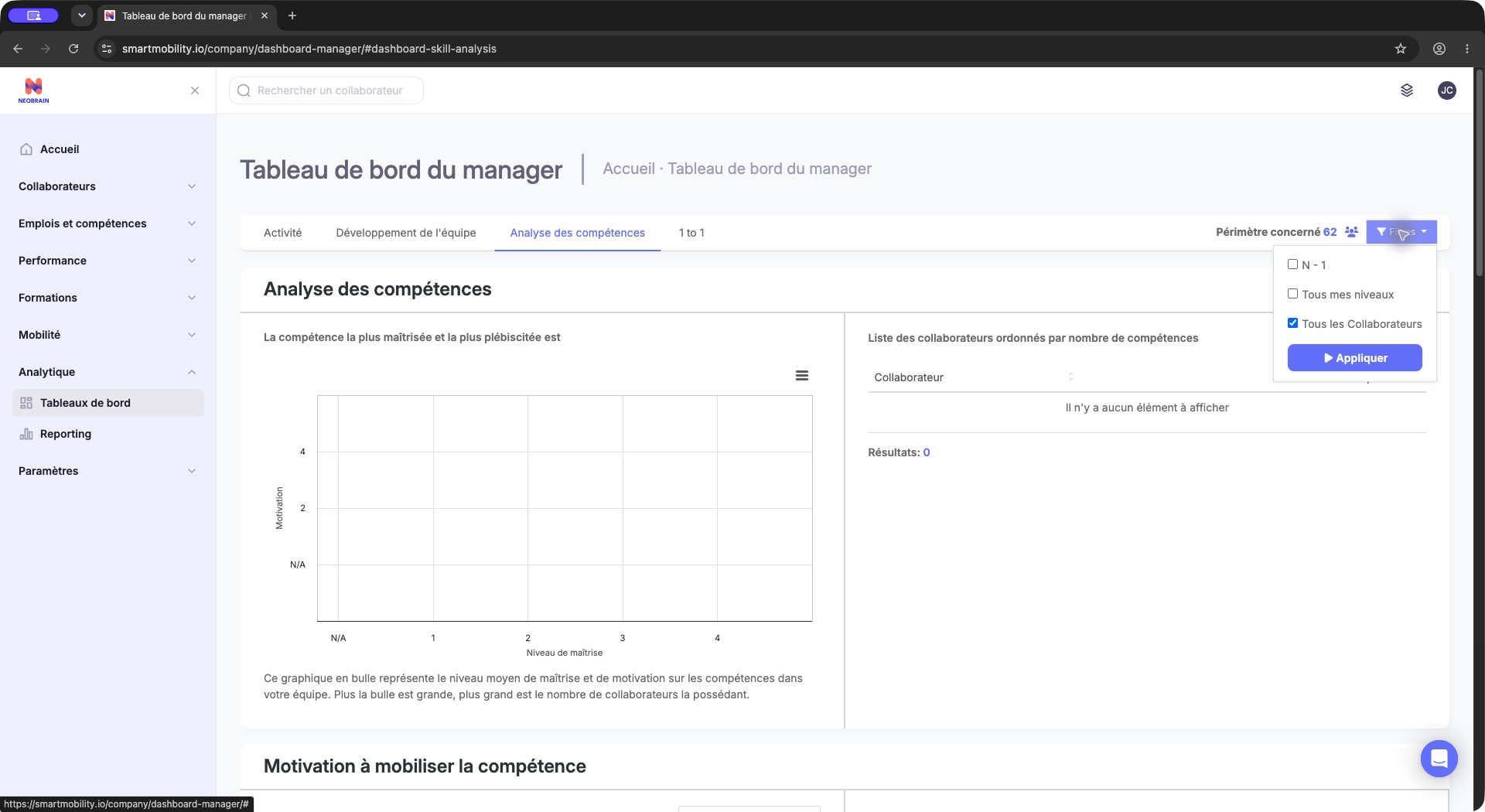
Select the employee population before applying dashboard filters. Chart results depend on the selected scope and available profile data.
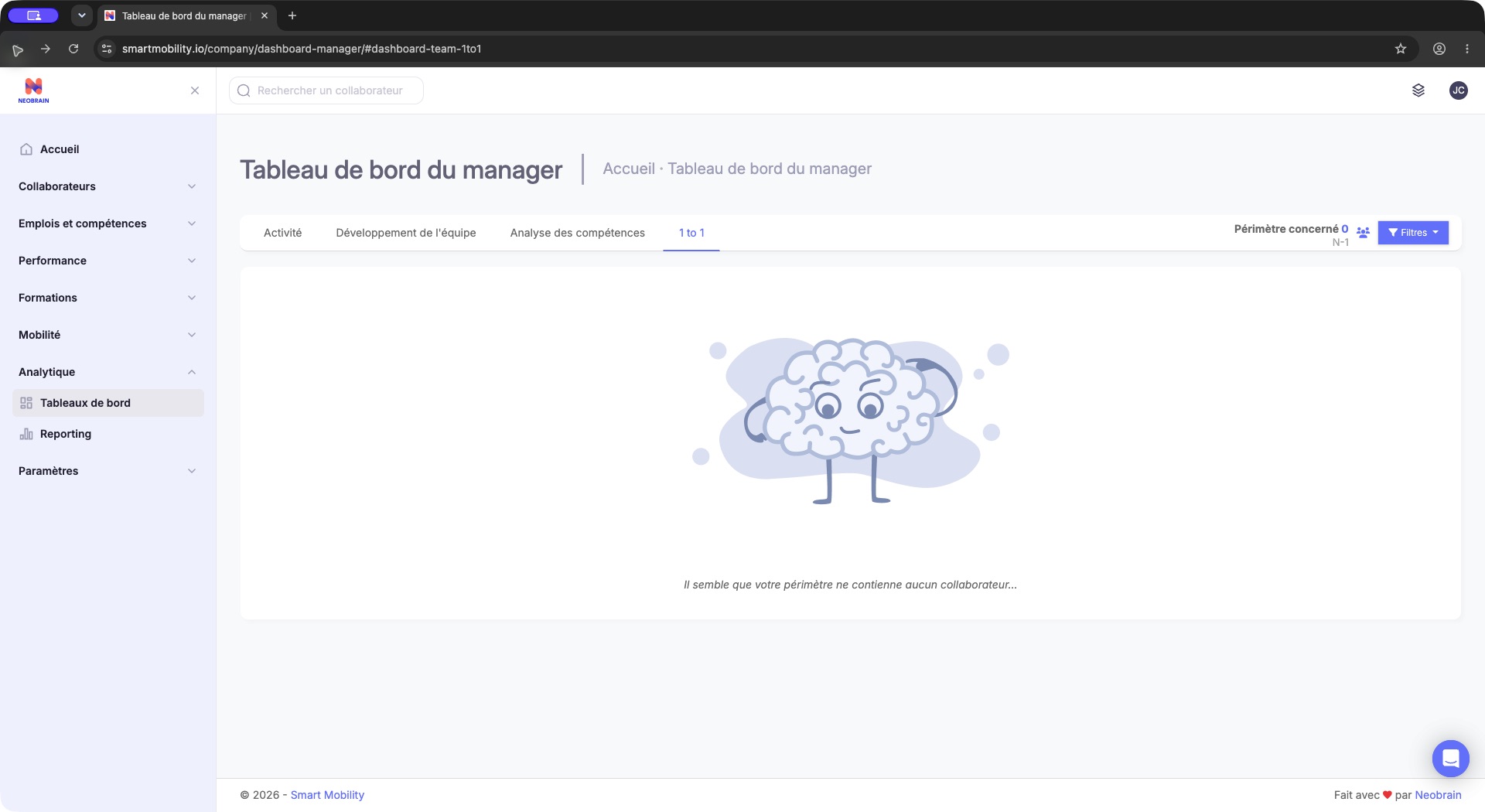
The dashboard displays an empty-population message instead of analysis results. Reopen the population filters and review reporting relationships or scope; this state does not establish a profile or skill-data score.
Expected result: a populated scope loads the enabled panels. An empty scope displays an explicit population message; it does not establish that the company contains no employees.
Review profile completion in Activité
- Open Activité.
- Read Complétion des profils, its percentage bands and the adjacent employee table.
- Use column headings and pagination to review the list.
- Where records exist, open an employee's profile from the table to investigate incomplete information within your permissions.
- Where supported, select a chart segment to narrow its associated list. Review the resulting table before using its download control.
The profile-completion indicator summarizes employee profile data. The completion bands depend on the company configuration; a separate login-activity chart may not be available.
The headline count includes profiles at 60% or above, even if the label says “more than 60%”. The donut's completion bands follow the configured completion steps and can differ between companies. Profile completion measures recorded profile information; it is not a skill score.
Review Développement de l'équipe
- Open Développement de l'équipe after selecting the population.
- Read the enabled panels below, using each panel’s own unit and denominator.
- Consult the available employee detail before drawing conclusions about development needs.
| Panel | How to use it |
|---|---|
| Maitrise de l'emploi | Review job-proficiency percentage bands and the linked employee list. Read this against the expected skill levels for the assigned job. |
| Gap de compétences moyen par emploi | Compare reported gaps by job and inspect the employee detail before prioritizing an action. |
| Gap de compétences moyen par collaborateur | Review employee-level gaps against job expectations. |
| Niveau de motivation moyen sur l'emploi | Review motivation on job-related skills separately from proficiency. |
| Distribution des emplois | Check which jobs are represented in the eligible dataset. |
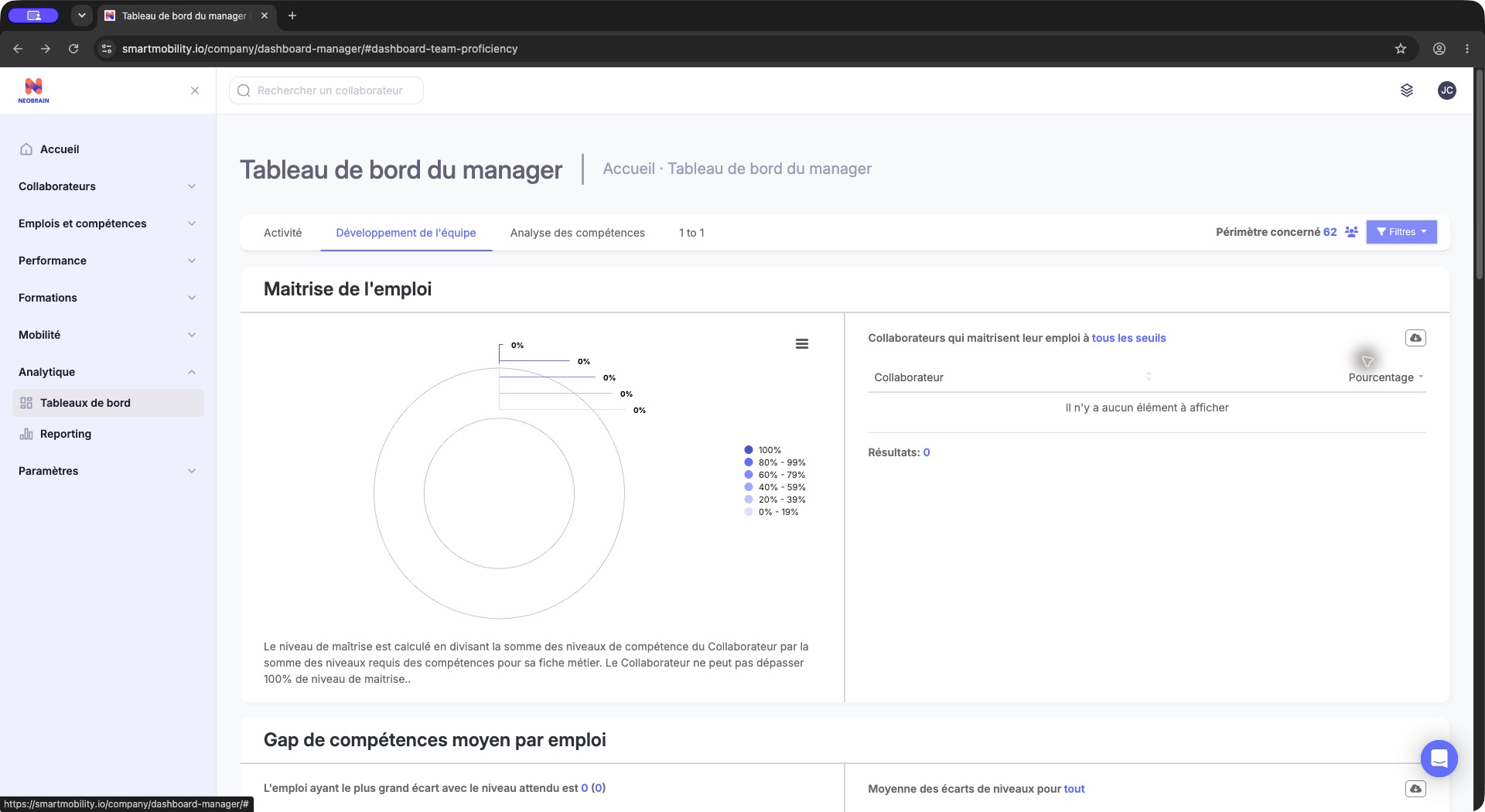
Team development is active and the job-mastery panel has no employee rows. Read the empty-state message before comparing percentages, and review source data and scope if the population should contain usable job skills.
When a selected population contains no eligible job-skill records, a panel can show an empty state or N/A. Review the scope and source data before drawing a conclusion.
A percentage or gap is meaningful only for the eligible employee/job-skill records used by that panel. Review missing required skills separately; an average alone does not confirm that the job catalogue is complete. See the calculation details when reconciling reports.
Explore Analyse des compétences
- Open Analyse des compétences.
- Read the bubble chart axes: Niveau de maîtrise horizontally and Motivation vertically. The help text explains that larger bubbles represent more employees possessing the skill.
- Review the employee list next to the chart.
- Scroll to Motivation à mobiliser la compétence, Compétences les plus maitrisées, Compétences les moins maitrisées and Niveau moyen des compétences, where enabled.
- Use each table's Rechercher field and sort controls. A table search narrows that table; it does not change the dashboard population.
- When a skill row exists, select it to inspect the related employees. The screen explicitly requests a skill selection for mastery or motivation detail.
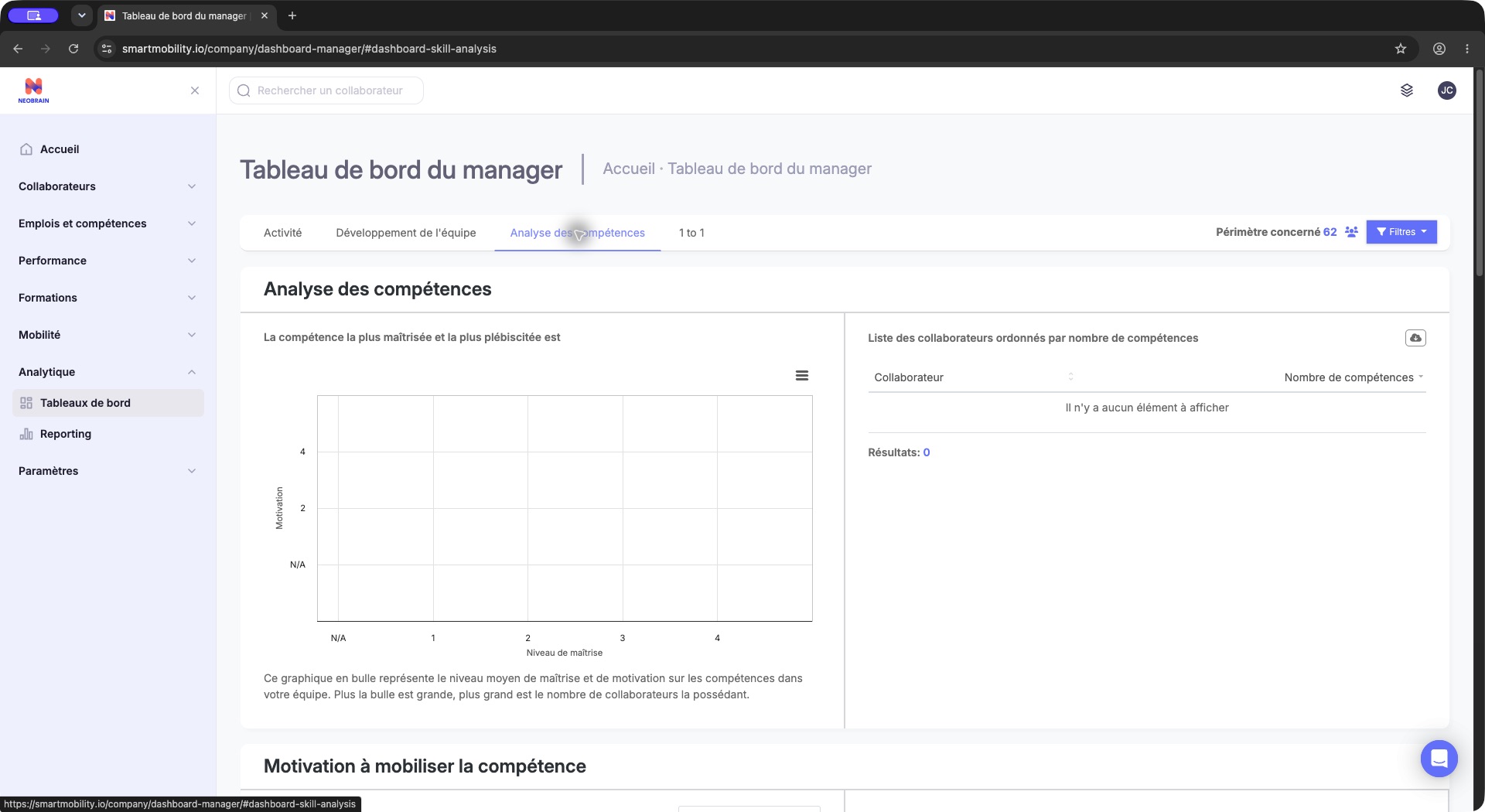
The skill-analysis tab displays chart frames and empty linked lists. The population counter alone does not establish usable ratings; review the chosen scope and available skill data before drawing a development conclusion.
Select a skill from the chart or table to review the related employees. If the tables contain no skills or the chart has no bubbles, check the population and whether eligible skill ratings are available.
Some analyses depend on the employee having an eligible rating or activity record. A missing bubble does not prove that employees lack the skill.
Follow interview campaigns in 1 to 1
- Open 1 to 1; its name can be replaced by the company's interview terminology.
- Open the Campagne selector.
- If an eligible campaign is available, select it and review its progress and employee list.
- Use Interviews to carry out interview work; the dashboard is a monitoring entry point.
If no campaign is available, check that it is published, has started and includes employees in the selected scope.
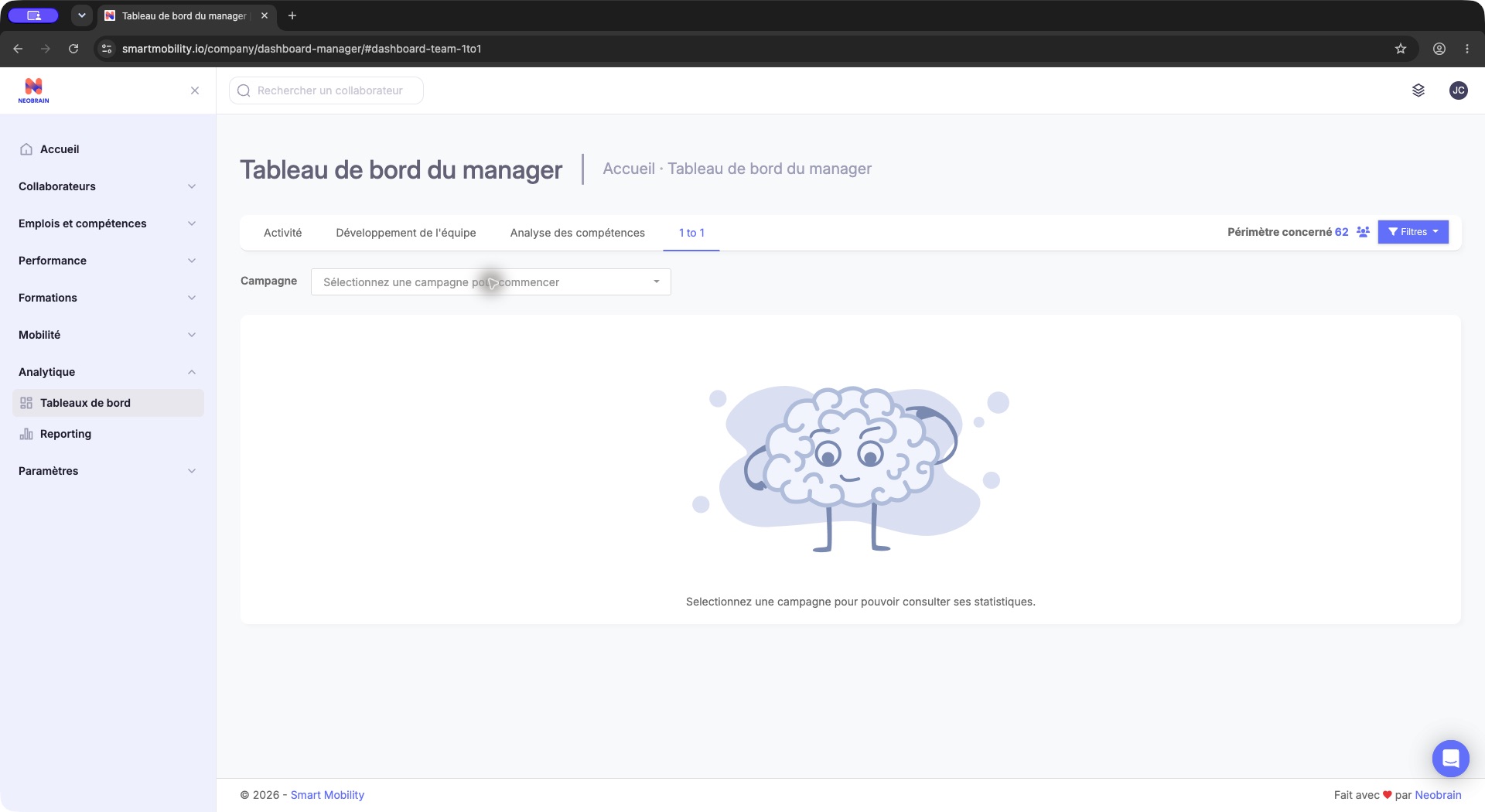
The 1 to 1 tab asks the user to select a campaign; no progress detail is loaded. Choose an eligible campaign when available, or review campaign availability and the selected population if the selector is empty.
The campaign selector can include both ongoing and completed campaigns when they are available to the selected scope. A separate skills-mapping campaign tab may be enabled by configuration.
Tables, downloads and permissions
Use Télécharger les résultats actuels to export the rows currently shown in a table. Chart menus provide separate chart export options. A table export can reflect its active filters and search rather than the full dashboard population. Handle employee-level exports according to your organization's access and retention rules.
Dashboard use does not edit employee ratings, job requirements or campaign status. Wider population access, dashboard visibility and company configuration access are distinct. See Roles and permissions when a colleague sees a different population or set of controls.
FAQ and troubleshooting
| Situation | Check |
|---|---|
| Dashboard entry or tab is missing | Manager/HR workspace, navigation rights, dashboard permission and the tab's feature switch. |
| Empty-population message | Hierarchy selection, employee attachments, enabled accounts and applicable visibility rules. Apply the intended filter again after returning to the page. |
| Nonzero population but zero chart results | Login eligibility, skill source, assigned jobs, expected levels and actual ratings. Do not interpret empty summaries as measured zero proficiency. |
| No interview campaign | Publication, start date, scope and interview access. An ended campaign is not automatically excluded. |
| No skill detail on the right | Select an available skill on the left first. Empty tables provide no selectable skill. |
| CSV differs from population count | Check the specific table, active search and chart selection, and the chart's eligible population. |
| Long loading indicator | Wait for the request; if it fails, retry the same authorized view and provide support with the tab, filter and time. |
For implementation details, calculation rules and APIs, see the technical guide.
Interface generation
The dashboard described here uses the legacy manager/HR dashboard, which can be reached through a redesigned navigation shell. Available tabs and panels depend on company activation and permitted population. See the technical guide for implementation details.
Last updated on 3 November 2026