Training catalog — functional guide
Find courses, understand the skills they develop and continue to the appropriate learning or request workflow. Open Trainings from the main menu. Use the configuration guide for administrator setup and the technical guide for implementation contracts.
Before you begin
Employees need access to the personal training workspace and eligible published courses. HR/managers need access to the back-office catalog; editing requires additional authorization. Your company determines visible filters, suggestion sections, external links and request/session controls. The employee catalog is not necessarily the same population as the administrative catalog.
| Concept | Meaning |
|---|---|
| Course / training | A catalog record with content, language, status, optional provider and duration. |
| Training skills | Skills associated with a course, optionally with acquired and prerequisite levels. |
| Suggestions | Personalized subsets based on job, career plan, motivation or other enabled sources. |
| Favorite / like | A saved course and a feedback signal respectively; neither is a training request. |
| Request / session | A request for training and a scheduled delivery are separate records. Finding a course does not enroll you. |
Browse the catalog as HR or manager
Browse and search the catalog
- Switch to the manager area and open Trainings → Catalog.
- Review the cards: title, summary, linked skills, optional provider/category, likes and duration.
- Set criteria in Your search, then choose Search. Pressing Enter in a search input also submits the legacy search.
- Move between result pages and open a course title. Administrative search displays up to 12 cards per page.
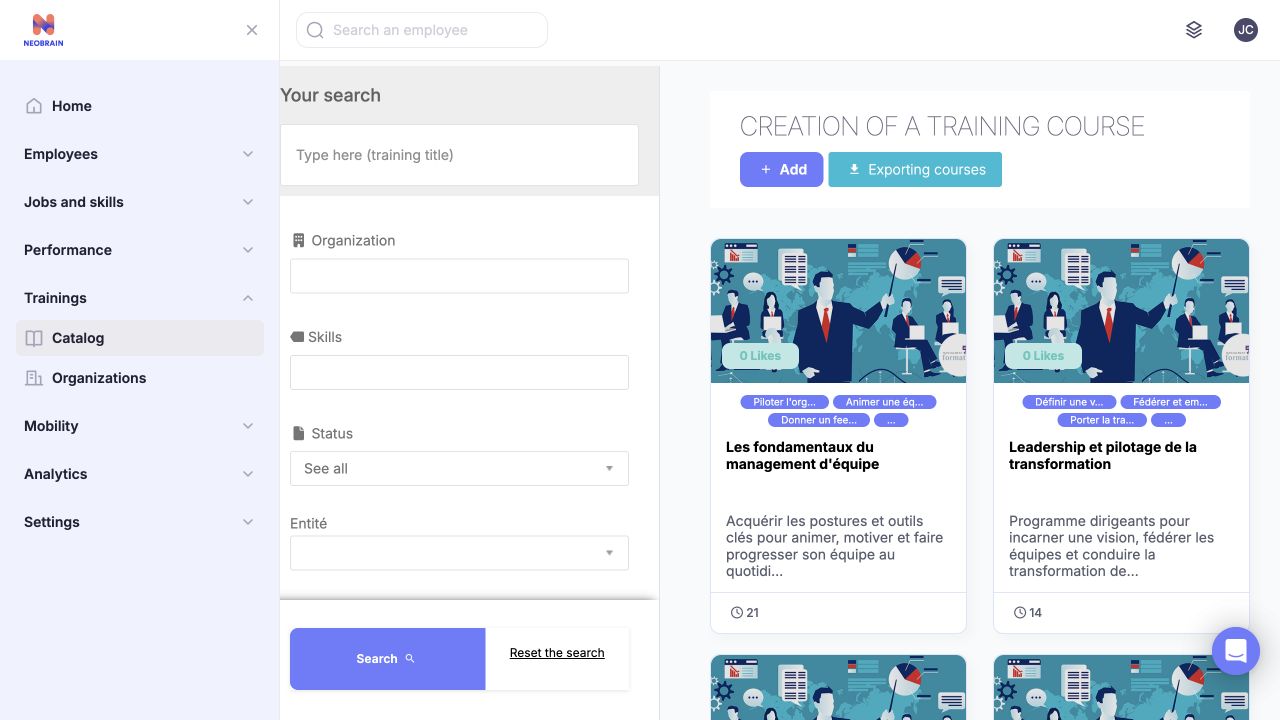
Search criteria are on the left and course cards on the right. Enter criteria and choose Search, then open a matching title; company-authored course text can remain in another language. The interface language does not translate company-authored course content.
| Control | Choices, initial state and clearing | Effect and example |
|---|---|---|
| Your search | Free text, initially empty. Clear it and Search again. | Searches for matching text in the title, program/description, short description or course code. For example, enter Excel to find courses mentioning Excel. |
| Organization | Free text in this view, initially empty. Clear and Search. | Matches part of the provider's name, not an employee organization. Use when you know the learning provider. |
| Skills | Multiple selection from skills linked to company courses; initially empty. Remove choices and Search to clear. | Selected skills match with OR. Other filter groups combine with AND. Example: find courses associated with either selected skill, then narrow by provider. |
| Status | Single choice: See all, then company-defined statuses. Common statuses include Published, Draft and Archived. Initially See all. | Filters the course status; changing the filter does not publish/archive courses. |
| Company fields (Entité in the French manager catalog) | Tenant-defined controls. | Available fields and options depend on your company’s Smart Editor configuration. |
| Duration | One radio choice: < 3 hours, < 48 hours, > 48 hours; none initially. | Narrows by duration/unit. Code includes boundary values: 3 and 48 can match despite the strict-looking captions. Use reset/reopen to clear a selected radio. |
| Search / Reset the search | Search applies criteria. Reset is displayed. | Reset clears entered criteria; choose Search to apply the new criteria. |
| Pagination | Page numbers according to matches; first page initially. | Changes the displayed subset. Displays up to 12 results per page. |
| Add / Exporting courses | Permission/configuration-dependent actions. | Add opens course creation. Export is an action, not a filter; availability and contents depend on permissions and configuration. |
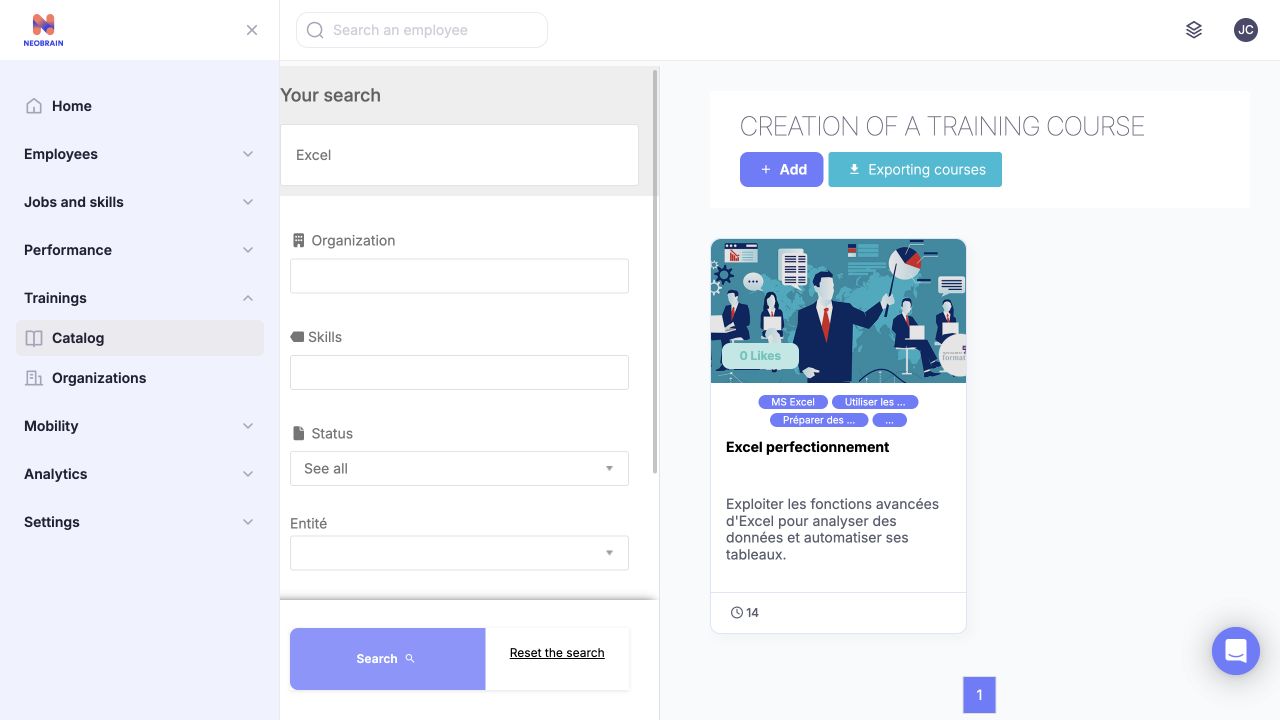
The Excel query has narrowed the catalog to a matching course card. Open its title to read the course sheet; the search result is not an enrollment or approval. Search changes the displayed cards without modifying courses.
Review a course
- Open a course title to view its Training, Skills and Useful information tabs when available.
- Read the intended audience, prerequisites, objectives, program and delivery details before choosing a course.
- Review linked skills as course outcomes. For example, the employee card for Les fondamentaux du management d'équipe surfaces three related skills: Piloter l'organisation du travail et la performance d'une équipe, Animer une équipe pour atteindre les objectifs and Donner un feedback constructif. The course’s full Skills tab can contain additional outcomes. Skill links open Search; check the selected Skills filter before interpreting the results. These links do not establish course completion or skill attainment.
- Use External link of the training to continue to a provider or LMS when configured. Availability, sign-in and completion tracking are managed by that service.
The Useful information tab can include company-defined fields. A configured field without a saved value may display Not defined; URL fields open their value in another tab. The available fields depend on company configuration.
Change and Add controls depend on your permissions. Consulting a course is separate from enrolling in it. Use the configuration guide for authorized course maintenance.
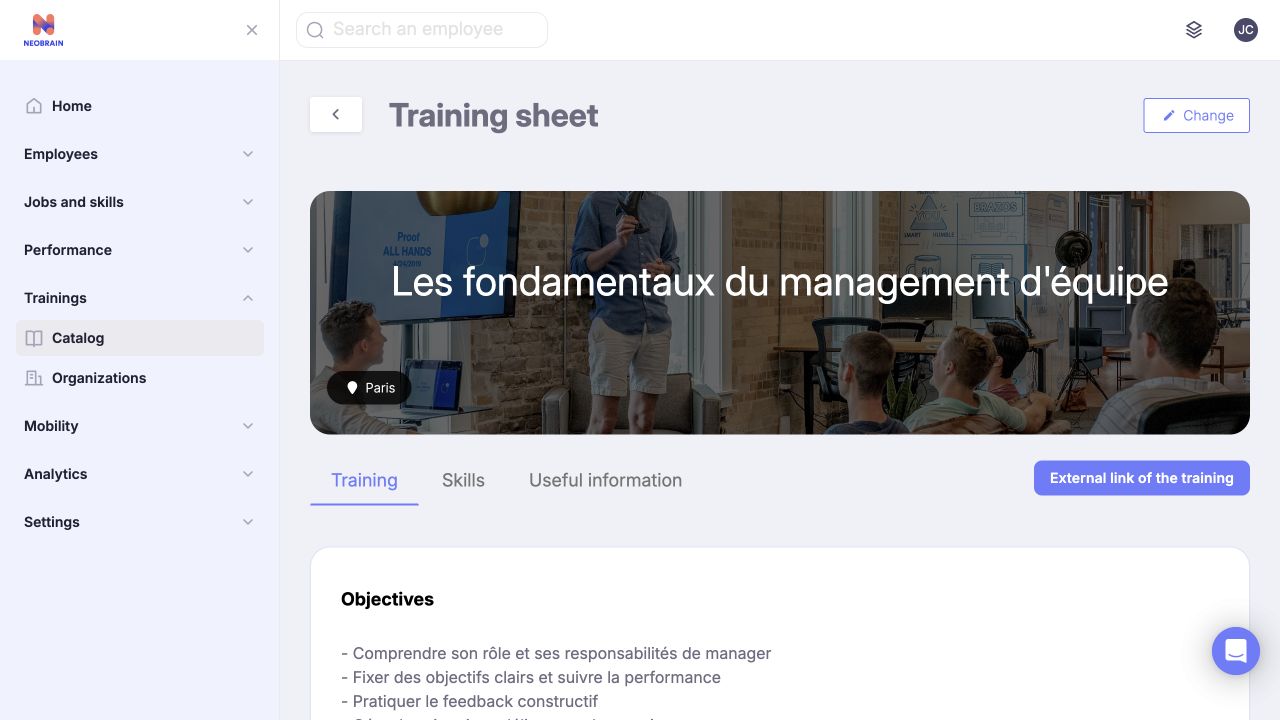
The course sheet separates Training, Skills and Useful information, with a configured external training link. Read the relevant tab before continuing to the provider; consulting the sheet does not enroll a participant. Course content may use a different language from the interface. The modality appears under the label “Terms and conditions” in this interface.
Find training in personal space
Discover courses and suggestions
- Use the top-right workspace switch to enter the personal workspace, then open Trainings.
- Review the available sections: job-development suggestions, career-plan suggestions, motivation/popularity sections when enabled, and Training catalog.
- Expand the relevant section or use its See more action when offered. A section can be empty when profile/job/career information or eligible courses are missing.
- Use Search to find a particular course. Select its course language if it differs from your interface language.
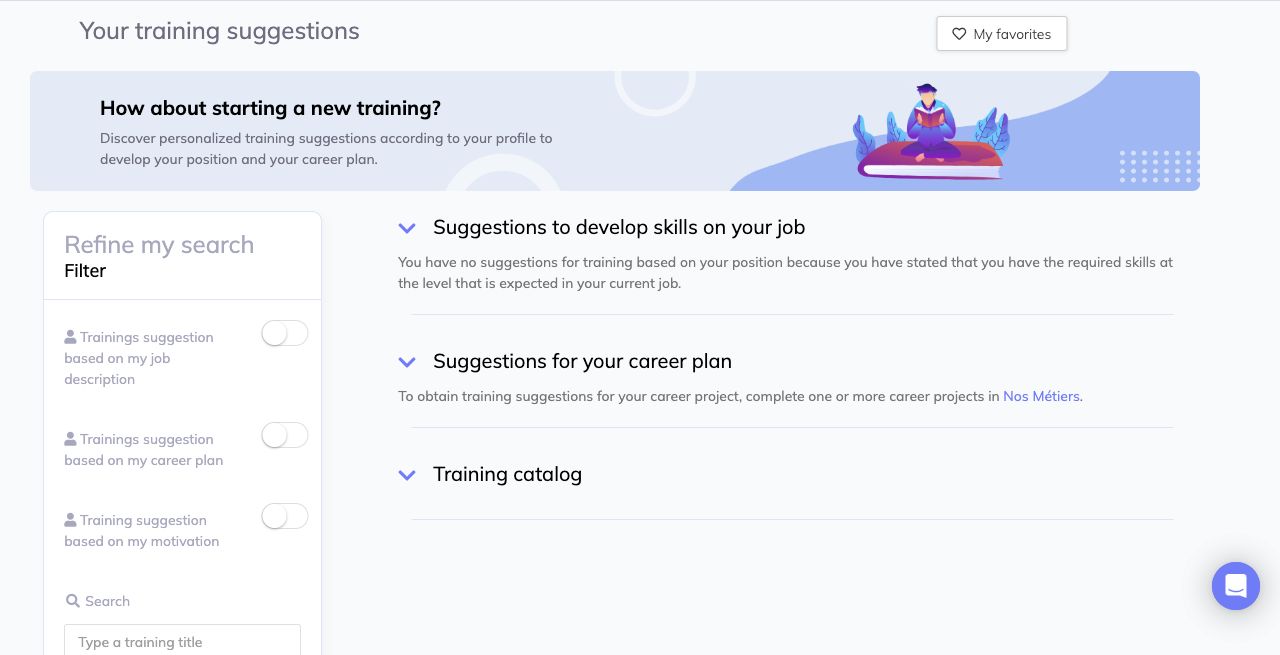
The personal training overview groups job, career-plan and catalog suggestions. Expand an available suggestion section or search in the course language to continue. Suggestion sections can be empty when their profile prerequisites or eligible courses are unavailable.
Suggestions depend on the profile, current job, career plan and the skills linked to eligible courses. For career suggestions, open Career planner → Career plans, choose a plan and add a target job with its required skills. If the plan lists actions, complete them in the plan detail and mark each one done when finished; completed actions move to Completed, and the page confirms when all listed actions are done. This tracks the plan actions. In the legacy training workflow, the suggestion search uses saved plans, target jobs and skill/course matches; it does not use action-completion status. The career message can appear when the suggestion section has no results, so it does not by itself mean that plan actions are incomplete. Return to Trainings, select the career-plan suggestion filter and choose Search when the filter is offered. If the section is empty, check that a target job is saved, review its skill requirements against the employee's recorded levels, and confirm that eligible published courses are linked to relevant skill gaps. The deployed workspace may have additional rules; ask its administrator if the expected suggestions remain unavailable.
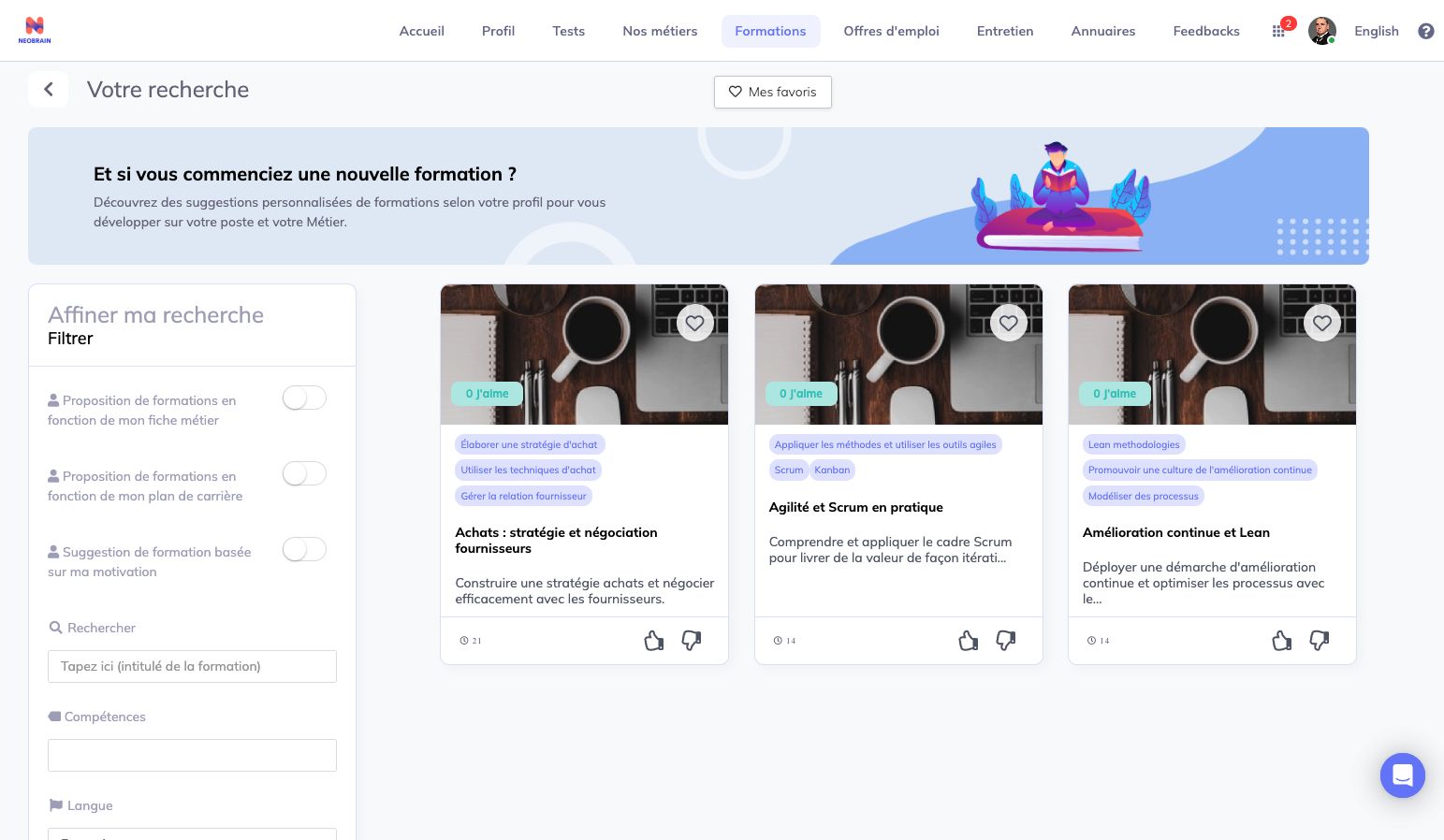
Course cards include summaries, skill links, durations and separate favorite/feedback controls. Search filters narrow the list. Course language is independent of interface language.
A published management course provides an example of the three skill links surfaced on an employee card: Piloter l'organisation du travail et la performance d'une équipe, Animer une équipe pour atteindre les objectifs and Donner un feedback constructif. The course’s full Skills tab may list additional outcomes. Select an available skill link to open Search, then confirm that the skill is selected before interpreting the results. Availability in a given catalog depends on publication, language and company access settings.
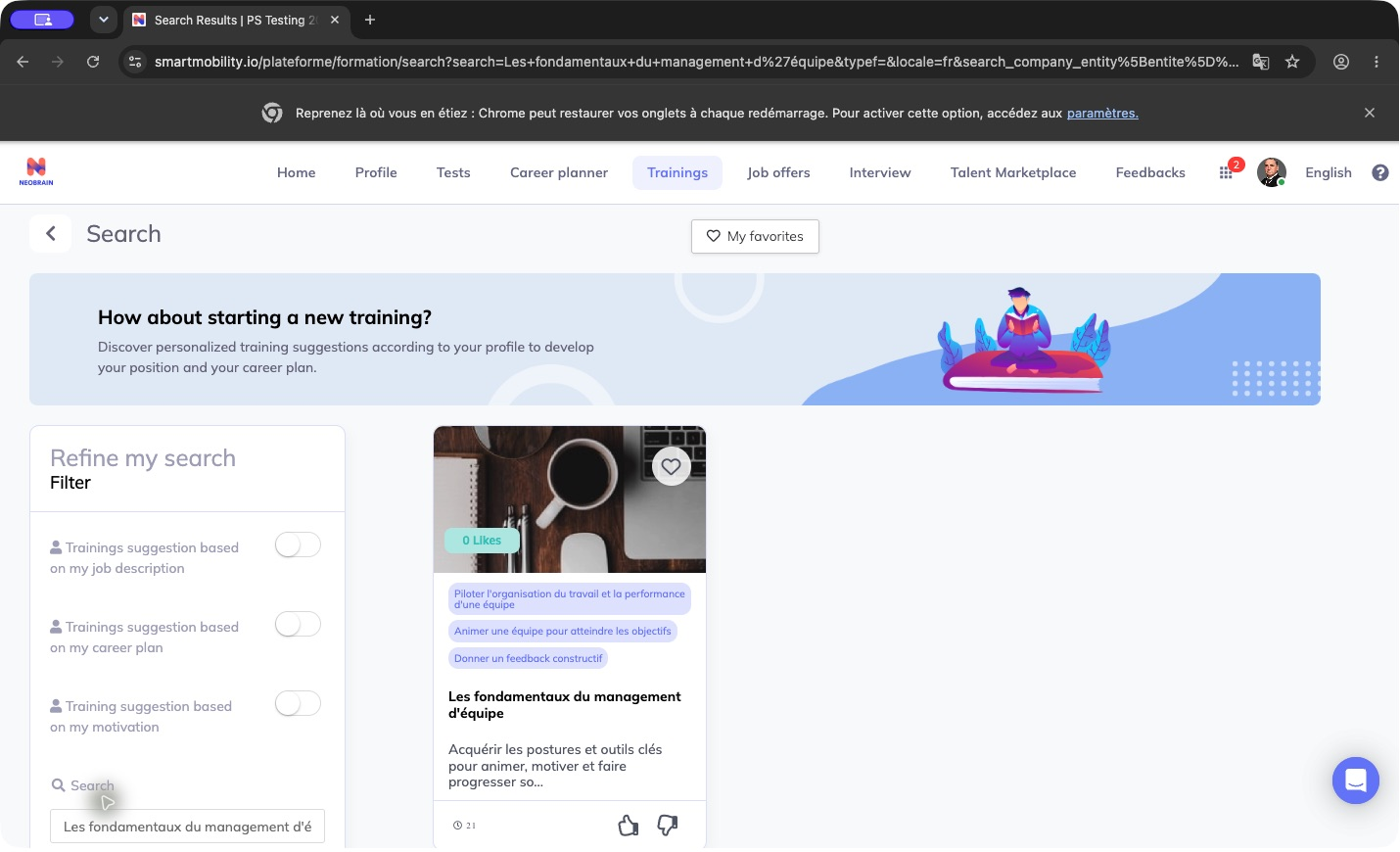
A published course card can surface links to related skills. A skill link opens Search. Confirm the selected Skills criterion before interpreting the results; opening a link does not record skill attainment.
Find courses for a skill
Employee cards display up to three associated skills. Depending on company settings, these labels are links or plain text. When links are available:
- On a course card, select a linked skill that you want to develop.
- On Search, check the Skills selection. If the intended skill is available but not selected, select it and choose Search. A skill name in the link alone does not confirm that the filter is active.
- If Skills has no choices, ask the catalog administrator to check the skill translations and published-course associations. Use course-title search while the choices are unavailable; changing course language alone does not populate the skill selector.
- Review the course language and other active criteria, then open a relevant course to compare objectives, prerequisites and expected outcomes.
- Remove the selected skill or use Reset the search to broaden the results.
The skill selection filters courses. It does not change your profile, skill rating or training requests.
Filters and options
Use the available controls to refine a search. Selections do not change your profile or course data.
| Control | Values/defaults and clearing | Effect and practical use |
|---|---|---|
| Trainings suggestion based on my job description | On/off, initially off where this control is available. Switch off to remove. | Narrows to courses associated with skills relevant to the current job. Requires suitable job/skill data and activation. |
| Trainings suggestion based on my career plan | On/off, initially off. | Uses target jobs in the career plan. Where the two switches are paired, choose either the career-plan or current-job option. |
| Training suggestion based on my motivation | On/off, initially off. | Finds courses related to motivated skills. Eligibility depends on motivation and skill levels; see the technical guide for the legacy selection rules. |
| Search | Free text, initially empty. Clear then Search or Reset. | Contains search over title, descriptions and code in the shared repository. For example, enter a course title or code. |
| Skills | Multiple company course-skill choices, initially empty. Remove choices to clear. | Matches any selected skill (OR), combined with other criteria using AND. It selects relevant courses, not new skills for your profile. |
| Language | Single choice: See all and company languages. | Course language is independent of interface language. Choose the language used by the course content. |
| Entité / company fields | Company-defined selectors; available values depend on configuration. | Choose an available value to narrow the results. Clear the selection or use Reset to remove it. |
| Duration | Checkboxes: < 30 minutes, < 3 hours, < 48 hours, > 48 hours; all initially unchecked. | The captions denote duration thresholds. Select one range at a time and uncheck it to clear. If a result seems inconsistent, check the stored duration unit with the catalog administrator. |
| Category / training type | Conditional selectors. | Options and labels depend on company configuration. |
| Search / Reset the search | Search applies the form and opens Search results. Reset returns to that page's clean route. | Submitted filters can be restored in the result form. On the home page, reset returns to the training overview; on Search results it clears that search. |
| Section expand / See more / page controls | Availability depends on section/results. | Reveals more courses or another page without applying a business change. |
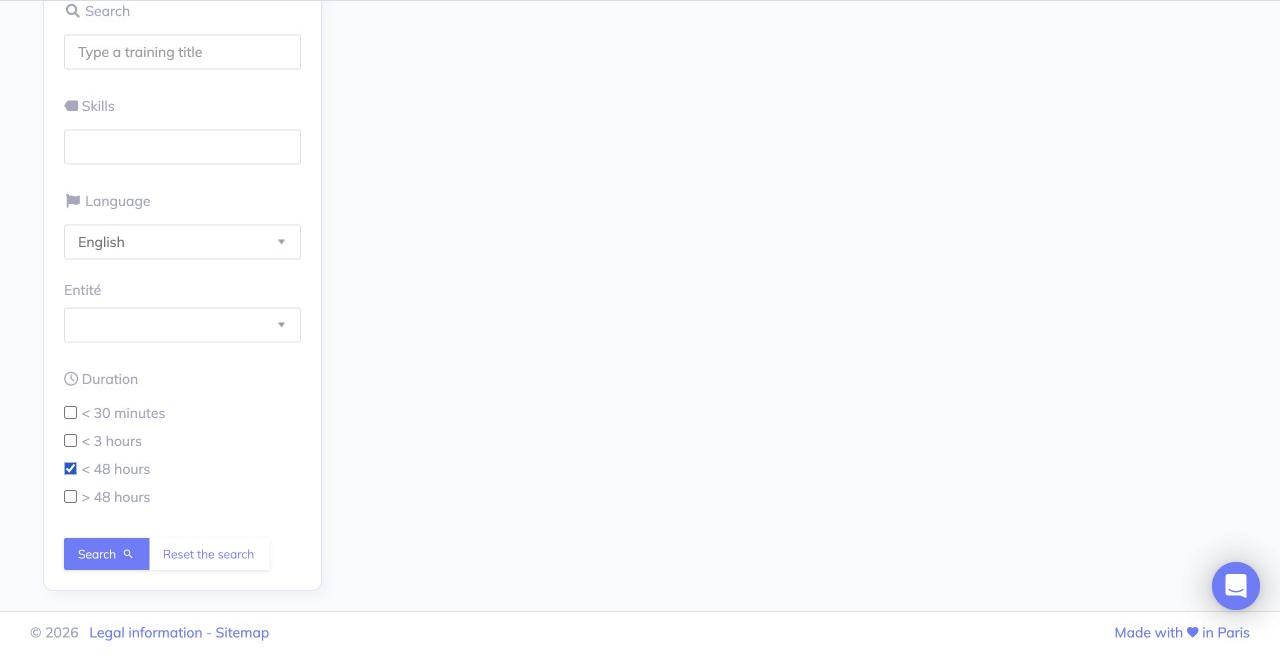
Review the selected language and duration criteria before Search. Clear an unwanted restriction before retrying; search criteria do not change profile data.
Use duration filters and reset a search
- Choose a course language and enter a title or skill if useful.
- Select a duration range only when you know the course duration and unit. Course cards may display a number without a unit; confirm the unit with the catalog administrator before interpreting it.
- Choose Search. If the expected course is missing, clear restrictive criteria or choose Reset the search, then search again.
Duration boundaries and unit handling can vary between catalog generations. See the technical guide when results do not match the displayed threshold.
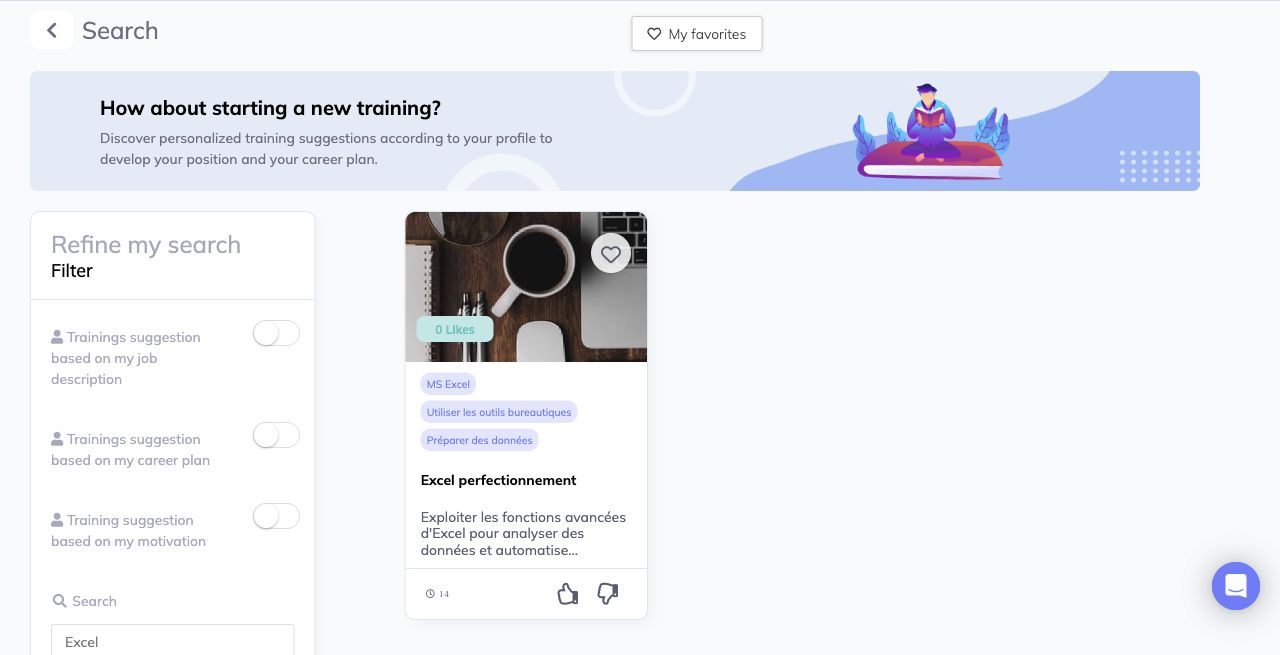
The result card includes a title, duration, linked skills and separate favorite and feedback controls. Open the title for course content or the configured provider; liking or favoriting is not a training request. Course language and external destination depend on the course configuration.
- Open the title. Depending on company configuration and the course URL, it opens the internal detail or the external provider/LMS. Do not expect every course to have the same destination.
- Where internal detail is used, review its Training, Skills and Useful information tabs.
- Use the heart to save a favorite when appropriate; My favorites opens the saved list. Like/dislike is separate feedback used by enabled popularity features. For the save and removal procedure, see below.
- If a training request is offered, follow the displayed request/approval process. My requests, out-of-catalog requests, sessions and proposals to collaborators appear only when enabled and authorized. Available actions depend on your role, company configuration and any existing request for the course.
The internal detail can vary its request action according to an existing active, waiting, finished or refused request. A favorite or an LMS click does not establish enrollment, approval, completion or acquisition of skills. The available request and enrollment steps depend on course delivery, existing request state and company settings.
Read the internal employee course detail
An internal course link supplied by your organization can open the SmartMobility course detail even when the catalog title opens a provider directly. If you need the internal information, ask the catalog administrator for the course link.
- Read Training for objectives, program, intended audience and preparation.
- Open Skills to compare prerequisites and learning outcomes with your recorded skill levels. Already acquired means your recorded level meets or exceeds the course’s expected level. Not acquired means that comparison is not met; neither label is proof that you have taken this course.
- Review Infos utiles / Useful information for course language, location and company-defined information.
- Use Access the training when offered to continue to the provider. An external learning link can take precedence over a request button. If a request action is available, read its conditions and the displayed approval information before submitting.
The request action can depend on prerequisite levels and an existing request’s status. If an active request already exists, review it in the available request area instead of creating another. Opening the course detail does not submit a request.
Request a course when the action is available
- Open the internal course detail and review its prerequisites and expected outcomes. The request action appears only when the company enables it and the course/request conditions allow it.
- Choose the displayed training-request action. Check the course title and the approval information in the confirmation dialog.
- Choose Send to submit the request, then wait for confirmation. This is the submission step; opening the dialog does not submit it.
- Follow the request through My requests when that navigation is available. Submission starts the company’s request process; it does not confirm approval, a session place or course completion.
If sending does not produce a clear result, check the request list or ask the catalog administrator before sending again. A request may have been recorded even if a later notification failed. If My requests is hidden, ask the administrator to confirm the existing request rather than repeatedly submitting it.
Follow an existing request
When enabled, open My requests from Trainings and choose the request-list entry. The newer legacy request page uses these tabs:
| Tab | How to use it |
|---|---|
| Coming | Review requests awaiting a next step and eligible upcoming sessions. Some requests without a session remain here according to their status. |
| Completed | Review past-session entries. This tab uses the session end date and exclusion statuses; it is not an attendance or skill-acquisition certificate. |
| Refused | Review entries marked refused or abandoned by the employee, manager or HR process. Read the card and contact the responsible owner for clarification. |
A request card can show the course title, session date/time, location, delivery type and request information when available. Open the title to revisit the internal course information. Review the displayed status and any assigned next action before contacting the approval owner.
An empty tab reports No upcoming training, No past training or No training refused. It describes that category, not an enrollment error or a reason to send the same request again. If the expected request is missing, ask the administrator to check its status and session dates.
Manage requests and confirm attendance as HR or manager
- Open Trainings → Requests to review requests in the scope available to your role. A manager may see only their own employees' requests; broader visibility depends on company permissions.
- When a request needs a scheduled delivery, use the assignment action if it is available. Choose an existing session or create one when the workflow offers that option. Session controls require the company session feature and the relevant role permission; if either is unavailable, ask the training administrator.
- After the session, open its participant details and select only the employees whose attendance has been checked against the actual session record. The attendance-confirmation action emails each selected employee a request to confirm whether they participated.
- The employee confirms or declines from that message. This records the employee's attendance response; it is separate from the session assignment, the request's Completed tab, provider completion and skill acquisition.
Only send attendance confirmations after verifying the participant list and session details. The confirmation sends email and creates a response link for each selected employee. An empty request list or session list means there is nothing to assign or confirm yet; do not create a request or mark attendance solely to populate the workflow.
Save, reopen and remove a favorite
- In Personal space → Trainings, choose the course language and search for a course.
- Choose the course card’s Add to my favorites heart. After saving, the action changes to Remove from my favorites. Open My favorites to find the saved course.
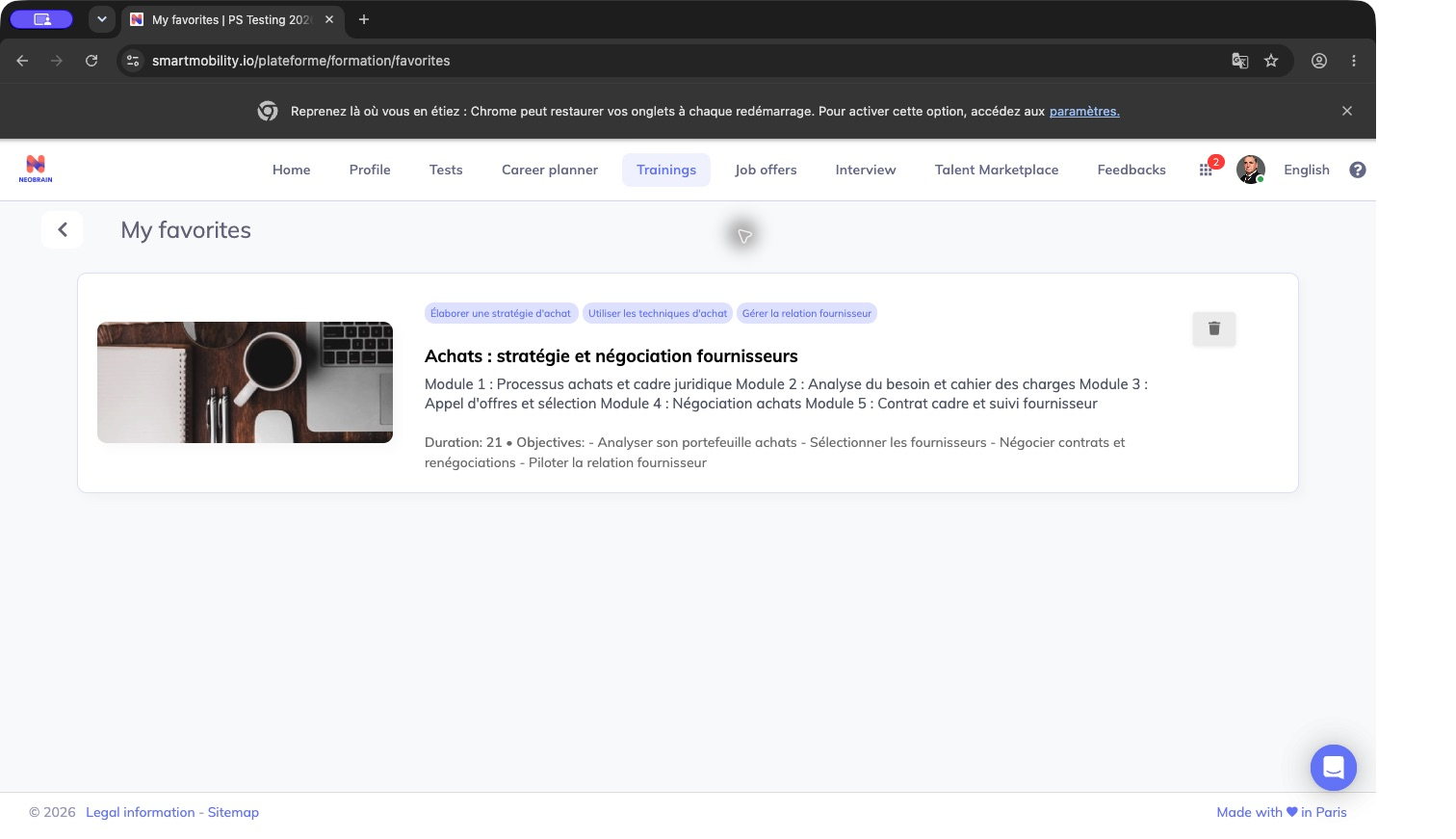
A saved course appears in My favorites. Favorites do not indicate enrollment or completion.
- To remove it, choose Remove from my favorites. The dialog says Delete this training?, but its explanatory text specifies removal from the favorites list. Choose Yes, Delete! to confirm, or Cancel to keep the favorite.
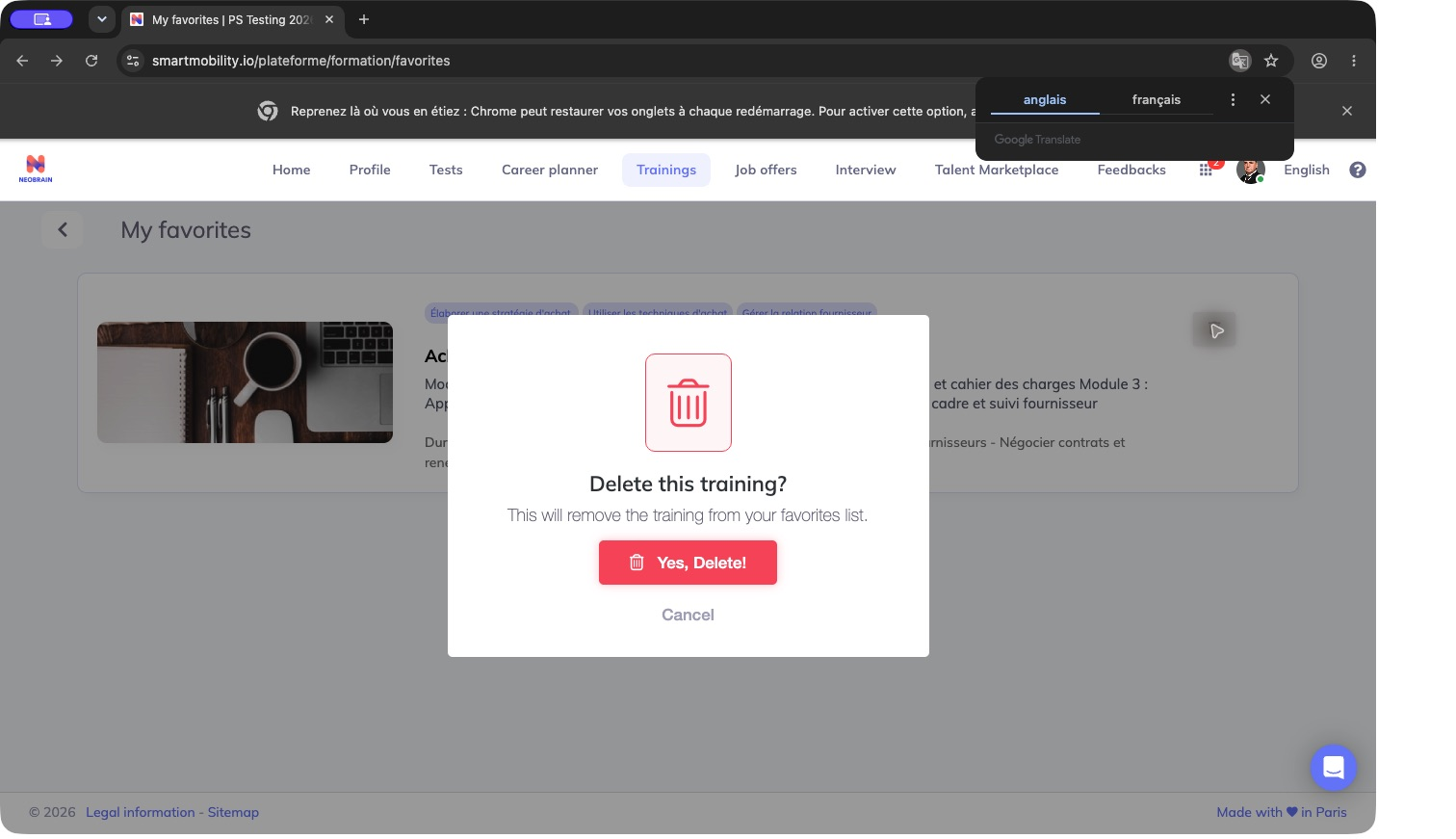
*Read the explanatory text before confirming. This action removes the personal favorite; it does not delete the company’s course. *
- After the success message, open My favorites. The removed course no longer appears. If it was the only favorite, the page says You haven’t added any training to your favorites yet! and offers Discover the trainings.
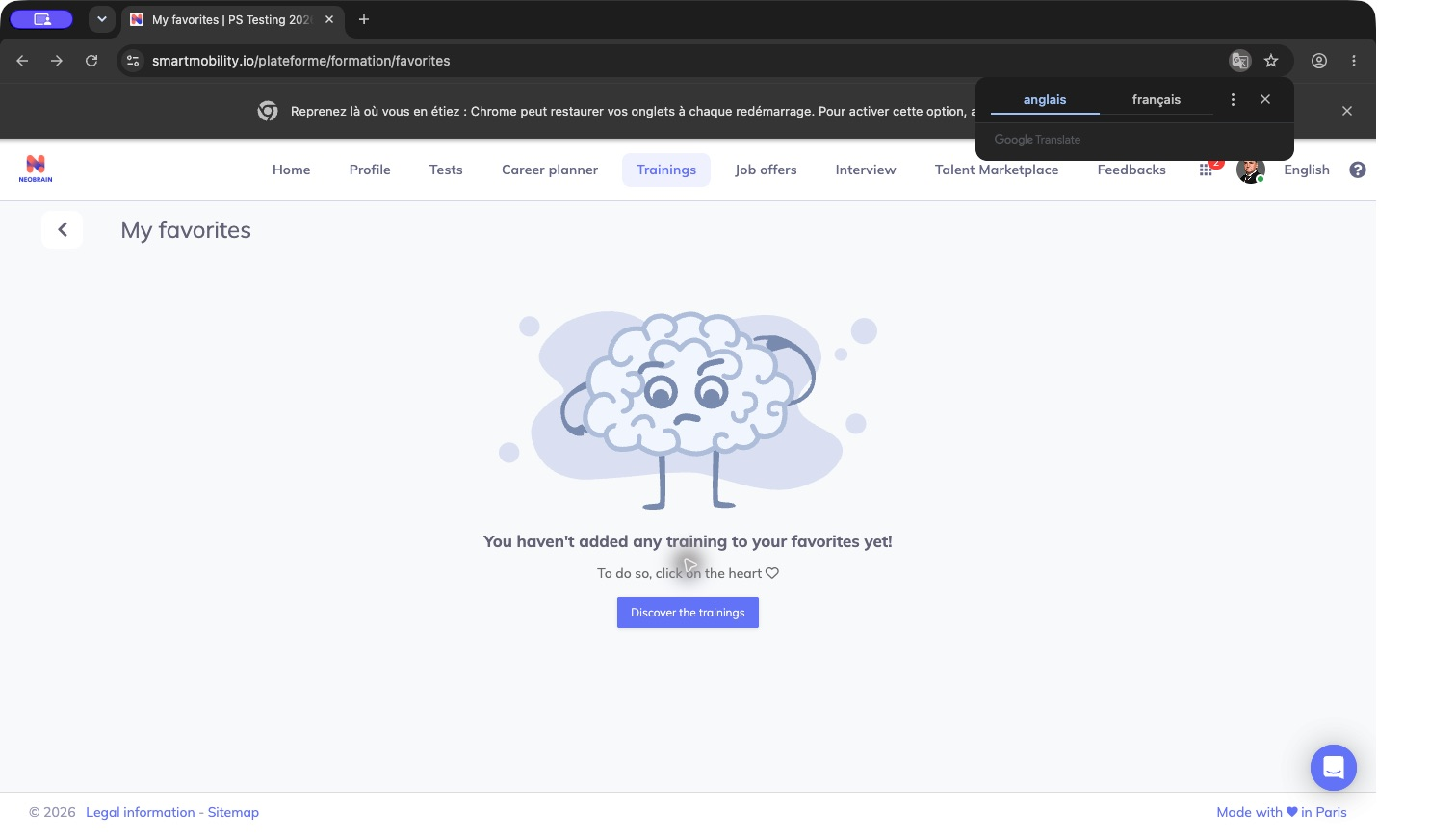
When no saved courses remain, the page displays its empty-state message. Revisit Trainings and use the heart to save a course.
When a course opens a provider page
If the provider page does not load, return to SmartMobility and ask the catalog administrator to verify the configured address and availability. Provider access and completion tracking are managed outside the training catalog.
Rules, legacy and redesigned behavior
The standalone HR and employee catalogues use the legacy training experience, including the detailed course view when that view is enabled. Nextgen also provides a training selector within development and review forms; it serves that workflow and is not a replacement for the personal course catalogue.
Employee search applies published status, company scope, configured access-group filtering and training-history exclusion. Administrative search can include draft/archived records. Access groups and history depend on their actual configuration; their absence must not be treated as a universal restriction. Suggestions additionally require suitable skills, levels and profile/career inputs. The technical guide explains generation-specific differences.
Illustrative use case: find a course to improve a skill needed for a target job, compare its outcomes and prerequisites, then continue to the approved learning/request path. Suggestions guide discovery; they do not guarantee eligibility or a place in a session.
FAQ and troubleshooting
| Situation | What to check |
|---|---|
| Employee catalog empty while HR sees courses | Course language, publication status, access groups, training history and filters. Interface English alone does not make French courses English. |
| No job/career suggestions | Current job/target job, skill links, employee ratings and available published courses; ask an administrator to verify configuration. |
| Filters or request controls missing | Tenant activation, role and detail version. For requests, also check prerequisites, an existing request and external-link precedence. The administrator must review request creation and request-navigation settings separately. |
| Request submission gives no clear result | Check the request list or ask the administrator before retrying. Creation can precede notification delivery. |
| Skill link opens broad results or Skills is empty | Confirm the selected Skills criterion. Ask the catalog administrator to check skill translations in your interface language and links to published courses; use title search in the meantime. |
| Duration result seems unexpected | Unit and inclusive boundaries; try one range at a time. Nextgen uses a different day/month conversion from the legacy search. |
| Title opens another website | The course has an external URL and direct navigation is enabled. A Favorites title can redirect too. If the provider cannot be resolved, return and ask the catalog administrator to verify its address. |
| Favorite differs from popularity | Heart saves your list; likes/dislikes are separate feedback. Neither submits a request. |
| Cannot edit a course | Back-office viewing and editing rights differ. Ask the authorized administrator. |
| Course seems completed but still appears | Completion/history synchronization and configured exclusion need verification; a click alone is not completion. |
Interface generations
The standalone HR and employee catalogues use the legacy training experience, including the detailed course view when that view is enabled. Nextgen also provides a training selector within development and review forms; it serves that workflow and is not a replacement for the personal course catalogue. For implementation differences, see the technical guide.
Last updated on 3 November 2026