User management — legacy functional guide
Before you begin
Open the company workspace with an account that has permission to manage employees. Depending on your workspace, the Employees menu can offer:
| Entry | Opens |
|---|---|
| List of Employees | Legacy employee table with column filters. |
| Employees [new] | Redesigned user list, sometimes embedded in the company workspace. |
| Add Employee | Legacy employee-creation form. |
The legacy table and redesigned list have different filters and create flows. Use the labels and controls on the screen you opened.
A user account is the person's login identity and status. Its employee profile holds work information. The manager relationship identifies a reporting line; a reference job is separate from a free-text employee position. Roles and visibility groups control access and data scope; see Roles and permissions.
Create using the legacy Add Employee form
- Open Employees → Add Employee.
- In General information, enter Civility, First name, Name and Email. Use an email address that is not already assigned to another account.
- Add contact and address details when needed. The country field is marked with an asterisk in this form; follow the requirements configured for your organization.
- Enter Person number or Collaborator’s post only if your organization uses those fields. Select an available account language.
- Review any Referent parameters. If no referent is selected, the form can use the currently signed-in manager.
- If Send login details employee is marked OPTION NOT ACTIVATED, login details cannot be sent from this form. Creating the user does not confirm that login details were emailed.
- Read the data-processing confirmation. Select it only after following your organization’s authorization and employee-notification process. Then choose CREATE COLLABORATOR.
- Return to the employee list and open the new record to confirm its information. If the form reports that the email is already in use, check the existing account before trying again.
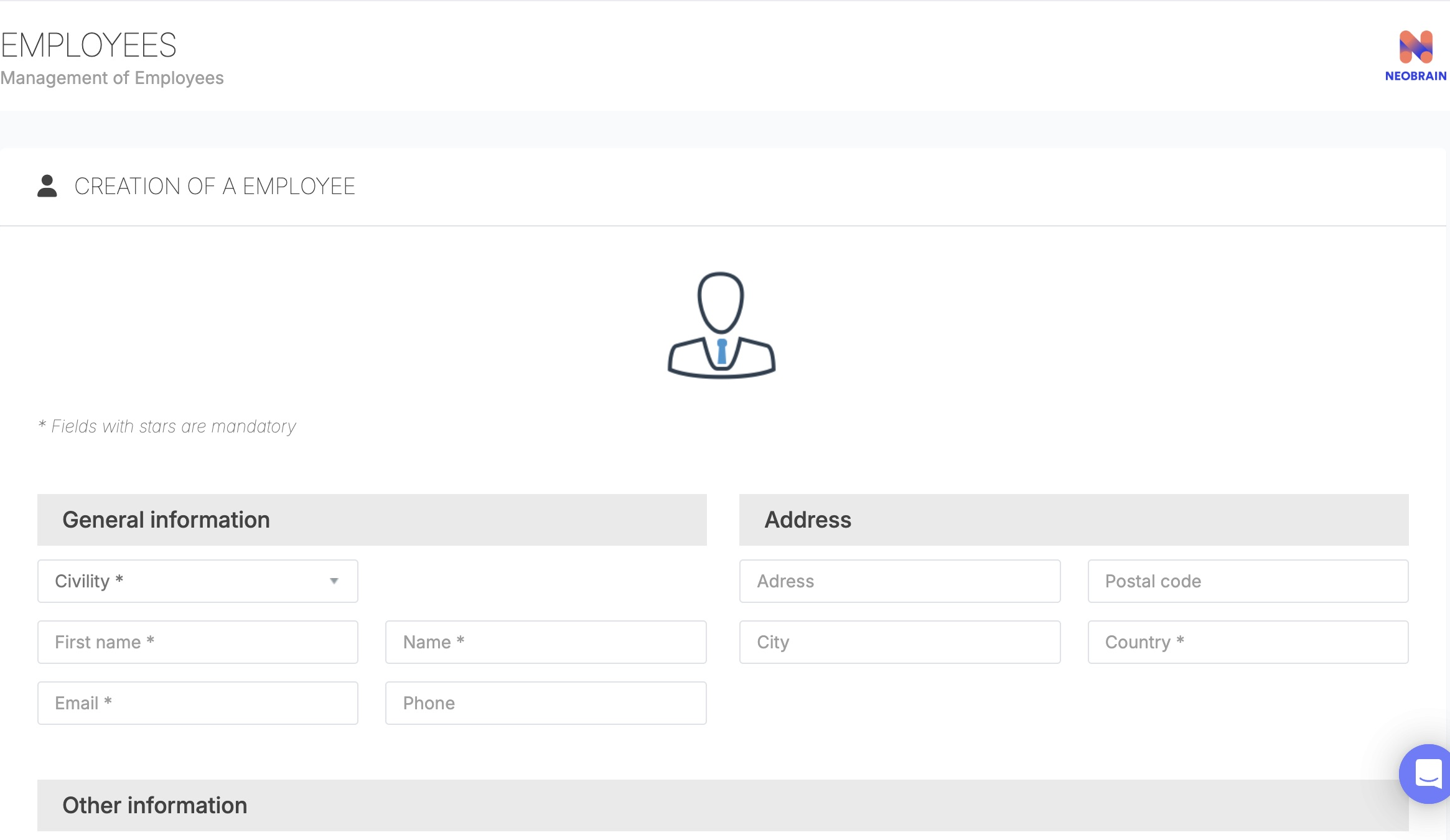
The legacy form groups identity, contact, address, employee details and language. Review the data-processing confirmation and login-details availability before creating the employee.
The legacy Collaborator’s post is a free-text field, separate from the reference Job in the redesigned form. Creating an employee does not automatically assign application roles or visibility groups; configure those separately in Roles and permissions.
Use the legacy employee list
Open Employees → List of Employees. This table can include company-specific columns, filters and saved display preferences.
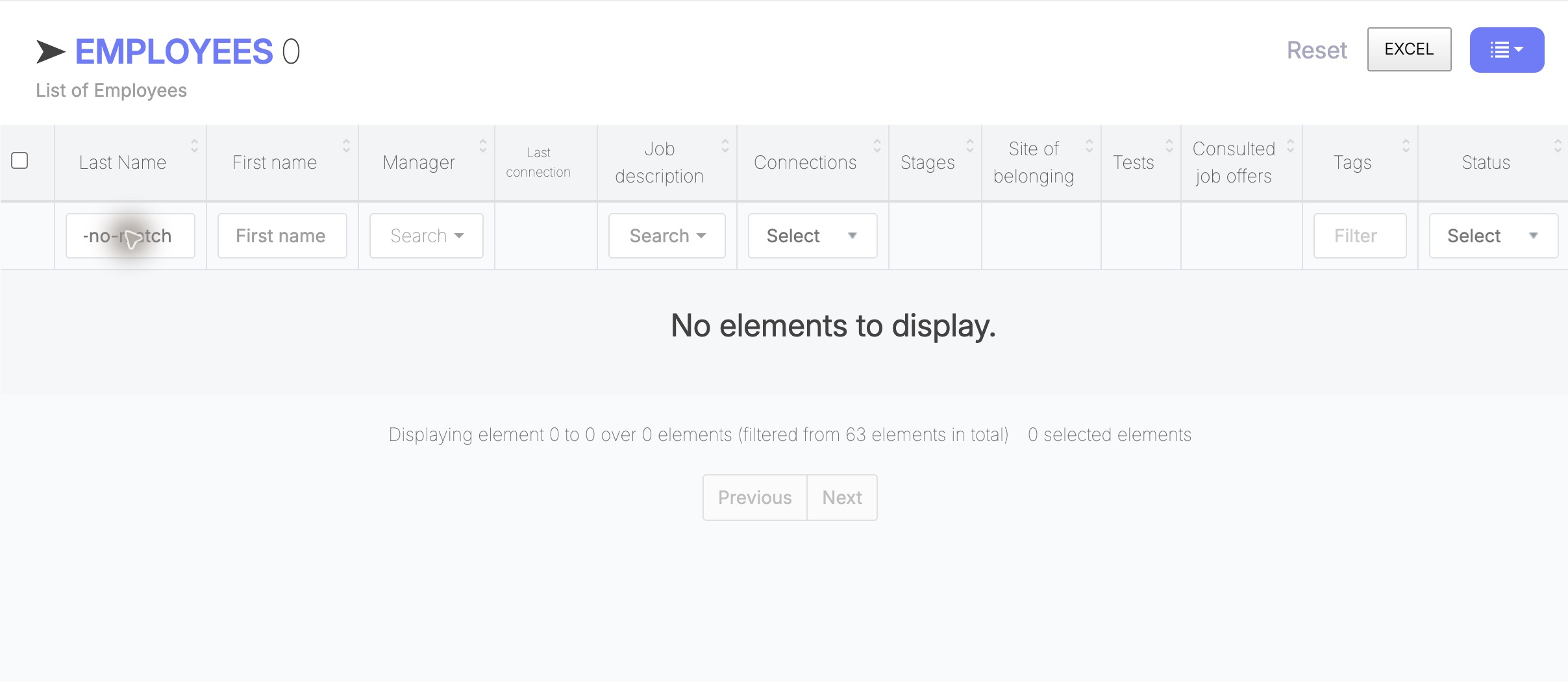
Legacy filters appear in the table columns. Clear an unmatched criterion or choose Reset to broaden the list; these controls are separate from the redesigned-list filters.
Use the name fields to search by first or last name. Manager, job, site, status and group filters depend on the columns enabled for your company. The header checkbox selects visible results; review the selection before using an action. EXCEL exports the list according to the access and filters available to your account.
View your own profile
Employees use Personal space → Profile for their own information and assigned activities. User creation, account status, employee populations and role administration require separate company-administration access.

The personal navigation provides employee features. Account administration is available only through an authorized company workspace.
Troubleshooting
| Situation | What to do |
|---|---|
| A menu or employee record is unavailable | Ask an administrator to check your workspace, permissions and employee visibility. |
| A search returns no users | Clear or reset the filters and check the current page. |
| The email address is already in use | Open the existing record before creating another account. |
| The employee appears without the selected job | Ask an administrator to check the record before retrying; job assignment and user creation can be separate. |
| Login details cannot be sent | Check whether the company has enabled the Send login details employee option. |
| An account is inactive | Account activation is separate from erasing the employee record and from role assignment. |
Last updated on 3 November 2026