Employee, manager and admin experience — functional guide
SmartMobility can provide separate workspaces for personal activities, team work and administration. Your account only shows the spaces and modules assigned to it. Switching workspaces opens another existing area; it does not add permissions.
Choose a workspace
| Workspace | Typical tasks | How to open it |
|---|---|---|
| Personal space | Your profile, career plan, training, job opportunities and assigned activities | Choose Personal space from Apps or Spaces, then open Home. |
| Manager area | Team modules, employee directory, assigned campaigns and analytics | Choose Manager area from Apps or Spaces, then open Home. |
| Customer administration | Manage users, roles or module access when authorized | Open the applicable Settings area or authorized nextgen admin module. |
| Platform administration | Manage platform-level access and authorized platform environments | Choose Administrator area only when it is available to your account. |
Customer administration and platform administration are different. A tenant administrator usually works through company Settings or an authorized nextgen admin module. The legacy Administrator area is a privileged platform console. An Admin space in nextgen is also governed by its own permissions. For access setup, see Configuration; for implementation distinctions, see Technical.
Switch between personal and manager work
From Personal space to Manager area
- Open Apps in the top-right corner of the personal header.
- Select Manager area. The company navigation and manager home open.
- Choose Home in the company navigation whenever you want to return to the manager dashboard.
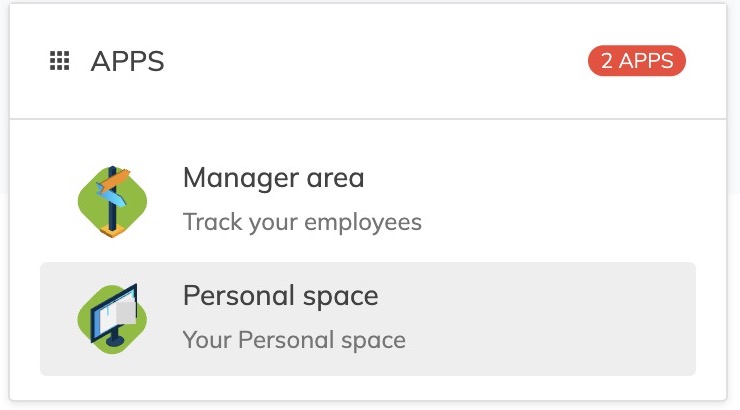
The Apps menu lists the Personal space and Manager area available to this account. Select Manager area to open team work; the menu itself does not change the active workspace.
From Manager area to Personal space
- Open Spaces in the top-right corner of the manager header.
- Select Personal space. The personal navigation and Home page open.
- To return, open Apps or Spaces and select Manager area.
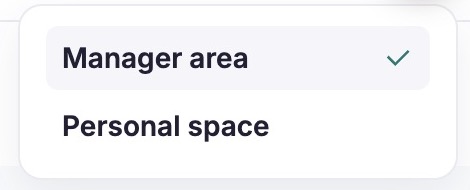
The active workspace is marked in the selector. Choose Personal space to work on your own profile; choose Manager area to return to team tasks.
The names or selector style can vary with the interface generation and workspace language. If your header uses Spaces instead of Apps, use that menu. Only destinations available to your account appear.
Use the personal home page
- Open Personal space → Home.
- Choose a card or a module in the header for the activity you want.
- Return to Home when you want to choose another personal activity.
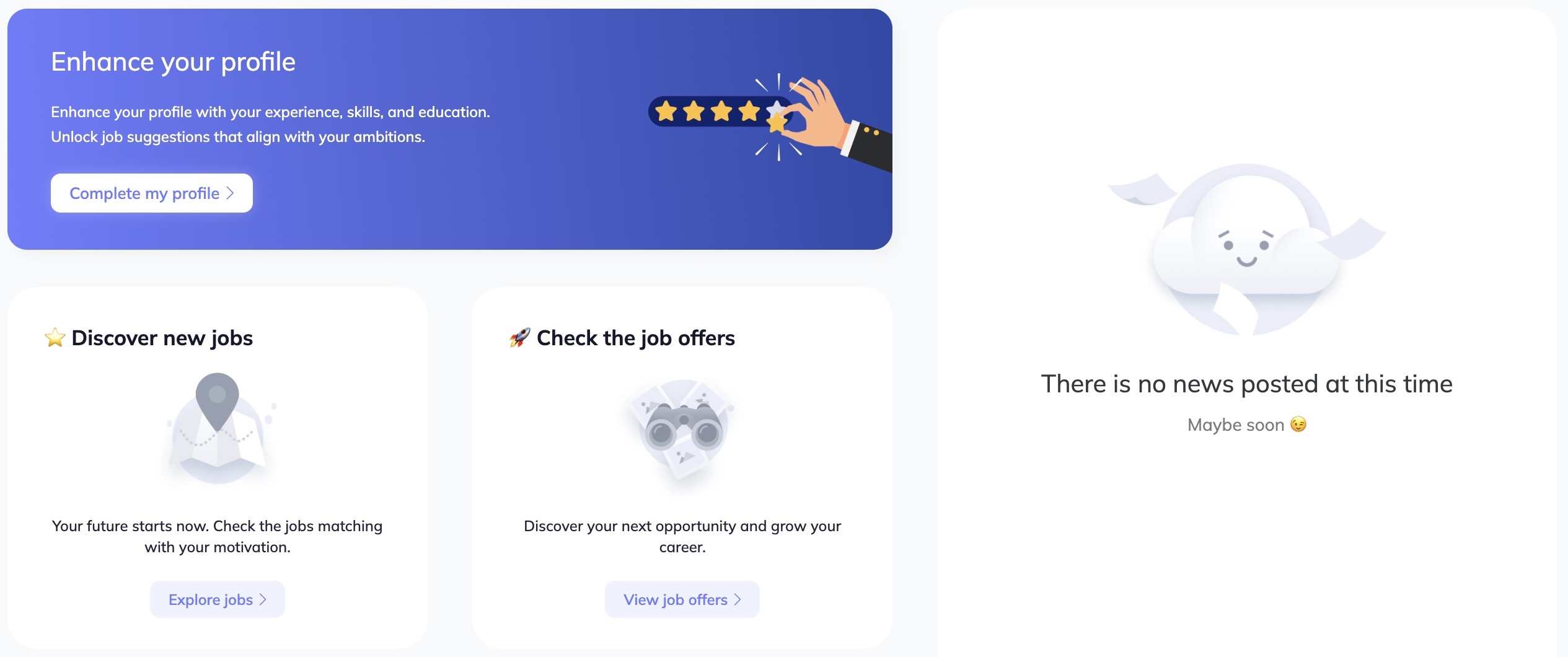
The home page provides shortcuts to profile completion, job discovery and job offers. The news area can be empty while the other shortcuts remain available.
| Home item | Use it to |
|---|---|
| Complete my profile | Open your profile and maintain your experience, skills and education. The profile is updated when you save changes in the profile workflow. |
| Explore jobs | Browse internal roles and career opportunities. This is separate from applying to an open job offer. |
| View job offers | Open the job-offer area available to your organization. Its layout depends on the configured experience. |
| News | Read published items available to you. An empty news area does not prevent using other home-page links. |
The header can also include Profile, Career planner, Trainings, Job offers, Interview, Talent Marketplace and Feedbacks. Available modules and labels depend on your account and organization. The language selector changes interface labels; it does not change your workspace or access.
Use the manager home page
- Open Manager area → Home.
- Expand a sidebar category such as Employees, Jobs and skills, Performance, Trainings, Mobility, Analytics or Settings.
- Select the module for your task. The module opens within the manager experience.
- Choose Home to return to the dashboard.
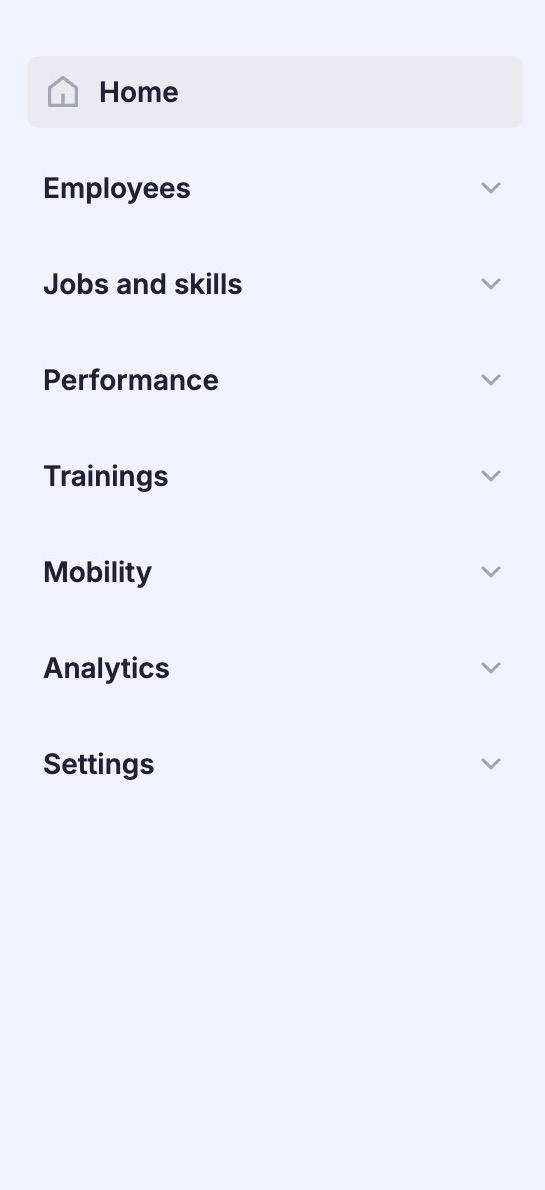
Expand a category to find its available modules. Opening a category changes the navigation display; it does not change your role or permissions.
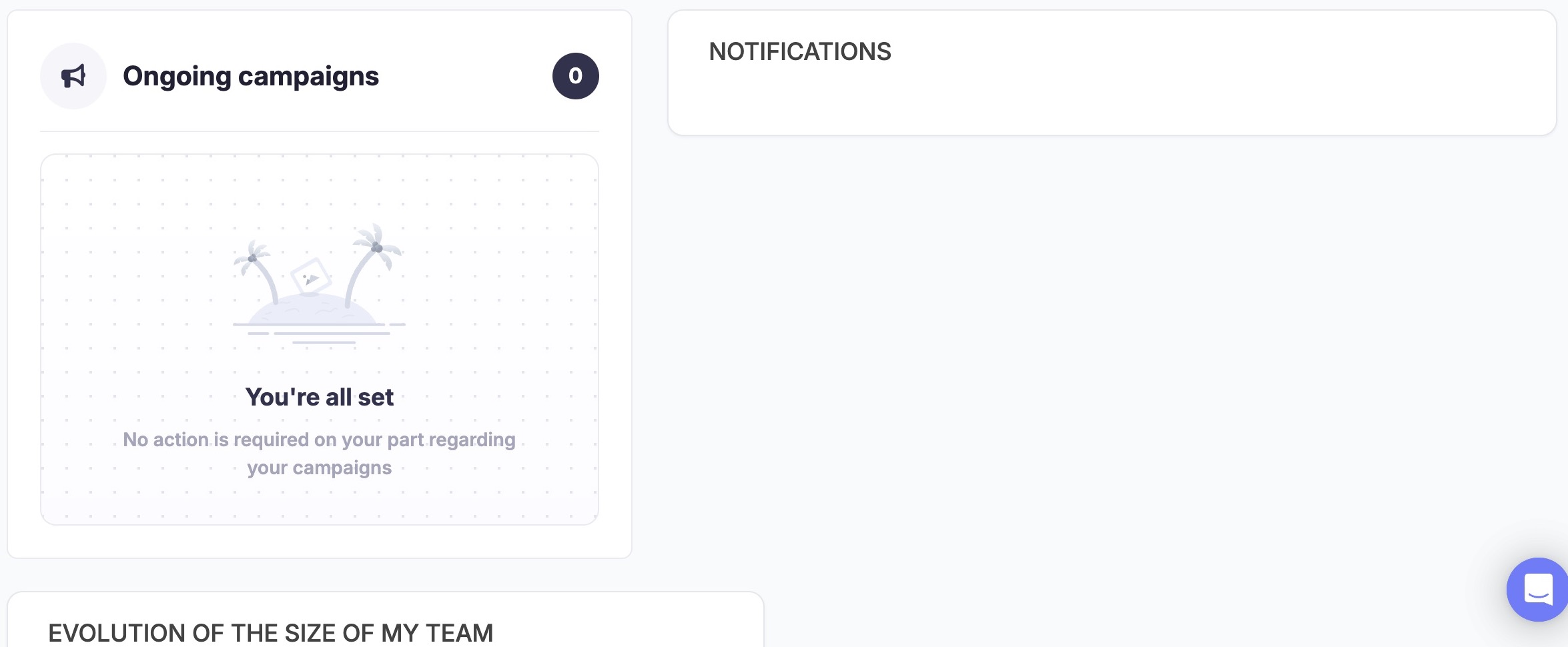
The dashboard brings together assigned campaign actions, notifications and a team-size overview. The campaign panel can show that no action is currently listed for you; use the sidebar to continue to other available work.
- Ongoing campaigns: open a listed item to continue the assigned campaign. If no item is shown, open the relevant module and check its assigned tasks, or ask the campaign owner to confirm your participant role and campaign dates.
- Notifications: review activity presented on the dashboard. Other communication channels may be available separately.
- Evolution of the size of my team: view the team-size overview. For broader workforce analysis, open Data Analysis.
- Search an Employee: search for an employee profile available to your account. Search results depend on your access and the employee visibility configured for your role.
- Menu: expand or collapse the company navigation. Settings opens the administrative destinations available to your account.
A manager may also have a personal workspace. Use the workspace selector when moving from team actions to your own profile or career activities; each module continues to apply its own permissions.
Continue an assigned campaign task
- Open Manager area → Home and select an item under Ongoing campaigns when one is listed.
- Review the campaign name, phase and task shown in the destination before entering information.
- Complete the task using its module guide. A draft, a submitted response and a signed or completed campaign are separate states; follow the state shown by that module.
- Return to Home or the campaign module to continue other assigned work.
If no campaign item appears, check the campaign module for an assigned task. Ask the campaign owner to confirm your participant or evaluator role, campaign dates and current phase. A missing home-page card does not by itself establish that you lack access to the module.
Use the platform Administrator area
The legacy Administrator area appears only for accounts with platform-administration access. Customer user and role management is usually performed in company Settings or an authorized nextgen administration module instead.
- Open Spaces → Administrator area when the option is available.
- Use Direct access to find an authorized platform by name or type.
- To return to one of your own workspaces, use the LOGIN action on the relevant Employee account or Account manager card.
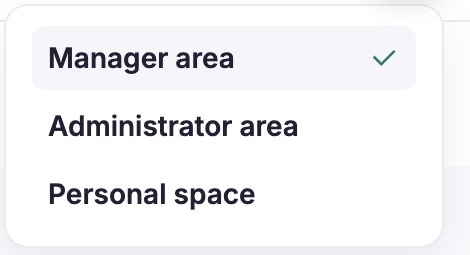
Administrator area is a separate destination from Manager area and Personal space. Its availability depends on platform-level access.

Use the name field and Type selector to narrow the authorized platform list. These controls filter the list; they do not grant access to a platform.
| Control | How to use it |
|---|---|
| Search | Enter part of a platform name to narrow the list. Clear the field to remove the name filter. |
| Type | Choose All, Demo, Live, Test or Inactive to filter by platform type. Choose All to remove this filter. The menu labels remain in English in the French interface. |
| Employee account / Account manager | Use LOGIN to return to the corresponding workspace associated with your account. |
| Disconnect | Ends the current session. Use only when you intend to sign out. |
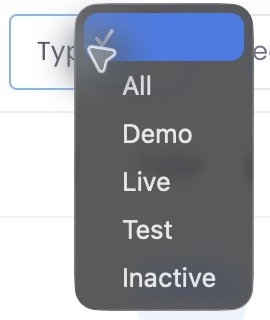
The Type menu offers All, Demo, Live, Test and Inactive. Select a type to narrow the list, or All to remove the type filter.
Resolve access problems
| What you see | What to do |
|---|---|
| Only one workspace is available | Ask your administrator to confirm which workspaces are assigned to your account. |
| A menu entry is visible but the page denies access | Ask the administrator to check both the module permission and the employee population visible to your role. |
| No Administrator area appears | Use the customer Settings workflow if you administer your organization. Contact the platform owner if you need platform-level access. |
| A campaign is not listed on Home | Open the relevant module or ask the campaign owner to confirm your assignment. |
| A module is absent from the navigation | Confirm the active workspace, then ask an administrator to check module activation and your role permissions. |
| An assignment opens but no action is available | Check the campaign phase, your participant role and whether the campaign is open for responses. |
| A page looks different from this guide | Check whether you are in Personal space, Manager area or an embedded nextgen module. Labels and available features can vary by workspace and interface generation. |
Related guides
- Configure workspace access and home-page options
- Roles and permissions
- User management
- Technical architecture and interface differences
Interface generations
The workspace switch can place legacy and redesigned modules under the same navigation shell. The shell changes where a module appears; it does not establish that the module’s workflow or permissions have migrated. Use the generation and entry point shown by the module guide, and ask an administrator when an expected area is unavailable.
Last updated on 3 November 2026