Formulaires — legacy functional guide
Find a legacy questionnaire
Open Performance → Questionnaires to browse questionnaire cards, search and filter the library, or create, edit and copy a questionnaire. Copying creates a separate saved item; it is not a preview.
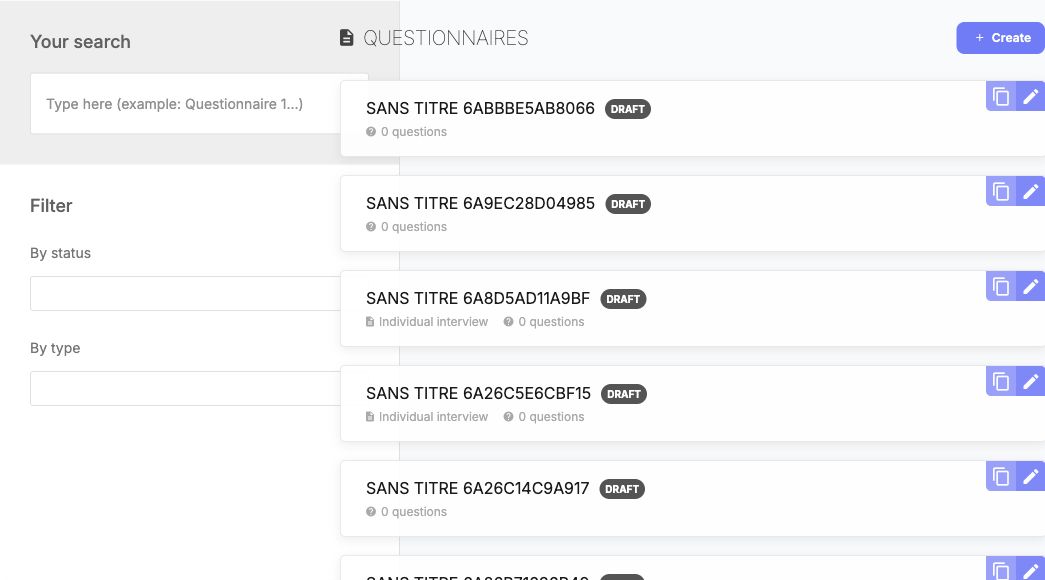
Use the title, status and type criteria to locate the intended questionnaire. Copying creates a separate stored questionnaire; it is not a preview. Company-authored titles can use a different language from the interface.
Find an interview questionnaire
- Enter part of a title in Your search if needed.
- Set By status and By type, then select Search.
- Read the matching cards' title, type, status and number of questions. Open the existing form's detail/edit link when authorized.
- Use Reset the search to remove the criteria and broaden the results.
| Control | Choices and effect | Defaults / clearing / example |
|---|---|---|
| Your search | Free text for questionnaire search. | Enter a distinctive part of the title, then search. |
| By status | All, Draft, Published, Archive. | Choose a status to narrow results; choose All to remove this criterion. |
| By type | All; questionnaire/test, interview support, mobility, 1-to-1, People Review and 360 Feedback types. Wording varies by locale. | Choose the type that matches the intended process. 1-to-1 and interview support are separate legacy types. Choose All to remove this criterion. |
| Search / Reset the search | Apply or clear criteria. | Search with the selected criteria or reset them to broaden the results. |
| Pagination | Switches result pages. | Page 1 initially; additional pages depend on matches. |
| Create / edit / copy | Opens the authoring workflow or duplicates content according to the selected action. | Rights apply. Read configuration before changing a form already used by a campaign. |
A saved legacy draft can be checked before any campaign assignment: reopen it from Performance → Questionnaires, then inspect the title, type, status and question list. The saved-draft procedure illustrates a persisted open question and its required setting. A builder preview is not a respondent submission; answer validation and completion remain tied to the assigned campaign.
Find a redesigned form
Open Performance → Forms [new]. The Forms page lists each form’s name, question count, creator, creation date and status.

Use name, creator, publication and read-only filters to locate a form. Read only filters campaign usage; it does not change editing permissions.
Search and inspect forms
- Open Performance → Forms [new].
- Enter a name or creator criterion, and use publication or read-only filters when needed.
- Review the matching form’s identity and status. Clear the relevant filters to broaden the list.
The controls below refine the displayed list; they do not edit a form.
| Control | Choices / initial state / clearing | Result and practical use |
|---|---|---|
| Search by name | Text; blank initially. Clear to remove. | Search for a distinctive part of the form title. |
| Created by | Text; blank initially. Clear to remove. | Use the creator information available to you to narrow the list. |
| All forms | Single selection: All forms, Draft, Published. Initially all. | Restricts publication status. Select All forms to clear. |
| Read only | Unrestricted, yes or no through the shared boolean filter. Initially unrestricted. | Narrows by campaign usage. It does not change permissions, publish a form or lock it manually. |
| Name / Created at | Sortable fields when available. | Sort the matching forms; this does not change their content. |
| Pagination | Page numbers and Previous/Next. | Use the page controls to browse additional results. |
| Row selection / status menu / create | Conditional controls. | Actions can change form data; check the form's usage and rights before using them. See configuration for safe setup. |
Search criteria are temporary; publication, copying and saving are persistent actions.
Understand the form before assigning it
- Read the selected form’s sections, question wording, required fields and intended audience.
- Check the questionnaire’s content language separately from the interface language.
- Review any generated content before saving or publishing, then follow the campaign’s assignment procedure.
The nextgen editor lets an administrator add sections and typed questions, set their audience and required status, and review the form overview. The form's content language is independent of the interface language. Save the form before adding translations; review every title, instruction, evaluator wording and choice in each locale. Preview the language variants before publishing. Publication makes the form selectable; it does not assign employees or start a campaign.
Generated text needs review before saving or publication. Setup details are in configuration.
Dernière mise à jour : 3 novembre 2026