People Review — redesign functional guide
Nextgen People Reviews
Who can see which employee and which answers?
Access in a redesigned campaign depends on assignment, campaign role, permissions and current phase. An assignment does not replace the required permission.
| Person | Campaign/list visibility | Individual review and answers | Editing |
|---|---|---|---|
| Assigned evaluator | Sees campaigns and employees included in their assignments, subject to any broader campaign role | Can open assigned employees' assessments and answers | Enters assessments during the evaluator phase. Managing other employees does not add them to the assignment. |
| Collective reviewer / committee member | Sees the assigned campaign and its calibration population | Can review campaign assessment information available to the committee | Adds calibration input during the committee phase; committee membership does not automatically permit evaluator-phase edits. |
| Campaign owner or creator | Can access and manage the campaign according to assigned permissions | Ownership alone may not grant access to individual answers | Campaign management, evaluation and committee rights are separate. |
| Reviewed employee only | Being included does not itself grant access | Access depends on a separate employee-facing workflow, if enabled | People Review is not automatically an employee self-assessment. |
| Unassigned manager, HR user or unrelated employee | A role title or reporting relationship alone does not establish access | Access requires the appropriate permission and campaign scope | Confirm assignment and phase with the campaign administrator. |
Campaign lists and exports can show a different population from individual assessments. Being able to see a campaign row does not by itself grant access to every employee answer or matrix view.
Viewing answers and entering them are separate permissions. Depending on the campaign, committee members may be able to review answers before their editing phase. Follow the displayed phase and role guidance.
Illustrative example: a campaign reviews employees A and B. Evaluator M is assigned A; evaluator N is assigned B; C is a committee member; O is an owner only. M reads A's detail and answers, N reads B's, and C can read both. O can see both in the campaign review list, but ownership alone does not open their individual answers. The example uses fictional labels.
Assess and calibrate in a redesigned campaign
- Open People Review in the appropriate space and choose an accessible campaign. Draft campaigns are available from the administrator area, not the personal review list.
- Review the assignment view and current phase. Use the evaluator view for assigned assessments and the committee view for calibration when you have that role.
- Narrow the visible population with search, status and enabled employee fields. Open an authorized employee's assessment or Talent Card.
- In phase 1, enter the enabled company criteria and campaign-specific assessment fields for your assigned employees, then submit the assessment when complete.
- In standby or phase 2, authorized committee members review assessments, record calibration values/comments, flag cases for discussion, and use the matrix controls available to them.
- Follow the campaign's completion process. Export requires its own permission and owner/creator or privileged access check; committee membership alone is insufficient.
Manager assessment, calibration and table or matrix views depend on campaign configuration. Exact labels and enabled actions can vary by company.

The redesigned campaign header provides search, Status, population scope and Create campaign. Narrow the list to an accessible campaign before opening it; search and scope selection do not grant answer access.
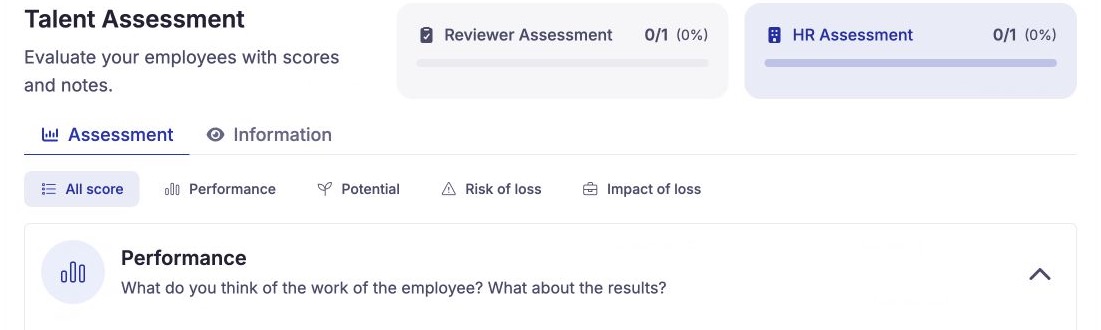
The assessment header separates Reviewer Assessment and HR Assessment, with Assessment and Information tabs and criterion shortcuts. Choose the section relevant to your role and phase.
Nextgen filters and options
| Control | Input, initial state, effect and reset |
|---|---|
| Campaign search | Search by campaign name. Clear the term to return to available campaigns. |
| Campaign status | Filter by one or more available statuses. The personal space may omit drafts. Clear the selections to remove the status filter. |
| All / My reviewees | Choose the population scope offered for your space and role. All still follows your access rights; My reviewees limits the list to your assignments. |
| Employee search | Search within the employees available to you; searching does not expand your campaign access. |
| Assessment status | Filter by one or more available assessment states. Clear the selections to remove this filter. |
| Manager and enabled employee fields | Options depend on employee data and fields enabled for People Review. Some fields allow multiple selections. |
| More filters | Show or hide additional fields. Displaying a field does not select a value. |
| Text/date/choice fields | Available operators depend on the field type. Check results against the criteria you selected. |
| Reset filters | Clears selected statuses and employee-field criteria. It does not change assignments or answers. |
| Table / matrix | Displays data available to your role. Moving a card changes assessment data; it is not a filter. |
| Export | Creates an output subject to your permissions. Review the selected population and available columns before sharing it. |
Available filters depend on the fields enabled for the campaign. For example, select a manager and a location when those filters are available to narrow a campaign while staying within your authorized population.
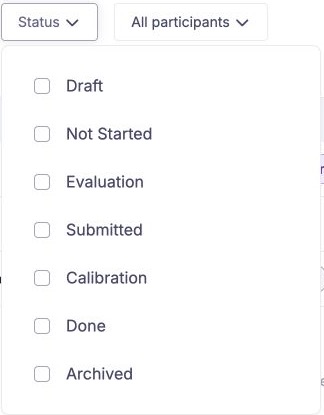
The Status menu uses checkboxes for several campaign states. Select the states you want to display and remove them to broaden the list; filtering does not move a campaign into another phase.
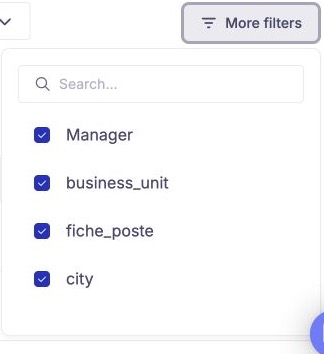
More filters lists the employee fields whose filter controls can be shown. Enable a field, then enter its criterion in the campaign view; choosing a filter does not select employees or grant access.
Collective succession view and campaign completion
The collective succession view is one configured People Review matrix. It groups nominations by reviewed employee and readiness period; it is not the overall assessment matrix for every People Review campaign.
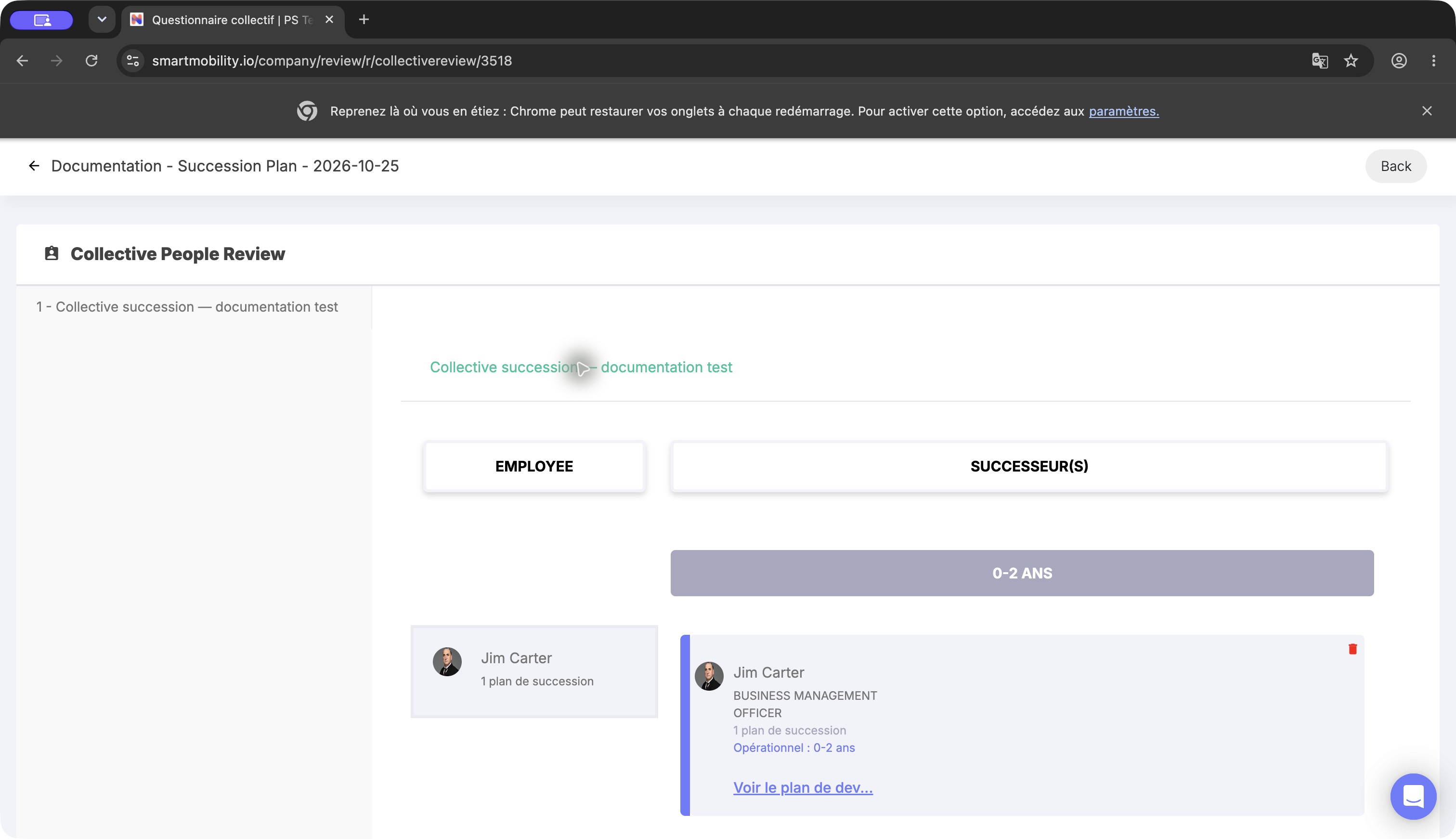
Each card appears in the row for the reviewed employee and the column for its readiness period. Check both coordinates when comparing nominations. The example uses demonstration data, including a self-nomination; it illustrates the board layout, not a real succession recommendation.
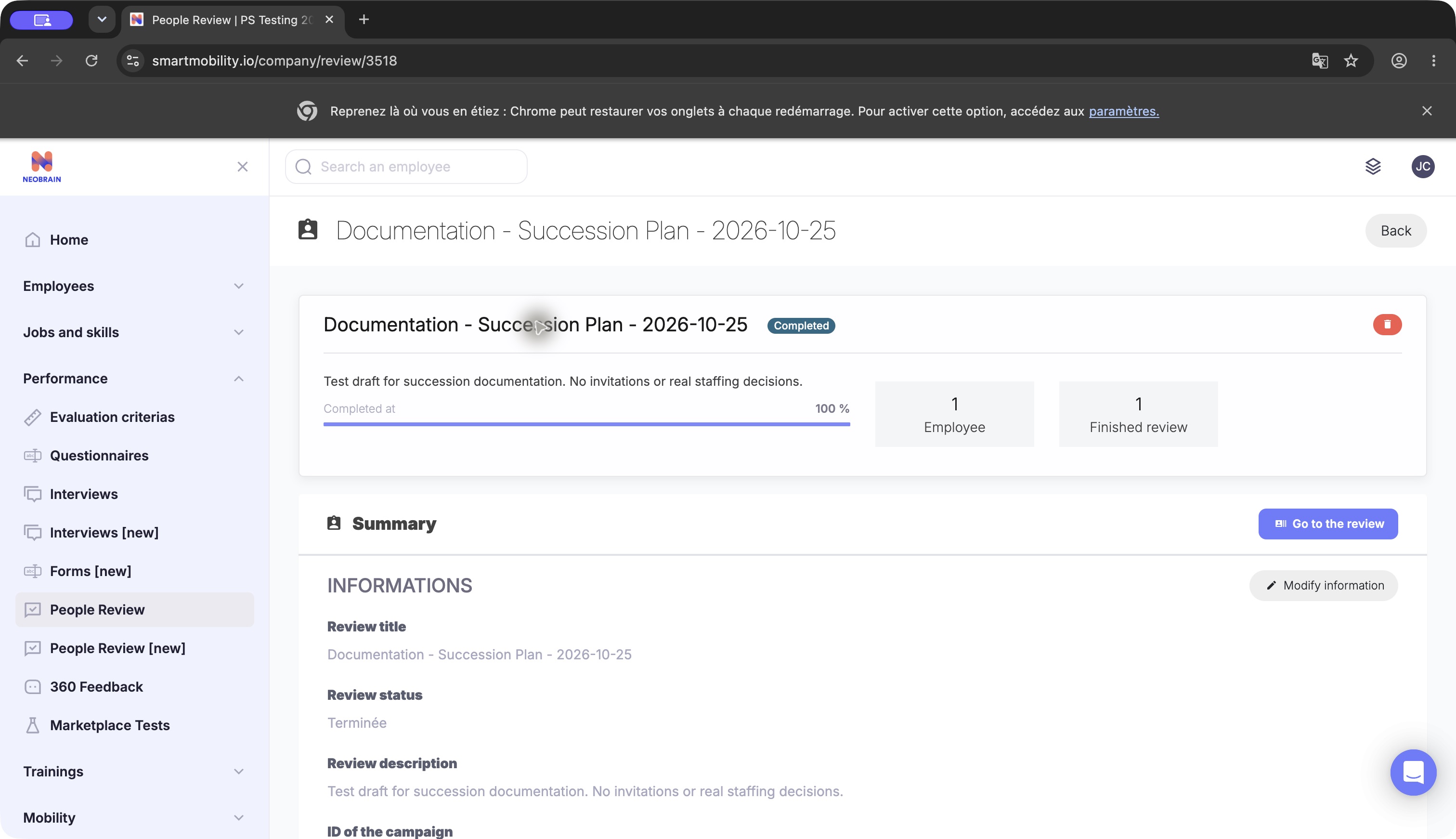
The campaign summary shows the completed state and review progress. Campaign completion and individual signatures or report generation are separate workflow outcomes.
Nextgen forms, custom questions and Talent Cards
Nextgen separates three information sources:
- Company criteria: performance, potential, risk of loss and impact of loss when selected and configured for the campaign. Follow the response type shown for each criterion.
- Campaign-specific assessment questions: text or scale. The People Review campaign owns these questions; the answer validator rejects a question from a different campaign.
- Talent Card evidence from Review Campaigns: administrators select source campaigns and questions. The provider loads answers for the employee being reviewed, paired into self, main-evaluator and second-evaluator slots, including supported nested choice subquestions. Unanswered questions are omitted; a configured source with no answers can return empty information.
A Talent Card can display selected employee interview answers to authorized People Review evaluators and committee members. It does not grant the reviewed employee reciprocal access to calibration information. Do not assume the legacy PDF-visibility option controls this nextgen read path. Full parity with the source form's answer-sharing rules is not established.
Employee visibility in redesigned People Review
Being reviewed does not, by itself, create a nextgen People Review reader or evaluator role. An employee can complete their own interview in a separate Review Campaign if assigned there. Selected answers can subsequently appear in a People Review Talent Card. An employee who is also an assigned evaluator or committee member uses that separate responsibility and its authorized population.

The personal workspace provides profile and interview entry points. Employees can supply interview information through an assigned interview; being reviewed does not grant calibration access.
Being reviewed does not establish access to potential, loss-risk scores, committee comments or other employees' assessments. Access follows the configured roles and workflow.
Troubleshooting
| Symptom | Checks |
|---|---|
| Menu missing or page denied | Ask the administrator to check feature activation, your role permissions and campaign assignment. A visible menu does not necessarily provide access to every employee record. |
| Campaign visible, employee absent | Check participation, relationship scope in legacy, assigned evaluator/committee status in nextgen, and active filters. |
| Campaign table visible, individual detail denied | In nextgen, check evaluator/committee membership separately from owner/creator status. |
| Form readable but not editable | Check the current phase and whether your role can edit at this step. |
| Talent Card empty | Verify source campaign/question selection and whether the reviewed employee has answers. |
| PDF omits a question | In legacy, check question-level PDF visibility; do not change a live answered template as a diagnostic shortcut. |
Interface generations
People Review uses distinct legacy and nextgen journeys. The available forms and actions depend on campaign generation, role and permissions. See the technical guide for implementation-specific differences.
Dernière mise à jour : 3 novembre 2026